Combine JPG Files Into One PDF: Order, Size and Names
To combine JPG files into one PDF, select them all at once in GrabCast Images to PDF, click Sort A to Z so IMG_2 lands before IMG_10, drag any stragglers where they belong, and click Create PDF. Each picture becomes a page, the tool reports the page count and final size in megabytes, and nothing leaves your computer. The hard part with a big batch is rarely the conversion; it is getting 20 or 30 pictures in the right sequence and keeping the result small enough to email. This guide covers ordering, size budgets for common portals, and naming, using expense receipts and a photographed contract as examples.
📚 Try the Images to PDF tool now — freeOpen →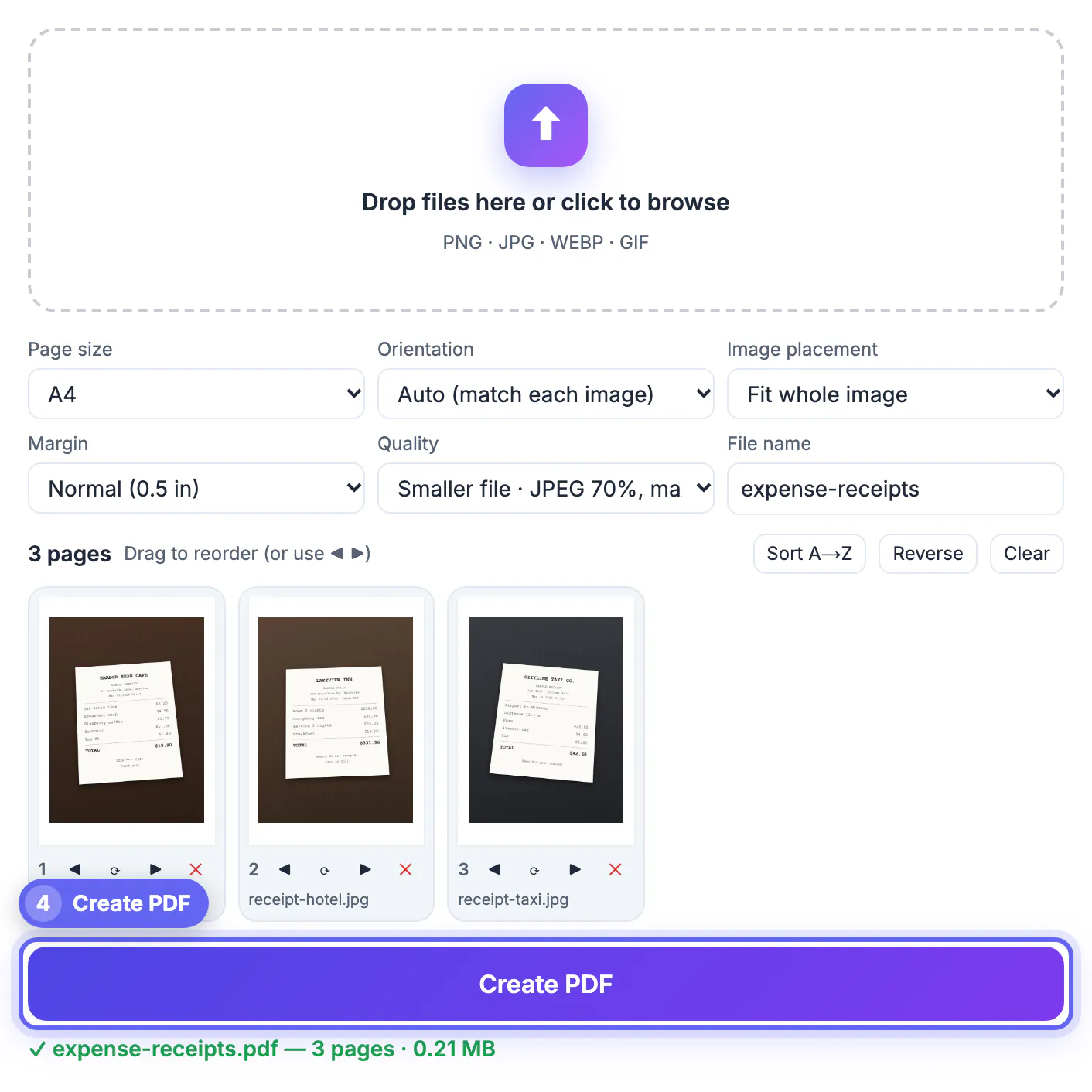
An accounts-payable clerk who receives 18 separate receipt photos has to open each one, guess the order and save them individually, and a missing attachment is easy to overlook. A single PDF with numbered pages is reviewed in one pass, prints in one job and uploads in one slot, which matters on portals that accept only a single document per field. It also preserves your intended sequence: pages 1 to 6 of a contract stay pages 1 to 6 instead of arriving shuffled by upload speed. Many benefits, visa, insurance and university portals also reject JPG outright and ask for PDF only, so combining is often mandatory rather than merely tidy.
Get the sequence right before you combine
Ordering is where most batches go wrong, and the tool gives you four ways to fix it.
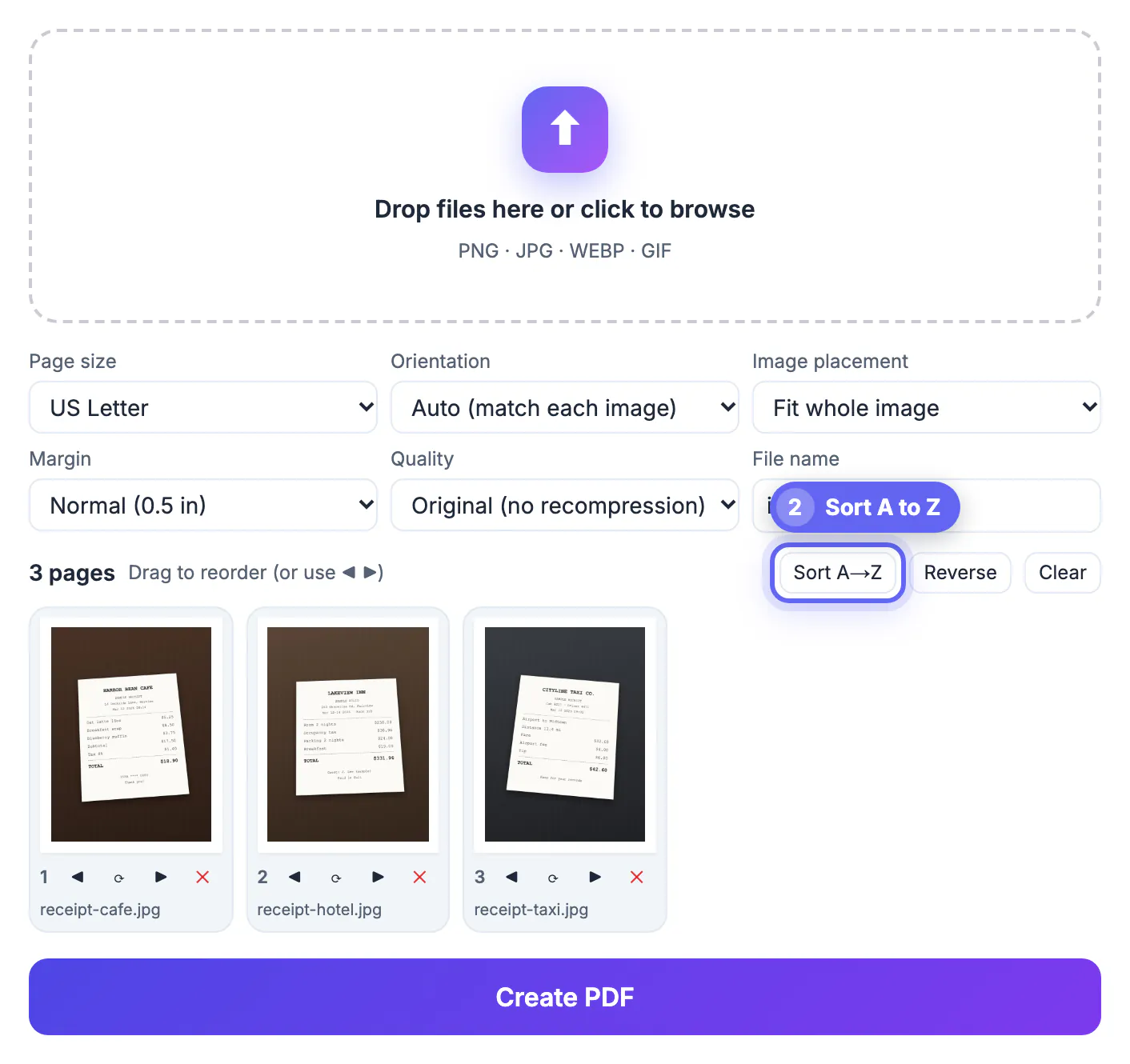
- Sort A to Z uses natural numbering, so Receipt 2 comes before Receipt 10 and camera names like IMG_0998 and IMG_1003 follow shooting order.
- Reverse flips the whole batch, handy when a scanner or camera app saved the last page first.
- Drag any thumbnail to a new position on a computer; on a touchscreen, use the arrow buttons under each page.
- The rotate button turns a sideways shot by 90 degrees, and the red cross removes a duplicate or a blurry retake.
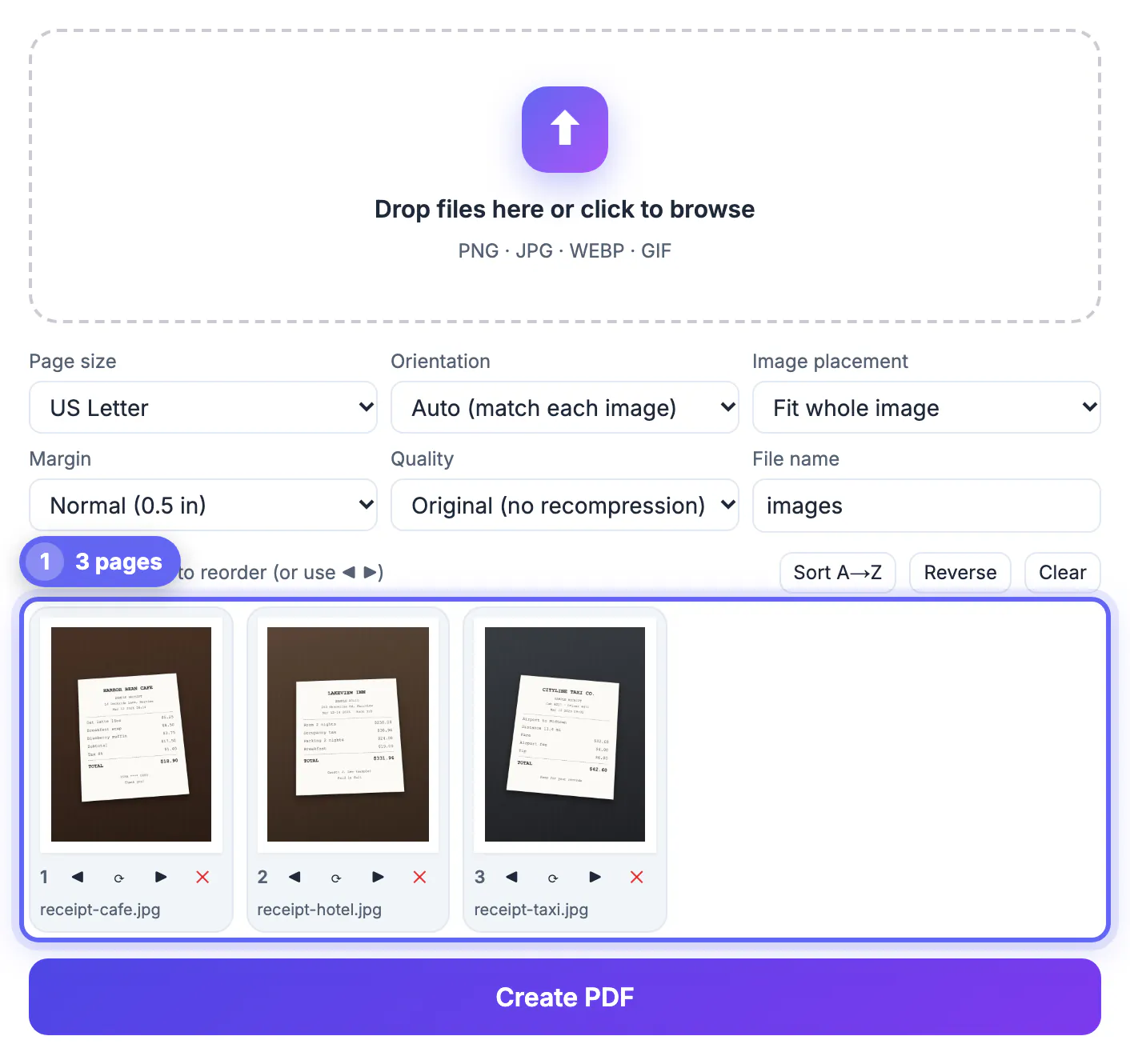
A reliable routine: rename or shoot pages in order, add everything at once, click Sort A to Z, then scan the numbered thumbnails for anything out of place. Each thumbnail previews the real page with your current page size and margins, so what you see is what the document will contain. You can also add more pictures later; additions join the end of the list.
Keep the combined PDF under upload limits
Phone cameras produce 2 to 5 MB per shot, so 20 receipts can easily reach 60 MB. The Quality menu controls that.
- Original embeds each JPG byte for byte, with no recompression. Output size roughly equals the sum of the inputs, which suits scanner output that is already compact.
- High re-encodes at JPEG 85 percent, capped at 2,400 pixels on the long edge; text on receipts and forms stays crisp.
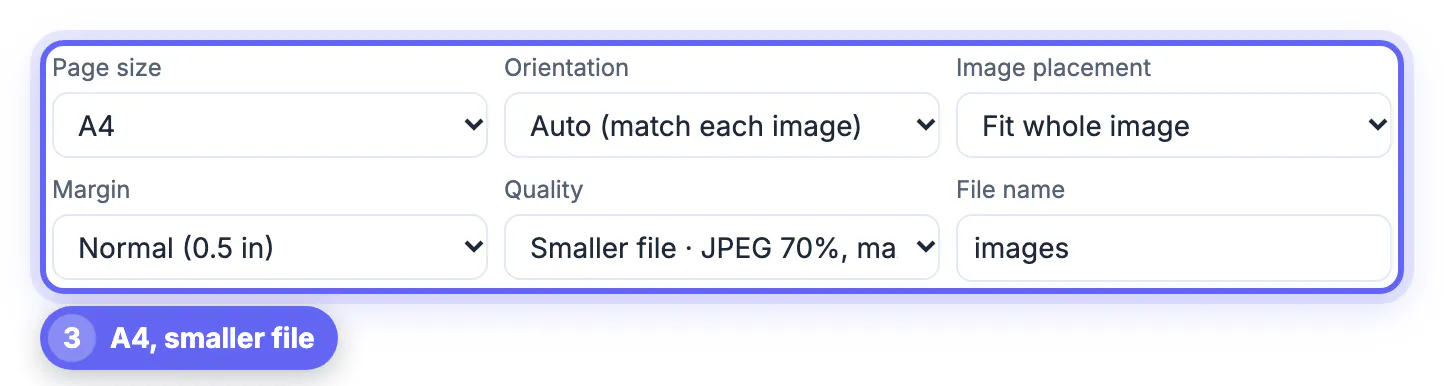
- Smaller file re-encodes at JPEG 70 percent, capped at 1,600 pixels, usually cutting camera shots to a few hundred kilobytes a page.
- After saving, the status line shows pages and megabytes, so you can rerun with a lighter preset if needed.
Typical caps to aim for: Gmail and Outlook attachments stop around 20 to 25 MB, and many government and university portals cap uploads at 2, 5 or 10 MB. For 20 receipts headed to a 10 MB expense system, Smaller file is the safe first choice. If a batch is still too large, run the result through Compress PDF or split it by month.
Page size, margins and names that look professional
Receipts and document pages look best on a standard paper size rather than raw photo dimensions.
- Choose US Letter for American offices, A4 for Europe, US Legal for long legal pages, or A5 for small booklets.
- Orientation Auto matches each picture, so a wide receipt strip becomes a landscape page next to portrait pages.
- Fit whole image keeps every edge visible; Fill page crops the edges to cover the sheet edge to edge.
- The 0.5 inch default margin gives a printed look; No margin suits pictures that already include a white border.
Fit to image is the exception to avoid for paperwork: it makes each page the pixel size of the photo, so a 4,000 pixel shot becomes a page more than 50 inches wide. Viewers open it at an odd zoom level, printing at actual size crops it, and some portals reject non-standard page sizes. Before clicking Create PDF, type a descriptive name, for example expenses-2026-09-acme, instead of the default images.
Combining JPGs versus merging existing PDFs
Images to PDF starts from pictures. If some of your pages already exist as documents, use a different tool for the final step.
- All pictures: combine them here in a single pass.
- Pictures plus an existing document, such as a cover letter: convert the pictures here, then join both documents in Merge PDF.
- A finished document needing a page moved or deleted: use Organize PDF instead of rebuilding from photos.
- PNG, WebP, GIF and iPhone HEIC pictures can join the same batch; HEIC is converted automatically.
Everything runs in the browser, including the HEIC conversion, so receipts with card digits and contracts with signatures stay on your machine. For very large batches of 100 or more high-resolution photos, work in chunks of 30 to 50 to keep an older laptop responsive, then merge the parts.
Step-by-step
Common mistakes to avoid
Pro tips
Frequently asked questions
Is there a limit on how many JPGs I can combine?
There is no fixed limit, since everything runs in your browser. Practical limits come from your device memory; batches of 50 or so phone photos work well on most laptops.
Will my JPGs lose quality?
Not with the Original preset, which embeds each JPG without recompression, unless you rotate a page, which requires re-encoding that page at high quality. High and Smaller file deliberately re-encode to reduce size.
Can I reorder pages on my phone?
Yes. Drag-and-drop is designed for mouse use, so on touchscreens use the left and right arrow buttons under each thumbnail to move a page.
Are my pictures uploaded?
No. GrabCast Images to PDF reads, arranges and writes everything inside your browser tab, so the pictures never reach a server.
Can I mix JPG and PNG in one document?
Yes. JPG, PNG, WebP, GIF and HEIC can all go in the same batch; each becomes its own page in the order you set.
Combining JPGs is mostly about order and size: add the whole batch, sort A to Z, fix stragglers, pick Letter or A4 with a sensible quality preset, and give the result a clear name. The status line tells you the page count and megabytes, so you know it will fit before you hit send.
Related guides
Browse more: all PDF guides · the Images to PDF tool