Word to PDF in Your Browser: Page Size, Margins, Text
To convert Word to PDF for free without installing anything, open GrabCast's Word to PDF tool, pick a page size and margins, and drop your .docx file into the box. A PDF with real, selectable text downloads a few seconds later, and the document is processed inside your browser rather than on a server. This guide covers the two settings that matter, what the preview tells you, and when the built-in Print option or Word's own export is the better choice.
📄 Try Word to PDF now — freeOpen →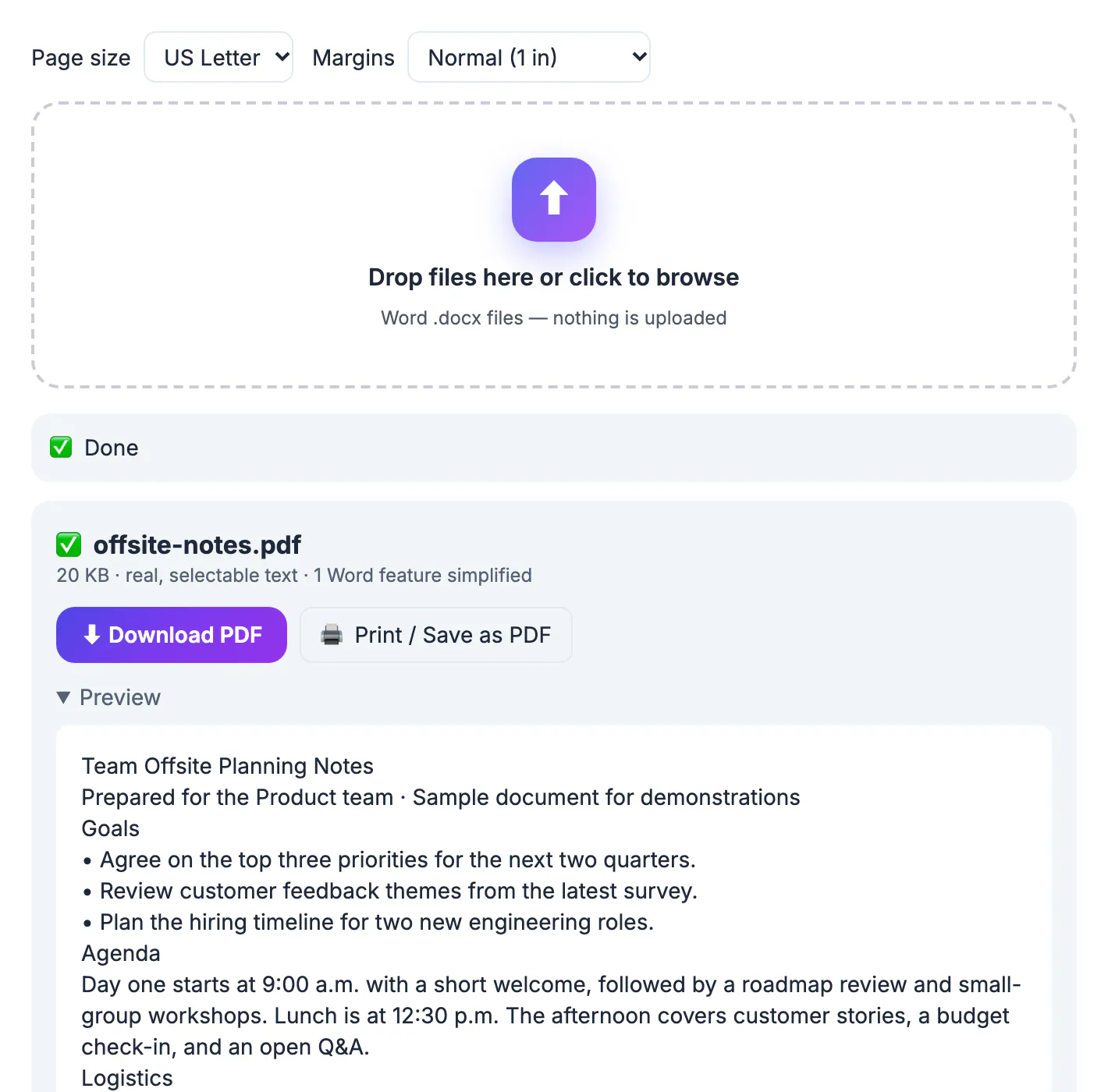
A .docx looks different depending on who opens it. Fonts that are missing on the recipient's computer get swapped, line breaks move, a table that fit on page one spills onto page two, and tracked changes or comments you forgot to accept suddenly appear. It can also be edited, accidentally or not. A PDF freezes the content as you intended: the same pages on a phone, a Chromebook or a print shop's computer, with text that can still be searched and copied. That is why schools, landlords, HR departments and government portals ask for PDFs, and why converting is the last step before you hit send.
The two Word to PDF settings that matter
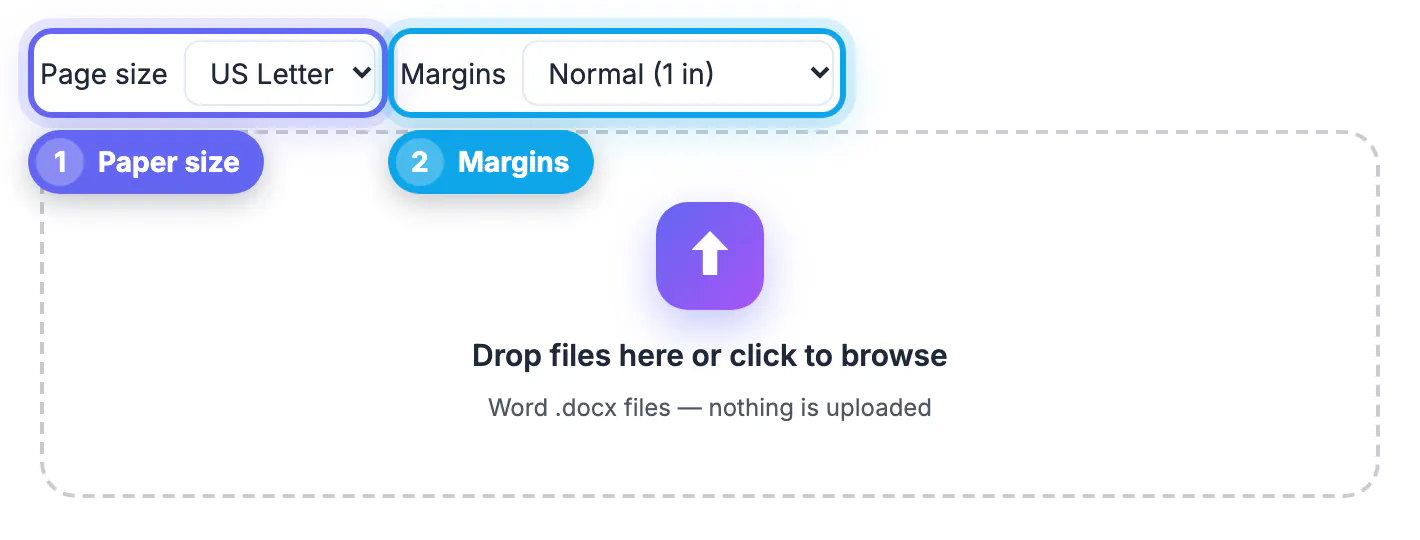
Before you drop a file, set the page size and margins at the top of the tool. They apply to every document converted in that session.
- US Letter, 8.5 by 11 inches, is the default and the right choice in the United States and Canada.
- A4, 210 by 297 millimeters, is standard in Europe and most other countries; pick it when the recipient is abroad or a portal asks for it.
- US Legal, 8.5 by 14 inches, is mainly for legal filings and some contracts.
- Margins can be Normal at 1 inch, Moderate at 0.75 inch or Narrow at 0.5 inch.
Wider margins look more formal and leave room for hole punches and printer edges. Narrow margins fit more on each page, which helps with long tables, but many home printers cannot print right up to a 0.5 inch edge without clipping.
What the converter keeps from your document
The tool reads the structure of the .docx with the open-source mammoth library and lays it out as a new PDF with pdfmake. The result is real text, not a picture of each page, so it stays searchable and screen readers can read it.
- Headings, including the Title and Subtitle styles, and short bold lines that act as headings.
- Bold, italic, links, bulleted and numbered lists, and block quotes.
- Tables, sized to the page width, with the first row repeated when a table crosses a page.
- Images in PNG and JPEG, plus other raster formats converted automatically; old EMF or WMF vector drawings are skipped and counted in the result.
- Page numbers such as 1 / 3 in the footer whenever the PDF has more than one page.
Text is set in a clean standard font at 11 points. Custom fonts, text boxes, columns and Word's own headers and footers are simplified, and the result card counts how many Word features were simplified so you know to check them.
Checking the PDF before you send it
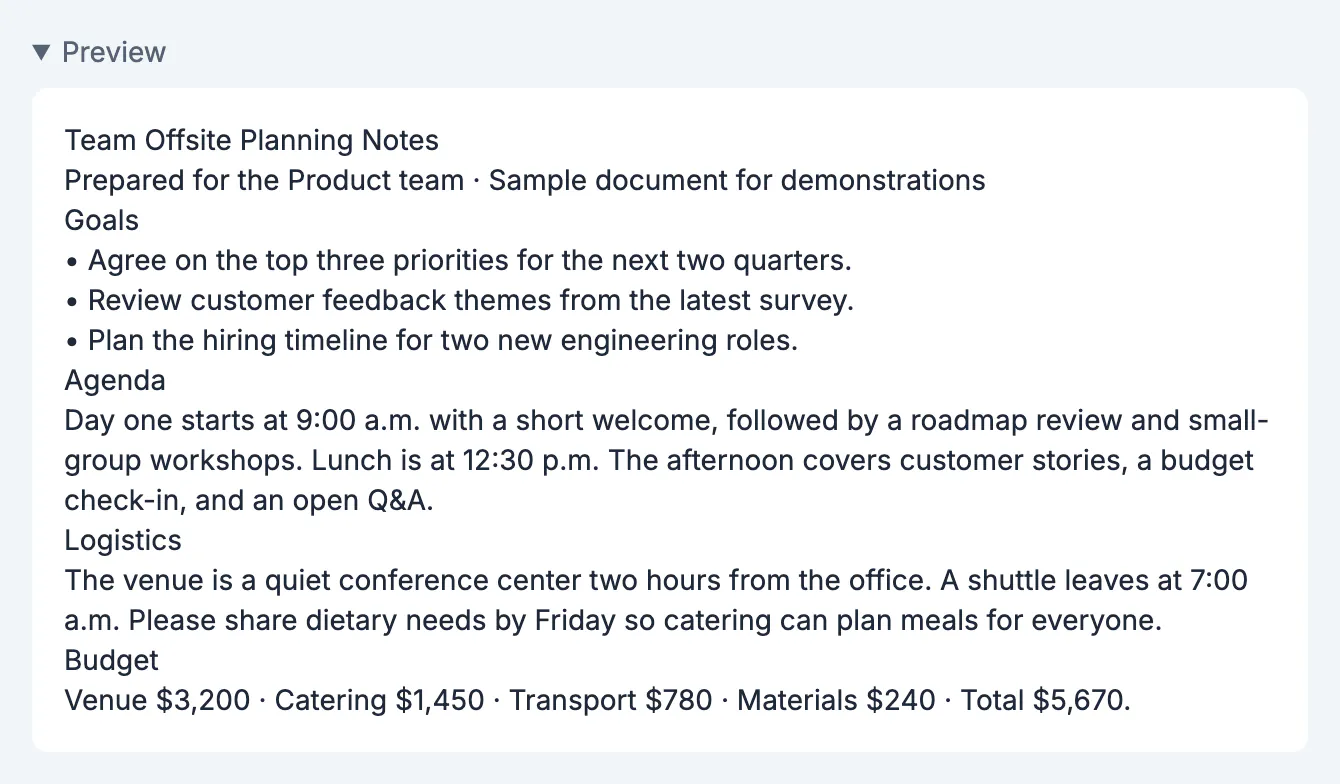
Each converted file gets a card with its name, size and a note that the text is real and selectable. A single file also downloads automatically. Open the Preview under the card to read the content as it will appear: in the offsite notes example, the title, the Goals bullets, the Agenda paragraph and the budget line are all there.
- Confirm that every section heading is present and in order.
- Check lists and tables for missing rows, especially near page breaks.
- Open the downloaded PDF and search for a word; if it is found, the text layer is real.
- If the card mentions skipped vector images, replace them in Word with PNG versions and convert again.
A minute of checking here saves an awkward follow-up email with the words sorry, wrong attachment. It also catches the classic problem of a document that looked fine on your screen but relied on a font or text box the recipient never sees.
Joining it with other files? See merging PDFs, and the Sign PDF tool adds a signature.
Download, Print / Save as PDF, or export from Word
There are three good ways to make a PDF from a Word document, and each has a use.
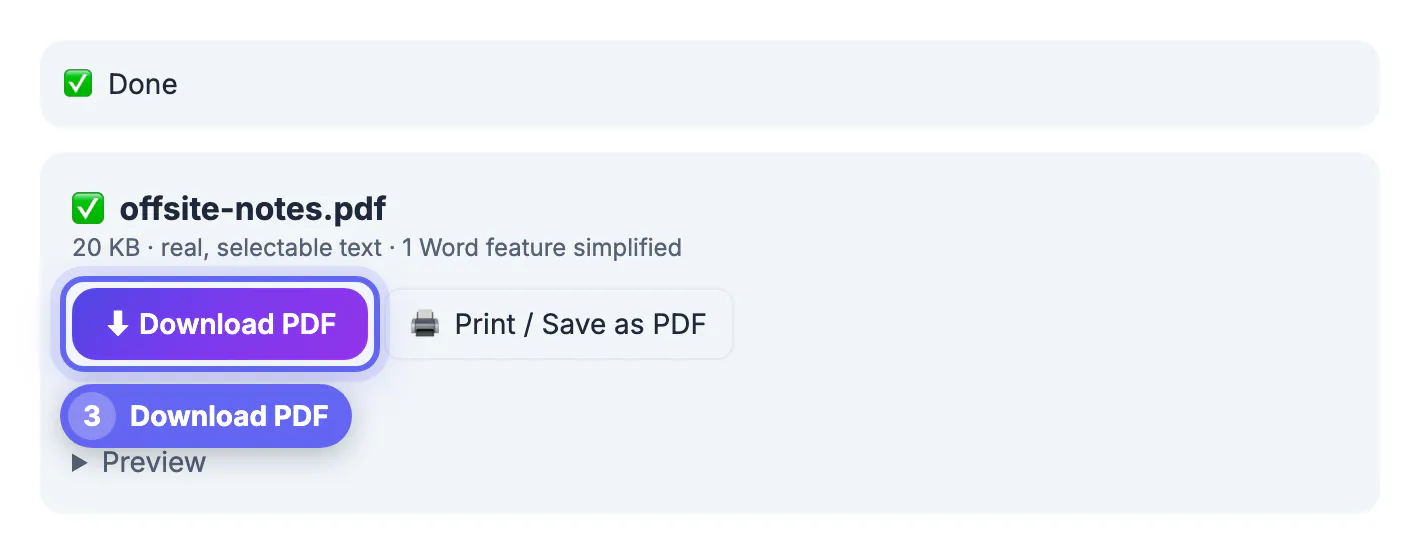
- Download PDF from this tool: quickest on any device, works on Chromebooks and borrowed computers without Word, and keeps the document on your device.
- Print / Save as PDF on the same card: opens the browser's print dialog using its own layout engine, which can look closer to Word's typography. Choose Save as PDF as the destination and allow pop-ups if nothing opens.
- File, Save As or Export in Microsoft Word, Pages or LibreOffice: the most faithful copy of complex layouts with columns, headers and custom fonts, if you have the app.
- Google Docs: File, Download, PDF document, after opening the .docx from Google Drive.
For letters, cover sheets, meeting notes, reports, school assignments and rental applications, the browser conversion is more than enough, and it works on shared or borrowed computers where you would rather not install anything or sign in to an office account. For a designed brochure or a thesis with strict formatting rules, export from the app that made it.
Step-by-step
Common mistakes to avoid
Pro tips
Frequently asked questions
Is this Word to PDF converter free?
Yes. It is free with no sign-up, no watermark and no file limit, and you can convert several .docx files at once.
Are my Word documents uploaded to a server?
No. The document is read and the PDF is built inside your browser. Only the open-source libraries are downloaded the first time you use the tool.
Is the text in the PDF selectable and searchable?
Yes. The converter writes real text, so you can search, select and copy it, and screen readers can read it. It does not flatten pages into images.
Why does my PDF use a different font than my Word file?
The converter sets text in a standard built-in font so the PDF looks consistent everywhere. If you need your exact fonts, use Print / Save as PDF or export from Word itself.
Can I convert a Word file on my phone?
Yes. The tool runs in mobile browsers on iPhone and Android. Tap the drop box, choose the .docx from Files or your cloud drive, and the PDF saves to your downloads.
For everyday documents, choose the page size and margins, drop the .docx in, check the preview and send the PDF, all without uploading the file anywhere. Use Print / Save as PDF or Word's own export when a designed layout has to match exactly.
Related guides
Browse more: all PDF guides · Word to PDF