Add Page Numbers to a PDF Free: No Upload, No Watermark
You can add page numbers to a PDF free, with no account and no upload, by opening GrabCast's numbering tool in any modern browser and dropping the file in. A typical 30-sheet report is labeled and saved in under a minute, and the copy carries no watermark or trial stamp. This guide covers the fastest route, when the free options already on your computer fall short, and the limits worth knowing before a deadline.
🔢 Try Add Page Numbers to PDF now — freeOpen →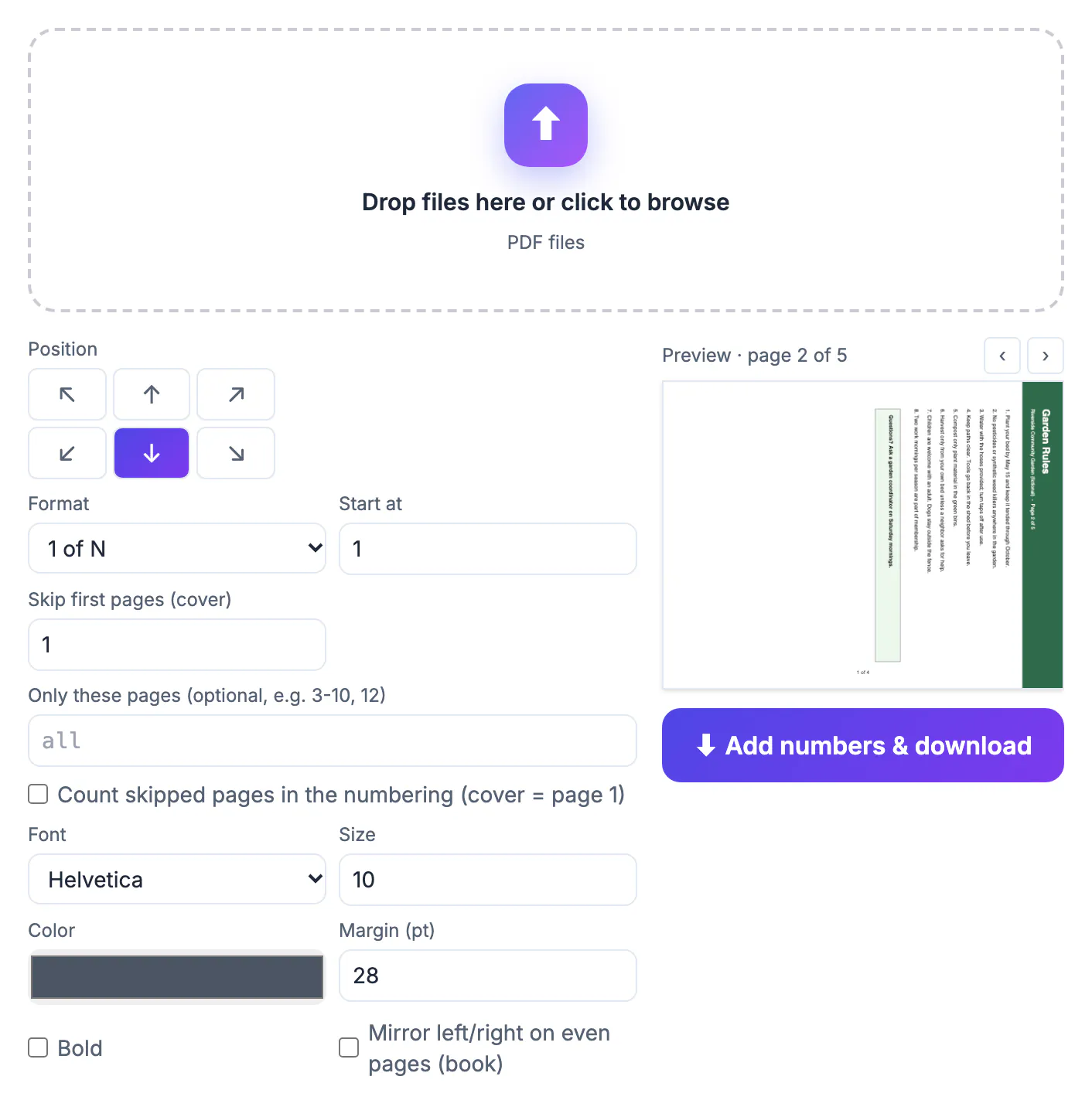
Plenty of people need numbered documents a few times a year: a lease packet for a landlord, a grant application, a scanned set of tax records for an accountant. Paying for a monthly PDF subscription for that is hard to justify, and the free web services that do it usually want the file on their servers, often with a daily limit or a logo stamped on the output. Those files tend to be exactly the kind you would rather keep private. A tool that runs in the browser tab removes both problems. The document is read from your disk, labeled by code running on your own machine and saved back to your Downloads folder, so there is nothing to delete from someone else's server afterward.
Add page numbers to a PDF free in one minute
For most documents the defaults are already sensible, so the fastest job takes three clicks. Drop the file on the drop zone, glance at the preview, and press Add numbers and download.
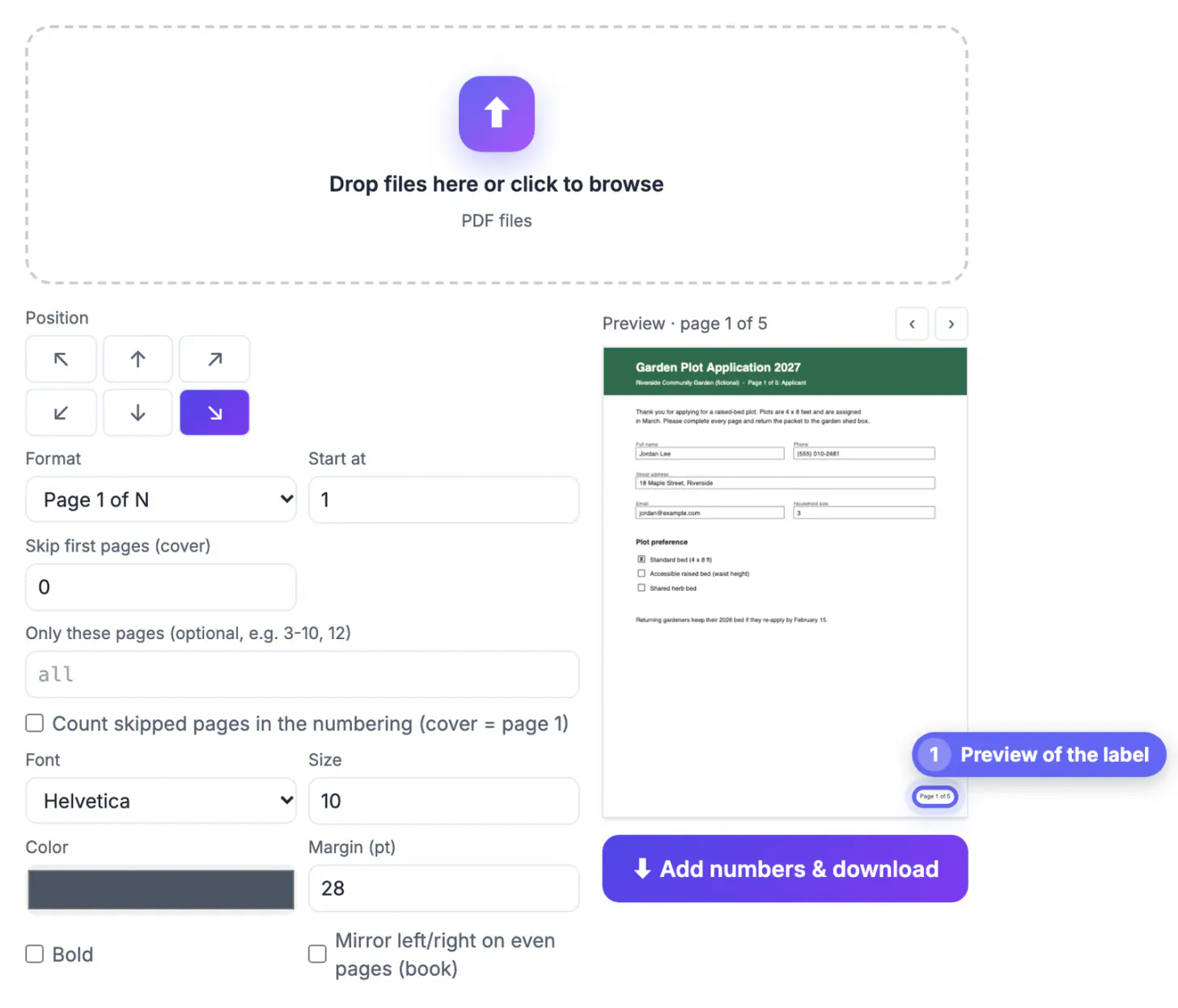
- The default label reads Page 1 of N in dark gray, 10 points, at the bottom right corner.
- The preview shows the first sheet at once; arrows above it let you step through the rest.
- A confirmation line reports how many sheets were labeled and the new file name ending in -numbered.pdf.
- The original stays untouched, so a second attempt costs nothing if you dislike the result.
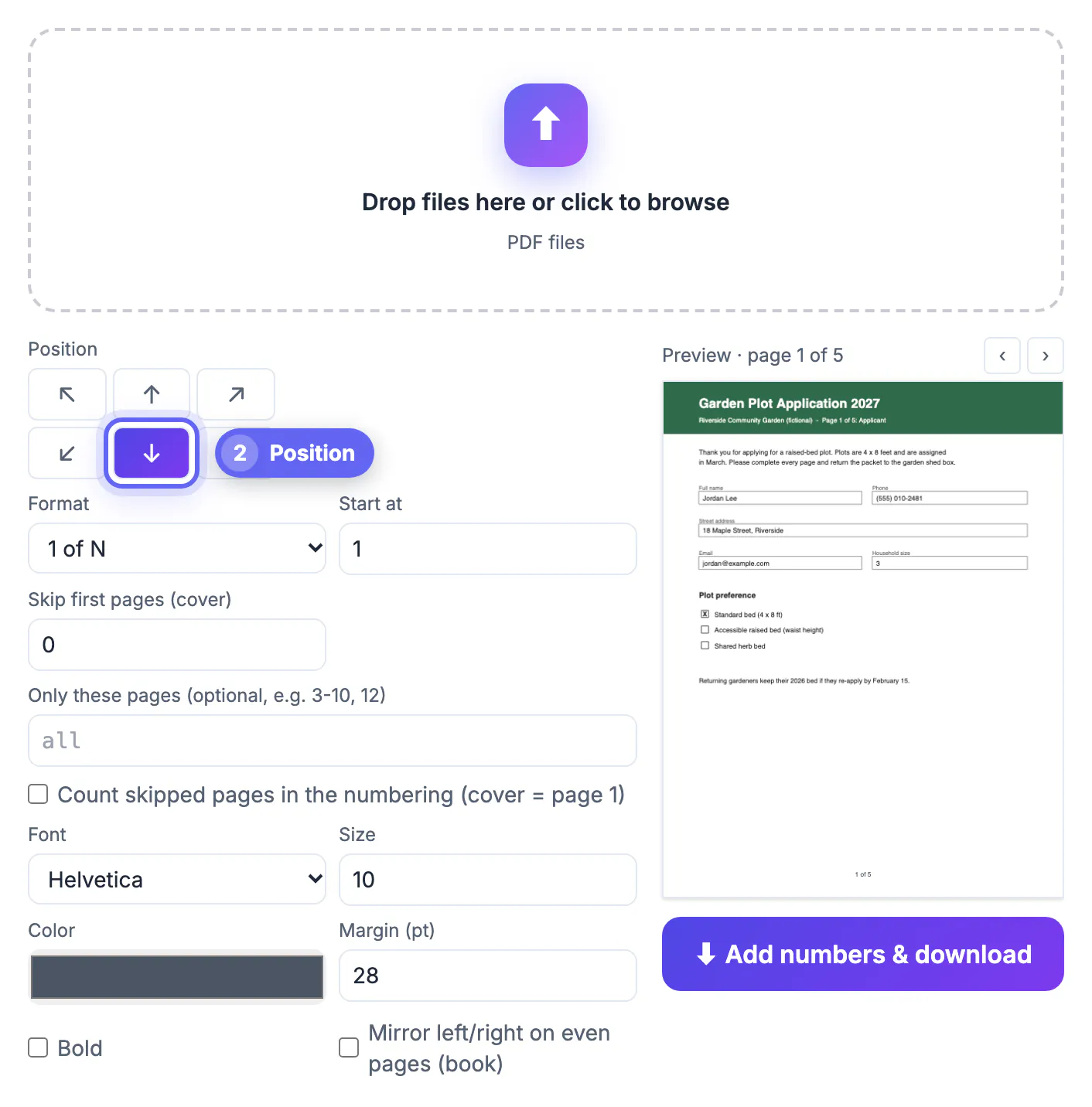
If you only change one thing, make it the position. Bottom center suits printed documents, bottom right suits files read on screen, and a top corner avoids forms whose footers are already busy. The tool loads its PDF engine once per visit and after that works quickly even on a modest laptop; a 200-sheet scan usually needs only a few seconds, because it adds a line of text to each sheet rather than rebuilding the images.
What the free options on your computer can and cannot do
Before reaching for any web tool, it is fair to ask whether you already own something that does the job. Often the answer is no, which is why so many people search for this.
- Adobe Acrobat Reader, the free viewer, cannot stamp numbers; the Header and Footer feature belongs to the paid Acrobat plans.
- Preview on a Mac can reorder, rotate and annotate, but it has no automatic numbering, so you would be typing a text box on every sheet.
- Word, Google Docs and Pages number documents well, but only while you still have the editable source; once it is a PDF from a scanner or a colleague, that route is closed.
- Printer dialogs sometimes add headers with a date or URL, which is not the same as a clean sequence inside the file.
That gap is where a browser tool earns its place. It works on any PDF regardless of where it came from, including scans, exports from design software and documents stitched together from several sources. It will not rewrite your content: the label is a small line of text drawn on top, the same way a stamp would sit on paper.
Custom labels, ranges and roman numerals
Beyond the standard styles, the Custom format accepts any short template. Write {n} where the current value belongs and {N} where the total goes, and the tool fills them in on every sheet.
- Draft v3, {n}/{N} marks a review copy so nobody confuses it with the final.
- Exhibit B, page {n} keeps a single attachment identifiable once it is printed and separated.
- Lease packet, sheet {n} of {N} tells a landlord at once whether anything is missing.
- The i, ii, iii style handles prefaces, and Only these pages limits labels to a range such as 5-20.
Keep templates short, under about 40 characters, so they fit comfortably in a corner at 10 points. The built-in fonts cover English and Western European letters, including accents such as é or ü; characters from scripts like Chinese, Arabic or Cyrillic, and emoji, cannot be drawn with them, and the tool reports an error instead of producing a broken file. For a document in one of those languages, stick to numerals, which work everywhere. Combine a template with Skip first pages when a cover should stay blank, and with Start at when a document continues an earlier one.
Limits to know before a deadline
A free tool is only useful if it is honest about what it will not do. These are the cases where you need another approach.
- Password-protected files cannot be edited; the tool says so, and you need to remove the protection in the program that created the file.
- Existing numbers are not removed, so a new label on top of an old one produces two values per sheet.
- Legal Bates numbering with a prefix and fixed digits, such as SMITH000123, calls for dedicated legal software.
- Very large scans of several hundred megabytes depend on your device's memory; an older phone may struggle where a laptop will not.
Everything else, from a two-sheet letter to a 400-sheet manual, fits comfortably. If a file is huge because of high-resolution scans, compress it first with a PDF compressor, then number the smaller copy; the labels are vector text, so they stay crisp whatever happens to the images underneath. And if the numbering needs to follow a merge, a split or a reorder, do those first. The label is the last step, because every later change to the order would make it wrong.
If you are assembling a longer file, the Merge PDF tool puts the parts together first, and the Sign PDF tool handles the signature once it is numbered.
Step-by-step
Common mistakes to avoid
Pro tips
Frequently asked questions
Is it really free?
Yes. There is no account, no daily cap and no watermark on the output. The tool runs in your browser, so the cost of processing sits on your own device rather than a server.
Is my PDF uploaded to a server?
No. The file is read from your disk, labeled in the browser tab and saved back to your device. After the first file has opened, you can switch off Wi-Fi and number a second one to see that it keeps working.
Does it work on a phone?
Yes, in current mobile browsers. The preview and settings stack vertically on a small screen, and the numbered copy lands in your phone's Downloads or Files app.
Can I number only part of a document?
Yes. Type a range into Only these pages, such as 3-10, 12, or use Skip first pages to leave a cover or table of contents blank.
Will the numbers print correctly?
Yes. They are real text in a standard font, placed at the margin you set, so they print as crisply as the rest of the document.
You do not need a subscription or an upload to number a PDF. Drop the file into a browser tool, accept or adjust the defaults while watching the preview, and download a clean copy with no watermark. Merge and reorder first, keep templates short, and turn to legal software only for Bates-style numbering.
Related guides
Browse more: all PDF guides · Add Page Numbers to PDF