Reorder PDF Pages Free: Drag, Rotate, Delete, Save
To reorder PDF pages free, drop the file into GrabCast's Organize PDF tool, drag the page thumbnails into the order you want, and click Apply and download. The file never leaves your device, and the same screen lets you rotate sideways sheets, delete blanks and pull in sheets from a second document. Below are the exact controls, five real fixes you can make in under two minutes, and the few things a rebuilt file does not carry over.
📑 Try Organize PDF now — freeOpen →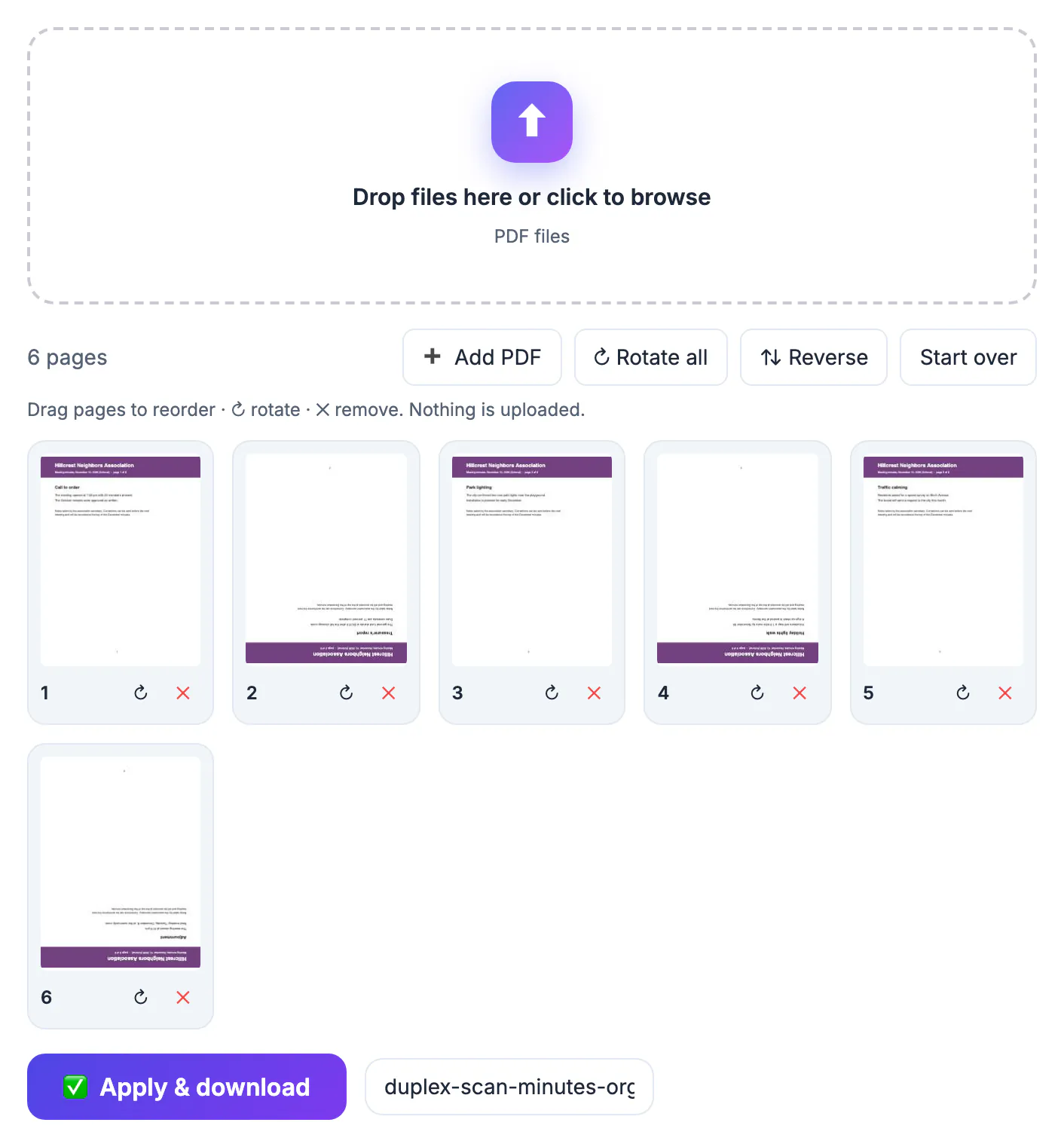
Most out-of-order documents come from the scanner, not the author: a stack fed upside down, a double-sided contract scanned as two separate passes, or a signature sheet that arrived later by email. Rescanning a 30-sheet lease takes ten minutes and risks new mistakes, while dragging a handful of thumbnails takes one. Doing it in the browser also matters for privacy, because tax returns, medical forms and HR files are exactly the documents you should not hand to an unknown upload site just to move one sheet.
How the Organize PDF board works
After you drop a file, every sheet appears as a numbered thumbnail in a grid of three to five columns, depending on screen width. Thumbnails render progressively, so you can start dragging long before a big document finishes loading.
- Drag a card to move it; the numbers update instantly to show the new sequence.
- The circular arrow turns one sheet 90 degrees clockwise per click; the X removes it.
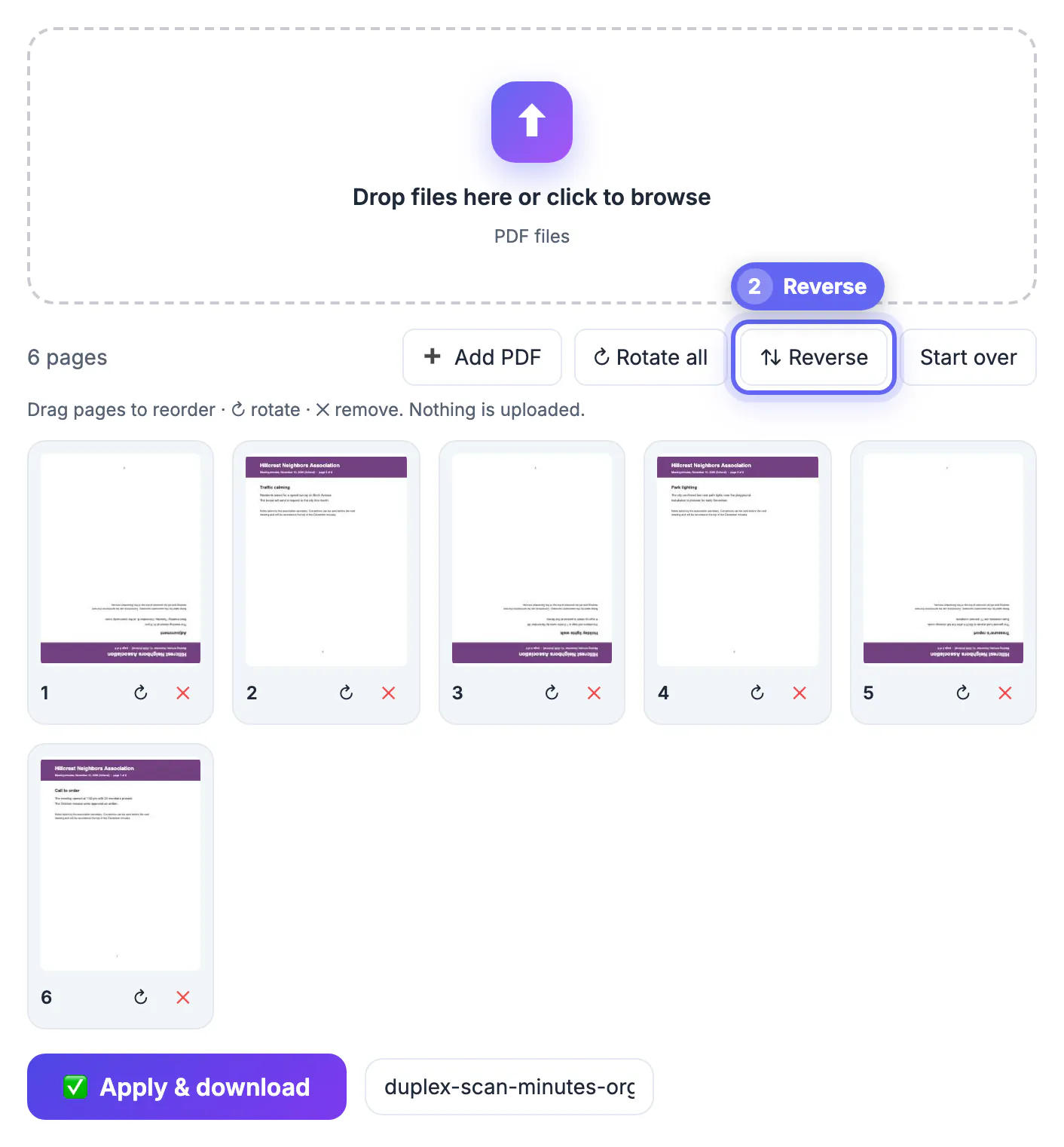
- Rotate all turns every sheet at once, and Reverse flips the entire sequence.
- Add PDF appends sheets from other files, each marked with a colored dot showing its source.
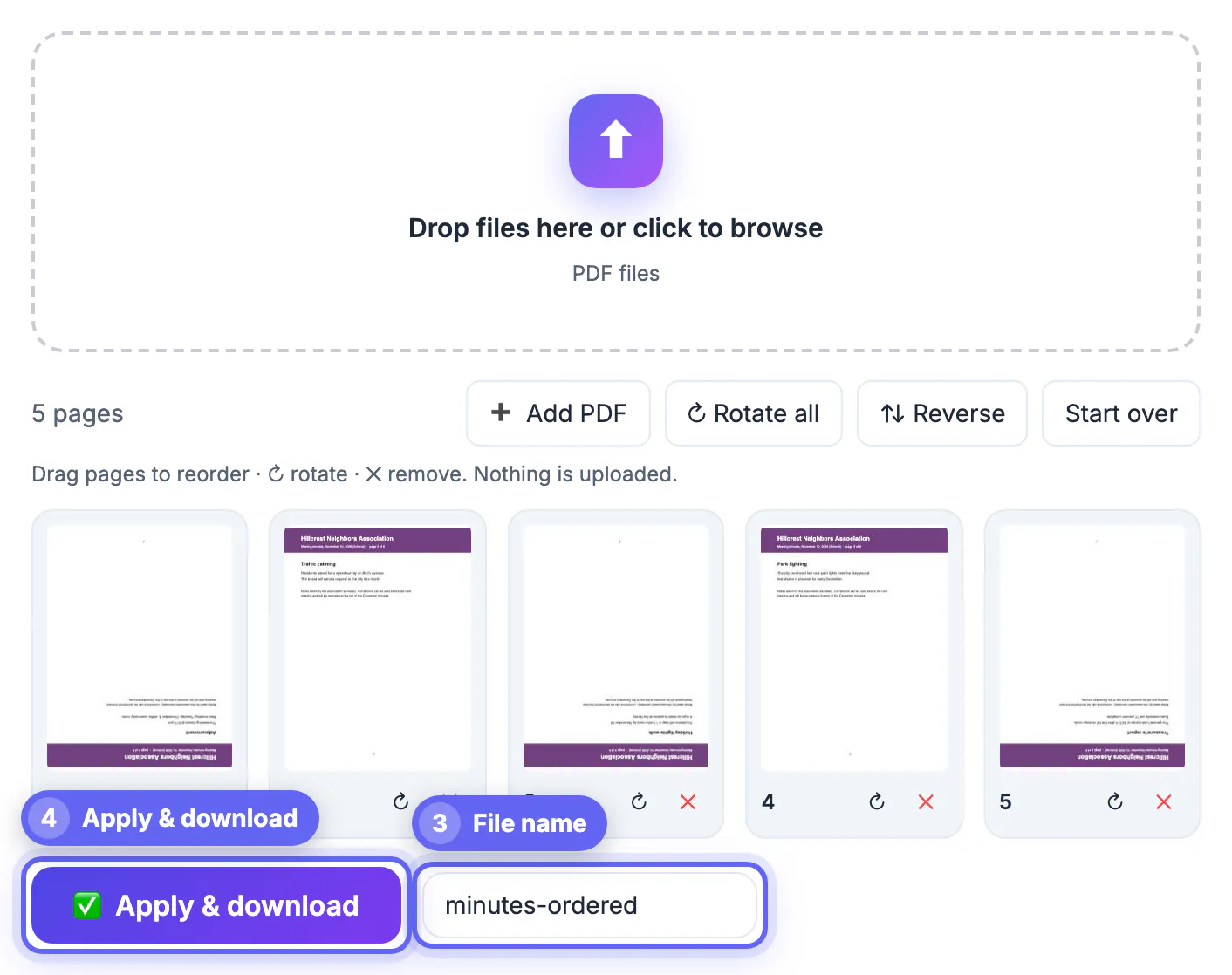
- Name the output, then Apply and download builds the new file locally.
Five fixes to reorder PDF pages in real documents
A scan fed last-sheet-first: press Reverse once and the whole stack is in order. A landscape spreadsheet sheet printed sideways inside a portrait report: rotate just that card until the thumbnail reads upright.
A double-sided contract scanned as fronts, then backs: for a 10-sheet original you get fronts 1, 3, 5, 7, 9 followed by backs, often in reverse order because the stack was flipped. Drag each back so it sits right after its front, checking the printed numbers in the footer as you go.
An appendix that belongs at the end: drag its cards past the final chapter. A signed signature sheet that came as a separate file: use Add PDF, then drag the new card into place and delete the old unsigned version.
What changes, and what does not, in the saved file
Sheets are copied into a fresh document exactly as they are, so text stays selectable and searchable and image quality is untouched. Rotation is stored as a lossless instruction to the viewer rather than by redrawing the content, which means no blur even after several turns.
Because the output is a new file, some document-level extras do not come along. Bookmarks in the sidebar outline are dropped, and fillable form fields may stop working after sheets are shuffled, so finish filling forms before you reorganize. Password-protected files will not open until the owner removes the protection.
File size usually stays close to the original, and it shrinks when you delete sheets. It can grow slightly when you combine two documents that embed the same fonts, because each source keeps its own copy. If the result is too big for an email attachment, run it through a compressor afterward rather than trying to fix it here.
Handling long documents without losing track
Dragging works comfortably up to roughly 60 to 80 sheets. Past that, the grid scrolls a lot and it is easy to drop a card in the wrong row. For a 300-sheet binder, split it into sections, fix each section, then merge them back together in the right sequence.
Zoom the browser out to 67 or 50 percent to see more thumbnails at once, and work from the end of the document toward the start so earlier numbers do not shift while you are still moving later cards.
A reliable routine for a thick binder: first delete obvious blanks and separator sheets, since that shortens the grid. Next, fix rotation with Rotate all or single turns, because upright thumbnails are much easier to read. Only then move sheets, starting with big blocks such as whole chapters or appendices, and finish with single-sheet corrections. Doing it in that order means you read each thumbnail once instead of three times.
Once the order is right, add a password if the file is private and compress the PDF if it is heavy to send.
Step-by-step
Common mistakes to avoid
Pro tips
Frequently asked questions
Is it really free to reorder PDF pages here?
Yes. Organize PDF is free with no sign-up, no page cap and no watermark. The only practical limit is your device's memory with very large files.
Are my files uploaded to a server?
No. The document is read, rearranged and rebuilt inside your browser, and the result downloads straight to your device.
Will reordering reduce quality or break text search?
No. Sheets are copied as-is, so text remains selectable and images keep their original resolution. Rotation is saved as a viewer instruction, not a re-render.
Can I combine sheets from two files?
Yes. Use Add PDF to append another document, then drag its sheets anywhere in the sequence. A colored dot shows which file each sheet came from.
Why did my bookmarks disappear?
The tool builds a new document from the sheets you keep, and the sidebar outline is not rebuilt. If bookmarks matter, add them again in a desktop editor after reorganizing. The text layer itself travels with each sheet, so search and copy still work normally in the new document.
Reordering pages is a one-minute job when you can see every sheet as a thumbnail: drag, rotate, delete, then download. Keep the original, check the result once, finish forms before shuffling, and split very long binders into sections, and you will never need to rescan a stack just because one sheet was out of place.
Related guides
Browse more: all PDF guides · Organize PDF