Scanner Edges on PDF Pages? Crop Odd and Even Pages
To crop black scanner edges from a PDF, open GrabCast Crop PDF, set Apply changes to Odd pages and type margins that cut the dark border on the binding side, then switch to Even pages and mirror them, preview, and download. Scans of booklets, bound reports and notebooks almost always show a dark band where the scanner lid did not cover the page, plus a gray shadow along the spine, and the band switches sides between left and right pages. That is why one crop for all pages leaves some pages dirty or cuts text on others. The example uses a fictional four-page recipe booklet with exactly that problem, and it explains why the automatic white-margin trim cannot help with dark edges.
✂️ Try Crop PDF now — freeOpen →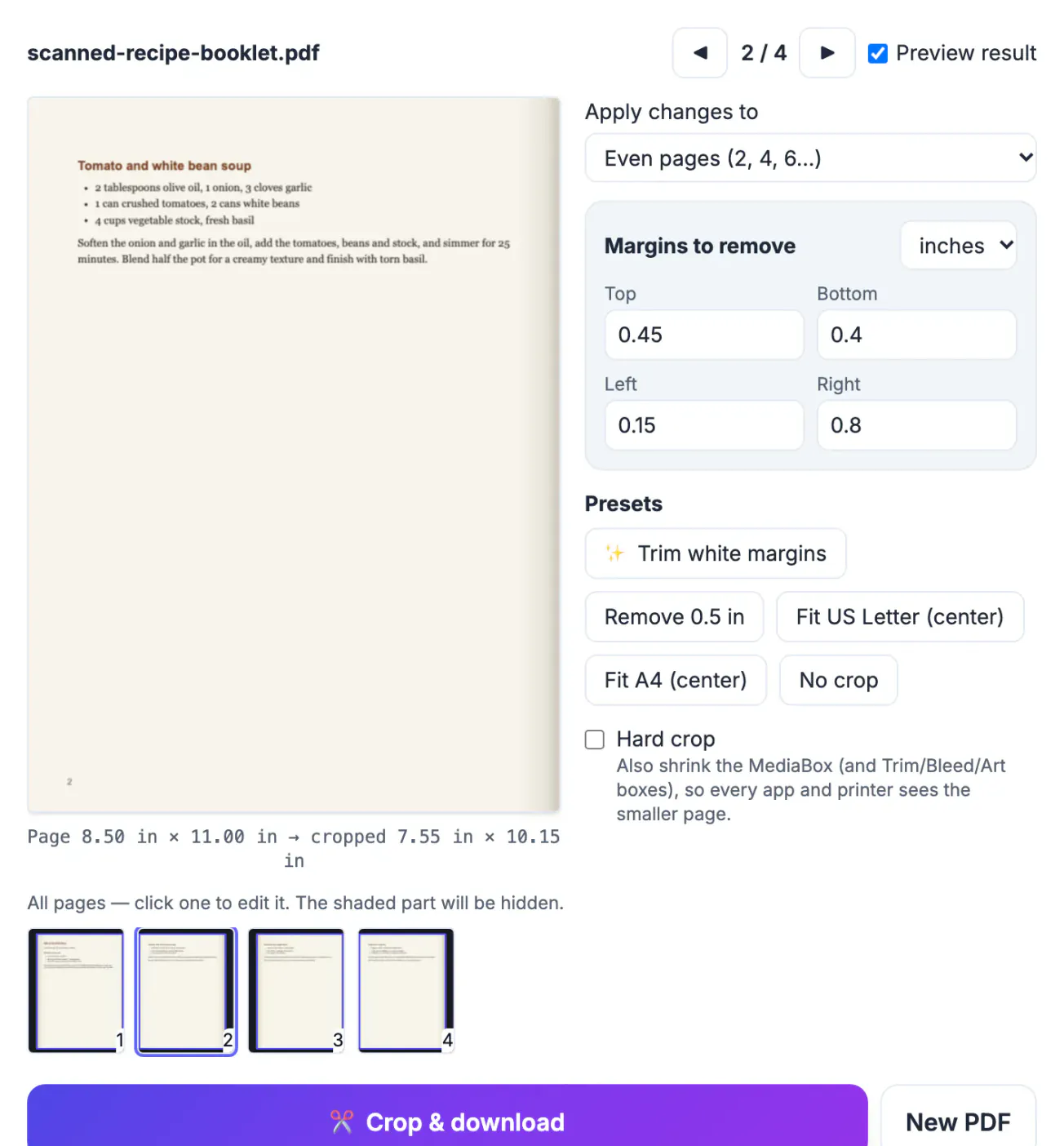
A flatbed scanner captures the whole glass area, not just the paper. Anywhere the lid does not press flat, the sensor sees open space, which comes out black or dark gray. Books and stapled booklets make it worse: the spine keeps the inner edge lifted, casting a shadow that fades from dark gray to paper color over half an inch or more. Because left-hand and right-hand pages face opposite ways on the glass, the shadow sits on the left of odd pages and on the right of even ones, or the reverse. Those borders do more than look untidy. They waste toner when printed, make pages look crooked on screen, confuse OCR near the edges, and on a phone they shrink the readable part of the page. Cropping them away fixes the display without touching the scanned image itself, so the text quality you captured stays exactly as it was.
Cropping a scanned booklet, odd and even pages
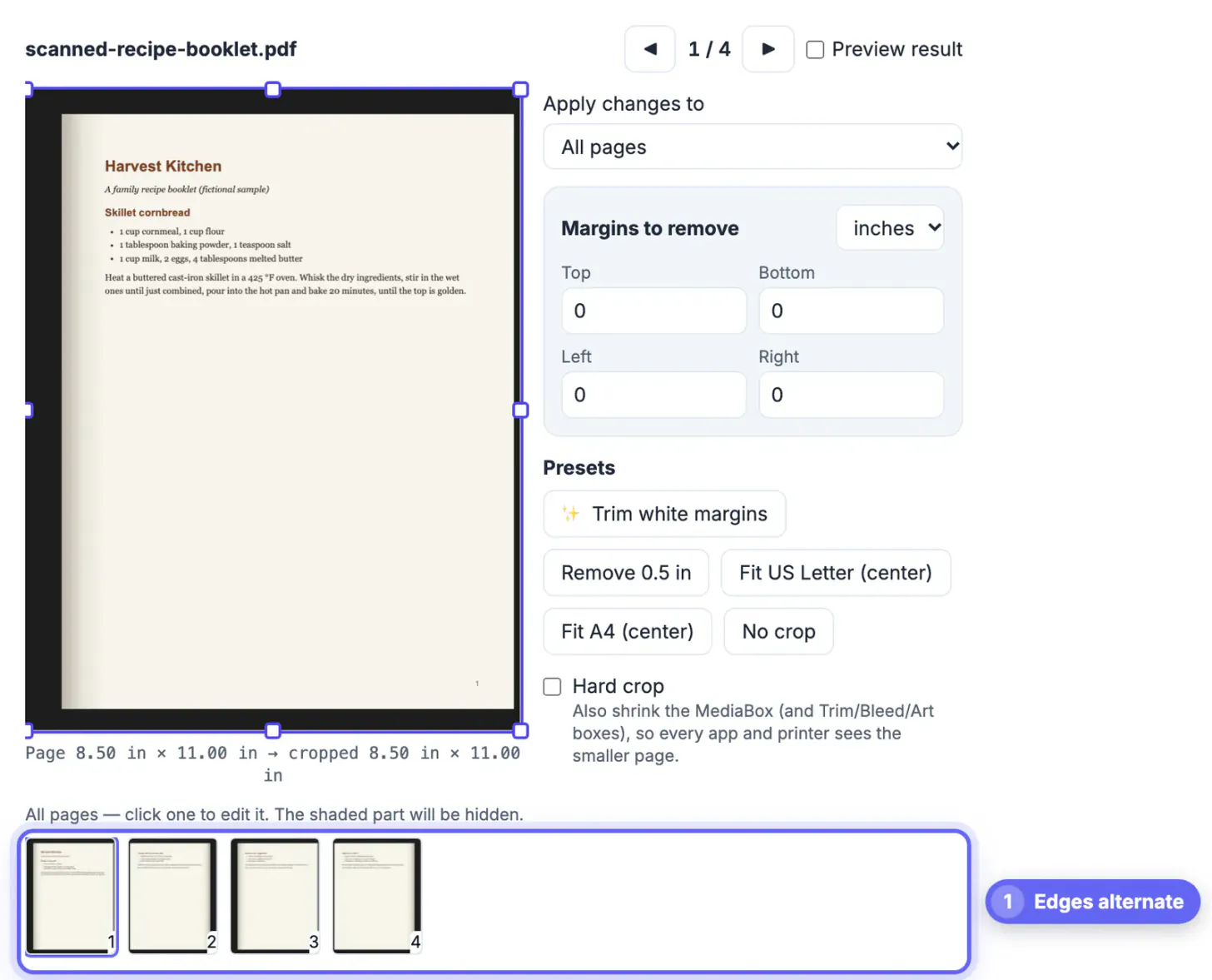
The sample is a four-page family recipe booklet scanned on a flatbed. Each page has a black band around it and a gray gutter shadow: on the left of pages 1 and 3, on the right of pages 2 and 4.
- After opening, the thumbnail strip makes the alternating pattern clear, and page 1 shows the dark edge in the editor.
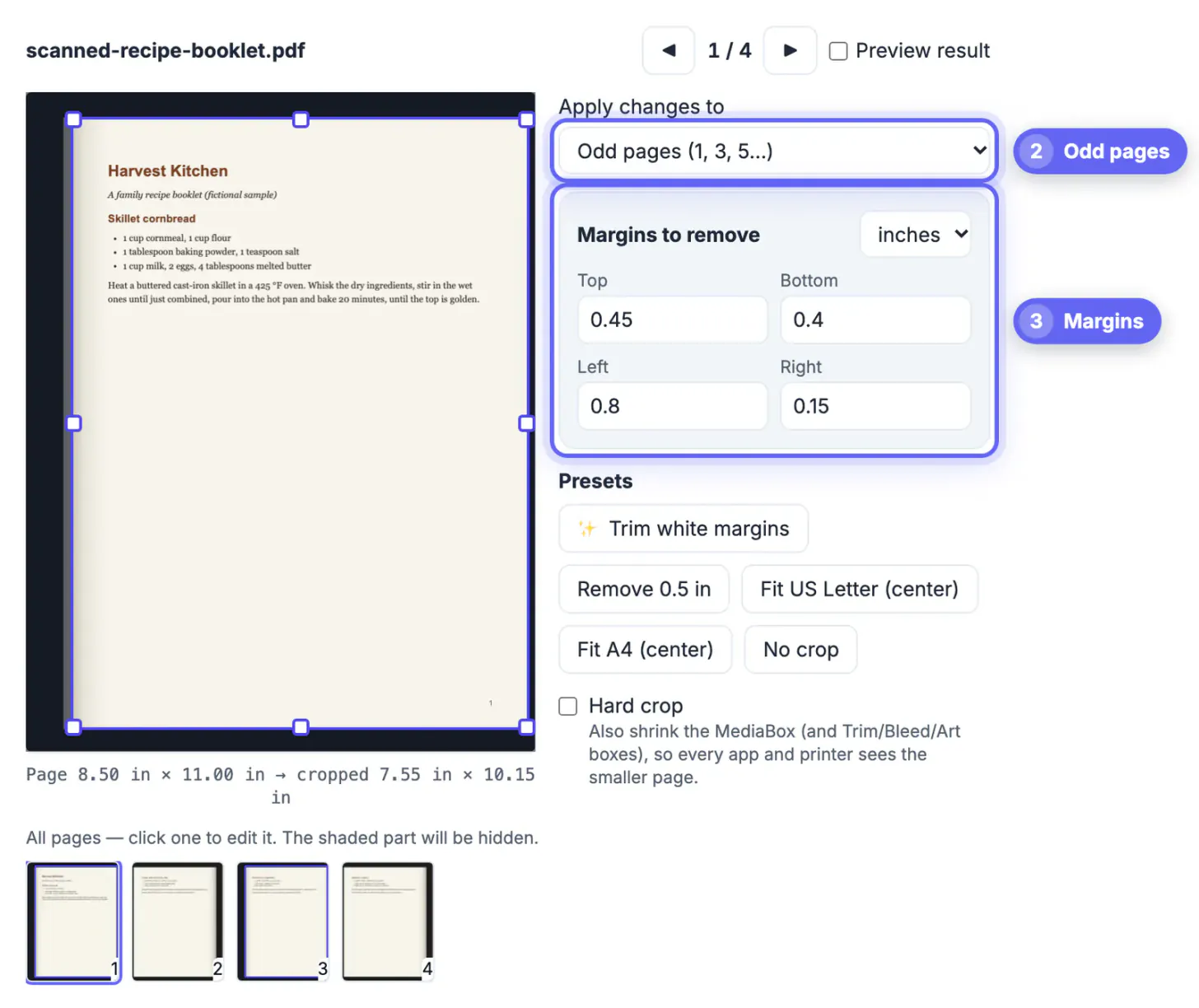
- With Apply changes to set to Odd pages, the margins Top 0.45, Bottom 0.4, Left 0.8 and Right 0.15 inches remove the black band and the shadow on the binding side.
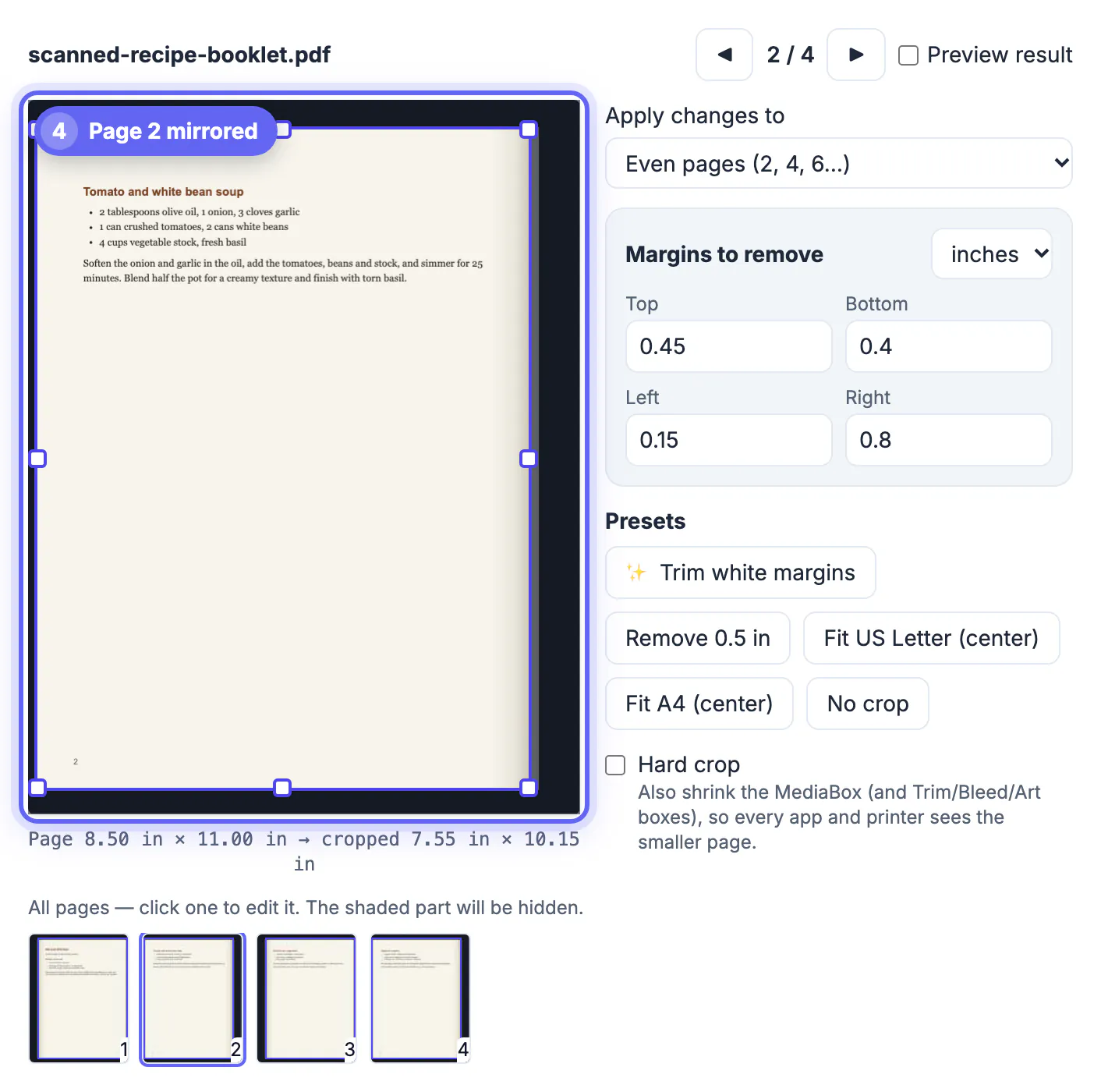
- Switching to Even pages jumps the editor to page 2, where the shadow is on the right, so the values are mirrored: Left 0.15 and Right 0.8.
- The thumbnail strip now shows each page shaded on its own dark side, and every page reports cropped 7.55 by 10.15 inches.
Crop & download saved scanned-recipe-booklet-cropped.pdf with all four pages cropped, and Preview result showed clean paper to the edge on each.
Why Trim white margins does not remove dark borders
The automatic trim looks for the first pixels that are not near-white on each side and treats them as content. On a clean digital PDF that finds the text. On a scan with a black border, the very first pixel at the edge is already dark, so the tool concludes there is no white margin to remove.
- Dark borders, shadows and hole-punch marks all count as content for the trim.
- Light gray scanner noise close to white is treated as margin and can be trimmed.
- After you crop the dark edges by hand, Trim white margins can still tighten a clean page further.
So for scans, type the margins. Measure the dark band on one odd page and one even page, add a little safety, and apply each set to its group.
Choosing margin values that are safe
The goal is to remove every dark pixel without clipping text near the edge.
- Start with the widest band you can see on any page in the group, not the average; scans drift a little from page to page.
- Add about 0.05 to 0.1 inch of safety on the shadow side, where the gray fades gradually.
- Check the page in each group with text closest to the edge before downloading.
- Use millimeters if your originals are A5 or A4 booklets and you think in metric; switching units does not change the crop.
- If one page was scanned crooked, give it its own margins with Current page only.
All pages in a group end up the same size after the crop, which keeps the booklet looking consistent when you flip through it.
What cropping a scan does and does not do
Cropping hides the edges; it does not repair the scan itself.
- It keeps the scanned image at its original resolution; nothing is re-compressed or redrawn.
- It does not straighten a page that is tilted; that needs deskewing when scanning or a rescan.
- It does not lighten a gray paper tone or remove stains inside the page area.
- The hidden edges remain in the file, so the file size stays about the same.
If the scan will be searched later, crop first and then run OCR PDF, so recognition focuses on the page itself. To shrink a large color scan for email, run Compress PDF after cropping.
Step-by-step

Common mistakes to avoid
Pro tips
Frequently asked questions
How do I remove black borders from a scanned PDF?
Open the file in GrabCast Crop PDF, type margins that cover the dark band, or drag the crop box inside it, and click Crop & download. For booklets, set odd and even pages separately because the shadow switches sides.
Why does auto-trim not remove the black edges?
Trim white margins looks for the first non-white pixels on each side. A black border is not white, so the trim treats it as content and leaves it. Typed margins remove dark edges reliably.
Does cropping reduce the quality of my scan?
No. Cropping changes only the visible page area. The scanned image keeps its original resolution and is not re-compressed, so text looks exactly as sharp as before.
Can I crop only odd or even pages?
Yes. Apply changes to has Odd pages and Even pages options, plus Current page only and page ranges, so each group of pages can get its own margins.
Is the scanned file uploaded when I crop it?
No. The PDF is rendered and cropped inside your browser, so scanned letters, recipes, statements and records stay on your device.
Dark scanner borders and spine shadows alternate sides in scanned booklets, so crop odd and even pages separately with typed margins sized to the worst page in each group. Preview, download, and keep the raw scan. The scanned image itself is untouched, and cleaner pages print better, read better on screen and give OCR a clearer target.
Related guides
Browse more: all PDF guides · Crop PDF