Delete Pages From a PDF: Keep Ranges, Drop the Rest
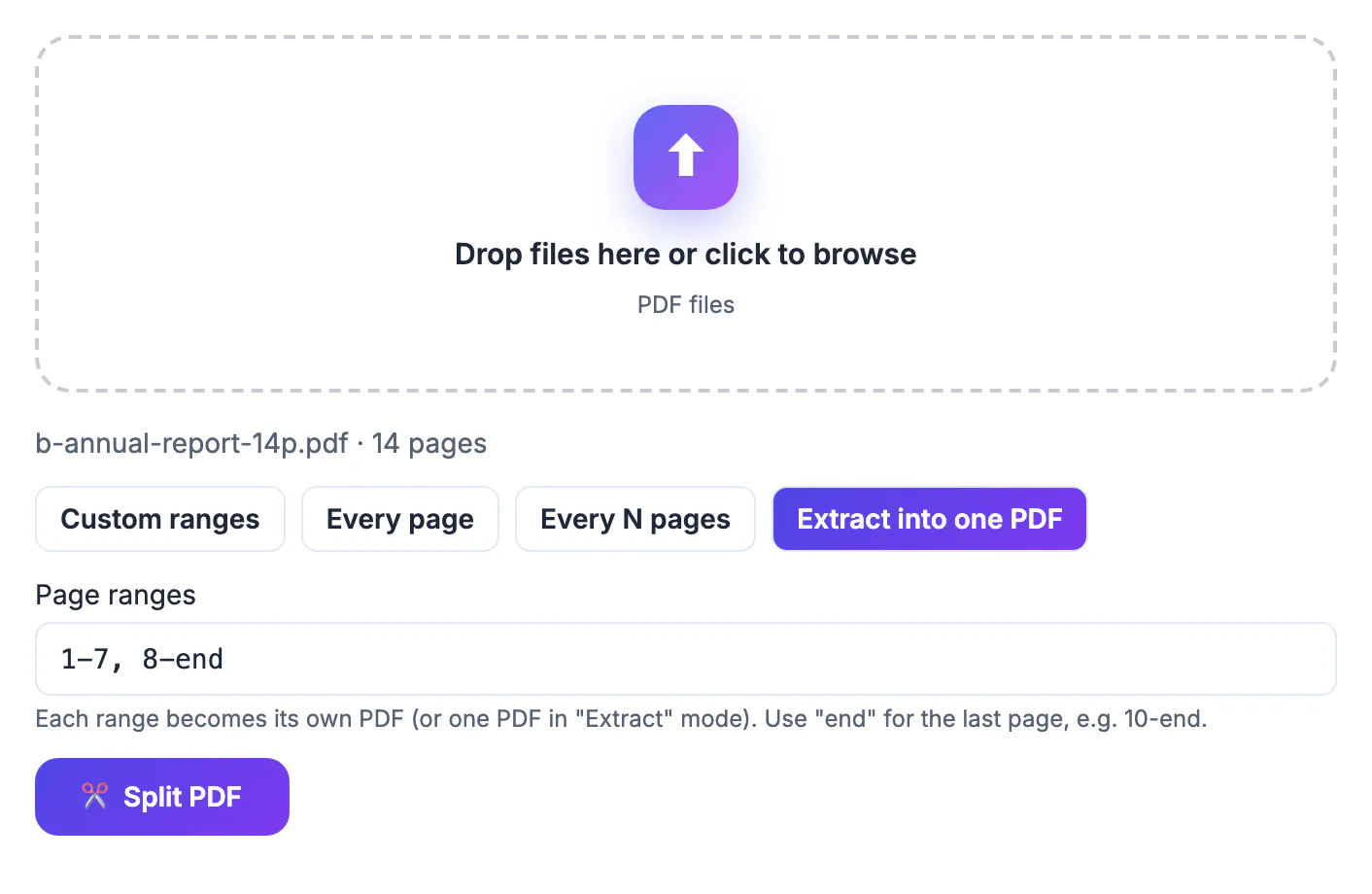
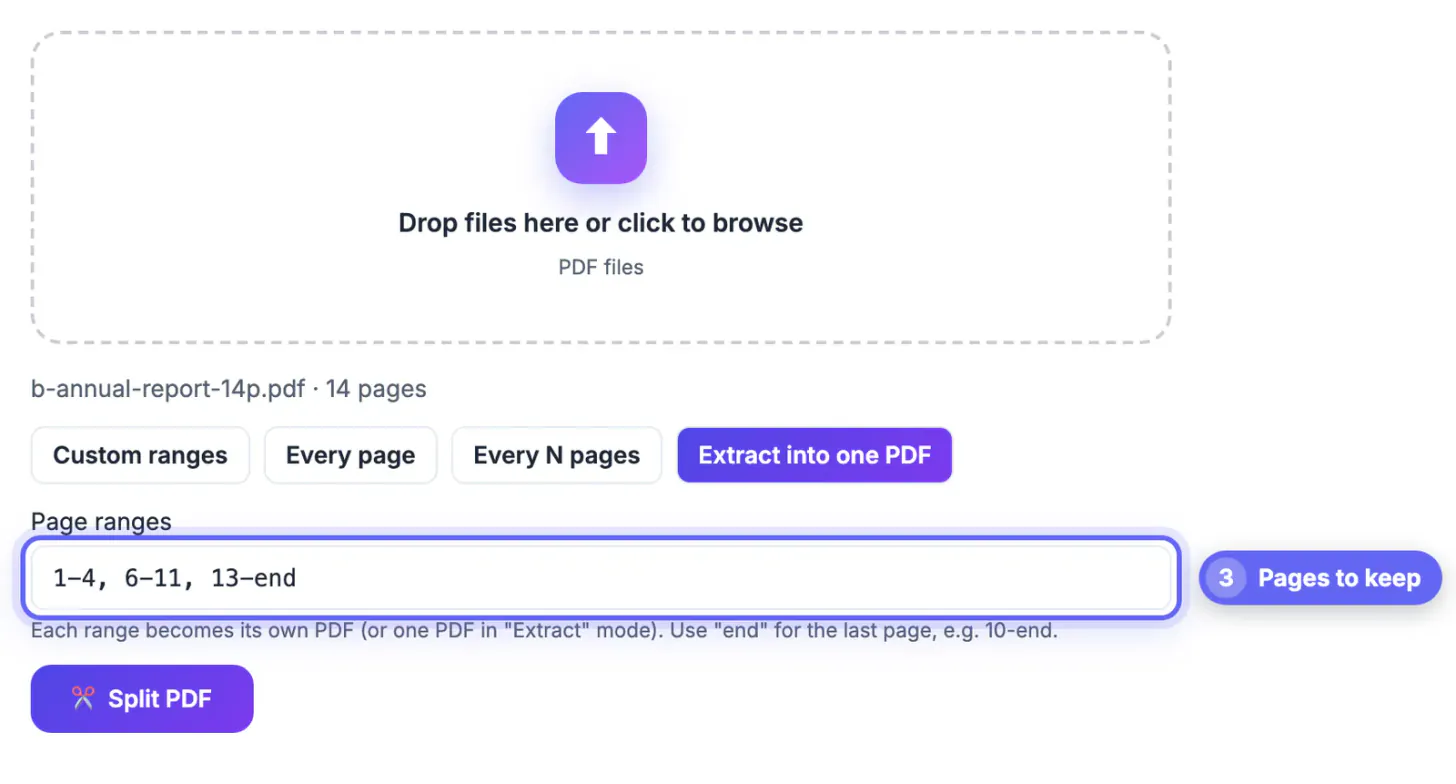
To delete pages from a PDF, list the pages you want to keep instead of the ones you want gone, then save those ranges as a new file. In GrabCast's Split PDF, the Extract into one PDF mode does exactly that: type 1-4, 6-11, 13-end into the range box for a 24-page lease, and you get a 22-page copy without sheets 5 and 12, built on your own computer with nothing uploaded. This guide shows how to turn a list of unwanted sheets into keep ranges without off-by-one slips, when the thumbnail board in Organize PDF is the faster choice, and what removing a sheet does and does not change, because a trimmed file is not the same thing as a redacted one.
🪓 Try Organize PDF now — freeOpen →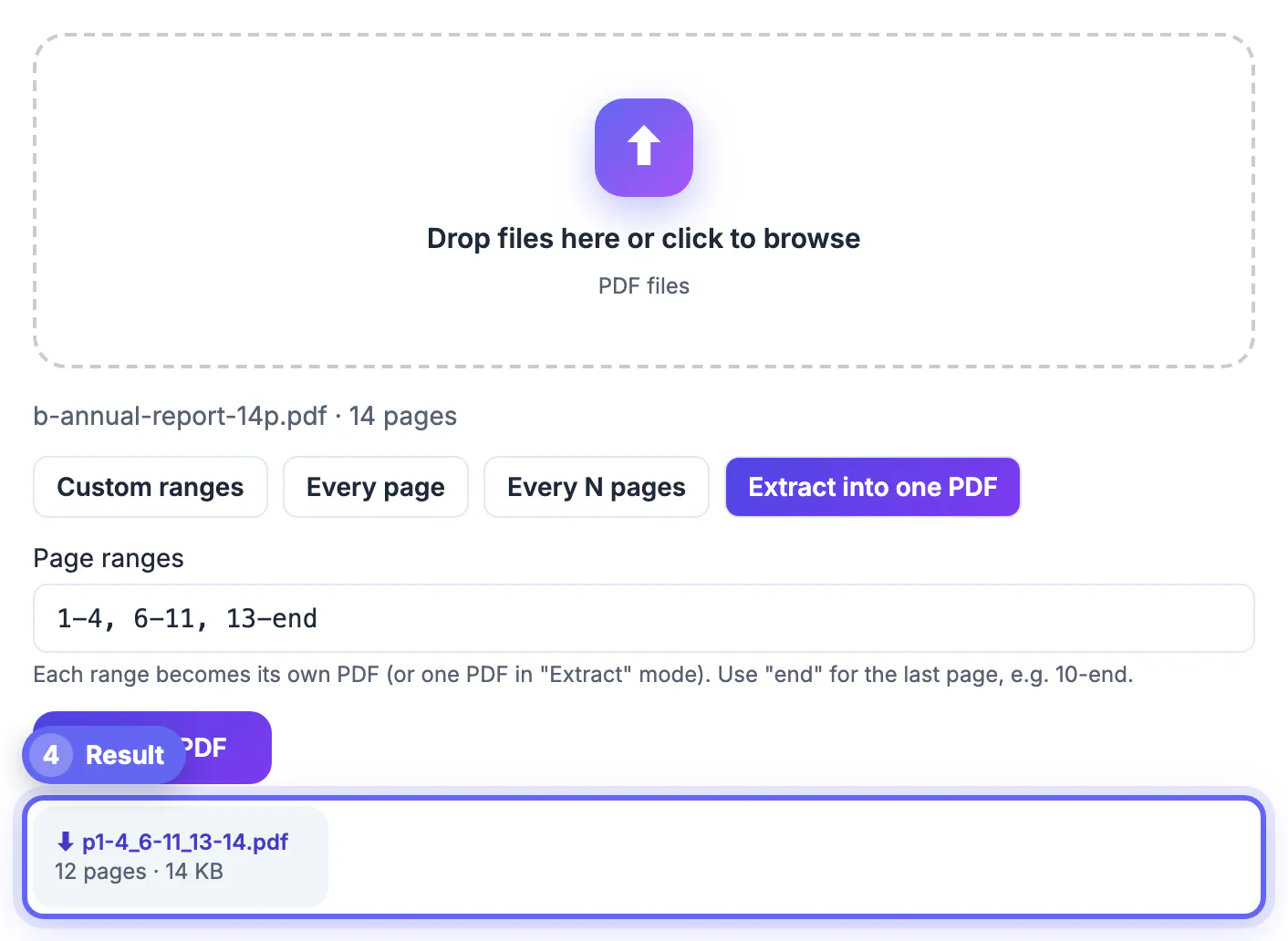
Extra sheets cost the reader time and cost you credibility. A scanned contract with blank backs of every sheet reads as careless, a benefits packet with an old rate table invites the wrong question, and a 60-page statement bundle forwarded to an accountant who needed three months of activity wastes their billable hour. Removing pages is also the most honest way to shrink a file: a scanned page often weighs 300 KB to 1 MB, so cutting eight of them can drop a scan below a 10 MB portal cap without touching image quality. Privacy matters here too. The documents people trim are usually the sensitive ones, such as tax returns, HR files, medical records and signed leases, and a browser-only tool means those never sit on someone else's server while you work.
Turn a delete list into keep ranges
The range box describes what survives, so the only real skill is inverting your list. Write down the sheets you want gone, then read the gaps between them as ranges. The word end stands for the last sheet, which saves counting.
- Drop 5 and 12 of 24: type 1-4, 6-11, 13-end
- Drop a cover sheet only: type 2-end
- Drop the last sheet of an 18-sheet file: type 1-17, because the tool accepts numbers and the word end but not end minus one
- Drop an appendix that runs 31 to 40 in a 52-sheet report: type 1-30, 41-end
Separate ranges with commas or spaces. The tool rejects anything outside the real sheet count with a message such as outside 1 to 24, so a typo cannot silently produce the wrong document.
When thumbnails beat typing ranges
Ranges are fastest when you already know the numbers. They are slow when the unwanted sheets are scattered or you have to look at them to decide. A duplex scan of a 20-sheet form with blank backs would mean typing ten separate numbers; clicking the small x on ten blank thumbnails is quicker and less error-prone.
For that job, open Organize PDF instead. It renders a thumbnail of every sheet, lets you remove any of them with one click, rotate sideways scans, and drag the rest into a new order before you apply and download. Both tools run locally and produce a new file, so pick by the shape of the task, not by privacy.
What removal changes and what it keeps
The new file is rebuilt from only the sheets you kept. Their text, images, fonts and links to web addresses come along, and the discarded sheets are not carried into the output at all, so there is no hidden copy for a recipient to recover.
- Text stays selectable and searchable on every kept sheet
- Bookmarks and the sidebar outline are not copied, so long reports lose their clickable chapter list
- Printed sheet numbers in footers do not renumber; a report can jump from 11 to 13
- Anything sensitive on a kept sheet is still there, so blacking out a paragraph needs a redaction tool, not deletion
A quick check before you send the trimmed file
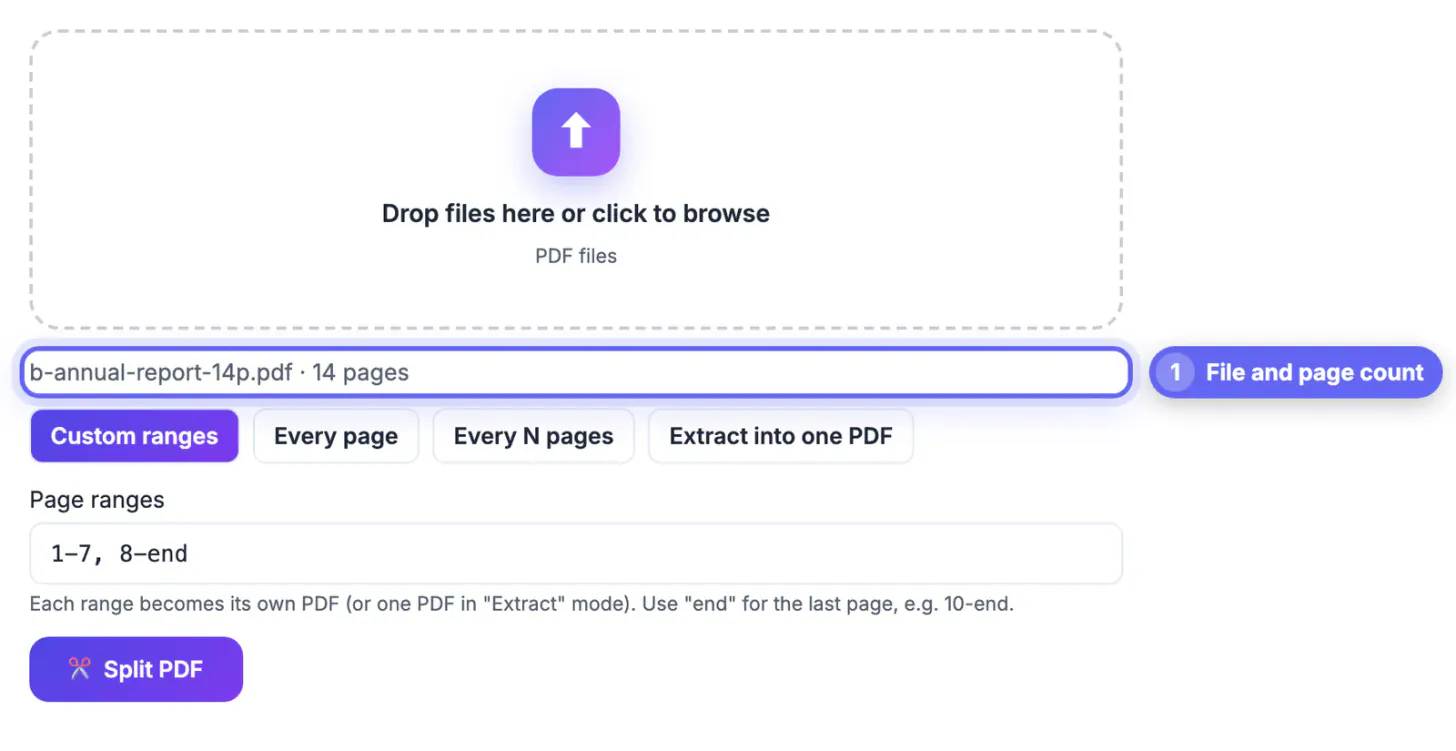
The tool shows the source file name and its total sheet count, and each result lists how many sheets it holds plus its size in KB. Compare that count with your math: 24 minus 2 should read 22. Then open the download and scroll it once, paying attention to the sheets on either side of each cut. If a footer number jump would confuse the reader, stamp fresh numbers with the Page Numbers tool, and keep the untouched original until the recipient confirms they have what they need.
Before sending, you can compress the trimmed PDF to shrink it, and add a password if it contains anything private.
Step-by-step
Common mistakes to avoid
Pro tips
Frequently asked questions
How do I delete just one page from a PDF
Enter the two ranges around it. To remove page 7 of a 15-page file, choose Extract into one PDF and type 1-6, 8-end. The result is a 14-page document. To remove page 1, type 2-end; to remove the last page of a 15-page file, type 1-14.
Does removing pages make the file smaller
Usually, and sometimes a lot. Scanned pages often carry 300 KB to 1 MB of image data each, so cutting blank or duplicate scans can save several megabytes. Text-only pages are small, so trimming a digital report saves less. The result card shows the new size, so you can compare it with the original.
Is my document uploaded anywhere
No. The PDF is read and rebuilt by your browser, so the pages never go to a GrabCast server. That is why the tool is a reasonable choice for leases, pay stubs, medical forms and tax returns you would not want sitting on a third-party site.
Can I delete pages from a password-protected PDF
Not reliably. If the file needs a password to open, the tool will say it may be password-protected or damaged. Remove the password first with Unlock PDF, using a password you legitimately know, then trim the pages and protect the result again if needed.
Will links and bookmarks still work after deleting pages
Web links on the pages you keep still work. The bookmark outline in the sidebar is not copied into the new file, and internal links that pointed to a removed page have nowhere to go. For a long report that relies on its outline, check the output before sharing it.
Deleting pages is really choosing pages to keep: invert your list into ranges like 1-4, 6-11, 13-end, use Extract into one PDF, and confirm the page count on the result. Switch to Organize PDF thumbnails when the unwanted pages are scattered, and remember that trimming is not redaction.
Related guides
Browse more: all PDF guides · Organize PDF