Rotate PDF Pages Permanently, Not Just in the Viewer
To rotate PDF pages permanently, open GrabCast Rotate PDF, turn the wrong-way pages with the arrows under each thumbnail or with a bulk option such as Landscape pages only, and click Download rotated PDF. The new file stores the corrected direction in each page's rotation setting, so it opens upright in Acrobat, Preview, Chrome, Edge, phone apps and printers, not just on your screen today. Many people rotate a page in a viewer, close the file, and find it sideways again the next time, because most viewers only turn the display. This guide explains the difference, fixes a fictional five-page garden plot application with two sideways pages and one upside-down page, and lists what the tool changes and what it leaves alone.
🔄 Try Rotate PDF now — freeOpen →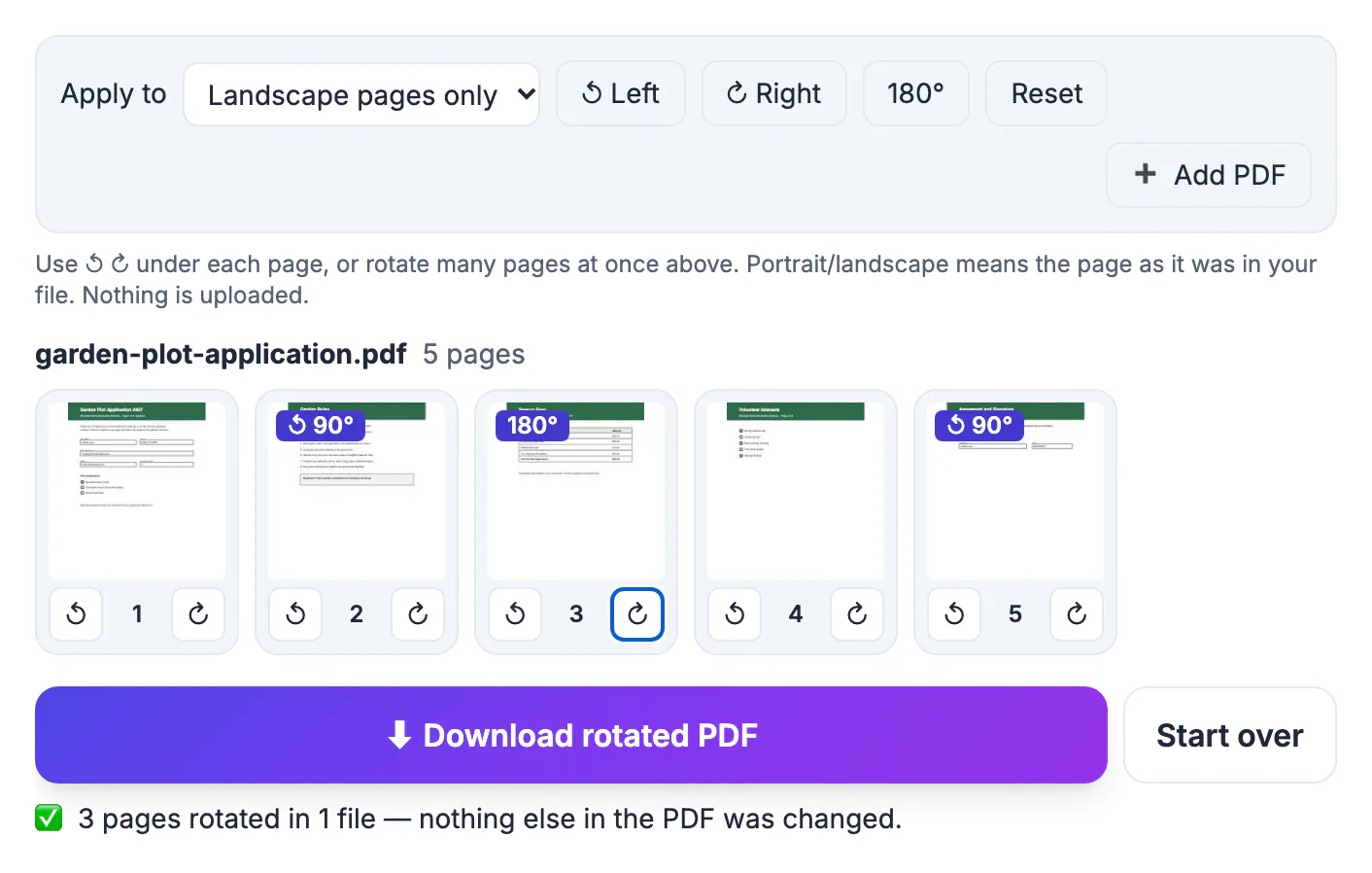
Almost every PDF viewer has a rotate button, and almost all of them rotate the view, not the document. Browser viewers, such as the one built into Chrome, turn the page for the current session and forget it on close, and desktop apps keep the change only if you remember to save the file afterward. A saved rotation is different: every PDF page carries a rotation value of 0, 90, 180 or 270 degrees, and any reader that opens the file honors it. Changing that value fixes the page for everyone who receives the file, including a landlord's phone, a school portal's preview and the office printer. Because the value only tells readers which way to turn the page, nothing is redrawn: text stays selectable, fonts and images keep their quality, and links and form fields keep working. That is why a rotation fix is lossless in a way that re-scanning or printing to PDF is not.
How to rotate PDF pages and save them, with a real packet
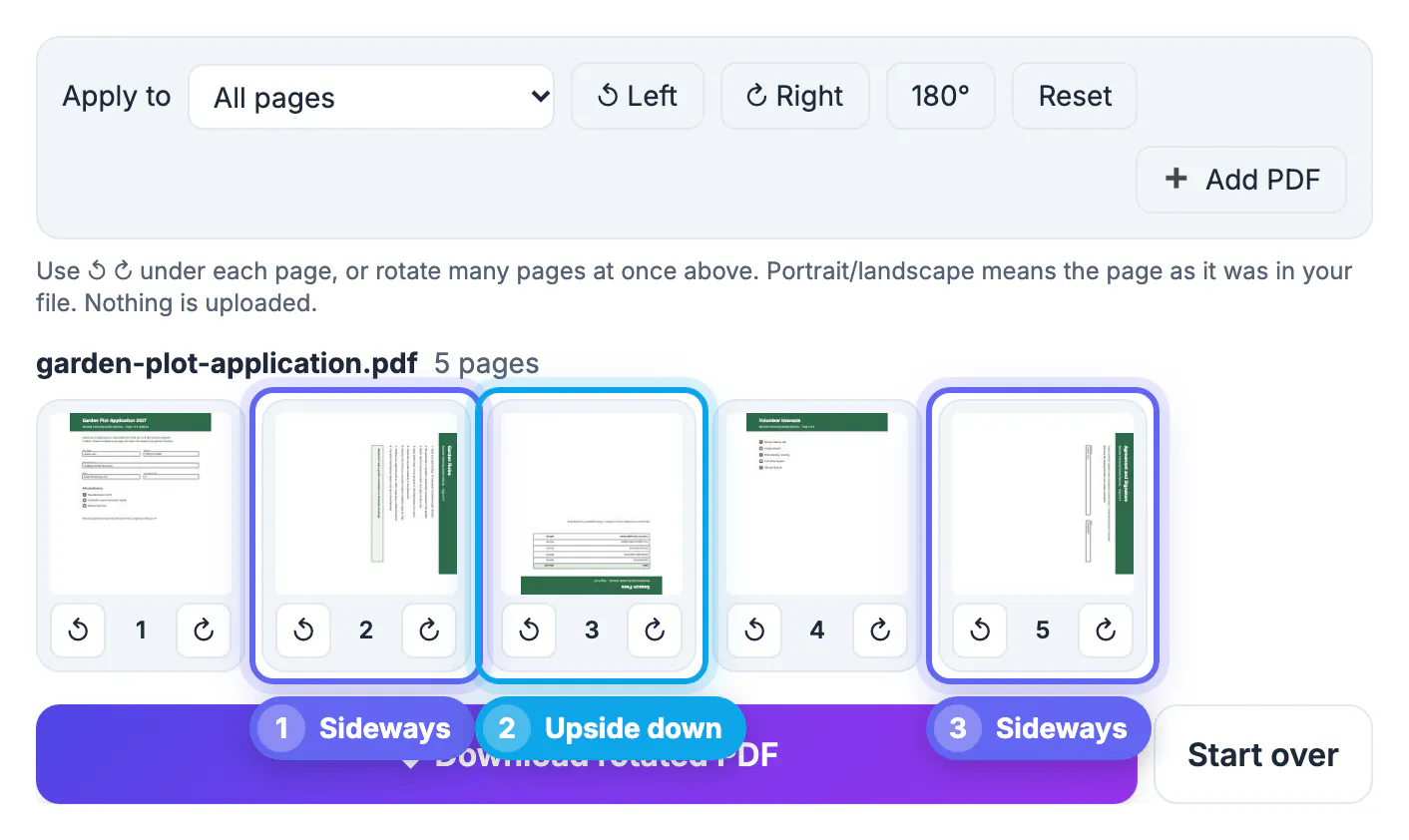
The sample is a five-page community garden application: a cover form, a rules page, a fee table, a volunteer checklist and a signature page. Pages 2 and 5 came out sideways and page 3 upside down, a typical result of scanning pages in mixed orientations.
- After dropping in the file, every page appears as a thumbnail. The three wrong-way pages stand out at a glance.
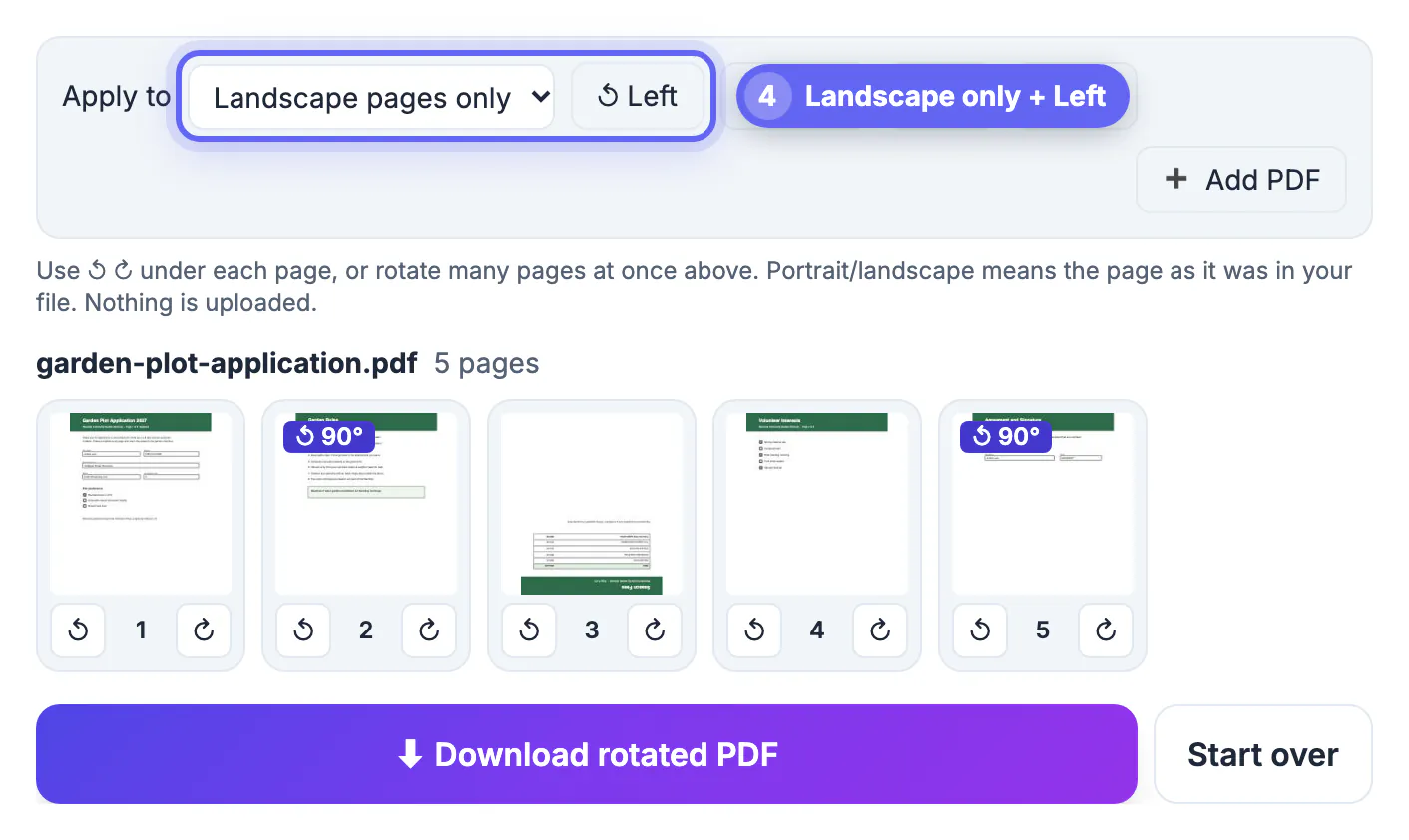
- Both sideways pages display wider than tall, so Apply to: Landscape pages only plus the Left button turned them upright in a single click. Each now shows a 90 degree badge.
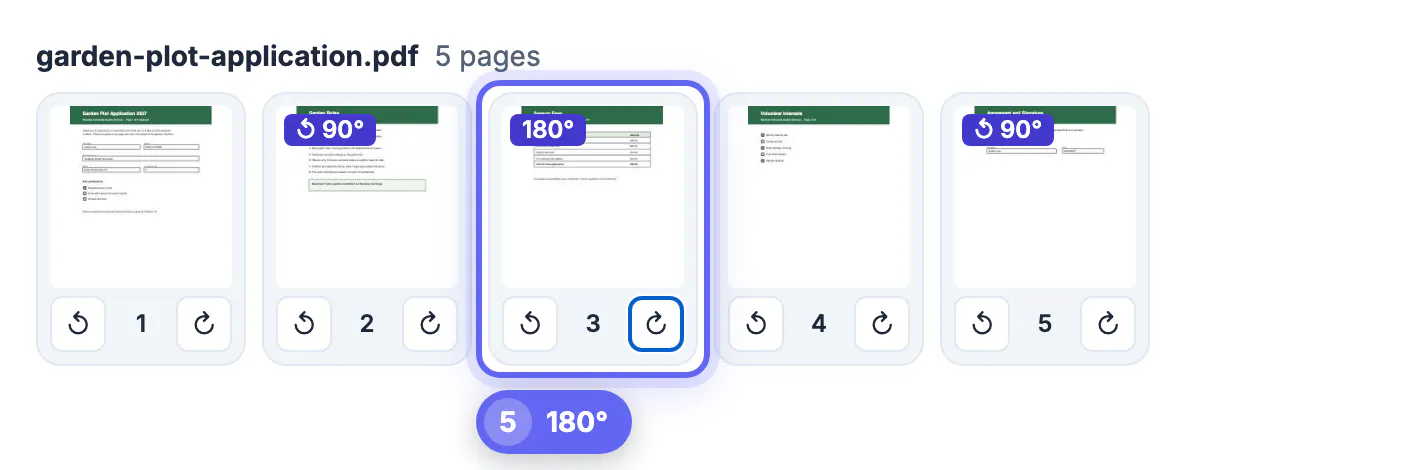
- Page 3 needed a half turn. Two clicks on the right arrow under its thumbnail set it to 180 degrees.
- Download rotated PDF saved garden-plot-application-rotated.pdf, and the status line reported 3 pages rotated in 1 file, with nothing else in the PDF changed.
The whole fix took well under a minute, and the pages that were already upright were never touched.
Per-page arrows or bulk rotation: which to use
The tool gives you two ways to turn pages, and they combine freely.
- Per-page arrows: the left and right arrows under each thumbnail turn that page 90 degrees. Click twice for 180. Best for one or two odd pages.
- All pages: pairs with Left, Right or 180 to turn the entire document, for example a file scanned completely upside down.
- Portrait pages only: affects only pages that are taller than wide in the original file.
- Landscape pages only: affects only pages wider than tall, which is where sideways scans usually end up.
- Reset: returns every page to its original direction if you want to start over.
Portrait and landscape are judged by how each page looked in the file you loaded, not after your changes, so pressing Left twice with Landscape pages only selected keeps acting on the same pages. Watch the badges: they show the net change for each page, such as 90 degrees left or 180.
What rotating changes inside the PDF, and what it does not
Rotate PDF edits one value per page and re-saves the file.
- Changed: the page's rotation setting, added to any rotation the page already had.
- Unchanged: text, fonts, images, vector graphics, links, bookmarks and form fields, so text stays selectable and searchable.
- Unchanged: page size and content position; a Letter page stays 8.5 by 11 inches, just turned.
- Slightly different: file size, because the document is re-saved by the pdf-lib library.
The file is read with PDF.js and saved with pdf-lib inside your browser, so it is never uploaded. Encrypted or password-protected PDFs cannot be opened or saved; remove the password first with the app you normally use, then rotate.
When pages are crooked rather than sideways
Rotation works in exact quarter turns: 90, 180 and 270 degrees. That fixes pages that are sideways or upside down, which covers nearly every scanning and phone-capture mistake.
- A page tilted by a few degrees needs deskewing, which re-renders the scan; rotating by 90 will not level it.
- A page that looks mirrored was captured through glass or with a front camera and needs to be recaptured.
- A landscape spreadsheet page that is meant to be landscape is not wrong; leave it, even if the rest of the file is portrait.
- Pages in the wrong order are a separate problem; drag them into place with Organize PDF after rotating.
If you are about to scan again anyway, set the scanner or scanning app to auto-orientation. It usually catches whole upside-down pages, though it often misses pages with little text, which is exactly where a quick rotation pass helps.
Once pages are upright, the OCR PDF tool has a better chance of recognizing the text.
Step-by-step

Common mistakes to avoid
Pro tips
Frequently asked questions
How do I rotate a PDF and save it permanently?
Open GrabCast Rotate PDF, turn the pages with the arrows or the bulk buttons, and click Download rotated PDF. The rotation is stored in each page's settings, so every viewer and printer shows the pages the same way.
Does rotating a PDF reduce quality?
No. Only the page rotation value changes. Text, images, fonts, links and form fields stay exactly as they were, and text remains selectable. The file size can differ slightly because the document is re-saved.
Can I rotate just one page?
Yes. Use the left or right arrow under that page's thumbnail. Each click turns it 90 degrees, and two clicks turn it 180 degrees, while the other pages stay as they are.
Why does my PDF open sideways again after I rotated it?
The viewer probably rotated only the display. Browser viewers and many apps forget the change on close. Saving the rotation inside the file with a tool like Rotate PDF fixes it for good.
Is my PDF uploaded when I rotate it?
No. The pages are read and saved in your browser with open-source libraries, so the document stays on your device. That matters for applications, contracts and medical forms.
If a page keeps coming back sideways, the fix belongs in the file, not the viewer. Rotate PDF changes only the rotation value of the pages you choose, with bulk options for landscape or portrait pages and arrows for single pages, and it leaves everything else in the document untouched. Check the thumbnails, watch the badges, download, and confirm the result in a second app before you send it.
Related guides
Browse more: all PDF guides · Rotate PDF