Turn PDF Pages Into Images to Share Online
If you want to turn PDF pages into images, the goal is almost always sharing—getting a flyer, menu, or slide into a feed or a chat where a raw PDF would just sit there, unopened and ignored.
🖨️ Try the PDF to JPG tool now — freeOpen →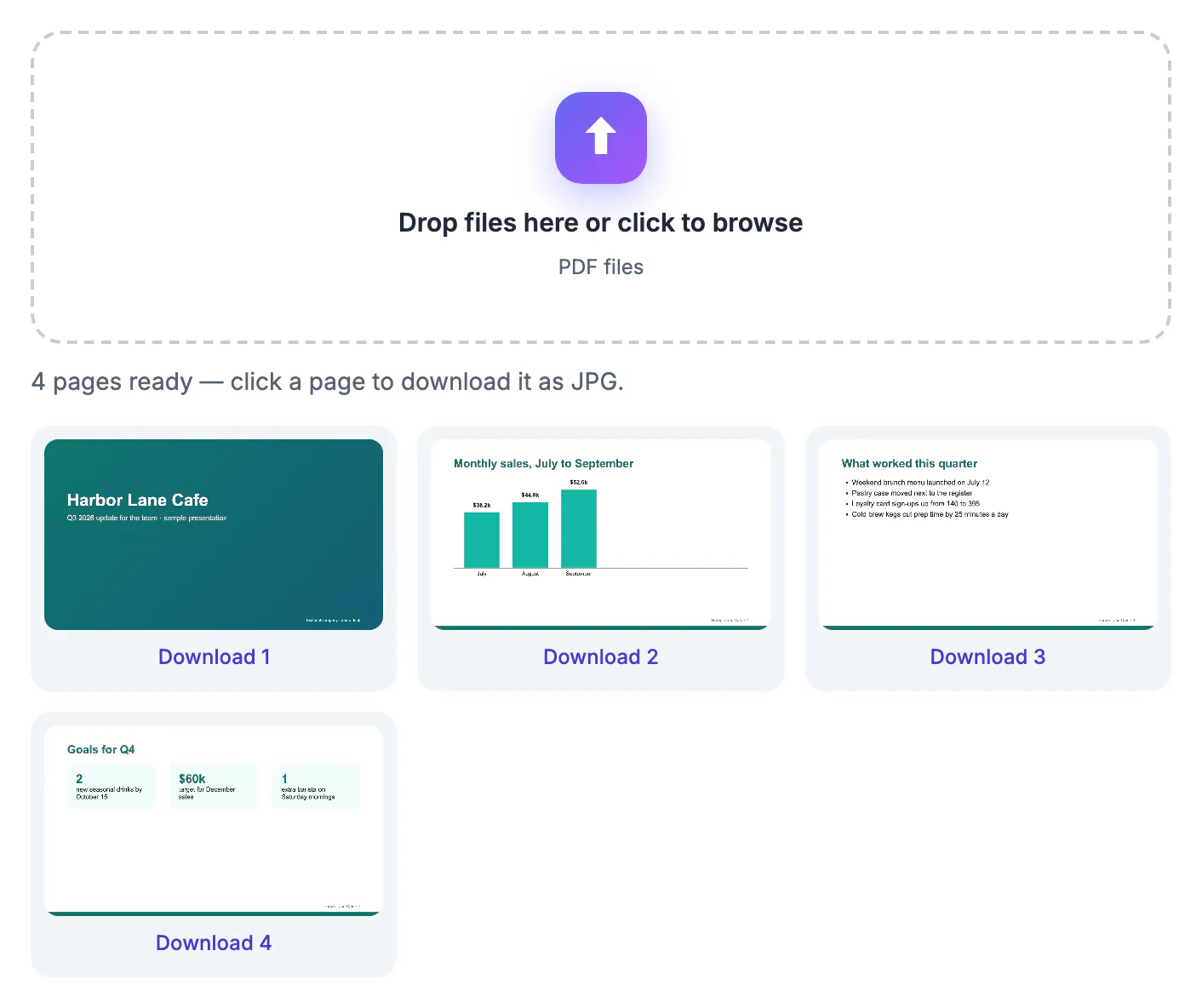
Social platforms and messaging apps preview images inline but treat PDFs as downloads people have to tap, wait for, and open in another app. Turning each page into an image means your content shows up immediately in the feed, earns more views, and works on any device without a reader. It removes every reason someone might scroll past instead of engaging.
Turn PDF pages into images sized for each platform
Different platforms favor different shapes, and posting the wrong one gets your content cropped in unflattering ways. A square works well for a standard feed post, a tall image suits stories and reels, and a wide image fits a slide or a link preview.
Convert your pages to JPG first, then crop or pad them to the aspect ratio the platform likes, so nothing important gets clipped when the feed reframes it. A minute of sizing up front saves you from a headline that gets cut in half.
Keep text readable in the feed
Pages full of small print can turn to mush once a platform recompresses them on upload. To fight that, export at a high resolution so headlines and body text stay sharp even after the platform has had its way with the file.
- Convert text-heavy pages at a higher resolution than photo pages
- Preview the image at phone size before you post it
- Avoid stacking multiple dense pages into one image
- Lead with the most important page as your very first slide
- Leave a little margin so text is not jammed against the edge
Readable beats clever every time. If a viewer has to pinch and zoom to read your post, most of them simply will not bother.
Post individual pages or a swipeable carousel
Because each PDF page becomes its own image, you can post them as a multi-image carousel and let people swipe through in order. That format is perfect for a menu, a step-by-step how-to, or an event flyer with details on the back.
Viewers see everything without downloading a file or leaving the app, which keeps them engaged and makes your content far easier to skim. A carousel also gives you several chances to catch someone's eye as they scroll.
For a square carousel slide, resize the image to 1080x1080, and the Compress Image tool helps keep the files light.
Keep it private and free
A browser-based converter turns your pages into images on your own device, so drafts, internal decks, and unreleased flyers never get uploaded to an unknown server. For anything not yet public, that privacy is worth more than it sounds.
There is no watermark and no account, which means the images look clean and professional the moment you share them. You can convert as often as you like, so iterating on a post costs you nothing but a few seconds.
Reuse the same images everywhere
Once you have clean page images, they work far beyond social media. Drop them into an email newsletter, attach them in a chat, embed them on a simple web page, or paste them into a slide when you do not want a live PDF link.
Turning pages into images essentially frees your content from the PDF container, so you can place it wherever your audience already is instead of asking them to come to a file.
Build a repeatable posting workflow
If you turn pages into images often, a small routine makes it effortless. Decide the aspect ratio for each platform once, keep a note of it, and convert new pages to that shape every time so your feed looks consistent rather than improvised.
Batch your work: convert all the pages you need in one session, name them in posting order, and store them in a dated folder so a future you can find and reuse them without hunting. Consistency in sizing and naming is what turns a chore into a habit.
It also pays to keep the source PDF as your single master. When a detail changes, you update the PDF, re-export the affected page, and swap that one image, rather than rebuilding the whole set by hand each time something moves.
Add context so posts do the work for you
An image in a feed carries no searchable text, so the words around it matter more than usual. Write a caption that repeats the key detail from the page, whether that is a date, a price, or an address, so the information survives even if someone only skims.
A short text description also helps people using screen readers and gives search engines something to index. Treat each page image as a visual, and let the caption carry the facts, rather than assuming everyone will stop to read the graphic word for word.
Pinning the essential detail into the caption also protects you when a platform crops or compresses the image. Even if the picture is hard to read on a small screen, the words beside it still deliver the message, which is often the difference between a post that converts and one that scrolls by.
Step-by-step
Common mistakes to avoid
Pro tips
Frequently asked questions
Why turn PDF pages into images instead of sharing the PDF?
Images preview instantly in feeds and chats, while PDFs download as files people must open. Converting pages to images earns more views and works on every device.
What size should the images be for social media?
Match the platform: square for standard posts, tall for stories, wide for slides. Convert first, then crop to that aspect ratio.
Will the text still be readable after posting?
Yes, if you export at a high enough resolution. Dense pages need more resolution so text survives the platform's recompression on upload.
Is turning PDF pages into images free?
A browser tool does it free with no watermark or signup, and it keeps your pages private by working entirely on your device.
Can I post the pages as a carousel?
Yes. Each page becomes its own image, so you can upload them together as a swipeable carousel that people scroll through in order.
To turn PDF pages into images worth sharing, convert each page to a high-resolution JPG, crop to the platform's shape, and post. It is free, private, and far more clickable than a raw PDF file.
Related guides
Browse more: all PDF guides · the PDF to JPG tool