Reduce Photo Size for Email: Get Under Any Upload Cap
To reduce photo size for email, shrink each picture to about 300 to 500 KB if people will only look at it on a screen, or about 1 MB if they plan to print it, and keep the whole message under 10 MB when it goes outside your company. A single phone shot now weighs 3 to 12 MB, so four or five originals can bounce even from a 25 MB inbox. Below are the real limits of Gmail, Outlook, Yahoo and iCloud, why the usable ceiling is lower than advertised, the size to aim for in each situation, and a quick way to hit an exact KB target in your browser before you attach anything.
🗜️ Try Compress Image now — freeOpen →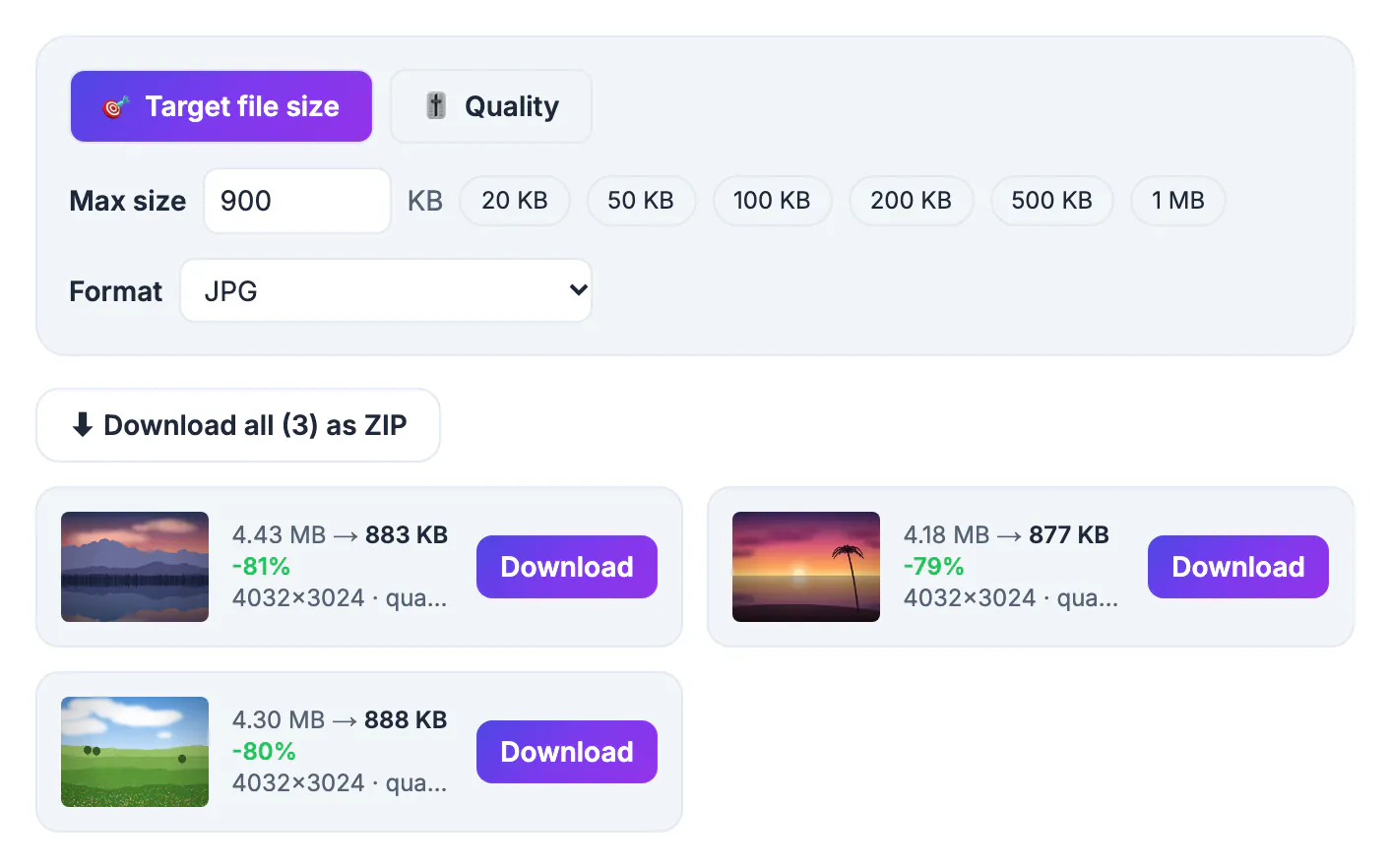
Modern phones shoot 12 to 50 megapixels, and night modes stack several frames into one, so a single file often lands between 3 and 12 MB. Mail servers, job portals and school systems were built around much smaller files and cap each message or upload to keep storage and virus scanning cheap. Bounces are also slow to surface: the mail app shows the message as sent, and the delivery failure notice can arrive hours later, sometimes after the deadline you were writing about. Recipients pay a cost as well, because a 20 MB message on a weak phone signal can take minutes to open. Shrinking each picture to what a screen actually displays fixes all of this, and it rarely changes what the viewer sees.
Email size limits and the hidden encoding tax
Every major mail service publishes a per-message limit, and each one measures the encoded message rather than the files sitting on your disk:
- Gmail: 25 MB; anything larger is offered as a Google Drive link instead
- Outlook.com and Microsoft 365: 20 MB by default, with OneDrive links for bigger files
- Yahoo Mail: 25 MB per message
- iCloud Mail: 20 MB, or Mail Drop links for files up to 5 GB
- Company mail servers: often 10 MB, set by the recipient's IT team, and invisible to you
Attachments travel as text using Base64 encoding, which adds roughly a third to their weight. A 25 MB cap therefore holds about 18 MB of real photos, and a 20 MB cap about 15 MB. A message that reaches a friend on Gmail can still bounce from a client whose server stops at 10 MB. The safe habit: keep anything sent outside your company under 10 MB in total, and if you mail one company often, ask their contact for the limit once.
Upload forms are usually stricter than inboxes. Job boards and HR portals commonly allow 2 to 5 MB per file, school, benefits and licensing portals often 500 KB to 1 MB, and the US visa DS-160 photo must be a JPEG of 240 KB or less and at least 600 by 600 pixels. Aim about 10 percent under any stated cap, so 900 KB for a 1 MB rule, because some sites round sizes differently.
Photo size for email: match it to what the recipient will do
The right target depends less on your camera than on what happens after the message is opened.
- Viewing on a phone or laptop: 300 to 500 KB, about 1600 to 2000 pixels on the long edge
- Insurance claims, repair quotes and property listings where people zoom in: 800 KB to 1 MB
- A 4 by 6 inch print: about 1 MB, which keeps the 1800 by 1200 pixels a sharp 300 dpi print needs
- 8 by 10 prints or framing: skip the attachment and share the original through a cloud link
A 4032 by 3024 shot from a recent iPhone or Pixel holds about 12 million pixels, yet a mail window shows it roughly 800 pixels wide and a phone even narrower. Scaled to 1600 pixels on the long edge with the Resize Image tool and saved at 75 to 80 percent quality, a typical shot lands between 250 and 600 KB with no difference anyone notices at normal viewing distance. At 400 KB each, twenty holiday pictures fit in 8 MB, comfortably inside every provider's limit.
Content changes the math. Faces, pets and landscapes look clean at 70 to 80 percent. Receipts, whiteboards and screenshots of text need 85 percent or more, since a blurred total defeats the point of sending it. Dark night shots carry sensor noise that costs bytes, so expect bigger files at the same setting.
Target size mode versus the quality slider
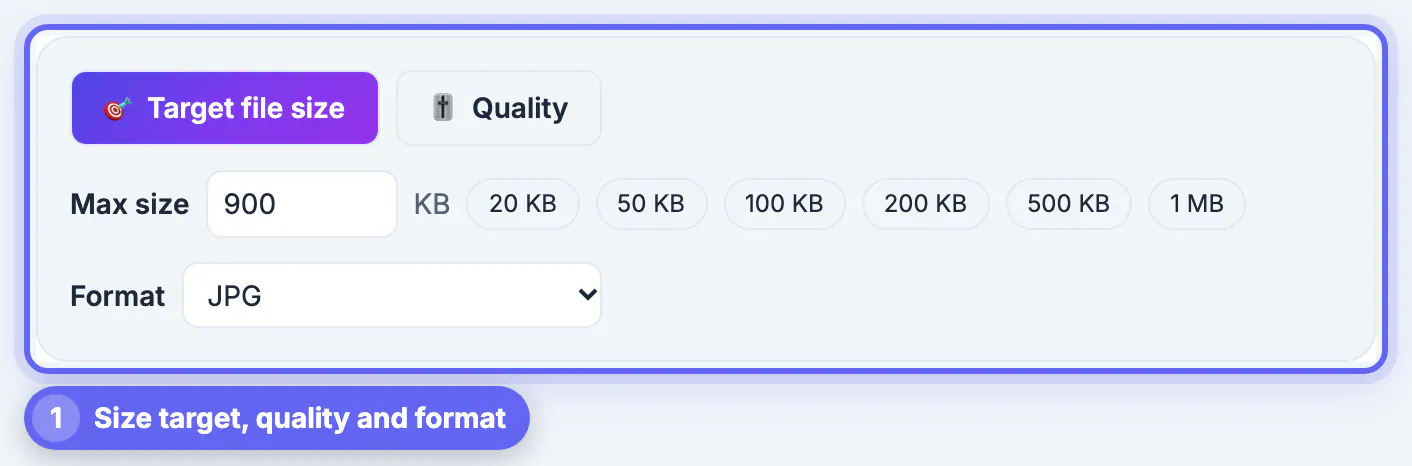
The GrabCast Compress Image tool has two modes. Target file size takes a maximum in KB, with one-tap presets for 20 KB, 50 KB, 100 KB, 200 KB, 500 KB and 1 MB, and searches for the highest quality that still fits. It keeps quality at 45 percent or higher, because JPG and WebP turn blocky below that, and shrinks the pixel dimensions step by step instead; those cards are marked resized to fit. If even that cannot reach a very small goal, the card warns you rather than pretending.
Quality mode is a plain slider from 30 to 95 percent, starting at 75, for when the look matters more than an exact number. The Format menu decides the output: Auto saves images that have transparency as WebP and everything else as JPG, or you can force JPG, WebP or PNG for every file. For email, pick JPG, because some older mail apps still will not preview WebP.
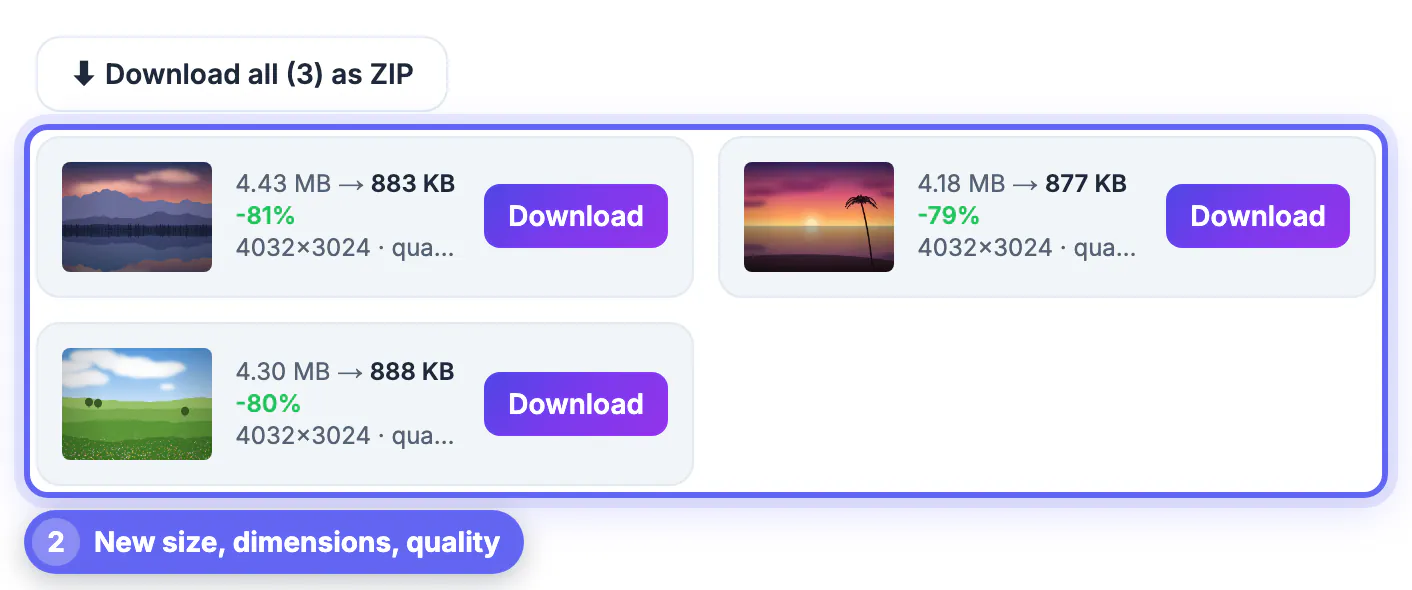
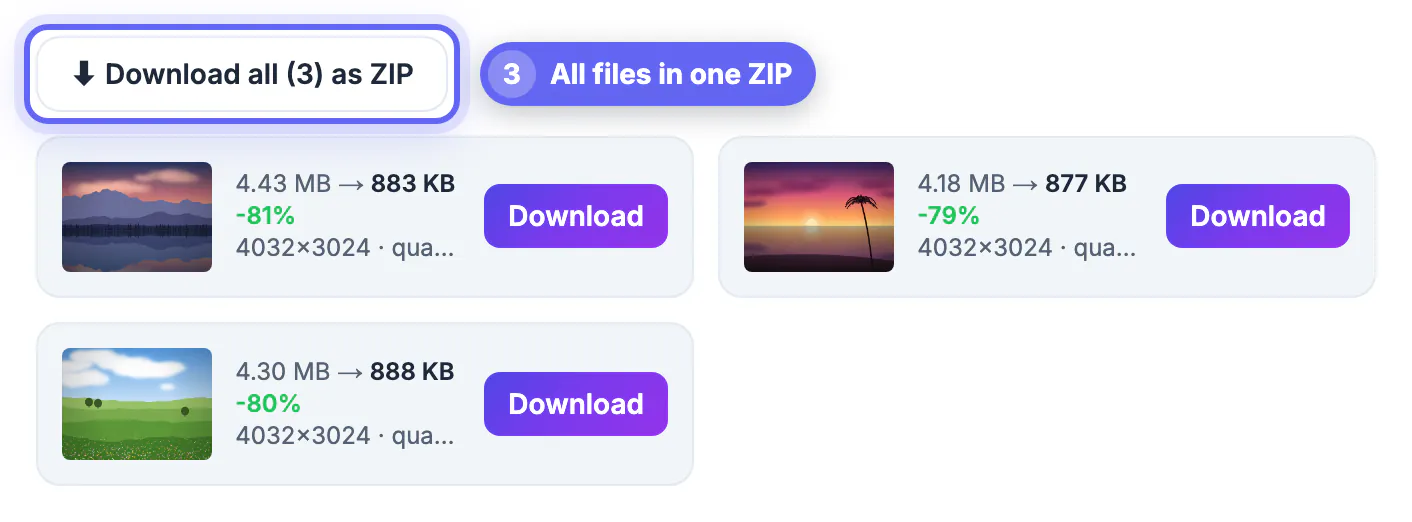
Drop a whole batch at once. Each card shows the new size, percent saved, pixel dimensions and the quality used, and changing a setting re-compresses every image automatically. Download the files one by one or all together as a ZIP, but attach the individual JPGs to the message: people preview pictures inline, some corporate filters block ZIP attachments outright, and JPGs barely shrink inside a ZIP anyway.
HEIC, GPS tags and other quiet problems with email photos
- The compressor reads JPG, PNG, WebP, GIF, BMP and AVIF but not iPhone HEIC files; convert those with the free HEIC to JPG tool first, or set the iPhone camera to Most Compatible
- HEIC attachments often will not open on Windows PCs or older Android phones anyway, so JPG is the safer thing to send
- Re-encoded files leave out the EXIF block, so the camera model and GPS coordinates stay behind, a quiet bonus for pictures of your home or children
- Screenshots saved as PNG can be surprisingly heavy; the compressor outputs JPG or WebP, which is usually far smaller
Compression runs in your browser on your own device, so medical forms, ID cards and family pictures never reach a GrabCast server; they only travel when you attach and send them yourself. It is also one-way. Once you send the 400 KB copy, the recipient cannot recover the missing detail, so keep the original in your library and share the full file by link if someone later wants a large print.
Before you hit send, open one compressed picture on your phone and zoom all the way in. If the text on a receipt or whiteboard is still readable, it will be readable for the recipient too.
Step-by-step
Common mistakes to avoid
Pro tips
Frequently asked questions
What size should a photo be for email?
For viewing on a screen, 300 to 500 KB per picture at about 1600 to 2000 pixels on the long edge is plenty. Use about 1 MB when the recipient will print at 4 by 6 inches or zoom in on details, and share larger originals through a cloud folder link.
Why did 20 MB of attachments bounce when the limit is 25 MB?
Attachments are converted to text for transport, which adds roughly a third to their weight, so 20 MB of files travels as about 27 MB. The recipient's own server may also stop at 10 MB. Keep outside messages well under 10 MB in total.
Will a compressed picture look worse?
At 70 to 85 percent quality the difference is very hard to spot on a phone or laptop. Artifacts show up first around sharp text and fine patterns, which is why documents deserve a higher setting than portraits.
Are my pictures uploaded to GrabCast?
No. The compressor runs in your browser on your own device, and the files never leave it until you attach them yourself. The only extra download is a small ZIP library if you choose Download all as ZIP.
Can I shrink a PDF or a video the same way?
Not with this tool, which handles images only. Compress PDF re-compresses the pictures inside a document while keeping its text selectable, and Video Compressor handles clips.
Find the real limit, aim about ten percent below it, and let a target-size compressor find the best quality that fits: 300 to 500 KB for screen viewing, about 1 MB for prints. Send JPG rather than HEIC or WebP, keep outside messages under 10 MB, keep your originals, and share big albums as a link rather than a stack of attachments.
Related guides
Browse more: all image guides · Compress Image