Compress an Image to 20KB Free Without Uploading
To compress an image to 20KB, you usually have to shrink its pixel size as well as its quality: a face photo that fits 20 KB is typically around 300 to 450 pixels wide. Application portals, school systems and older HR platforms still set limits this small for photos and scanned signatures. This guide explains what fits in 20 KB, how to hit the target on the first try, and the byte-counting trap that makes a 20 KB file get rejected.
🗜️ Try Compress Image now — freeOpen →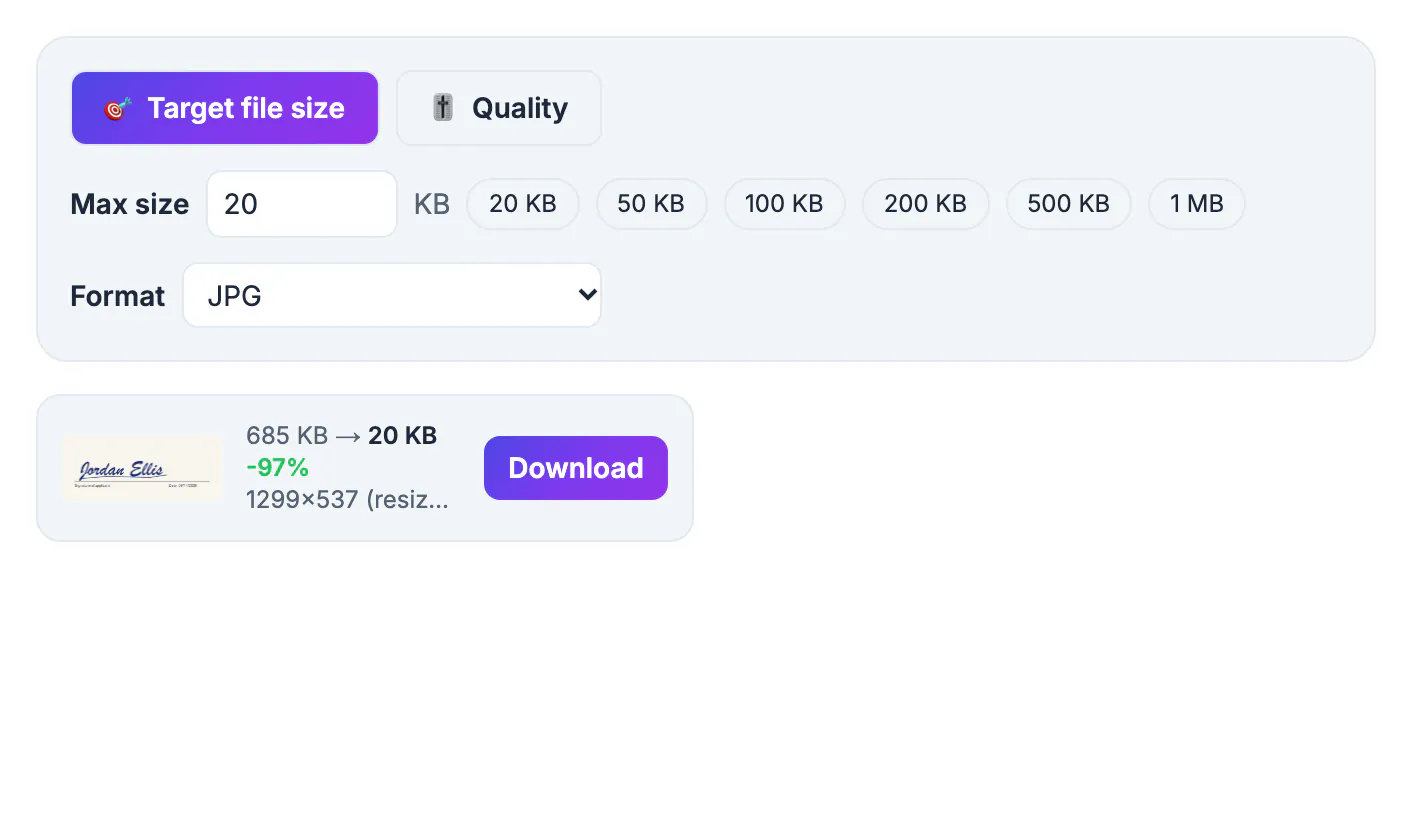
20 KB is 20,480 bytes, or about 164,000 bits. A decent JPEG photo needs roughly 1 to 2 bits per pixel, so 20 KB holds on the order of 80,000 to 160,000 pixels, which is a square of about 300 to 400 pixels. A modern phone shot has 12 million. Squeezing all 12 million into 20 KB by quality alone would turn it into blocky mush, so good tools reduce dimensions and keep quality at a readable level. Simple graphics such as a black signature on white need far fewer bits and can stay much larger. The same math explains why signatures and logos are easy targets while group shots and landscapes are hard: flat areas of one color cost almost nothing to store, and fine texture such as hair, foliage or fabric costs a lot.
What realistically fits in 20KB
- Passport-style face photo: about 300 x 380 to 400 x 500 pixels, clear enough for identification on screen
- Scanned signature, black ink on white: 600 x 200 pixels or more, because flat areas compress extremely well
- Small avatar or forum profile picture: 200 x 200 to 300 x 300 pixels with room to spare
- Detailed landscape or group shot: expect about 250 pixels wide, and fine detail will soften
- Scanned text document: rarely readable at 20 KB; ask whether the portal accepts a PDF instead
If the form also states pixel dimensions, such as 200 x 230 for a photo, crop to that exact size first; the result will usually land well under 20 KB with quality to spare.
Before you start, read the requirement closely. Many forms that say maximum 20 KB also give a minimum, such as 10 KB, to reject blank or corrupted uploads, and some specify a background color such as plain white or light gray.
How to compress to 20KB on the first try
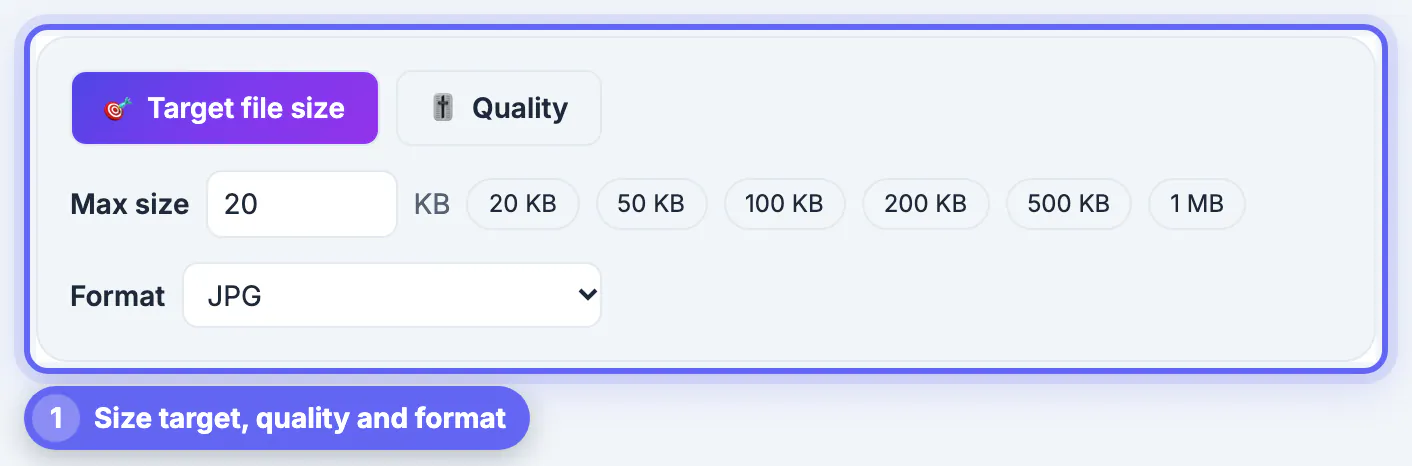
Open Compress Image from this page and the target box is already set to 20 KB, or click the 20 KB preset. Leave the format on JPG. The tool first tries quality levels between 45 and 92 percent at the full size; if even 45 percent is too big, it scales the pixel size down and searches again, up to eight rounds.
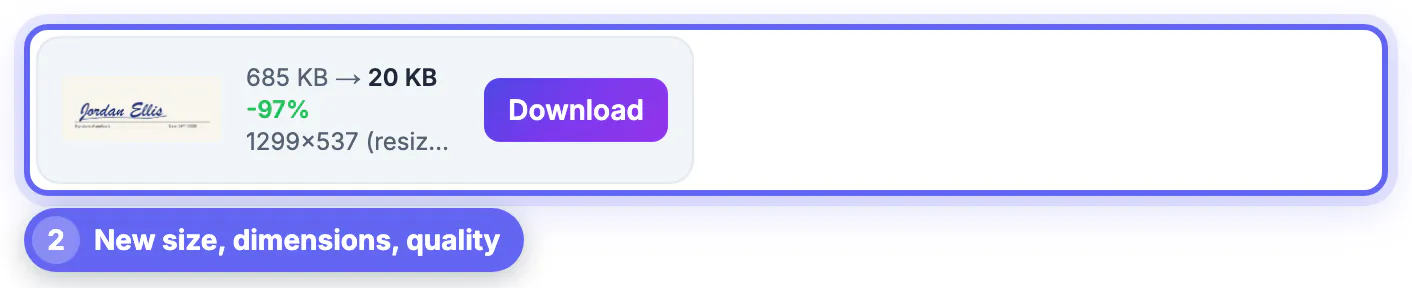
The result card shows the final size, the pixel dimensions and the quality used, with a note if it was resized to fit. When a file simply cannot get under the target, it tells you so and gives you the smallest readable version rather than a ruined one. Crop tightly around the face or signature first and you give every remaining byte to the part that matters.
Want to see the trade-off yourself? Switch to Quality mode, drop the same file at 45 percent and at 80 percent, and compare the sizes. The gap shows why the target mode shrinks pixels instead of quality.
The KB versus KiB trap on upload forms
Some portals count 1 KB as 1,000 bytes, others as 1,024. GrabCast uses 1,024, so a 20 KB result can be up to 20,480 bytes, which a strict 20,000-byte check will reject.
- If the form says 20 KB and rejects a file the tool reports as 20 KB, set the target to 19 and try again
- If the form says a range, such as 10 to 20 KB, target the middle, around 15, to clear both checks
- Check your file’s exact byte count in Properties on Windows or Get Info on a Mac before uploading
- Some forms require JPG specifically; keep format on JPG rather than WebP, which older portals may not accept
The one-kilobyte margin costs nothing visible and saves a frustrating round of rejections.
Keeping faces and signatures legible at tiny sizes
- Crop out empty background before compressing; every pixel of wall competes with your face for bytes
- Use even, bright lighting; shadows and noise are expensive to encode and look muddy at 20 KB
- Scan signatures on plain white paper with a dark pen, and crop tight around the ink
- Avoid busy patterns such as plaid shirts or brick walls, which eat bytes and turn blotchy
Everything runs in your browser, so ID photos and signatures never leave your device, which matters for exactly the documents these forms ask for.
If a picture still looks rough at 20 KB, the fix is almost always a tighter crop or better light, not a different compressor. Retake the shot against a plain wall near a window and the same target suddenly looks clean.
If the image is too large in pixels, resize it first, and the Crop Image tool can cut away empty space that wastes bytes.
Step-by-step

Common mistakes to avoid
Pro tips
Frequently asked questions
How do I compress an image to exactly 20KB?
Open Compress Image, choose Target file size, set 20 KB and drop the picture. The tool finds the best quality that fits and shrinks the pixel size if needed, all in your browser. The picture never leaves your device, and the 20 KB preset is already filled in when you open the tool from this guide.
Why did my 20KB photo get smaller in pixels?
At 20 KB a full-size photo cannot keep readable quality, so the tool reduces dimensions instead of dropping below 45 percent quality. That keeps faces clear rather than blocky. For a head-and-shoulders photo, expect roughly 300 to 450 pixels across, which still looks sharp at the small size forms display.
The portal says my file is too big, but it shows 20 KB. Why?
Some sites count 1 KB as 1,000 bytes. The tool uses 1,024, so set the target to 19 KB to land safely under a 20,000-byte limit. Checking the exact byte count in your file properties before uploading removes the guesswork.
Is it safe to compress ID photos and signatures here?
Yes. Processing happens on your device in the browser; the picture is not uploaded to GrabCast or anywhere else. You can also compress several applicants' photos at once and download them together as a ZIP.
Can I make a signature 20KB and still keep it sharp?
Usually yes. Black ink on white compresses extremely well, so a tightly cropped signature can stay 600 pixels wide or more under 20 KB. Scan or photograph it in daylight on plain white paper for the cleanest result.
Crop first, target 20 KB, and let the tool shrink pixels instead of wrecking quality. Set 19 KB for strict portals, keep JPG, and your photo or signature will pass on the first upload.
Related guides
Browse more: all image guides · Compress Image