Compress a Photo for a Website So Pages Load Faster
To compress a photo for a website without visible loss, resize it to about twice its displayed width, then export it near 100 to 200 KB as a modern JPG or WebP. A 5 MB phone picture used as a hero banner can add several seconds on a mobile connection and drag your Google Core Web Vitals into the red. This guide gives exact size budgets, the order of operations, and the markup details that finish the job.
🗜️ Try Compress Image now — freeOpen →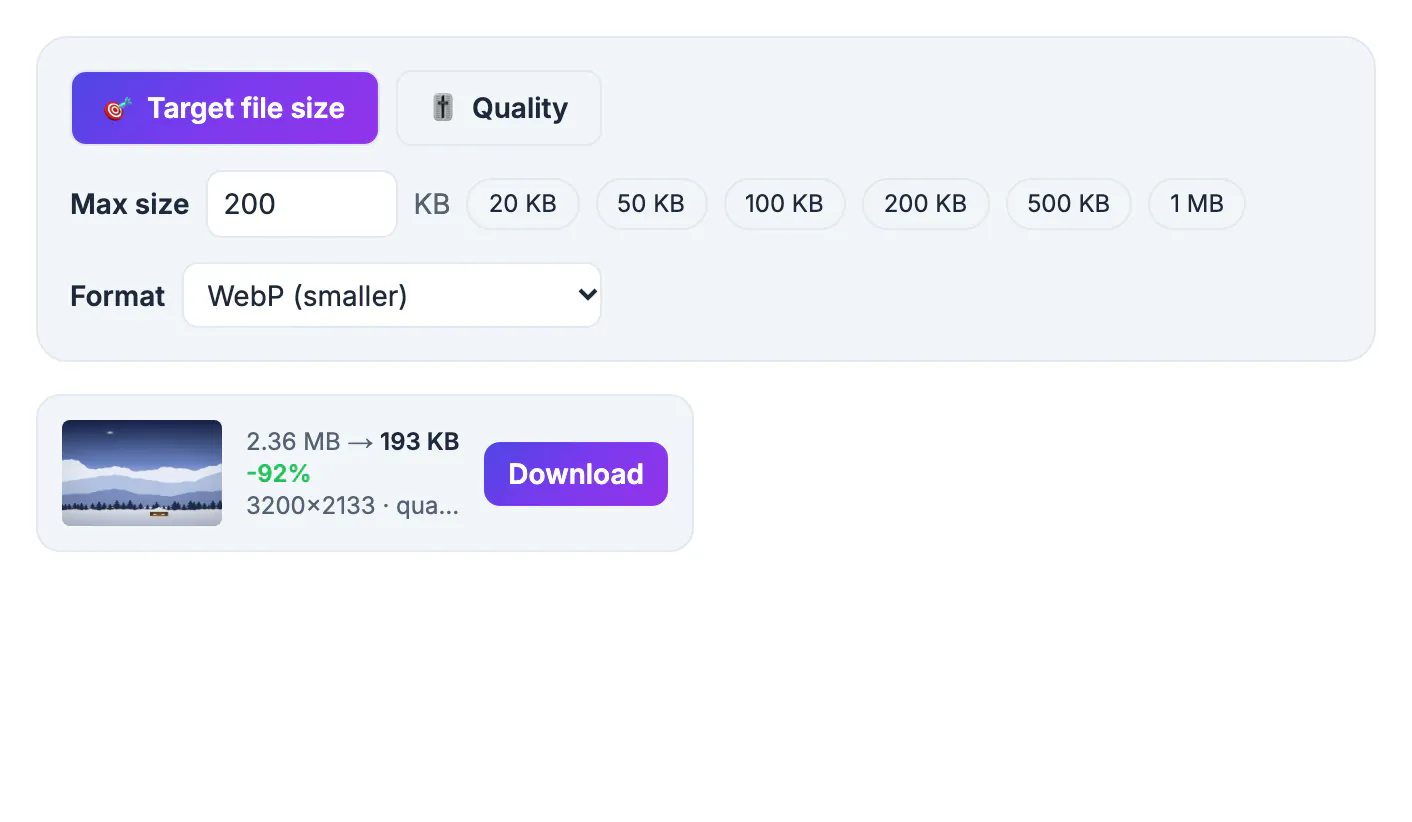
Google's Largest Contentful Paint metric asks that the biggest element on screen appear within 2.5 seconds, and on most pages that element is a picture. On a typical 4G phone connection of around 10 Mbps, a 5 MB file needs about 4 seconds just to arrive, before anything else renders. The same shot at 180 KB arrives in a fraction of a second. Pictures usually make up the majority of a page's bytes, so shrinking them is the single biggest speed win available to most small sites, blogs and shops. Speed is not only a ranking factor. Retail and publishing studies have repeatedly found that visitors abandon pages that take more than about three seconds, and every extra second of waiting lowers conversions. Lighter pictures are the cheapest fix for both problems, because nothing about the design has to change.
Byte budgets for each kind of site picture
- Full-width hero or banner: 1600 to 2400 pixels wide, 150 to 250 KB
- Inline article or product shot: 1000 to 1400 pixels wide, 60 to 120 KB
- Card thumbnail or gallery grid: 400 to 600 pixels wide, 20 to 40 KB
- Logo or icon: an SVG if you have one; otherwise a small transparent file under 20 KB
- Whole page: aim to keep all pictures on the first screen under about 500 KB combined
These numbers come from the 2x rule: a slot displayed 700 pixels wide needs about 1400 pixels to look crisp on Retina and high-density phone screens, and nothing beyond that.
Treat these as ceilings, not goals. A simple product shot on a white backdrop often looks perfect at 50 KB, while a detailed landscape hero might need the full 250 KB. Let your eyes make the final call at 100 percent zoom.
Resize first, then compress to a target
Order matters. Compression alone cannot rescue a 4032 x 3024 original destined for a 700-pixel slot; it will keep too many pixels or smear detail to hit the size. Resize to the 2x width with the Resize Image tool, then compress.
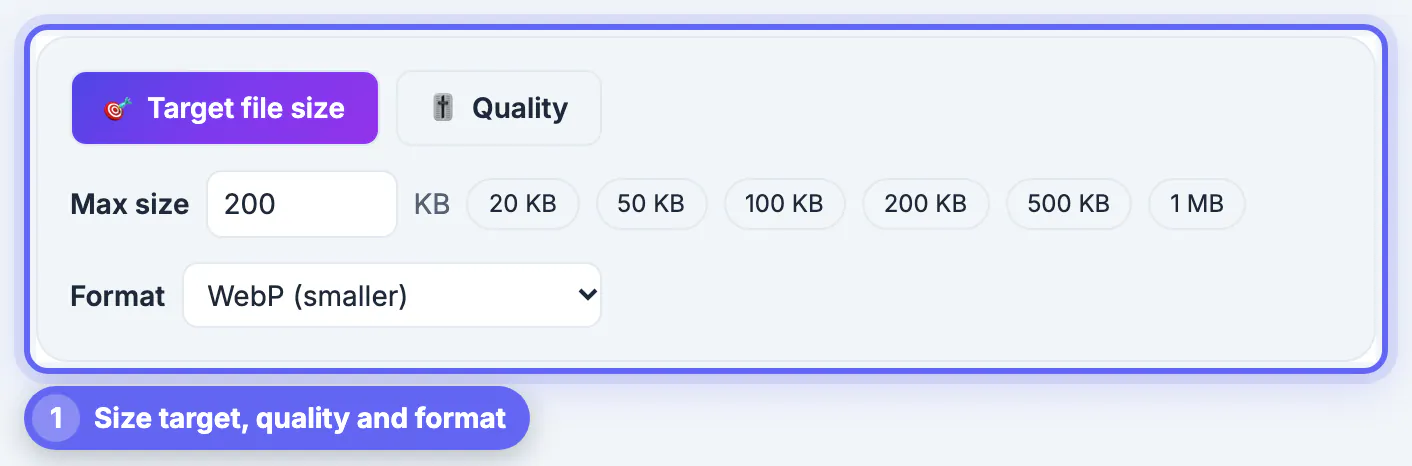
In Compress Image, choose Target file size and click the 100 KB or 200 KB preset, or type your own number. The tool searches for the highest quality that fits, and it will not go below 45 percent quality before shrinking dimensions instead, so faces and text stay clean. Prefer the Quality mode? Settings between 70 and 82 percent are the usual sweet spot for web JPGs.
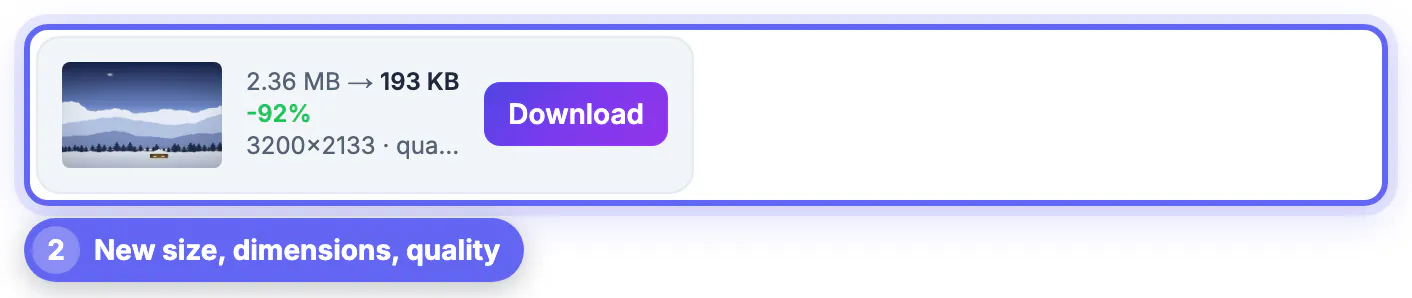
Check each result card before downloading: it lists the final size, the pixel dimensions and the quality used. If a hero came back resized smaller than your 2x width, raise the target to 250 KB rather than accepting a soft banner.
JPG, WebP and pictures with transparency
- Format Auto picks JPG for ordinary shots and switches to WebP when a PNG has transparency, so logos keep clear edges
- Choose WebP (smaller) for everything if your platform accepts it; it is typically 25 to 35 percent lighter than JPG at the same look
- Output can be JPG, WebP or PNG; a heavy screenshot saved as PNG usually shrinks dramatically once converted to WebP or JPG, and Lossy PNG cuts a logo to a small palette while keeping transparency
- WordPress, Shopify, Squarespace and Wix all accept that format
Batch mode handles a whole gallery at once: drop 30 product shots, set one target, and save them together as a ZIP.
For a lighter format, the Image to WebP converter is a quick way to try WebP on a single photo.
Markup that finishes the speed job
A lighter file is most of the win, but three small HTML habits protect the rest:
- Always set width and height attributes so the browser reserves space and nothing jumps as pictures arrive, which fixes Cumulative Layout Shift
- Add loading=lazy to pictures below the first screen, but never to the hero, which should render immediately
- Serve two or three sizes with srcset so phones fetch the 800-pixel copy and desktops the 1600-pixel one
- Write short, descriptive alt text; it helps screen readers and Google Images at no cost
Content systems like WordPress generate srcset automatically from the upload, which is one more reason to upload a correctly sized, pre-compressed original.
After uploading, run PageSpeed Insights on mobile. The Opportunities list names any picture still oversized or served without dimensions, so you can fix the stragglers in one more pass.
Step-by-step

Common mistakes to avoid
Pro tips
Frequently asked questions
What size should pictures be for a website?
Roughly twice the width they display at, and 60 to 250 KB depending on role: about 200 KB for a full-width hero, around 100 KB for inline shots and 20 to 40 KB for thumbnails. For a blog, a practical house rule is 1400 pixels wide and 120 KB for every inline picture.
Does compressing hurt quality or SEO?
Done with sensible settings it improves SEO, because faster pages rank and convert better. Keeping quality at 45 percent or higher, as the target mode does, keeps faces and text sharp. Always compare the result at full size next to the original before replacing it on a live page.
Should I use WebP or JPG on my site?
WebP where your platform accepts it, which most now do. It is usually a quarter to a third smaller at the same look and supports transparency.
Are my photos uploaded to compress them?
No. Compression runs in your browser on your device, so product shots and unpublished pictures stay private until you upload them to your own site. That also means you can process client or unreleased product pictures before launch without sharing them with a third party.
Can I compress a whole folder at once?
Yes. Drop many files together, set one target size, and download them all as a ZIP. Each card also lets you save files one by one if you only need a few.
Resize to twice the display width, compress to a target of 100 to 200 KB in JPG or WebP, and set width, height and lazy loading in your markup. That routine alone moves most small sites from slow to fast.
Related guides
Browse more: all image guides · Compress Image