Convert Images to WebP in Bulk: Migrate a Whole Site
To convert images to WebP in bulk, set the quality in GrabCast Batch WebP Converter first, around 80 for photos, then drop dozens of JPG and PNG files at once and click Download all (.zip) when the summary appears. Every file keeps its name with a .webp extension, and the summary tells you the total size before and after. The conversion is the easy part of moving a site to WebP; planning the batches, updating image links and keeping a way back are what make the switch stick. This guide covers the whole workflow, from inventory to rollback.
🗜️ Try Batch WebP Converter now — freeOpen →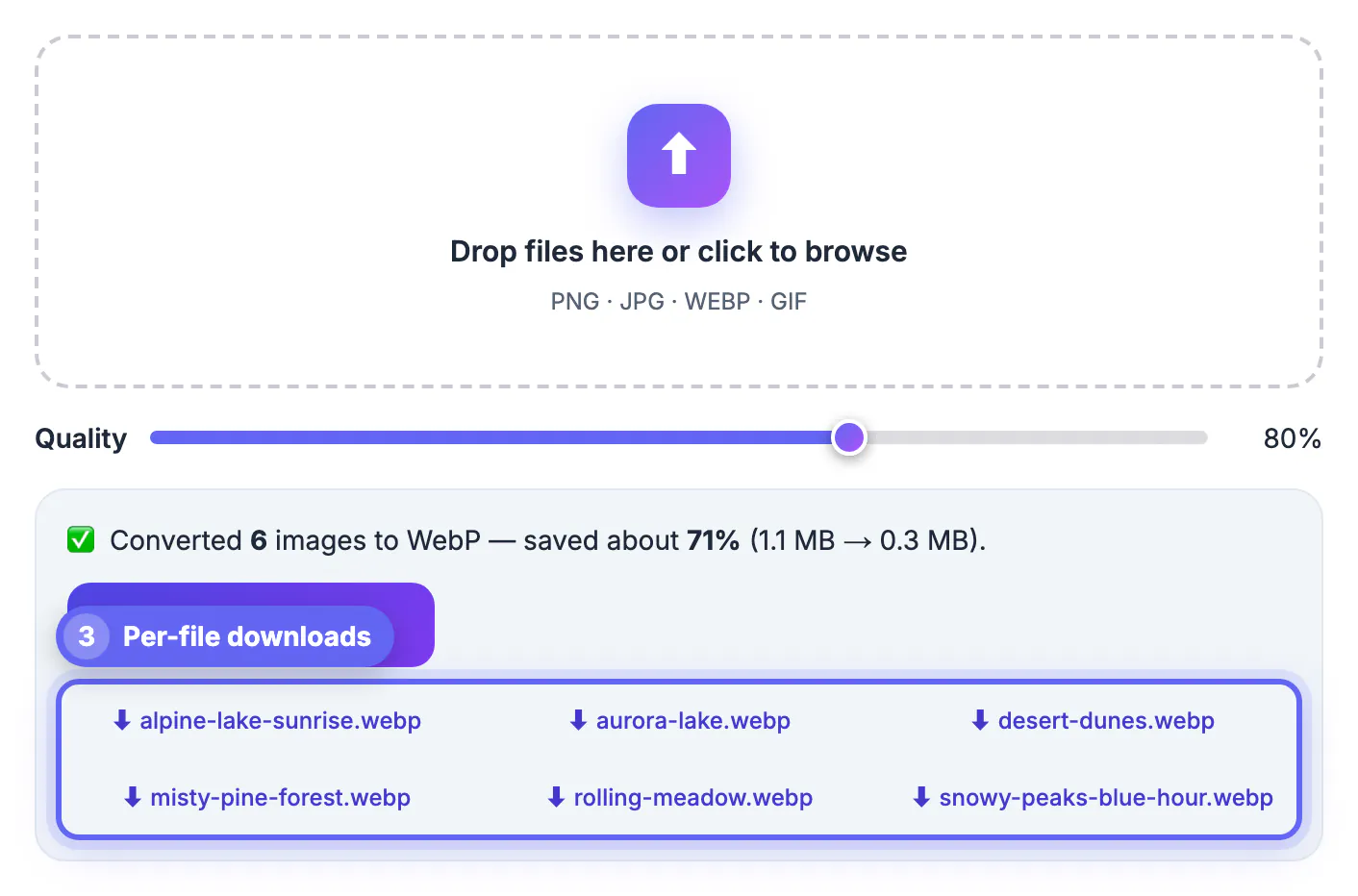
Images are usually the heaviest part of a web page, and a store or blog with hundreds of JPG and PNG files carries that weight on every visit. Google's published tests put lossy WebP 25 to 34 percent below JPEG at equal quality, and photo-like PNGs often shrink by more than half, so converting the whole library can cut total image weight dramatically. Doing it one file at a time is where good intentions die: re-exporting 300 product shots by hand takes an afternoon, while a batch converter does it in minutes on your own computer. A single pass also keeps quality consistent across the site, which matters when product photos sit side by side in a grid.
Plan the batches before you convert images to WebP in bulk
The Batch WebP Converter applies one quality setting to everything you drop in, and it reads the slider at the moment you add the files. That makes grouping the images the most important decision.
- Photos such as products, team shots and blog headers: one batch at 75 to 85
- Screenshots, charts and diagrams with small text: a separate batch at 85 to 90
- Thumbnails and backgrounds: a batch at 60 to 70, where softness does not show
- Logos and icons: consider leaving small ones as PNG or SVG, since savings are tiny
Before converting, export or copy the images from your site into folders that match these groups, and note the total size of each folder. If a folder has hundreds of files, split it into groups of a few dozen; the tool processes images one after another on your device, and smaller runs keep the browser responsive.
Running the batch and reading the summary
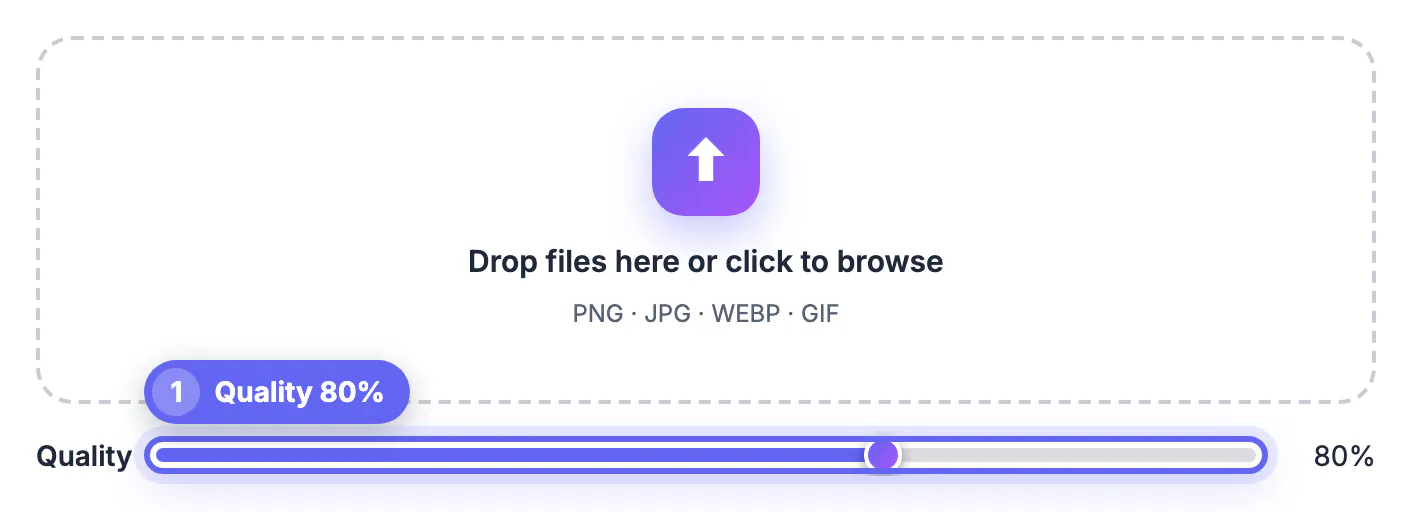
Set the Quality slider, which runs from 40 to 100 and starts at 80, and then drag the whole group into the upload box or click it to select the files. Conversion starts immediately.
- A progress counter shows how many images are done out of the total
- The summary reports how many images converted and the total size before and after, such as 48.2 MB to 11.6 MB
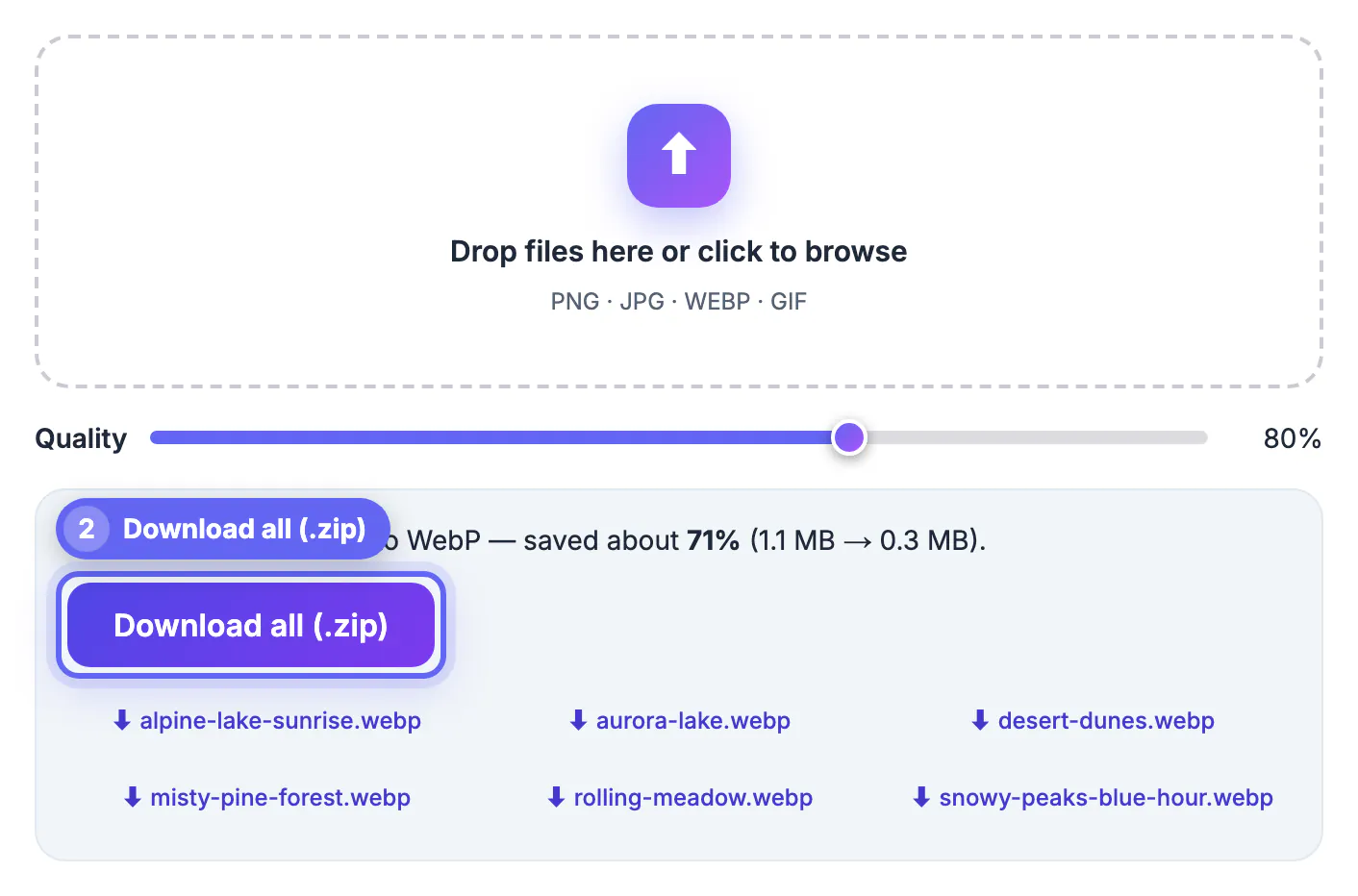
- Download all (.zip) saves every file in one archive named webp-images.zip
- Individual buttons let you save single files, handy for spot checks
If a file cannot be decoded, it is skipped and the rest still convert, so compare the converted count with the number you dropped. Animated GIFs become a single still frame. The images are decoded and re-encoded by your browser's canvas, so they never leave your computer, and EXIF metadata such as camera details or GPS location is not carried over. Pixel dimensions stay the same, so resize any oversized originals before the run.
Check quality before you publish the whole set
A setting that looks fine on a landscape can smear the fine print on a product label. Before replacing anything on the live site, check a sample from each batch.
- Open five or six of the heaviest and most detailed files at 100 percent zoom
- Look at faces, product edges, fabric texture and any small text
- Check transparent PNGs against both a dark and a light background for fringes
- If something looks off, rerun that batch at a setting five to ten points higher
Rerunning costs a minute, while fixing a blurry catalog after launch costs much more. Once the samples pass, note the setting you used for each group so future uploads match. A simple rule for the team, such as photos at 80 and screenshots at 88, keeps new images consistent with the migrated ones.
Unsure whether WebP suits a given image? See PNG vs WebP and WebP vs JPG before you publish the whole batch.
Swap files on the site and keep a way back
New files on disk make nothing faster until pages actually use them. Because each WebP keeps the original base name, the change in every image path is usually just the extension.
- Static sites: search and replace .jpg and .png references in templates and pages, then test several pages
- WordPress: WebP uploads have been supported since version 5.8, but existing posts still point to the old files unless you update them or use an optimization plugin
- Online stores: re-upload product images through the platform, which may also create its own resized copies
- Anywhere old software must be served: use a picture element with the JPG or PNG as a fallback
Keep the original folders archived and untouched. If a template breaks or a client complains, you can roll back in minutes, and you will have lossless or full-quality sources ready for print, email and future redesigns. Finally, measure: load a heavy page before and after on a phone connection and compare the transferred size.
Step-by-step
Common mistakes to avoid
Pro tips
Frequently asked questions
How many images can I convert to WebP at once?
There is no fixed limit. Images are converted one after another on your own device, so the practical limit is your computer's memory and browser. For very large libraries, groups of a few dozen keep things responsive.
Are my images uploaded when converting in bulk?
No. Each image is decoded and re-encoded to WebP by your browser, entirely on your device. The only thing downloaded from the internet is the small JSZip library when you click Download all (.zip).
What quality should I use for a bulk WebP conversion?
About 80, the default, for photos. Use 85 to 90 for detailed product shots and screenshots with small text, and 60 to 70 for thumbnails and backgrounds. Run different kinds of images as separate batches.
Does bulk conversion keep PNG transparency?
Yes. Images are drawn onto a transparent canvas and exported as WebP, which supports an alpha channel, so transparent PNG backgrounds generally stay transparent.
Will the WebP files keep my original file names?
Yes. Each output uses the original name with a .webp extension, and the ZIP is named webp-images.zip. That makes updating links on a site mostly a matter of changing the extension.
Converting images to WebP in bulk takes minutes once the library is grouped by content and each group has its own quality setting. Spot-check before publishing, update the image links, measure the result, and keep the originals archived so you can roll back or re-export at any time.
Related guides
Browse more: all image guides · Batch WebP Converter