Edit a PDF Online: Add Text, Images and Shapes Free
To edit a PDF online for free, open GrabCast Edit PDF, drop in the file, pick a tool such as Text, Image or Rectangle, click on the page, and download the edited copy. Nothing is uploaded: the pages are drawn by PDF.js and your changes are written into the file by pdf-lib, both running in your browser tab. This guide walks through a real example, a one-page school bake sale flyer that needs a rain plan, a photo and a highlighted price, and explains what each of the ten tools does, which settings matter, and where the editor stops. It is written for the people who actually get handed these files: PTA volunteers, office managers, club secretaries and freelancers who received a PDF instead of the original Word or Canva file and need a small change before the print run.
✏️ Try Edit PDF now — freeOpen →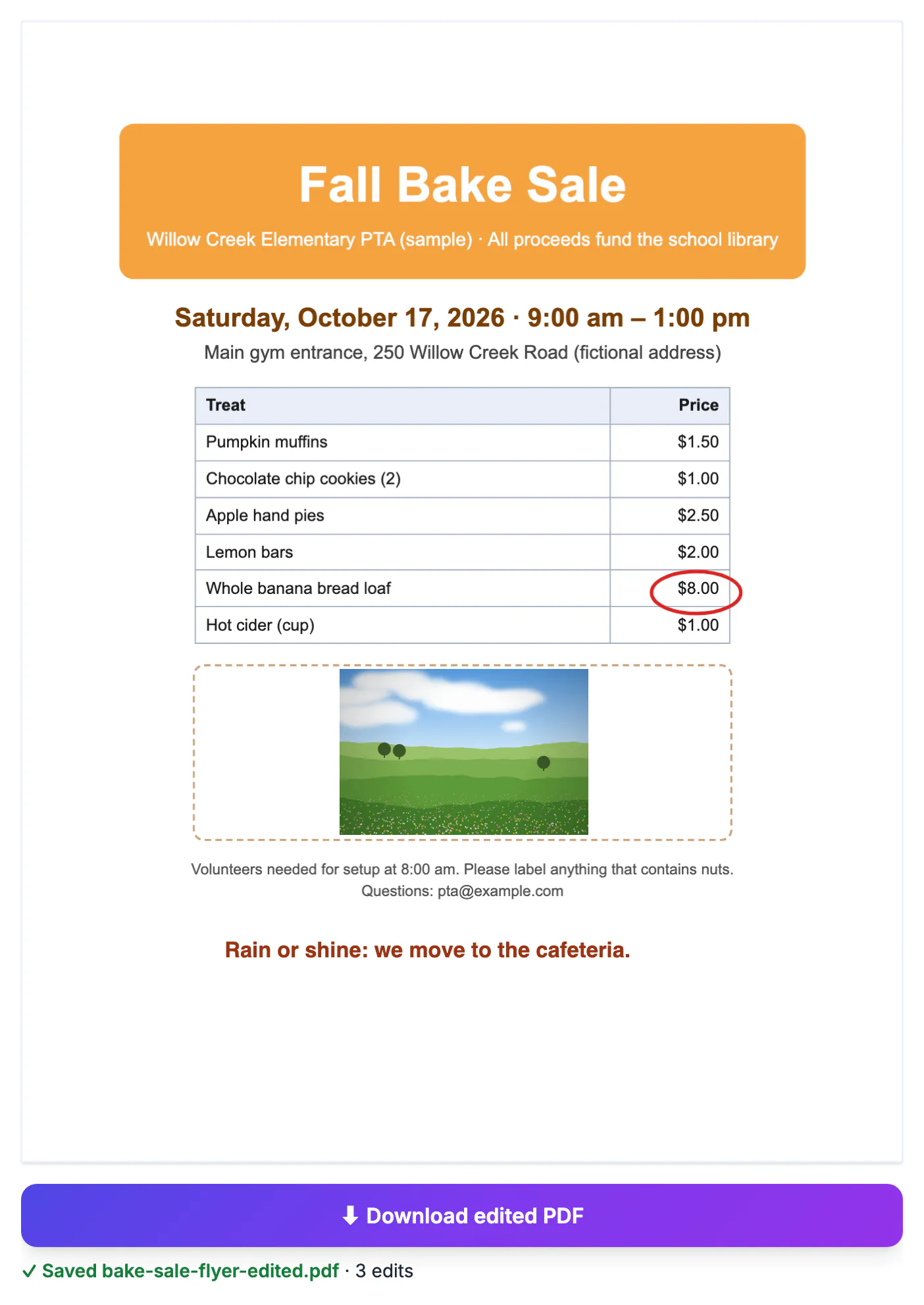
Most PDFs you are asked to update were made by someone else, in software you may not own. The flyer came from a designer, the menu from a print shop, the handout from last year's committee. Rebuilding the page from scratch to add one sentence wastes an evening and usually shifts the layout. Adding content on top of the existing page keeps every font, color and table exactly where the author placed it, and you only touch the spot that needs changing. It also keeps the file's text selectable and its links working, because the original page content is not rasterized or converted. The trade-off is that you are layering, not rewriting: new text sits above the page rather than flowing into the paragraphs underneath. For flyers, notices, forms, handouts and reports that are mostly finished, layering is the fastest honest fix, and it prints exactly the way it looks on screen.
The ten Edit PDF tools and what each one is for
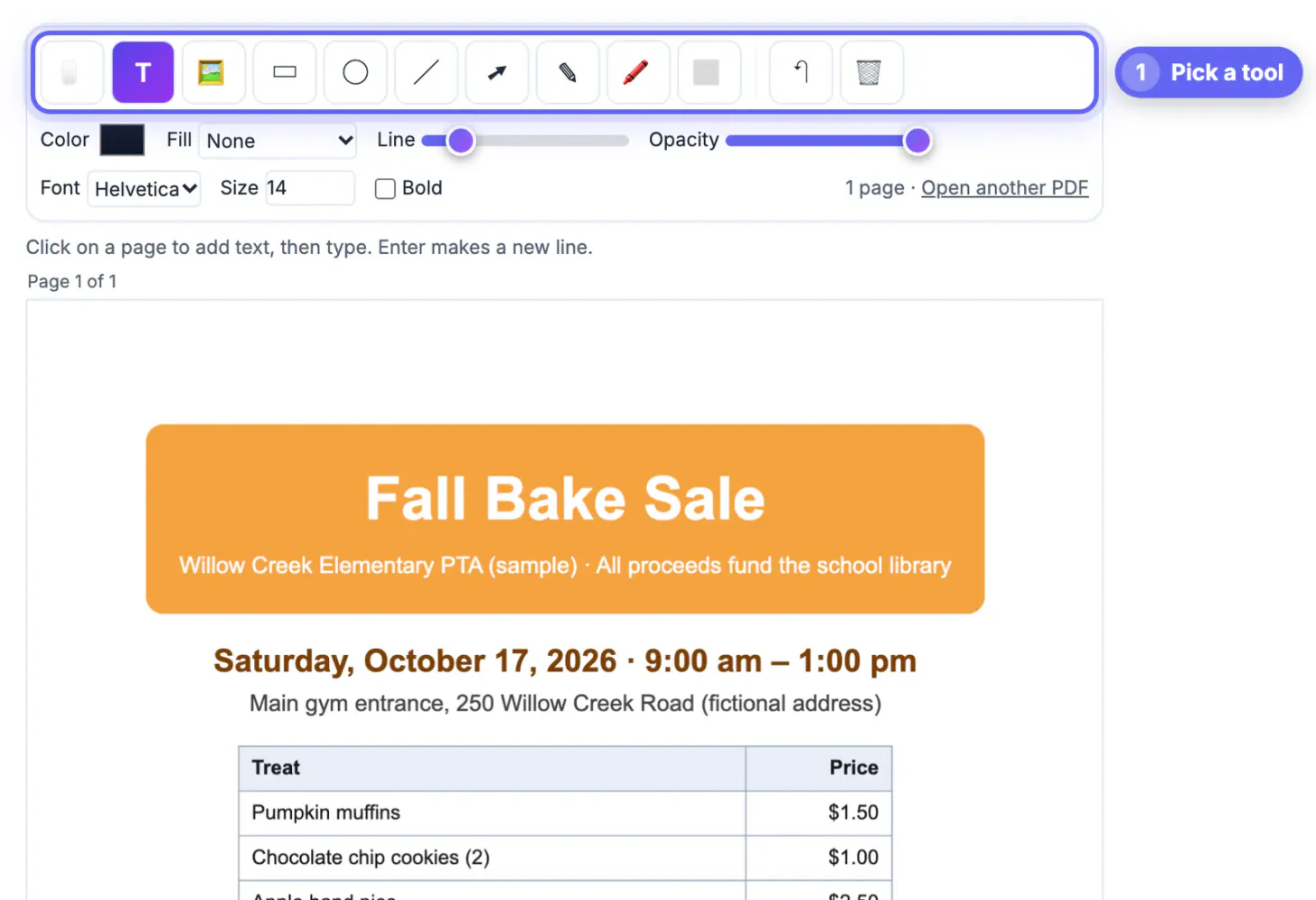
The toolbar above the pages holds ten buttons. Knowing which one to reach for saves most of the trial and error.
- Select: click an item you added to move it, drag its corner dot to resize it, or press Delete to remove it.
- Text: click anywhere on a page and type. Enter starts a new line. Choose Helvetica, Times or Courier, a size from 6 to 96 points, bold, and any color.
- Image: pick a PNG, JPG, WebP or GIF, then click the page to drop it. PNG and WebP keep transparency, which suits logos and stamps.
- Rectangle and Ellipse: drag to draw a frame or a circle. Fill can be None, the same color as the outline, or white.
- Line and Arrow: drag from start to end; the arrowhead is placed where you release.
- Draw: freehand strokes with a mouse, finger or stylus, handy for a quick check mark or an underline.
- Highlight: drag across words for a translucent yellow band that keeps the text readable.
- Whiteout: drag to cover something with solid white so you can type a replacement on top.
Color, line width (0.5 to 12 points) and opacity (10 to 100 percent) apply to the next thing you draw, or to the selected item if you change them while it is selected. Undo steps back through your recent changes, and Ctrl+Z works too.
Worked example: updating a bake sale flyer
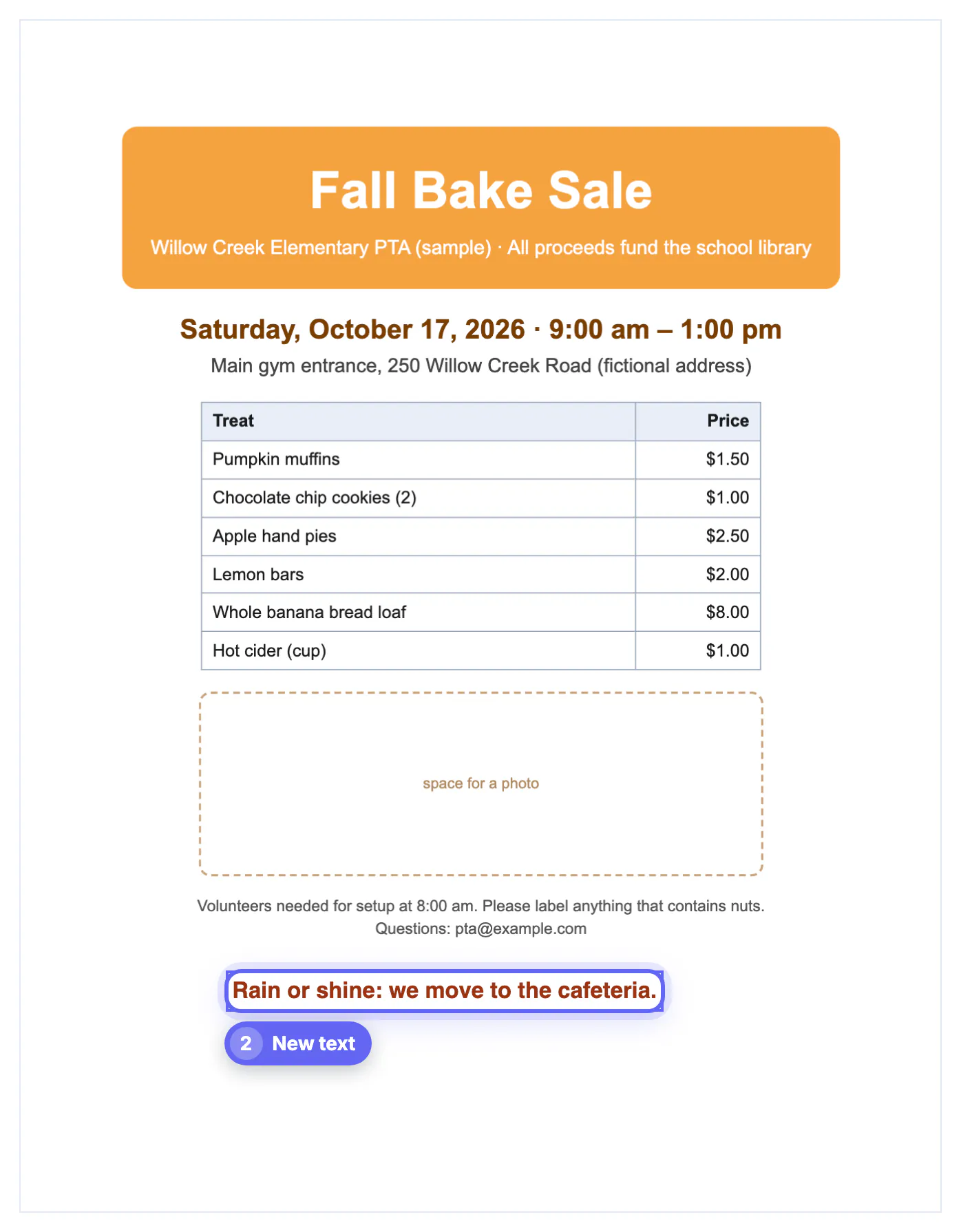
The sample flyer is a single Letter page: an orange banner, the date and address, a six-row price table and an empty dashed box labeled space for a photo. Three changes were needed before printing 200 copies.
- A rain plan. With the Text tool set to 15-point bold Helvetica in a dark orange that matches the date line, one click below the contact details and a typed sentence, Rain or shine: we move to the cafeteria, did the job.
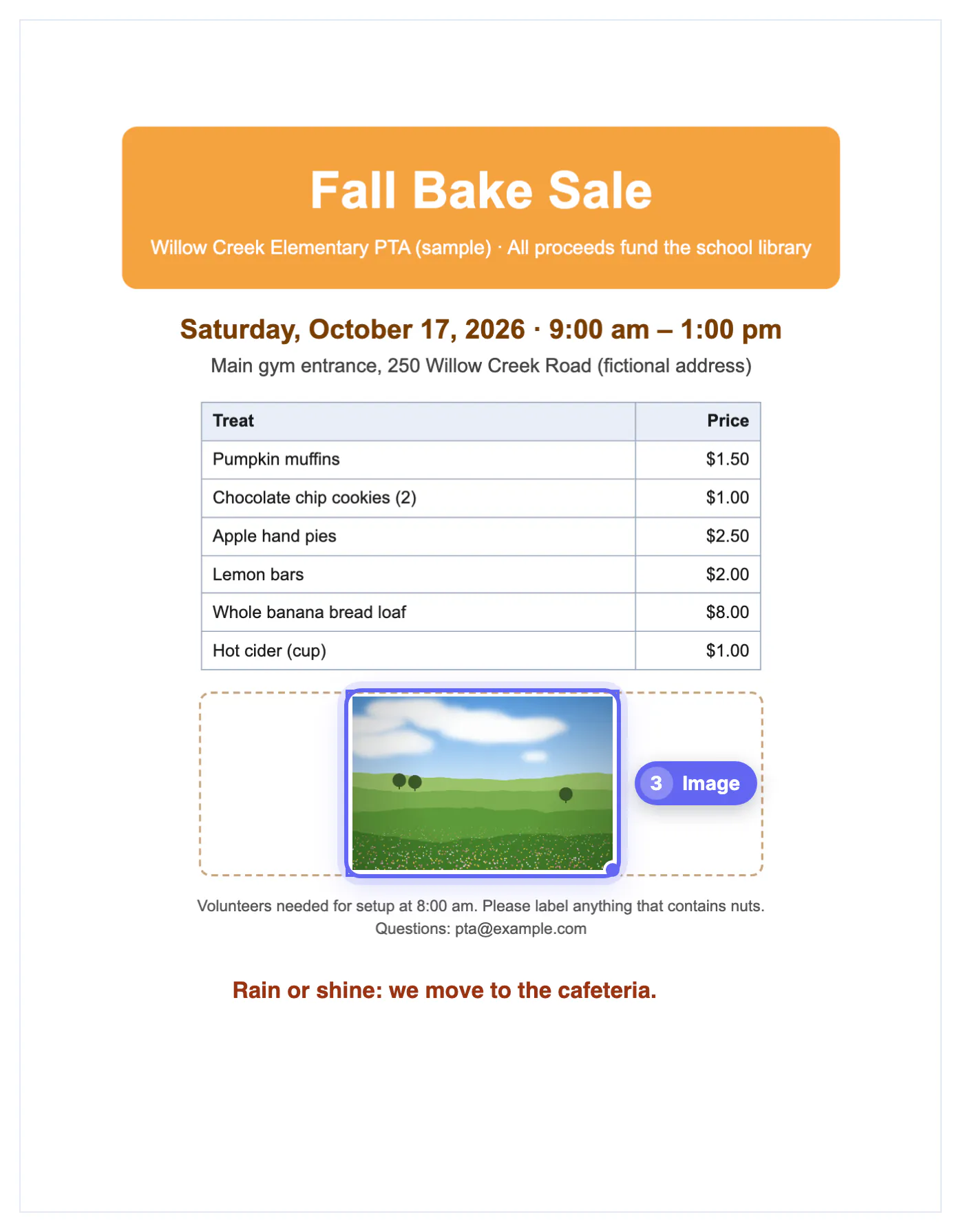
- A photo. The Image tool placed a meadow picture in the dashed box at 40 percent of the page width; dragging the corner dot shrank it to fit the 120-point-tall box, and dragging the image centered it.
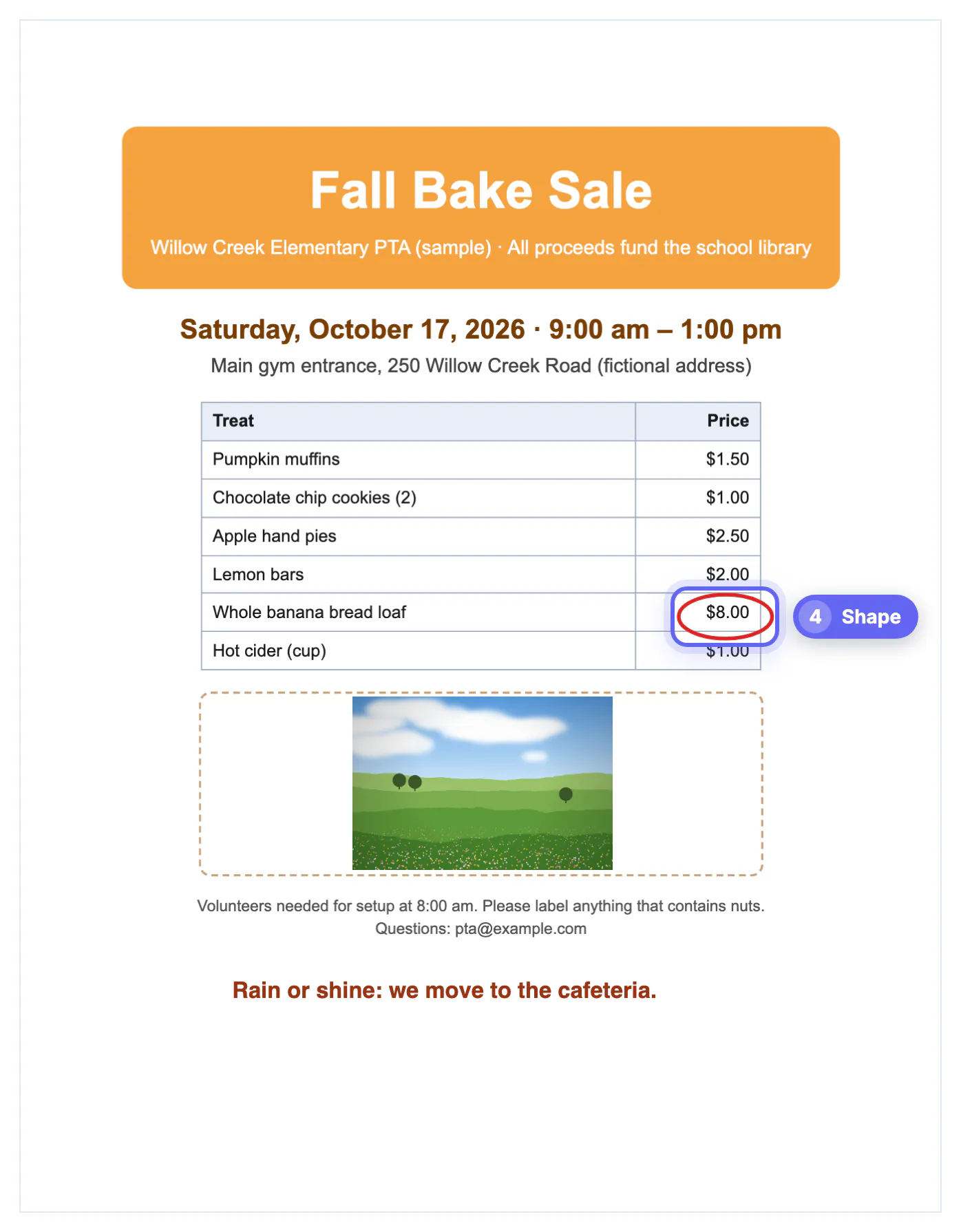
- An eye-catcher. A red Ellipse with a 2.5-point line circles the $8.00 banana bread loaf, the most expensive item and the one the committee wanted to push.
The whole edit took about three minutes. The download is named bake-sale-flyer-edited.pdf and the status line confirms three edits, so you know nothing extra slipped in.
Settings that make edits look like they belong
An addition looks professional when it borrows from the page around it. A few habits help.
- Match the font family first. Most office documents use a sans serif similar to Helvetica; books, letters and legal documents lean toward Times.
- Match size by comparing line heights on screen. Body text on flyers is usually 10 to 12 points, headings 14 to 24.
- Pick colors from the document, not from the default. Dark gray (#333) often blends better than pure black on a printed page.
- Use opacity for stamps and notes rather than for body text. A logo at 60 percent reads as a watermark; text at 60 percent just looks faded.
- Keep a clear margin. Home printers often cannot print the outer quarter inch, so keep additions away from the page edge.
Zoom your browser in before placing small items. The page preview scales with the window, and your additions stay attached to the right spot at any zoom level.
Honest limits of a browser PDF editor
Knowing the edges avoids surprises after you hit download.
- Existing text is not rewritten in place. PDF pages store positioned glyphs, not flowing paragraphs, so the usual fix is Whiteout plus new text on top.
- Whiteout is visual only. The covered words are still inside the file and can be copied or searched, so use Redact PDF for anything confidential.
- Your additions are drawn into the page itself, not stored as comments. Acrobat will not list them in its comments panel, and they cannot be selected as separate objects later.
- Files up to 200 pages open. Split larger documents first, edit the part you need, then merge them back.
- Password-protected PDFs cannot be opened until the password is removed with a tool you are authorized to use.
Characters outside Western European alphabets, such as Polish, Vietnamese or Cyrillic letters, are embedded with the open-source Noto Sans font, which the tool downloads on demand. If a symbol is missing from that font, the status line tells you exactly which one was left out.
Working with a form that has fillable fields? The Fill PDF Form tool may suit it better.
Step-by-step

Common mistakes to avoid
Pro tips
Frequently asked questions
Can I edit a PDF online without an account?
Yes. GrabCast Edit PDF works in the browser with no sign-up and adds no watermark. The file is processed on your own device, so there is nothing to log in to and nothing stored on a server after you close the tab.
Can I change the words that are already in the PDF?
Not directly. The editor adds content on top of the page. To change a word, cover it with Whiteout and type the replacement in a matching font and size. For long rewrites, converting with PDF to Word is usually faster.
Which image formats can I add to a PDF?
Any image your browser can open, including JPG, PNG, WebP and GIF. PNG, WebP and GIF images are embedded as PNG so transparency is preserved; photos are embedded as high-quality JPEG to keep the file compact.
Will my edits stay if someone opens the file in Acrobat or Preview?
Yes. The additions are written into the page content, so every PDF viewer and printer shows them. The flip side is that they are not editable annotations, so keep your original if you expect to change them again.
Is there a page limit?
PDFs with up to 200 pages open in the editor. For longer documents, split out the section you need, edit it, and merge the parts back together afterward.
For a finished PDF that needs a line of text, a logo, a photo or a circled detail, adding content on top is the quickest route: open the file in Edit PDF, use the tool that matches the change, match fonts and colors to the page, and download a new copy. Keep the original, remember that Whiteout hides rather than deletes, and switch to Redact PDF or PDF to Word when the job is really about removing or rewriting text.
Related guides
Browse more: all PDF guides · Edit PDF