Mark Up a PDF for Review: Highlight, Circle, Note
To mark up a PDF for review, open it in GrabCast Edit PDF, drag the Highlight tool across the words you question, circle numbers with the Ellipse tool, point at them with an Arrow and type a short note with the Text tool, then download the marked copy and send it back. It works like a red pen on paper, without printing, and the draft never leaves your computer. This article is for managers, editors, teachers and clients who receive a report, proposal or design proof as a PDF and need to say precisely what should change. It uses a fictional quarterly sales report as the example, and it covers the habits that make feedback easy to act on, so the author knows exactly which figure to check and why.
✏️ Try Edit PDF now — freeOpen →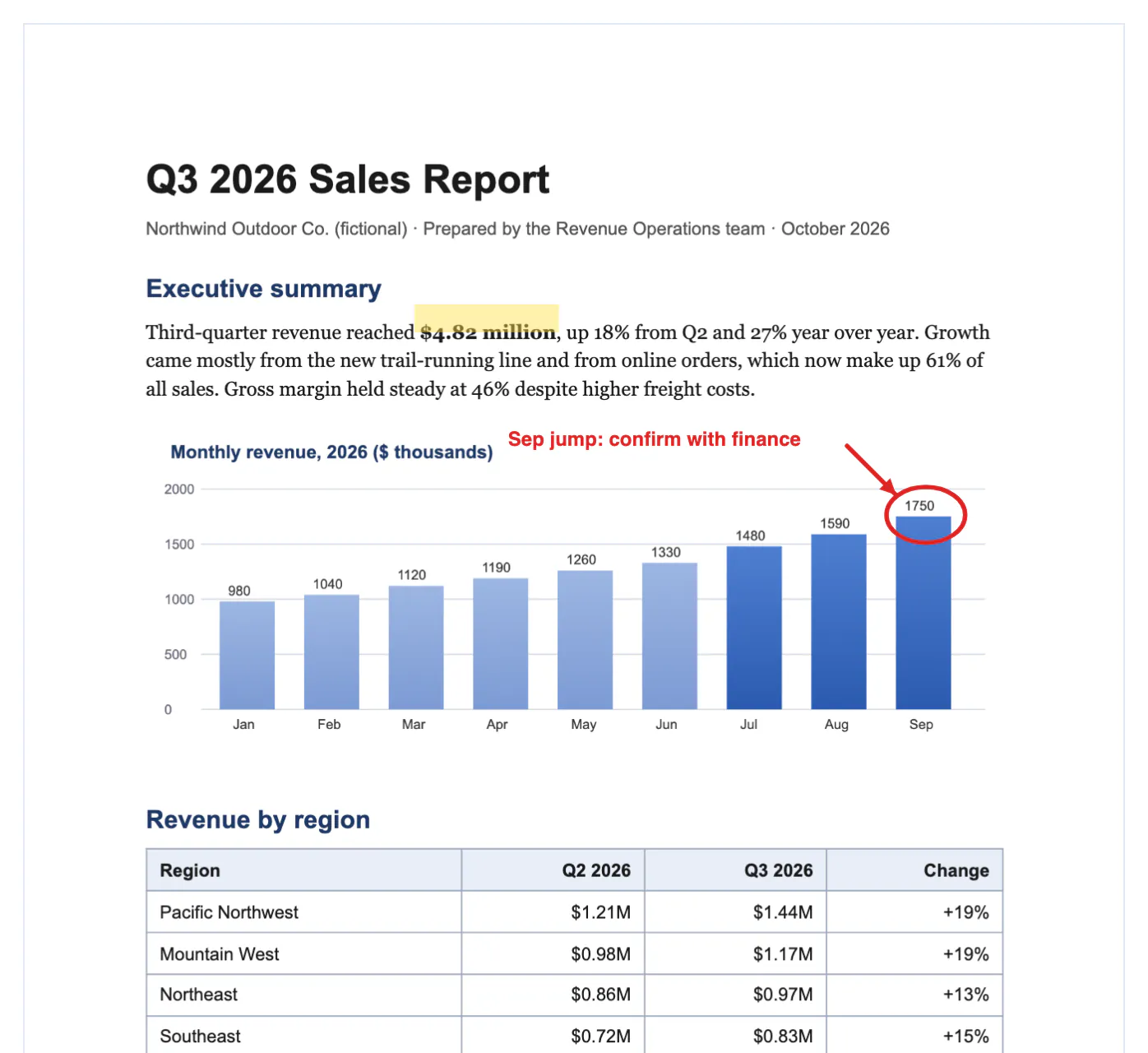
Feedback written in an email has to describe a location before it can describe a problem: page two, third paragraph, the second number after the table. Authors lose time finding the spot, and sometimes fix the wrong one. A mark placed directly on the page removes that step. A yellow band says look here, a red circle says this specific value, and a two-line note says what you expect instead. Reviewers also write shorter, clearer comments when they can point, because the context is already visible. For numbers-heavy documents such as sales reports, budgets and grant applications, a circled figure next to a question is far less likely to be misread than a sentence that quotes the figure. The result is a single file that carries both the draft and the review, which is easy to archive with the project and to compare against the next version.
A review markup kit in five tools
You do not need every button in the editor to review a draft. Five cover nearly everything.
- Highlight: a translucent yellow band for words or figures you want the author to double-check. Text underneath stays readable.
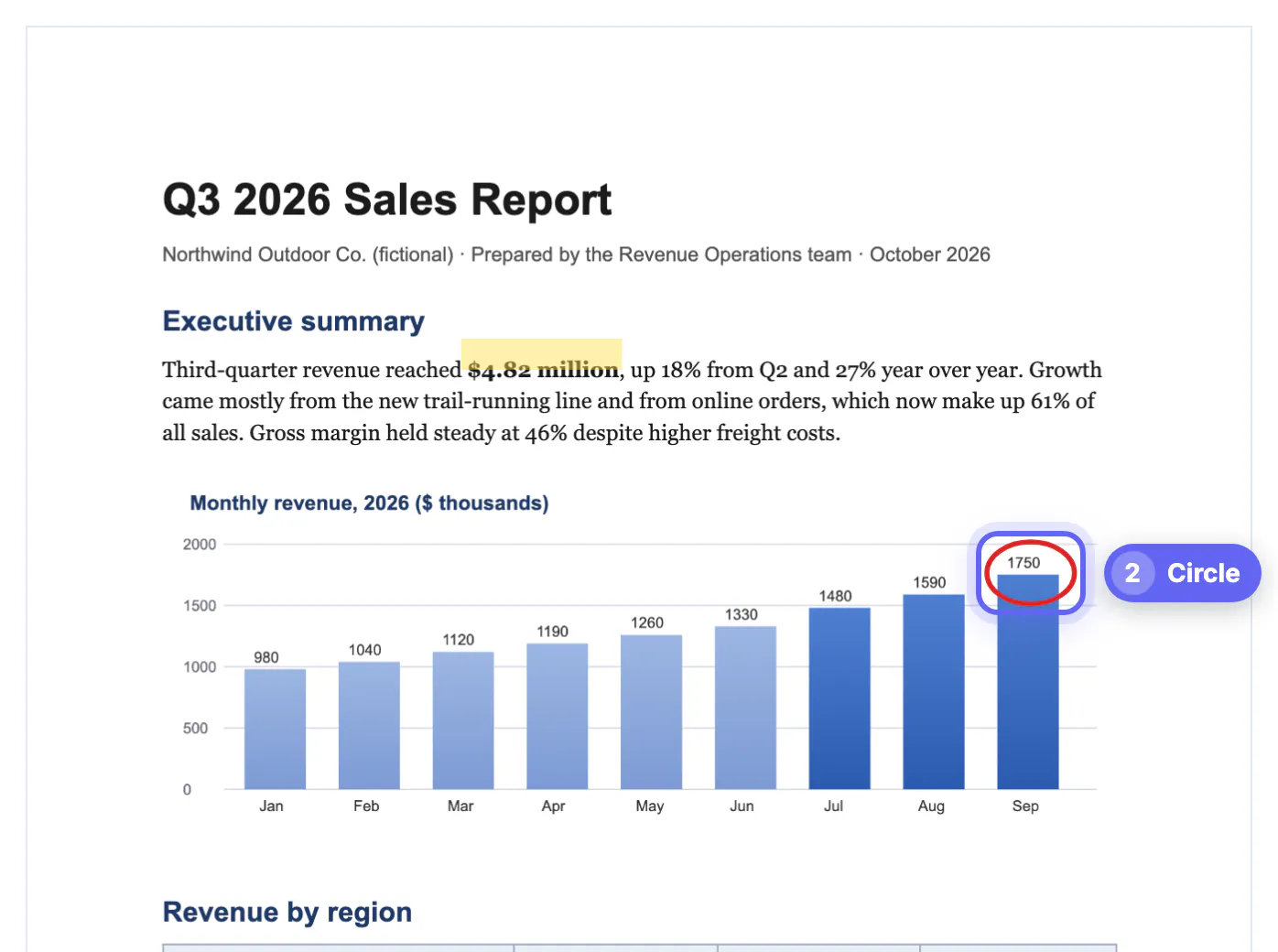
- Ellipse: a red circle around a single value, a chart bar or a signature line that is missing.
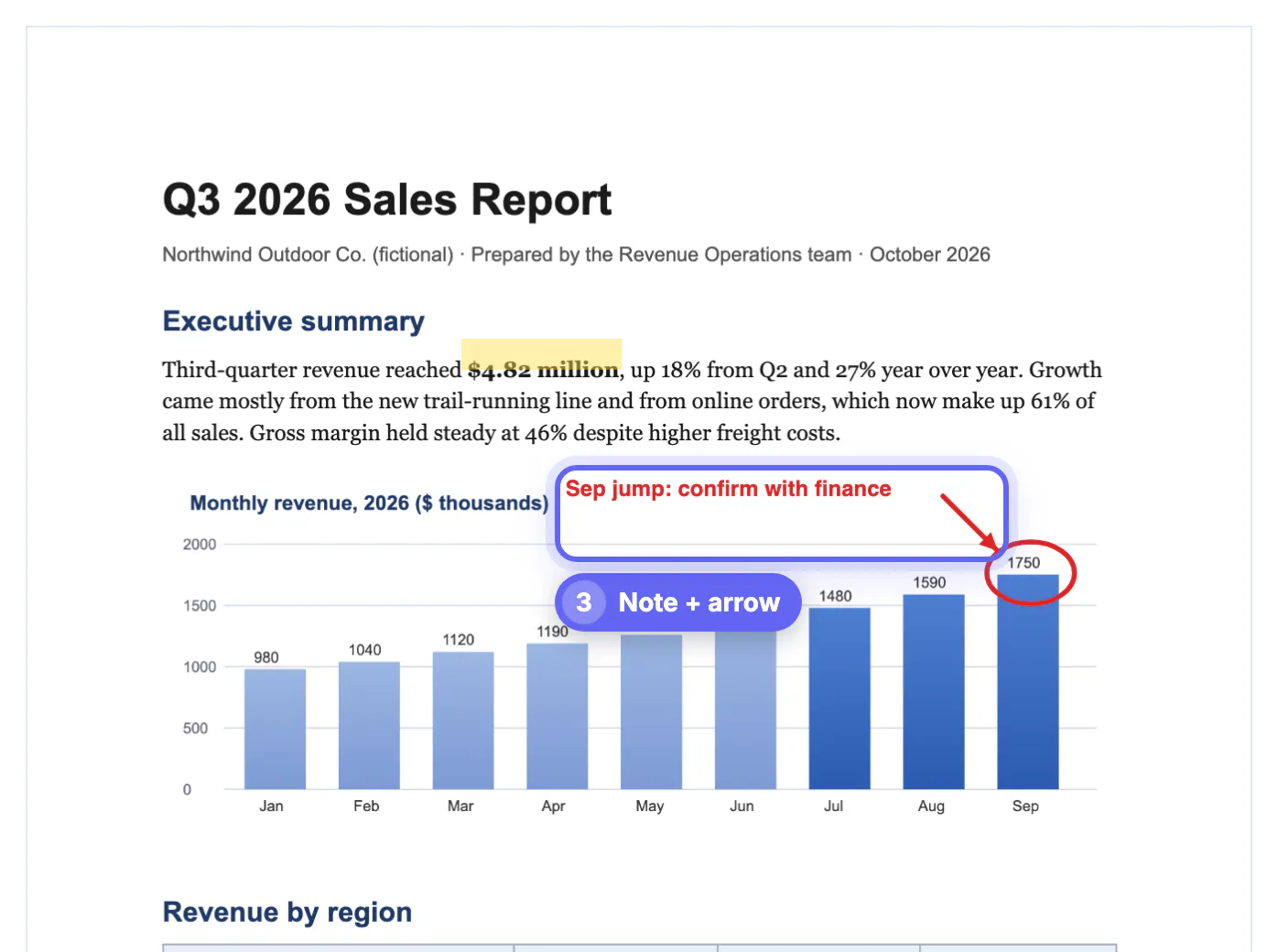
- Arrow: connects a note in the margin to the thing it talks about, so the note can sit where there is room.
- Text: short comments in bold red, 10 to 12 points, placed in white space near the issue.
- Line: a clean strike or underline when a phrase should be removed or stressed.
Set the color before drawing, since each new mark takes the current color, line width and opacity. A consistent scheme helps the author scan the page: yellow for please verify, red for must change, blue or gray for optional suggestions.
Example: reviewing a quarterly sales report
The sample report is a two-page Q3 summary from a fictional outdoor brand: an executive summary, a monthly revenue bar chart, a regional table and a list of highlights. A finance reviewer made three marks on page one.
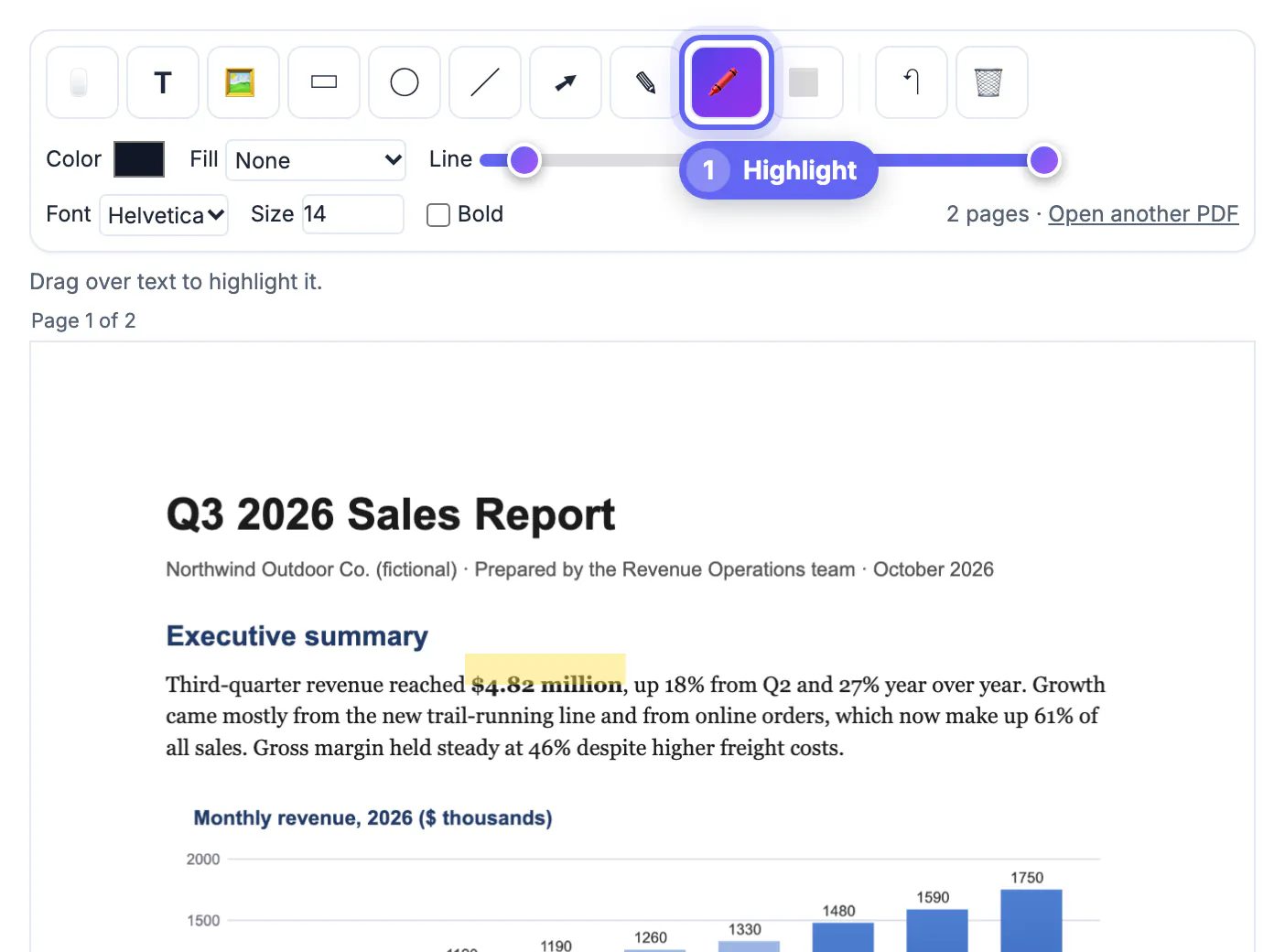
- The headline revenue figure, $4.82 million, got a yellow highlight because it had to match the accounting export exactly.
- The September bar labeled 1750 got a red ellipse, since it jumps well above August's 1590 and looked like a possible typo.
- A bold red note, Sep jump: confirm with finance, went into the white space beside the chart title, with an arrow pointing down to the circled bar.
The download, quarterly-report-edited.pdf, reported four edits: one highlight, one ellipse, one text note and one arrow. The author opened it, checked the September figure, and replied with a corrected chart the same afternoon.
Writing notes that get acted on
A mark shows where; the note has to say what. Short, specific notes get fixed first.
- Lead with the action: Confirm, Replace, Delete, Move or Align.
- Quote the expected value when you know it, for example Should be 1,570 per the export.
- Keep each note under about ten words; long paragraphs on a page crowd the content you are reviewing.
- Number your notes, 1, 2, 3, if several relate to the same table, so the author can answer them in order.
- Put questions and decisions in different colors, so a quick scan shows which items block approval.
If a comment needs more than a sentence, write the detail in your reply email and leave a numbered pointer on the page instead.
Sending only the relevant pages keeps reviewers focused; this extraction guide shows how.
What reviewers should know about markup files
Marks made with GrabCast Edit PDF are drawn into the page content, not saved as PDF comment annotations. That has practical consequences.
- Every viewer shows them, including phone apps and printers, which is not always true of annotation layers.
- Acrobat will not list them in its comment panel, and authors cannot mark them resolved there.
- The marks become part of the reviewed copy, so always keep the clean original for the next draft.
- Highlights use a multiply blend, so the letters beneath stay dark and crisp instead of being washed over.
If the goal is to see what changed between two drafts rather than to comment on one, use Compare PDF on the old and new versions instead of marking both by hand.
Step-by-step

Common mistakes to avoid
Pro tips
Frequently asked questions
How do I highlight text in a PDF for free?
Open the file in GrabCast Edit PDF, choose the Highlight tool and drag across the text. The band is translucent yellow, so the words stay readable, and it is saved into the downloaded copy that any viewer can open.
Will the author see my marks in Acrobat's comments list?
No. The marks are drawn onto the page rather than stored as annotations, so they appear in every viewer but not in a comments panel. Mention in your email how many notes you added so nothing is overlooked.
Can I add a sticky note or a reply thread?
There are no sticky-note pop-ups or threads. Type a short note directly on the page with the Text tool and connect it to the issue with an arrow; longer explanations belong in the message you send with the file.
Is the draft uploaded while I review it?
No. The PDF is displayed and saved inside your browser, so confidential drafts, such as unreleased financials or client proposals, stay on your computer during the whole review.
Can I mark up a scanned document?
Yes. Scanned pages are images, and the highlight, shapes and notes are drawn on top of them the same way. Highlights on scans cover a rectangular area rather than snapping to words, so drag carefully.
Marking up a PDF works best when every mark answers two questions: where, and what should change. Highlight what to verify, circle the exact value, add a short action-first note with an arrow, and send back a copy while keeping the clean draft. Because the marks are drawn into the page, they show up everywhere, which is ideal for quick reviews, as long as nobody expects them in a comments panel.
Related guides
Browse more: all PDF guides · Edit PDF