PDF Version Comparison: Find Every Edit Before You Sign
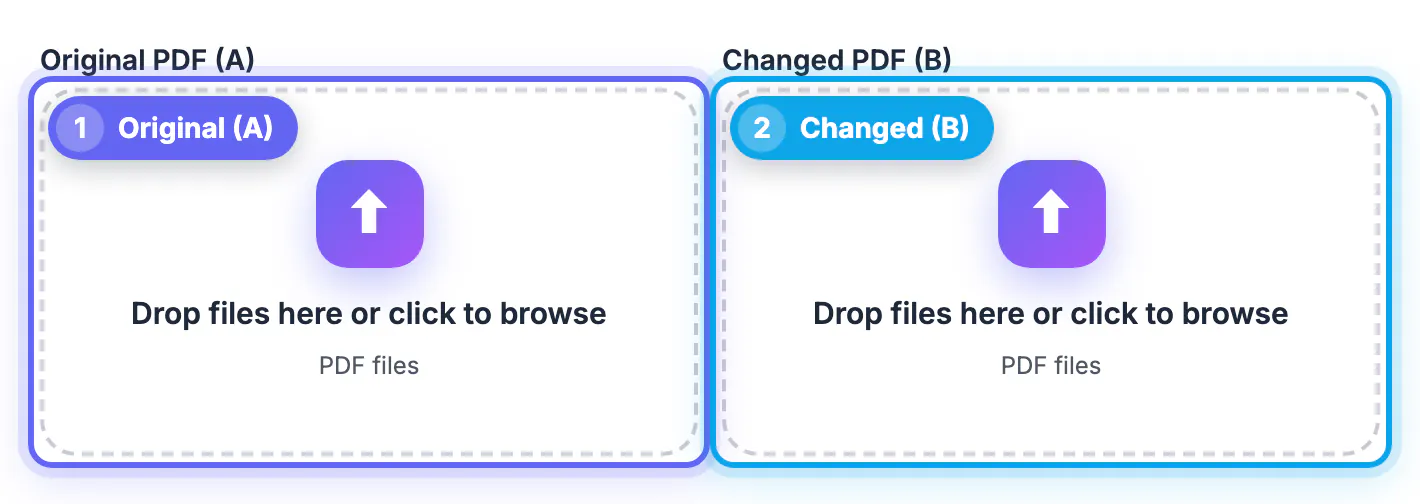
When a revised agreement comes back as a PDF, compare it with the version you sent before you sign: drop your copy into box A and the new one into box B of GrabCast's Compare PDF, and every added, removed, changed or moved word is listed and highlighted on both pages. In the fictional web design agreement used in this guide, that took a few seconds and surfaced nine changes, including a fee that rose from $4,800 to $5,400, a payment deadline cut from 30 to 15 days, a new late-interest sentence, a deleted line about the deposit, and a confidentiality clause that quietly moved to the end. Here is how to run the PDF version comparison and read the results with confidence.
🆚 Try the Compare PDF tool now — freeOpen →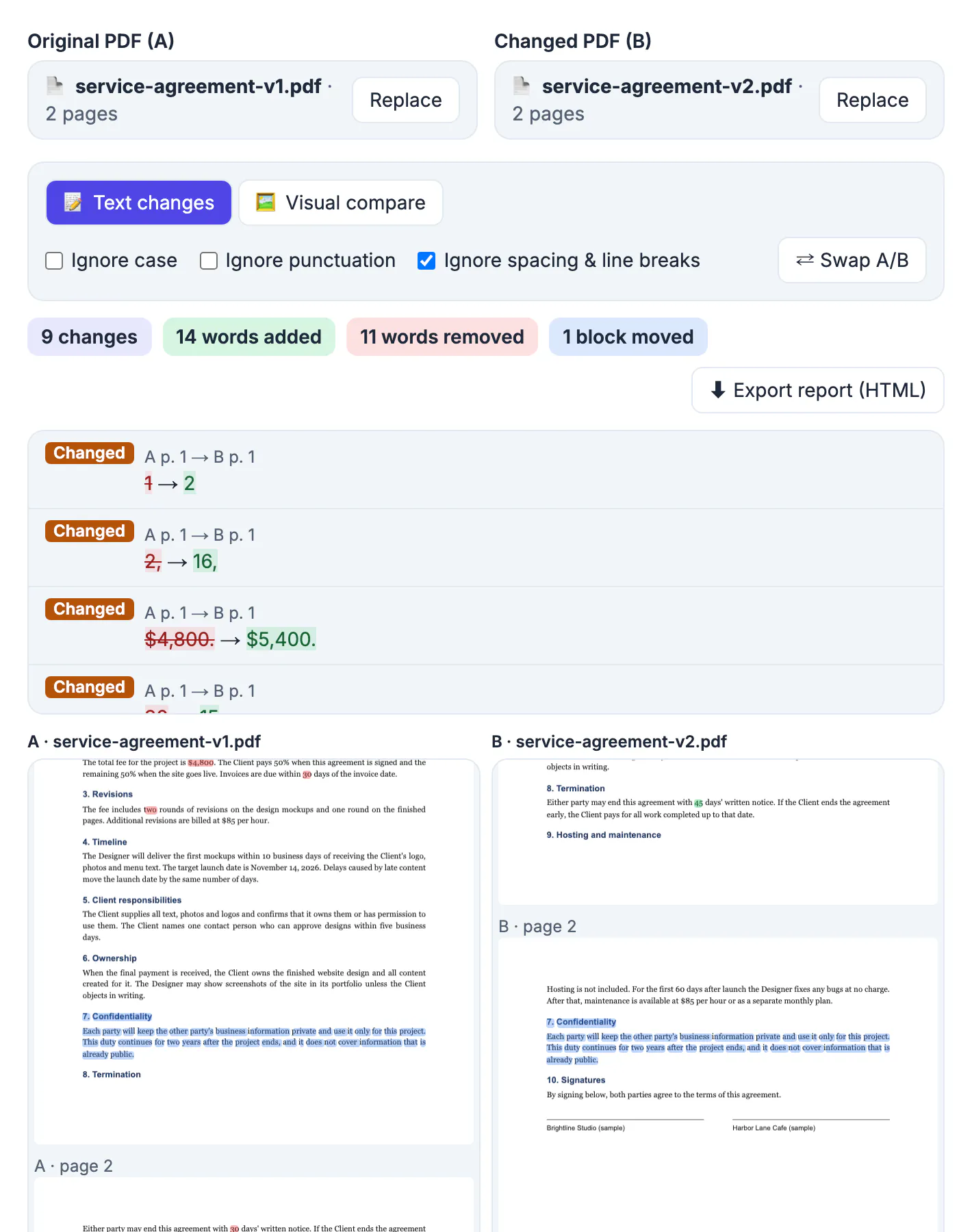
People rarely miss a rewritten paragraph; they miss a single number in the middle of one. A two-page agreement runs to several hundred words, and a changed 30 to 15 looks perfectly normal when you read the new text on its own. The sender may not have flagged every edit, and not always on purpose: tracked changes get accepted, a colleague edits a template, and the PDF export hides the history. Comparing the two files word by word shows what actually changed, whoever changed it. GrabCast reads both PDFs with pdf.js and runs the comparison in your browser, so a contract, an offer letter or a lease is never uploaded to a server.
What the PDF version comparison finds
The tool extracts the words of both PDFs with their positions, lines them up, and compares them word by word inside each passage that differs. Every difference gets one of four labels:
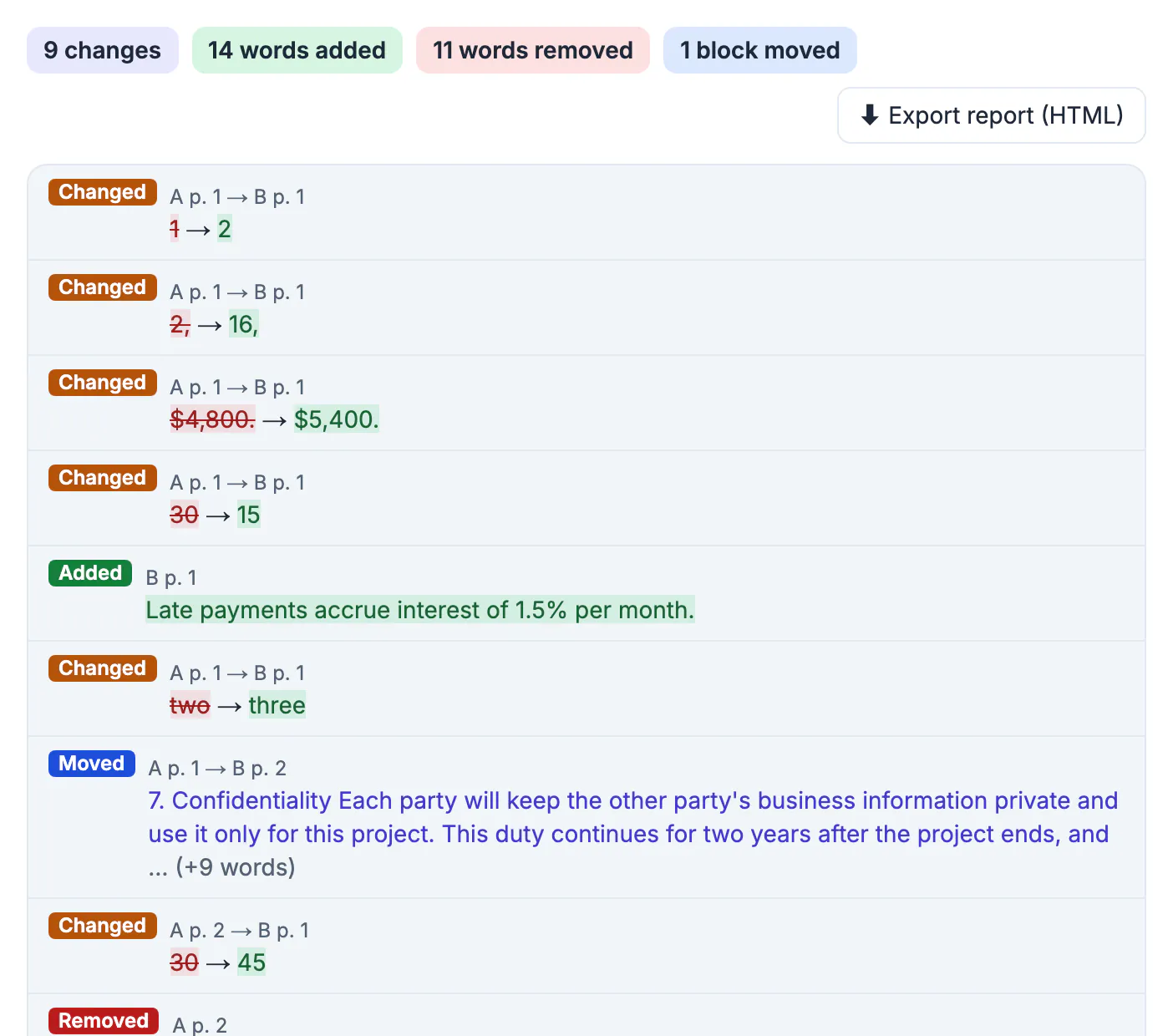
- Changed, in amber: words replaced by other words, such as $4,800 to $5,400 or two rounds to three rounds of revisions.
- Added, in green: text that exists only in the new version, like Late payments accrue interest of 1.5% per month.
- Removed, in red: text that exists only in the old version, like The deposit is not refundable.
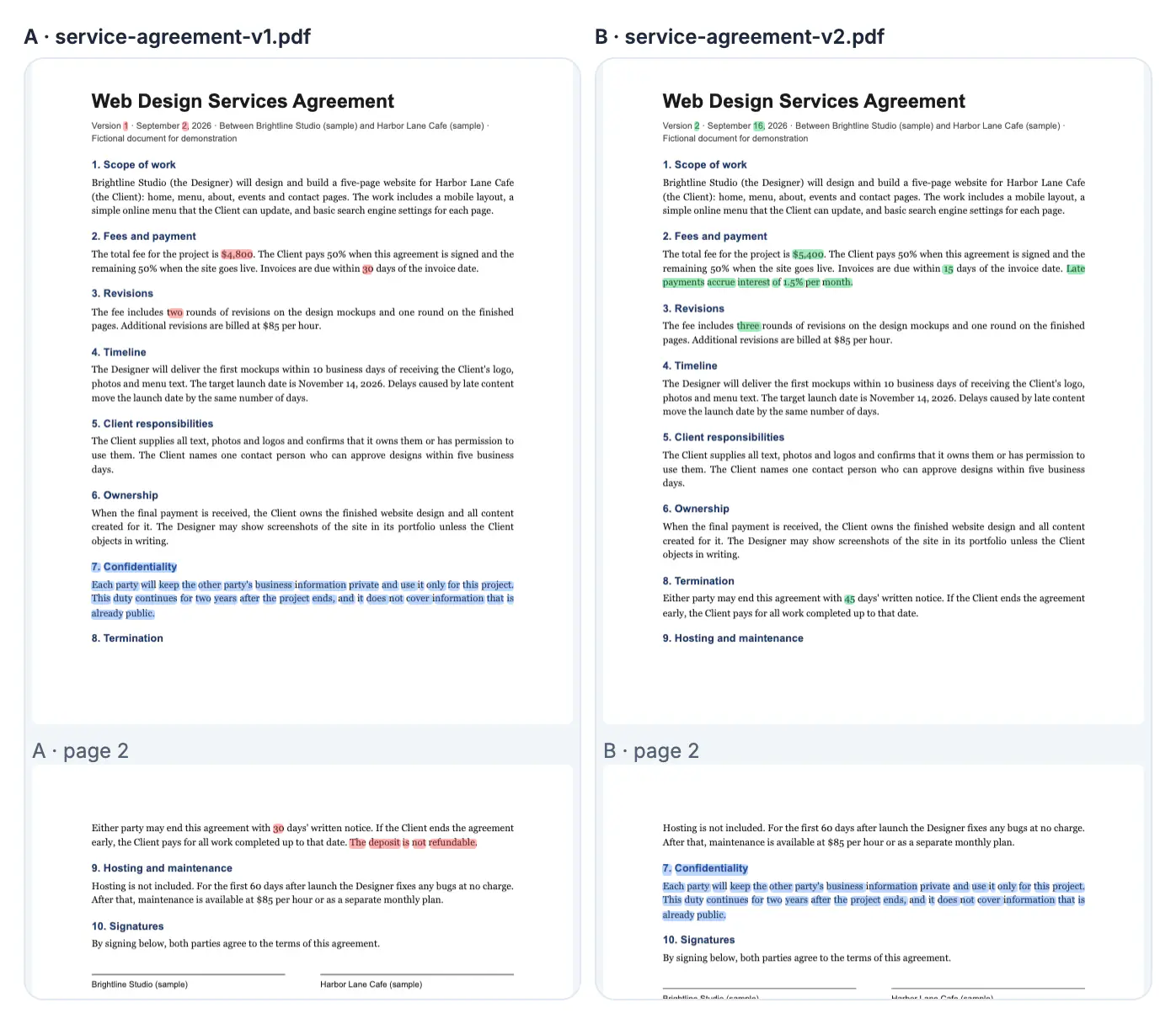
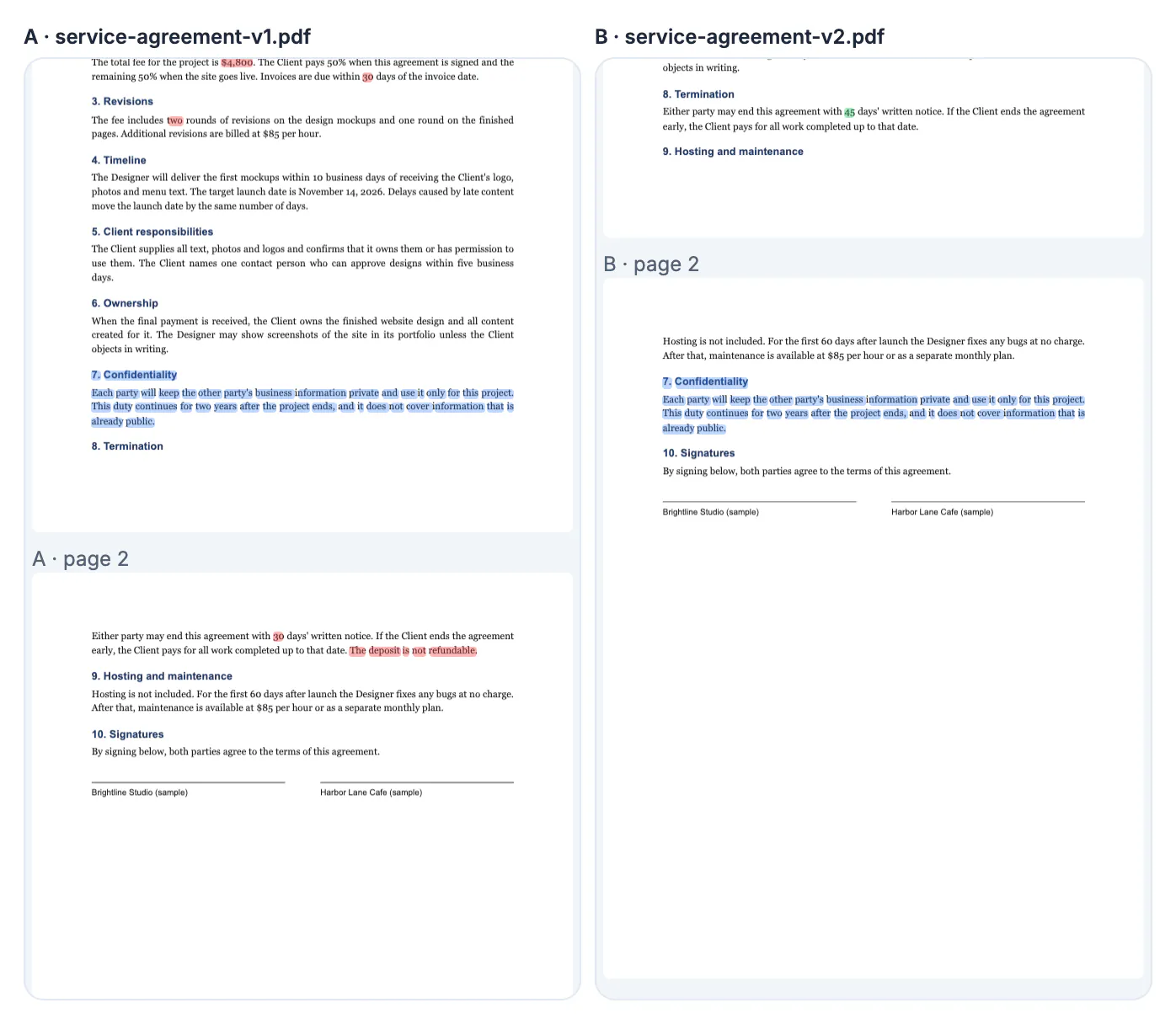
- Moved, in blue: a block of at least six words that disappears in one place and reappears elsewhere unchanged or with at most one word in ten different. The Confidentiality clause in the sample moved from section 7 to after section 9 and is reported once as Moved instead of as a deletion plus an addition.
A summary above the list counts the result. For the sample it reads 9 changes, 14 words added, 11 words removed and 1 block moved.
Reading the change list and the highlighted pages
Each entry in the list shows the page numbers in both files, such as A p. 2 to B p. 1, and the old and new words side by side. Click an entry and both page views scroll to it, with the matching words outlined for a moment. Clicking a highlight on a page selects the entry in the list, so you can work from whichever view you prefer.
Below the list, the two versions sit side by side, rendered as real pages with the differences shaded. This is where context matters: the removed deposit sentence and the new late-interest sentence are both about money owed, and seeing them together on the page makes the trade clear in a way a list does not.
Some entries will be housekeeping. In the sample, the version number changed from 1 to 2 and the date from September 2 to September 16. They are listed because they are real differences; skim past them and focus on amounts, dates, obligations and anything with the words must, shall, not or only.
Save a record with the HTML report
Export report (HTML) saves a single file you can open in any browser or print to PDF. It holds both file names, the options you used, the summary counts, the full list of changes, and images of up to 30 changed page pairs with the differences highlighted.
- Attach it to your reply when you ask the other party to explain or reverse a change.
- Keep it with the signed copy so you remember later why a clause reads the way it does.
- Send it to an advisor or lawyer so they can review only what changed instead of rereading the whole document.
The report is created on your device like everything else; nothing is sent until you choose to share it.
What a text comparison will not catch
- Formatting-only edits, such as bold, font size or color, are not text differences. Switch to Visual compare to see them as changed pixels.
- Changes inside images, like a swapped logo, a new signature image or an edited scanned exhibit, also need Visual compare.
- Scanned PDFs have no text layer. If neither file has text, the tool switches to Visual compare automatically.
- Highlight boxes come from the PDF's text positions, so they can sit slightly off for unusual fonts or vertical text.
- Password-protected files must be unlocked first with the password you already have.
A comparison tells you what changed, not whether the change is acceptable. For anything with legal or financial weight, a qualified professional should review the result.
If a version is a scan, run the OCR PDF tool first so there is text to compare. For plain text from other sources, the Text Diff Checker works too.
Step-by-step
Common mistakes to avoid
Pro tips
Frequently asked questions
Is it safe to compare contracts with an online tool?
It depends on where the files are processed. GrabCast's Compare PDF reads both files and compares them in your browser, and the report is generated on your device, so nothing is uploaded to a server.
Can it detect a clause that was moved?
Yes. When a block of at least six words is removed in one place and appears elsewhere unchanged or with at most one word in ten different, it is reported once as Moved and shaded blue on both pages.
Do the two PDFs need the same number of pages?
No. Text comparison works across pages, so a clause that moves from page 1 to page 2 is still matched. The change list shows the page in each file for every difference.
Will it show changes in bold or font size?
Not in text mode, because the words are the same. Switch to Visual compare, which paints pixels that exist only in one version red or green and boxes the changed areas.
Can I share the comparison with someone else?
Yes. Export report (HTML) saves one file with the summary, the full change list and images of up to 30 changed page pairs. It opens in any browser and can be printed to PDF.
Before signing a revised PDF, compare it with the exact version you sent. Drop the files into A and B, read the summary and the change list, check each change on the highlighted pages, and export the HTML report as a record. Numbers, deadlines and moved clauses stand out in seconds, and anything visual, like a swapped signature image, gets a second look in Visual compare.
Related guides
Browse more: all PDF guides · the Compare PDF tool