Compare Two Texts and Find Differences in Seconds
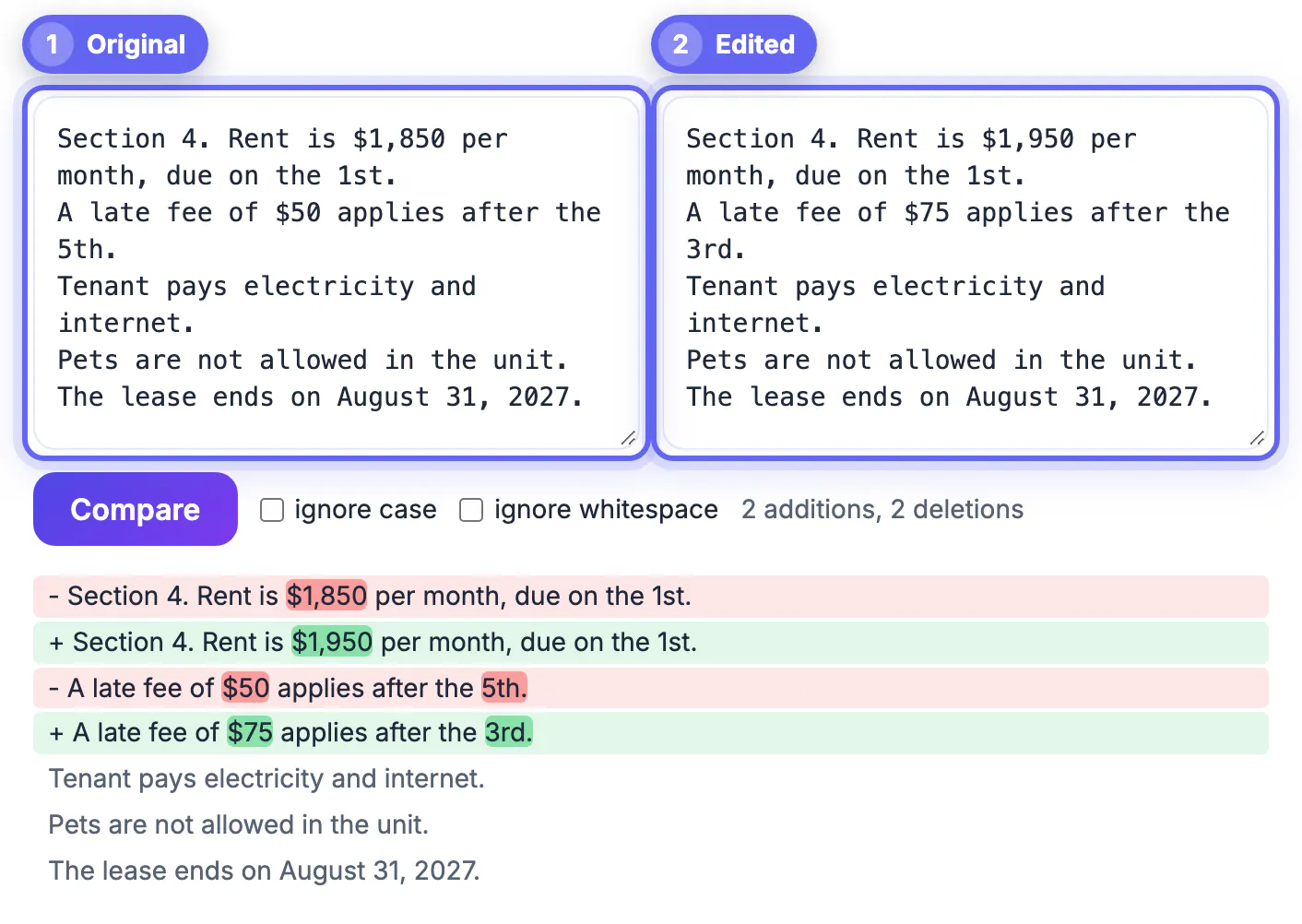
To compare two texts and find differences fast, paste the old version on the left, the new one on the right, and let a diff checker mark every removed word in red and every added word in green. That beats reading both side by side, where the eye skips small edits like a changed number or a dropped not. This guide is for writers, editors, students, reviewers and anyone checking what an AI, a colleague or the other side of a negotiation actually changed in a draft. It covers everyday jobs for a text comparison, how to read the highlights, the one preparation step that prose needs, and the honest limits of a paste-in checker.
🔍 Try Text Diff Checker now — freeOpen →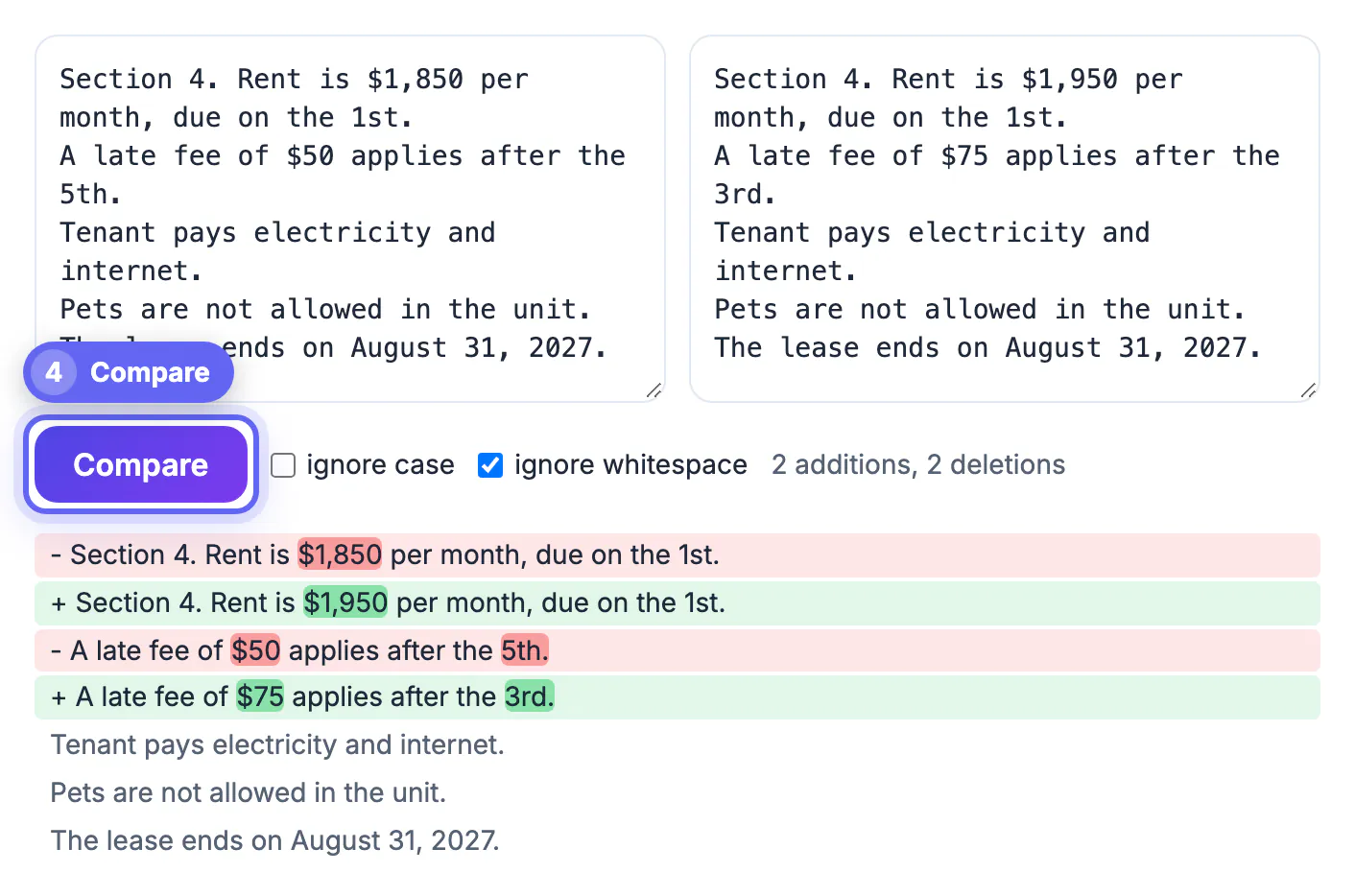
Reading is pattern completion: your brain predicts the next word and skims what it expects to see. That is why a changed date, a swapped comma or a missing not slips past even careful editors when two versions look alike. A diff checker has no expectations. It aligns both versions line by line using a longest-common-subsequence match, then highlights only what changed, so a one-word edit in a 2,000-word article stands out as clearly as a rewritten paragraph. It also stays consistent: the fortieth comparison of the day is as careful as the first, while a tired reader gets less reliable with every page.
Everyday jobs for a text diff
- Checking what an AI rewrite changed: paste your paragraph and the ChatGPT or paraphraser output to confirm facts and names survived
- Reviewing an editor’s pass when tracked changes were accepted or lost in a copy and paste
- Catching silent edits in a final version someone emailed back, such as a price, date or deadline
- Checking two versions of a lease, offer letter or supplier agreement for altered clauses before you sign
- Comparing a press release or product listing against the approved copy before it goes live
- Seeing what a teacher or tutor changed in an essay, so you learn from the corrections
- Updating a translation: diff the old and new English source to see which sentences need re-translating
- Spotting passages two documents share word for word, such as a reused cover letter paragraph
In each case the question is the same: what exactly moved between version A and version B, and was each change intended? Note the limit on the last job: the checker compares only the two texts you paste, so it shows copied wording between them but cannot search the web the way a plagiarism scanner does.
Reading the red and green highlights
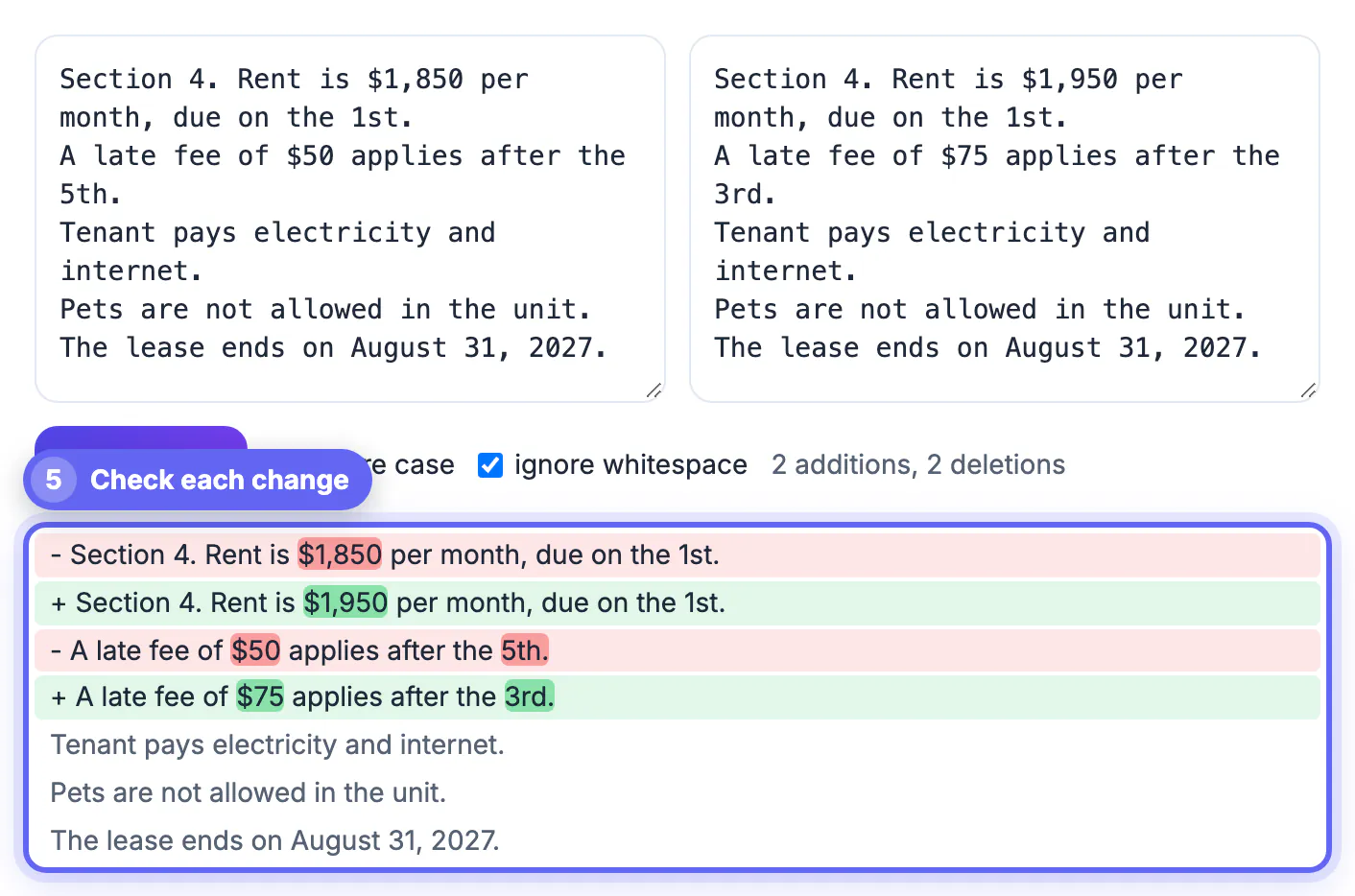
GrabCast shows one column. Unchanged lines appear in muted gray, removed lines in light red, added lines in light green. When a line was edited rather than replaced, the tool goes a level deeper and highlights only the words that changed inside it, in a stronger red and green, so you see that 30 days became 45 days rather than just that the sentence changed.
A counter shows how many lines were added and removed. A long answer with 2 lines changed is a light edit; the same answer with 40 changed lines is a rewrite and deserves a full read.
Read the report top to bottom once, then return to each strong highlight. Pay special attention to numbers, dates, names and small words like not, never, only and all, which reverse or narrow meaning with a single edit.
Prose needs one extra step: line breaks
The tool compares line by line, then word by word within edited lines. Code and lists already have one idea per line; prose often does not. A 200-word paragraph with no breaks counts as a single line, so one edit highlights the whole block in red and green.
- For essays and articles, the word-level pass usually still shows each change clearly inside a paragraph
- A single unbroken paragraph of roughly 1,000 words or more is too long for the word-level pass, so the line shows as removed and added without inner highlights
- For dense legal or policy wording, put each sentence on its own line in both versions first; a find-and-replace of a period and space with a period and line break does it
- Keep both versions formatted the same way, or reflowed line breaks will show up as edits
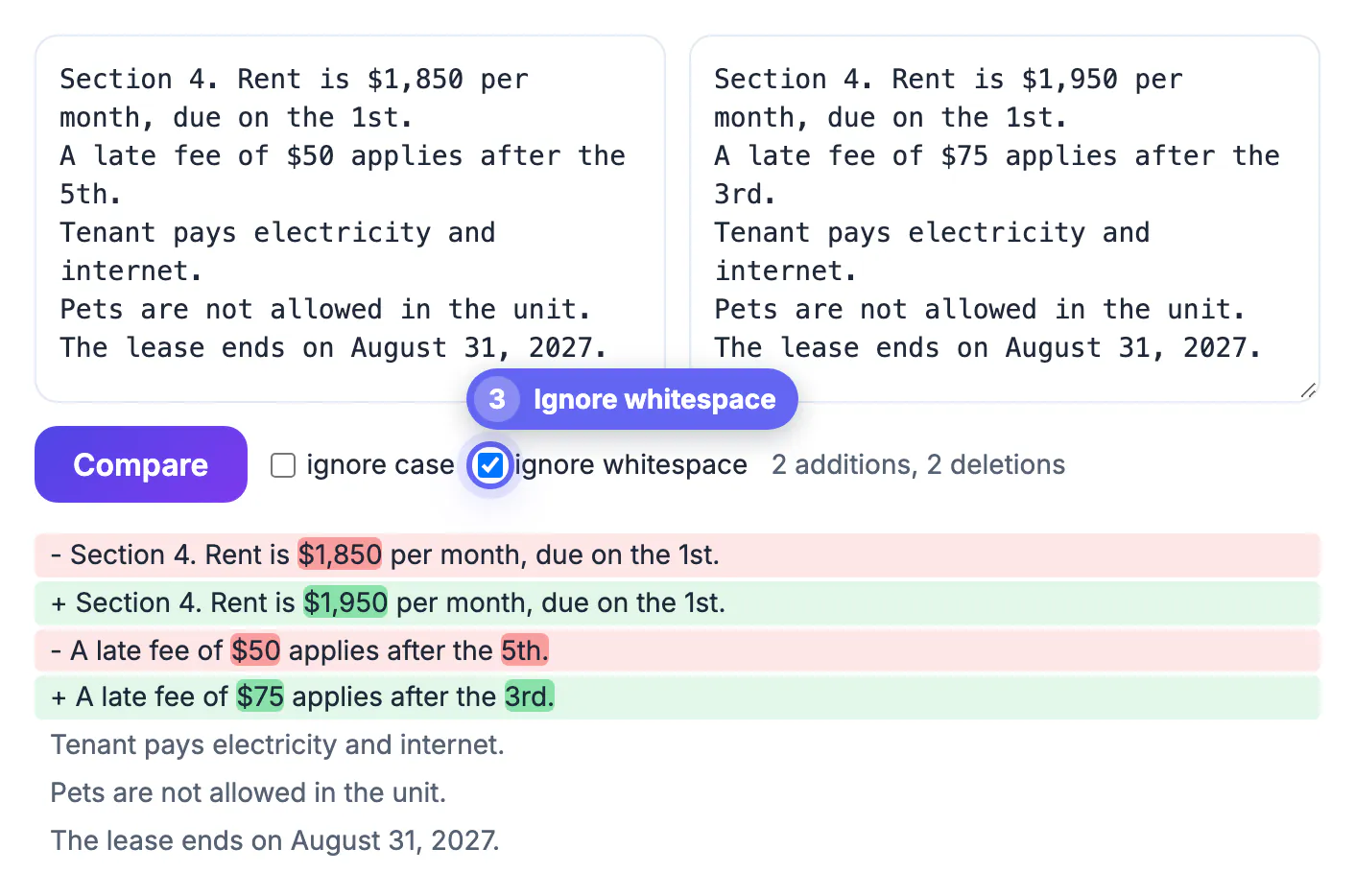
- Tick ignore whitespace when one version came from a PDF or email with extra spaces and odd wrapping
Ignore case helps when a headline or a title was restyled from Title Case to sentence case and you only care about the words.
For long documents, the Text Cleaner can normalise spacing first, and if you need to compare two PDFs rather than plain text, see PDF version comparison before signing.
Privacy, limits and when to use something else
The comparison runs as JavaScript in your browser; nothing you paste is uploaded or stored, which matters for unpublished manuscripts, grades or client copy. There is no sign-up and no length quota.
- Very long inputs, roughly beyond 2,000 lines each, switch to a simpler line check that lists removed lines only
- Formatting such as bold, links and fonts is not compared; paste plain text
- For Word files with comments and tracked changes, Word’s own Compare feature keeps formatting
- For code under version control, git diff and pull request views remain the right tools
For everything in between, from a blog post to a cover letter, a paste-and-compare checker is the fastest way to see every edit.
If you compare the same kind of copy every week, keep a plain-text baseline of the approved version in a notes app. Each new draft then gets checked against a trusted source instead of against the last round of edits.
Step-by-step
Common mistakes to avoid
Pro tips
Frequently asked questions
How do I compare two texts for free?
Paste each version into the Text Diff Checker and click Compare. It highlights removed text in red and added text in green, with no account and nothing uploaded. There is no limit on how many comparisons you run, and closing the tab clears everything.
Can it check two texts for plagiarism?
Only between the two texts you paste. Lines that match exactly show as unchanged gray, which makes copied wording easy to spot, but the checker does not search the web or a database of papers, so it is not a replacement for a plagiarism scanner.
Is it safe for confidential documents?
Yes. The comparison runs entirely in your browser; the text is not sent to a server or saved, so unpublished work and private records stay on your device.
Can I upload Word or PDF files?
The checker works with pasted plain text. Copy the text out of each document first; for formatted Word files with tracked changes, Word's built-in Compare is the better option. PDFs often paste with broken line wraps; tick ignore whitespace, or split sentences onto their own lines in both versions first.
How long can the pasted text be?
Thousands of lines work well. Beyond roughly 2,000 lines per side, it switches to a faster, simpler check that lists removed lines. For book-length manuscripts, compare one chapter at a time; the highlights are easier to review in smaller pieces anyway.
Stop proofreading two versions by eye. Paste old on the left and new on the right, read the red and green, and you will catch every changed word, number and name in the time it takes to skim.
Related guides
Browse more: all text and developer guides · Text Diff Checker