Convert Markdown to HTML Online Free with Preview
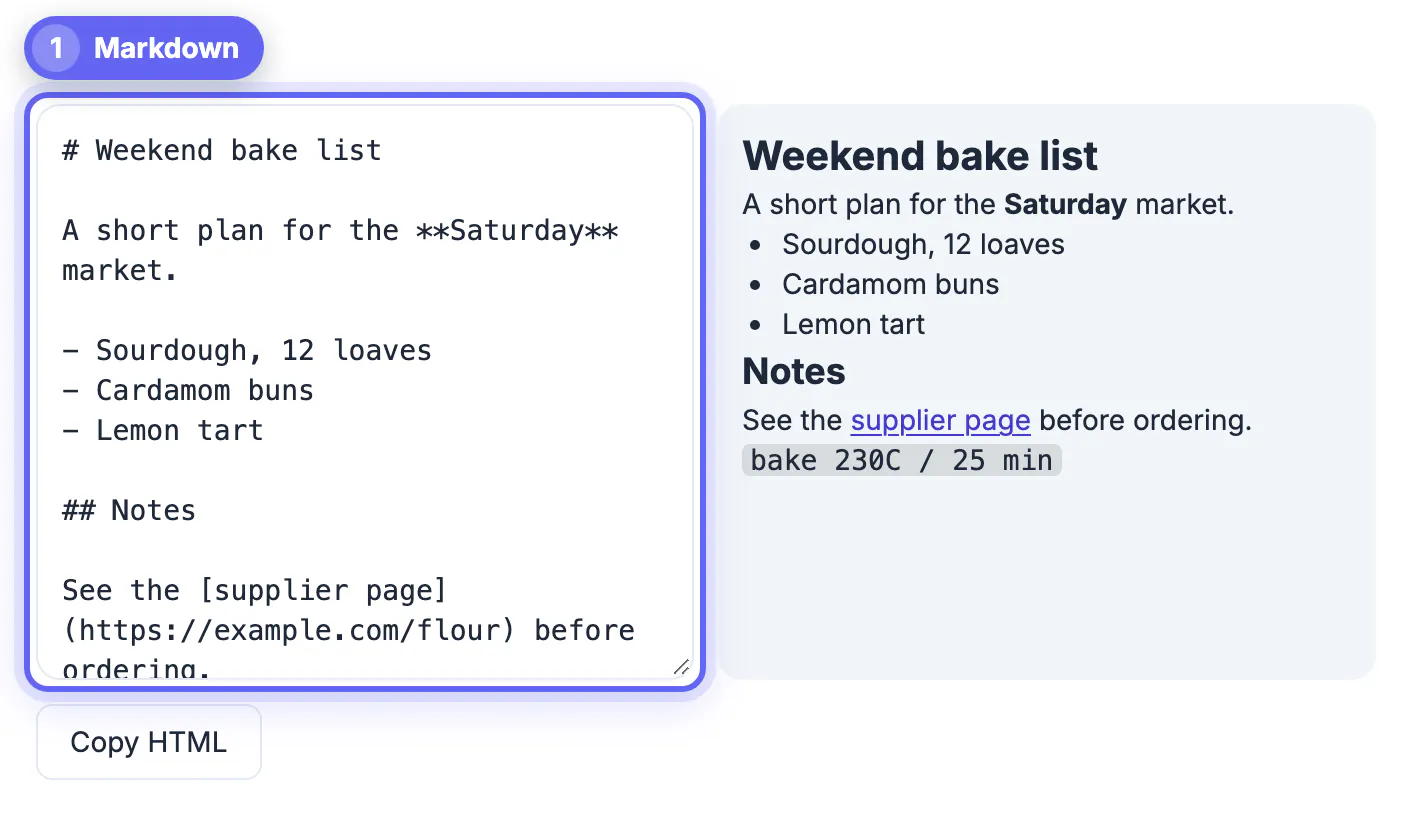
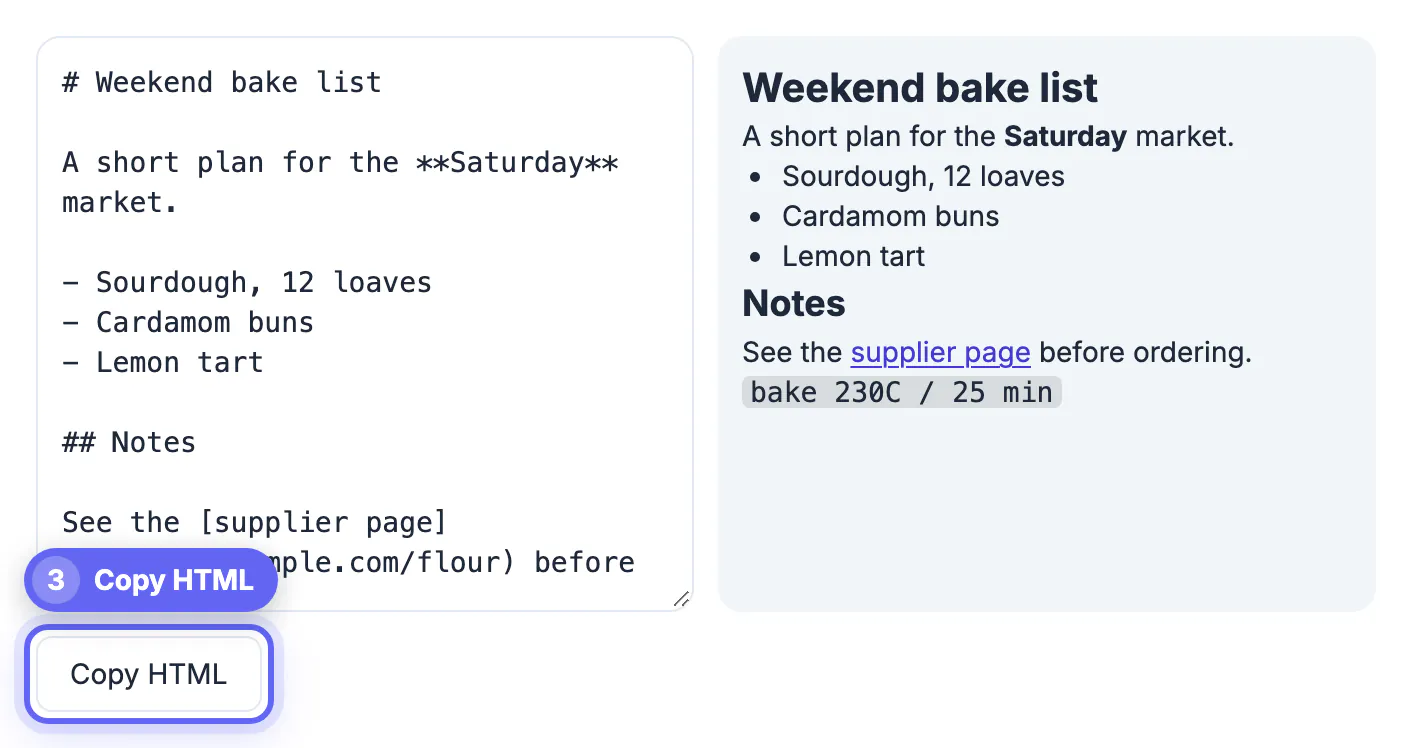
To convert Markdown to HTML, paste or type your text into the left pane of GrabCast Markdown to HTML, watch the rendered preview update on the right, and press Copy HTML to put the markup on your clipboard. It uses the open-source marked parser with GitHub-flavored extensions, so tables, fenced code, strikethrough and task lists all come through, and the conversion happens in your browser tab rather than on a server. This guide covers exactly which tag each piece of Markdown syntax becomes, including quotes, images and escaped symbols, how to read the preview to catch broken lists and links, where to paste the output in WordPress, Shopify or an email builder, and the security gotcha of raw HTML passing straight through.
📝 Try Markdown to HTML now — freeOpen →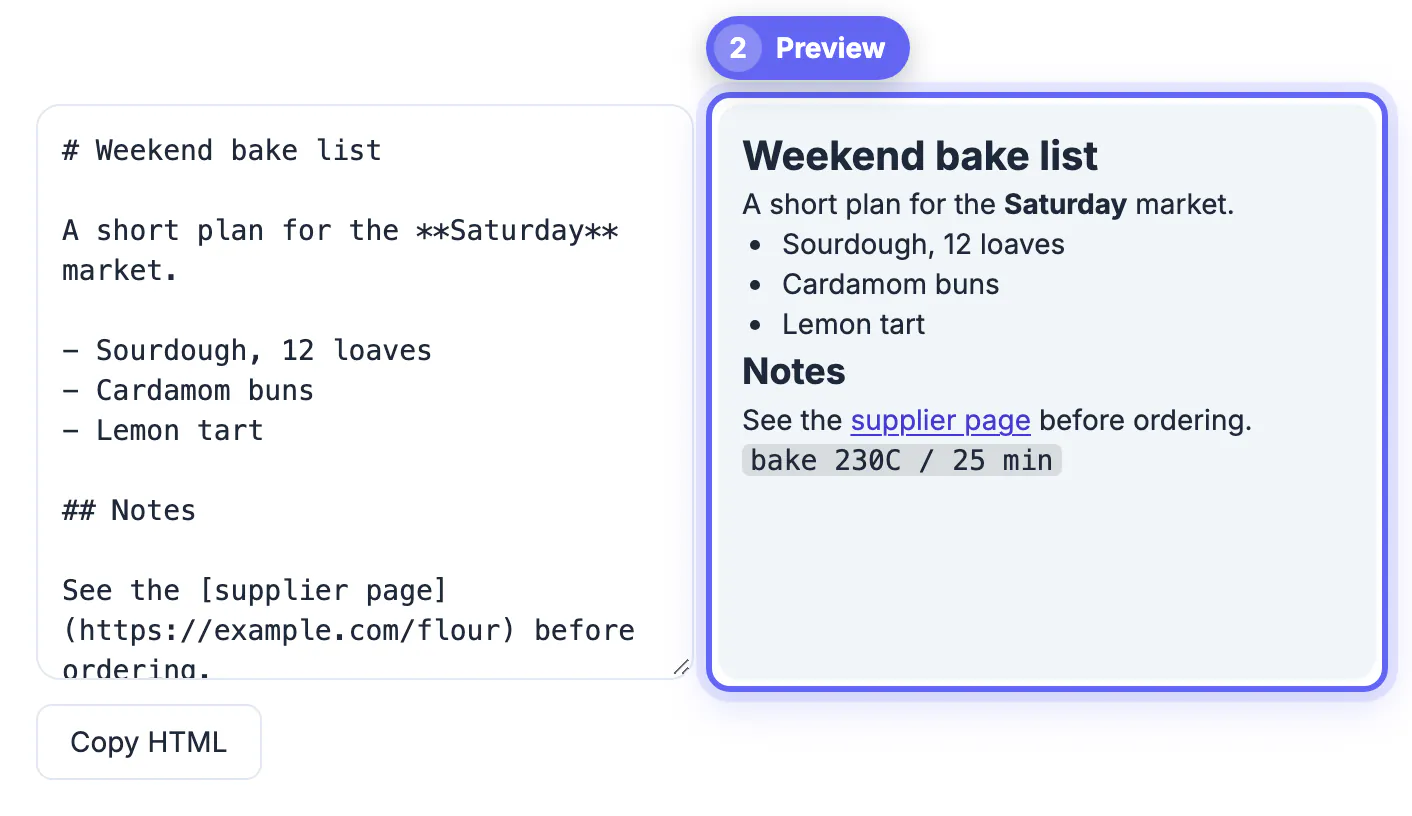
Markdown lets you write headings, lists and links with plain punctuation, which is why README files, documentation, Notion and Obsidian notes, Reddit posts and many static site generators use it. Plenty of destinations still want raw markup, though: an older CMS body field, an email template, a Shopify product description, a WordPress Custom HTML block, or a help-center article editor. Hand-typing paragraph and list tags is slow and error-prone. A converter gives you consistent, valid markup in a second, and the live preview shows mistakes such as a list that did not start or a link with a stray space before you publish. Developers use it to paste changelog entries into release pages, technical writers use it to move docs into a help center, and marketers use it to drop a drafted article into a CMS without rebuilding every heading and link by hand.
What each Markdown element becomes
The parser follows CommonMark plus GitHub extensions. A few mappings worth knowing:
- Pound-sign headings become h1 through h6; one pound sign is the page title, so most articles start at two
- Asterisks or underscores become strong and em tags; backticks become inline code
- Dash or number lists become ul and ol, and indented items nest correctly
- A line starting with a greater-than sign becomes a blockquote, handy for callouts and citations
- An exclamation mark before bracketed alt text and a parenthesized address becomes an img tag with that alt text
- Pipe tables with a dashed separator row become table, thead and tbody
- Triple-backtick fences become pre and code blocks, with a language class if you name one
- Lines like - [ ] and - [x] become disabled checkbox inputs for task lists
The output is a fragment, not a full web page: no head, no body wrapper, no stylesheet. That is exactly what CMS editors and templates want, and it means the look comes from wherever you paste it.
Plain line breaks inside a paragraph are joined into one line, which surprises people coming from word processors. Leave an empty line between paragraphs to keep them separate.
Reading the live preview
The right-hand pane renders the result as you type, with basic styling for headings, links, lists and code. Use it as a structure check rather than a final design preview; your site theme will change fonts and spacing.
- If a list renders as one paragraph, add a blank line before the first item
- If a nested list flattens or turns into a code block, check that every level uses the same indentation; mixing tabs and spaces is the usual cause
- If text after a code block looks monospaced, the closing fence is missing
- Links need no space between the bracketed text and the parentheses
- To show a literal asterisk, pound sign or underscore, put a backslash in front of it so the parser does not treat it as formatting
- Two trailing spaces or a backslash at the end of a line force a line break
In long documents, reference-style links keep the source readable: write the link text in brackets followed by a short label, then list each label and its address once near the end. The HTML comes out identical to inline links.
Where to paste the HTML output
Copy HTML places the full markup on your clipboard. Then switch your destination editor into its code or source view before pasting; pasting raw tags into a visual editor usually shows them as literal text.
- WordPress: add a Custom HTML block, or switch the classic editor to the Text tab
- Shopify and most store builders: click the Show HTML button in the description editor
- Email platforms: paste into a code or HTML content block, then add inline styles if needed
- Static pages: drop it inside your template's article or main element
Heading tags do not get automatic id attributes, so if you need jump links, add them by hand or let your site generator do it.
Before publishing, the HTML, CSS & JS Minifier can shrink the markup, and the PDF to Markdown tool helps when your source starts as a PDF.
Security and privacy notes
Conversion runs in your browser tab, so drafts, internal docs and unreleased release notes are not sent to a server. One caution: Markdown allows raw HTML, and this converter passes it through untouched rather than sanitizing it.
- Only convert Markdown you wrote or trust; a pasted script tag stays in the output
- If you accept Markdown from users on your own site, sanitize on the server with a library such as DOMPurify
- Check copied links point where you expect before publishing
- Keep the Markdown source file as your master and regenerate markup after edits
For team documentation, a practical workflow is to keep Markdown in a Git repository or a shared folder, review changes there, and only paste the rendered markup into the publishing system at the final step.
Step-by-step
Common mistakes to avoid
Pro tips
Frequently asked questions
Does this support GitHub-flavored Markdown?
Yes. Tables, fenced code blocks, strikethrough with double tildes, autolinked URLs and task list checkboxes are all converted. Footnotes, math formulas and diagram syntax such as Mermaid are not part of that set, so they stay as plain text.
Can I download an .html file?
The tool copies the markup to your clipboard. Paste it into your editor or into an empty text file and save it with an .html extension if you need a file. Add a doctype, head and body wrapper around it if you want a standalone page rather than a snippet.
Can I convert HTML back into Markdown here?
No. This tool works in one direction, from Markdown to HTML. Turning markup back into Markdown needs a separate HTML-to-Markdown converter, and the round trip is lossy: inline styles, classes and layout wrappers have no Markdown equivalent and are dropped.
Is the HTML output sanitized?
No. Raw markup inside your Markdown passes through unchanged, so only convert content you trust and sanitize user submissions on your own server. A good habit is to glance at the output for script, iframe or onclick attributes before publishing anything that came from someone else.
Is my text sent anywhere?
No. The marked library runs in your browser, so the Markdown and the resulting markup never leave your device.
Write in Markdown, check the live preview, copy clean markup, and paste it in your editor's source view. Keep the Markdown as the master and regenerate whenever the content changes.
Related guides
Browse more: all text and developer guides · Markdown to HTML