From Messy Note App to Publish-Ready Blog HTML
Most bloggers draft in whatever's fast — Obsidian, Bear, a plain text file — and then face the chore of reformatting for their blog engine. If you already write in Markdown, that gap closes fast: convert to HTML and paste the semantic markup into your platform. GrabCast does it in the browser, so your half-finished essay never touches a server.
📝 Try the Markdown to HTML tool now — freeOpen →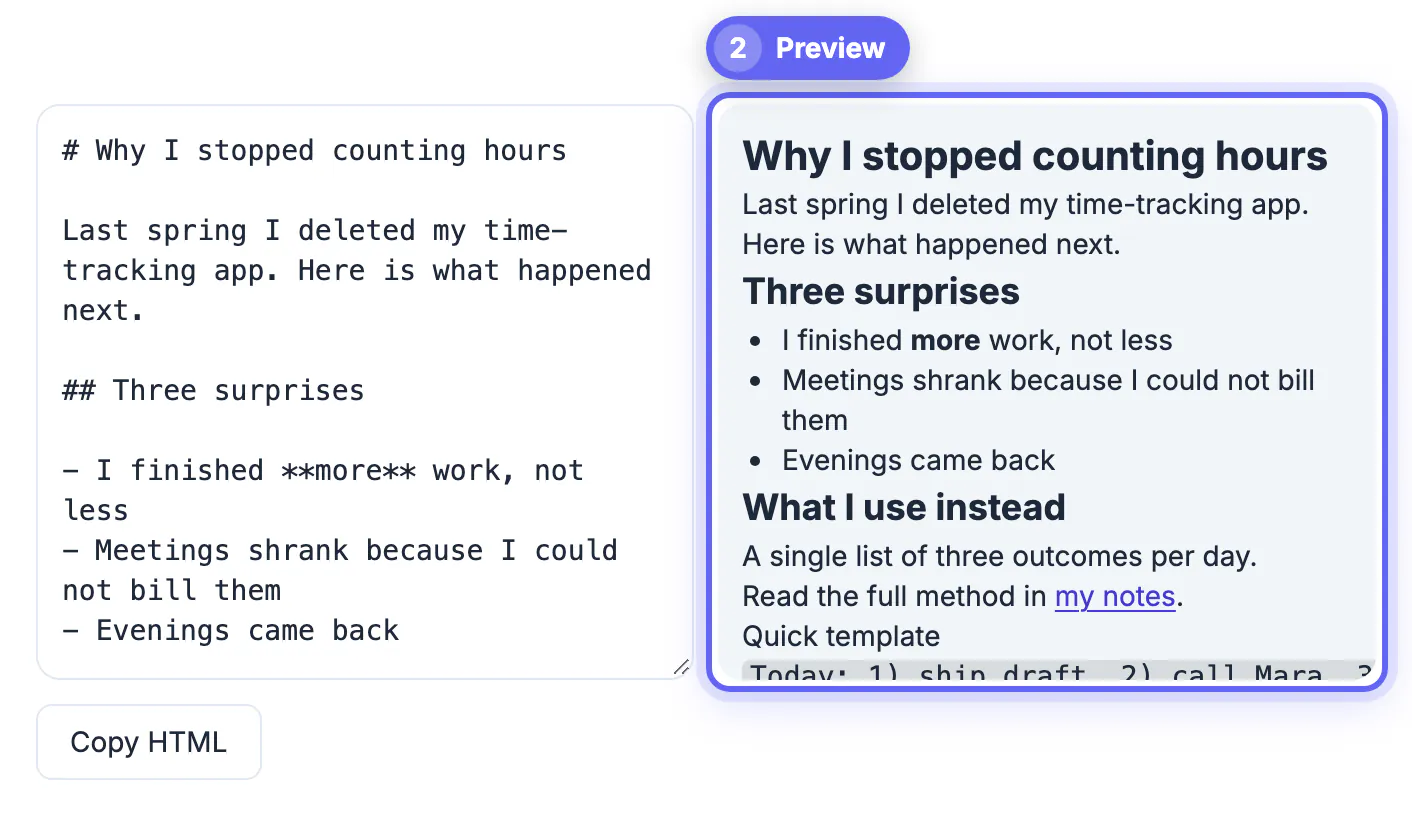
A blog post lives on the public web, where structure affects both readers and search engines. Real
and tags create a document outline that screen readers and Google both parse; a paragraph you bolded to look like a heading does neither. Proper elements can be styled site-wide and signal quoted material to assistive tech. Ordered lists tell a browser these steps have sequence. When you convert clean Markdown, you inherit all of this for free. Skip it and paste styled rich text, and you often import invisible inline styles that fight your theme, bloat the HTML, and render inconsistently across devices. Semantic markup is lighter, more accessible, and easier for your CSS to control.
elements can be styled site-wide and signal quoted material to assistive tech. Ordered lists tell a browser these steps have sequence. When you convert clean Markdown, you inherit all of this for free. Skip it and paste styled rich text, and you often import invisible inline styles that fight your theme, bloat the HTML, and render inconsistently across devices. Semantic markup is lighter, more accessible, and easier for your CSS to control.
Matching your output to your blog engine
Different platforms want the HTML in different places:
- Ghost and WordPress: paste into an HTML card or block for pixel-perfect control.
- Static site generators like Hugo or Eleventy: you may keep Markdown, but converting lets you spot how it will actually render.
- Medium and Substack: they rebuild HTML on paste, so use the rendered view rather than raw tags.
- Custom CMS: the semantic tags slot into your existing typography styles cleanly.
Cleaning up before you convert
A tidy draft converts into tidy HTML. A little prep pays off:
- Use one H1 for the title and H2/H3 for sections so your outline is logical.
- Turn ad-hoc dashes into real Markdown bullet lists so they become
<ul>. - Wrap real quotes in > so they become
<blockquote>, not italic paragraphs. - Add descriptive link text instead of bare URLs for accessibility and SEO.
Note-app syntax that converts differently than you expect
The converter follows standard GitHub-flavored Markdown, which is stricter than most note apps. Scan the draft for these before pasting:
- Single line breaks: Obsidian and Bear can display each new line separately, but here consecutive lines merge into one paragraph. Leave a blank line between paragraphs, or end a line with two spaces or a backslash for a hard break.
- YAML frontmatter: a
---block at the top turns into a horizontal rule followed by your metadata rendered as a heading. Delete it and enter the title, tags and slug in your CMS fields. - Wiki links, highlights and callouts:
[[Draft ideas]]and==marked text==stay literal, and an Obsidian callout becomes an ordinary blockquote showing[!note]. Swap them for regular links, bold text or plain quotes. - Footnotes:
[^1]markers are not supported, so move sources into inline links or a short list at the end. - What does work: pipe tables become real table markup,
~~strikethrough~~becomes<del>, and bare URLs turn into clickable links.
Handling the pieces Markdown doesn't cover
Embeds, captions, and figure credits aren't part of core Markdown. Convert the body first, then add YouTube embeds, image captions, or callout boxes using your platform's own blocks. Trying to hand-write that markup in your notes usually makes the draft harder to read. Let Markdown carry the prose and reserve platform features for the interactive extras.
A quick pre-publish checklist for converted HTML
After converting, check the markup the way a reader and a search engine would see it.
- The page has one h1 and the sections use h2 and h3 in order.
- Every image has descriptive alt text and the file is compressed.
- Links open the right pages and external links are intentional.
- The preview looks right on a phone, where long code lines and tables often overflow.
Many writers pair this with a Markdown to HTML converter with preview and a meta tag generator for the title and description, so the finished post is ready for search results and social previews.
Keeping drafts private while you work
Notes often contain unpublished ideas, client names or personal details. A converter that runs in the browser keeps the text on your device, which is worth confirming before you paste anything sensitive. Remove private comments, internal links and placeholders such as TODO from the draft before you copy the final HTML.
Step-by-step
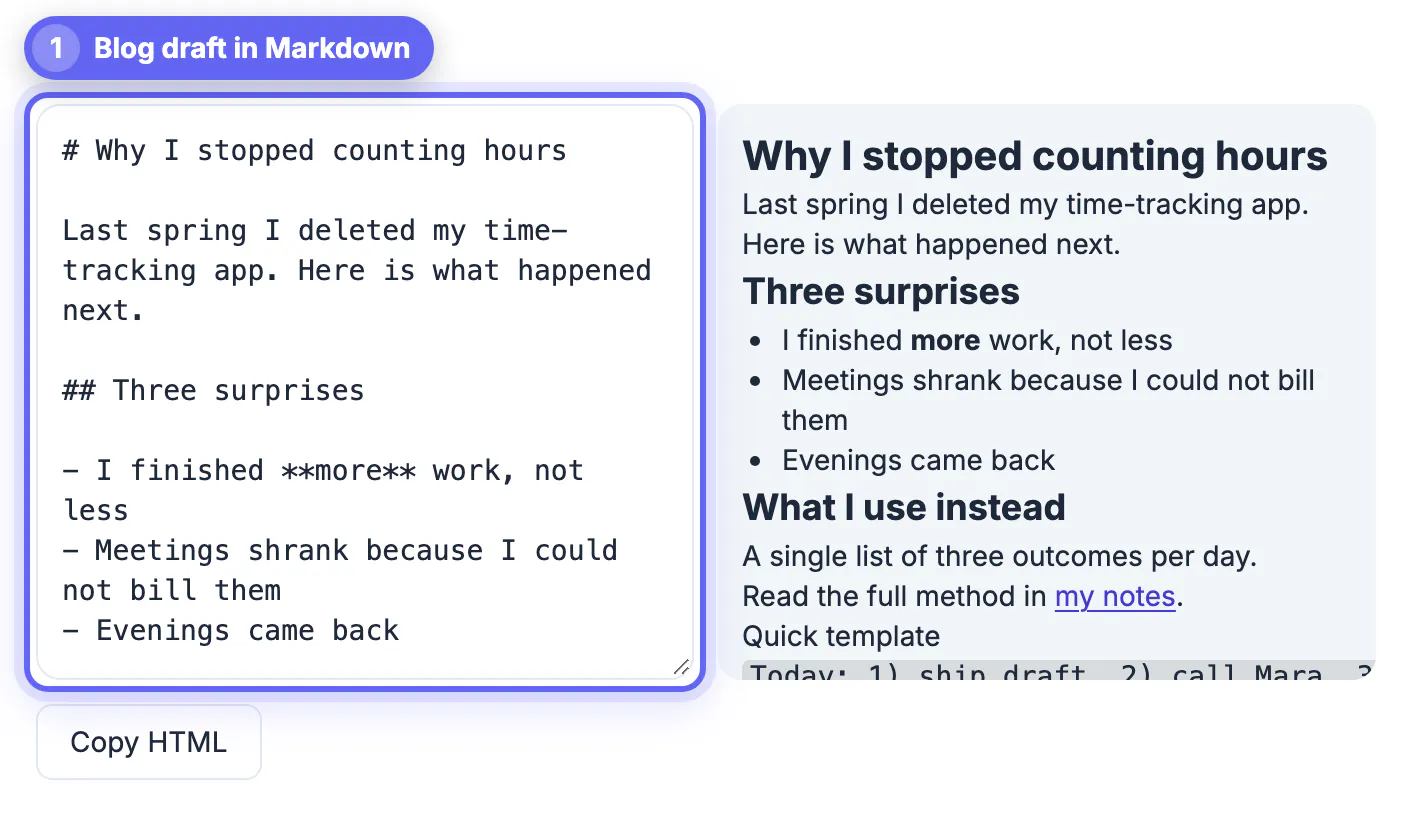
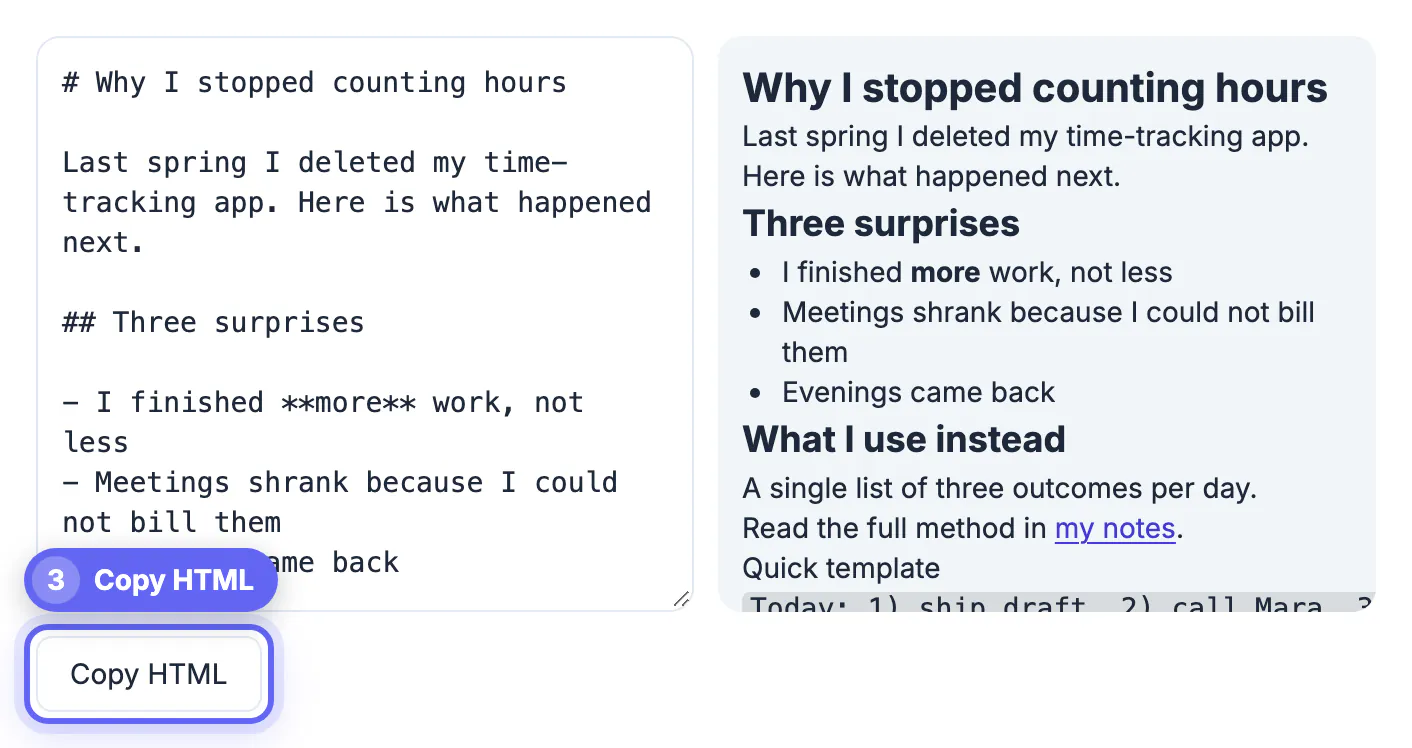
Common mistakes to avoid
Pro tips
Frequently asked questions
Should I keep writing in Markdown or switch to my CMS editor?
Keep drafting in Markdown for speed and portability, then convert. You avoid lock-in and can move your writing anywhere.
Will converted HTML match my blog's fonts and colors?
Yes, because semantic tags inherit your site's CSS. That's the advantage over pasting pre-styled rich text.
Can I include images from my notes?
Convert the text, then replace or add images using absolute URLs or your platform's uploader for reliable display.
Is my unpublished draft safe?
It never leaves your browser, so you can convert embargoed or personal posts without uploading them anywhere.
Why did my line breaks disappear after converting?
Standard Markdown joins lines that are not separated by a blank line into a single paragraph. Add an empty line between paragraphs, or end a line with two spaces or a backslash when you need a hard line break.
Draft fast in Markdown, publish clean in HTML: the conversion step hands your blog engine the semantic structure that keeps posts accessible and on-brand.
Related guides
Browse more: all text and developer guides · the Markdown to HTML tool