Get Your README Into Gmail and Your CMS Cleanly
You finished a crisp release note in Markdown, then pasted it into Gmail and watched the hashtags, backticks, and dashes show up as literal characters. The fix is to convert the Markdown to HTML first, then paste the rendered result. GrabCast runs the conversion entirely in your browser, so your unreleased changelog or internal doc never leaves your machine.
📝 Try the Markdown to HTML tool now — freeOpen →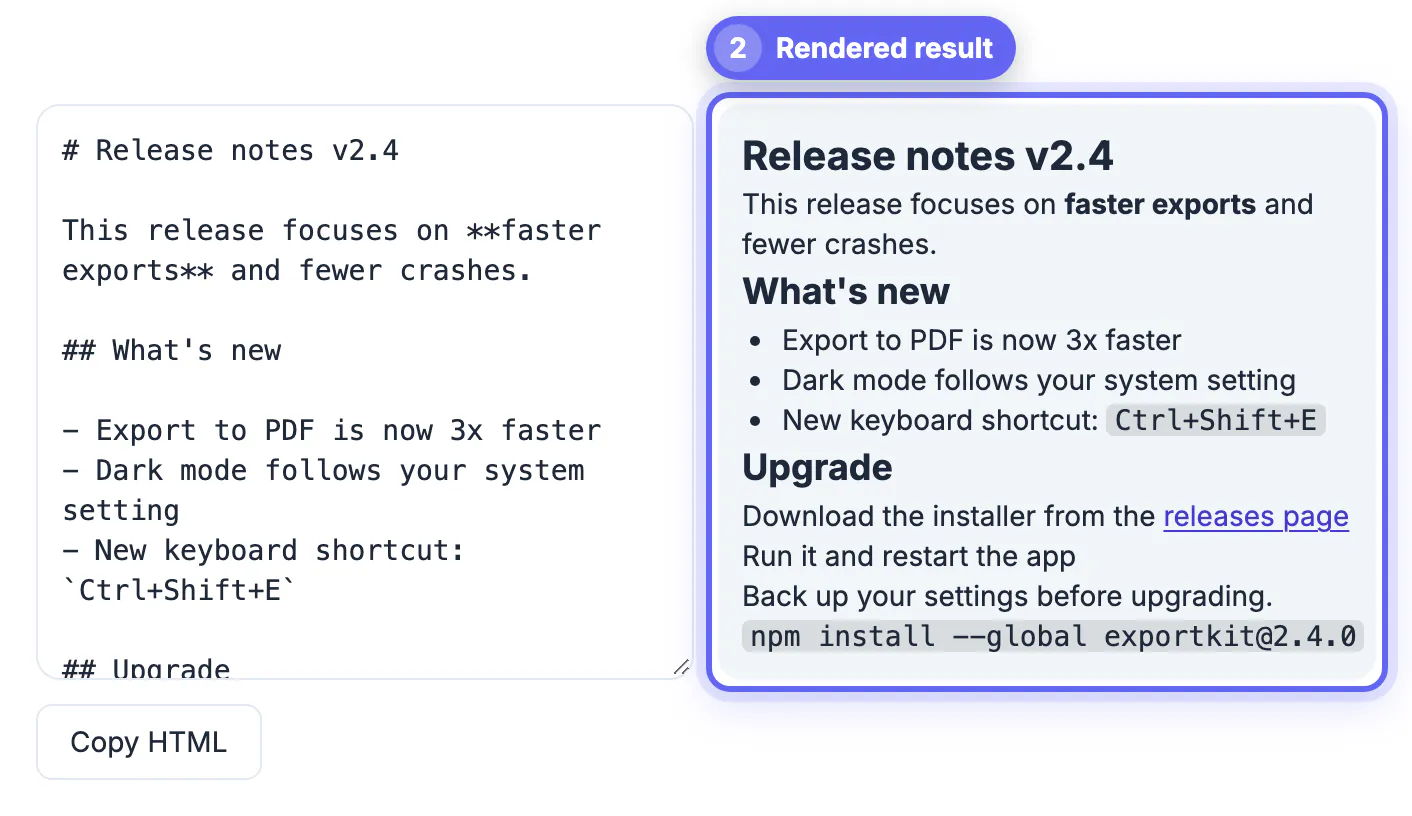
Email clients, CMS editors, and wikis expect HTML, not Markdown. When you paste raw Markdown, they treat `# Heading` and `**bold**` as plain text because nothing tells them those symbols are formatting. Some editors have their own Markdown shortcuts, but they only trigger as you type live, not on a paste. Converting to HTML first produces real
, , , and tags that every rich editor understands. You get true headings, clickable links, and monospaced code without hand-formatting each element. That matters most for release notes and onboarding docs, where a broken bullet list or an unstyled code snippet makes the whole message look careless.
tags that every rich editor understands. You get true headings, clickable links, and monospaced code without hand-formatting each element. That matters most for release notes and onboarding docs, where a broken bullet list or an unstyled code snippet makes the whole message look careless.
Where the HTML actually pastes cleanly
Not every destination accepts pasted HTML the same way. Knowing the target saves rework:
- Gmail and Outlook: paste rendered HTML directly into the compose window and formatting survives.
- WordPress: use the Classic editor's Text tab or a Custom HTML block in Gutenberg to drop the raw HTML in.
- Notion and Confluence: paste the rendered view, not the tags, and they map headings and lists to native blocks.
- Contact forms and CRMs: many strip HTML, so keep a plain-text fallback ready.
What converts reliably and what needs care
Standard Markdown maps cleanly, but a few elements deserve attention before you ship:
- Headings, bold, italic, links, and ordered or bulleted lists convert with no surprises.
- Fenced code blocks become
<pre><code>, but syntax-highlight colors are added by the destination, not the HTML. - Tables render as real
<table>markup, though CMS themes may restyle borders. - Relative image paths break once pasted elsewhere, so swap them for full URLs first.
What Copy HTML gives you, and GitHub extras that won't carry over
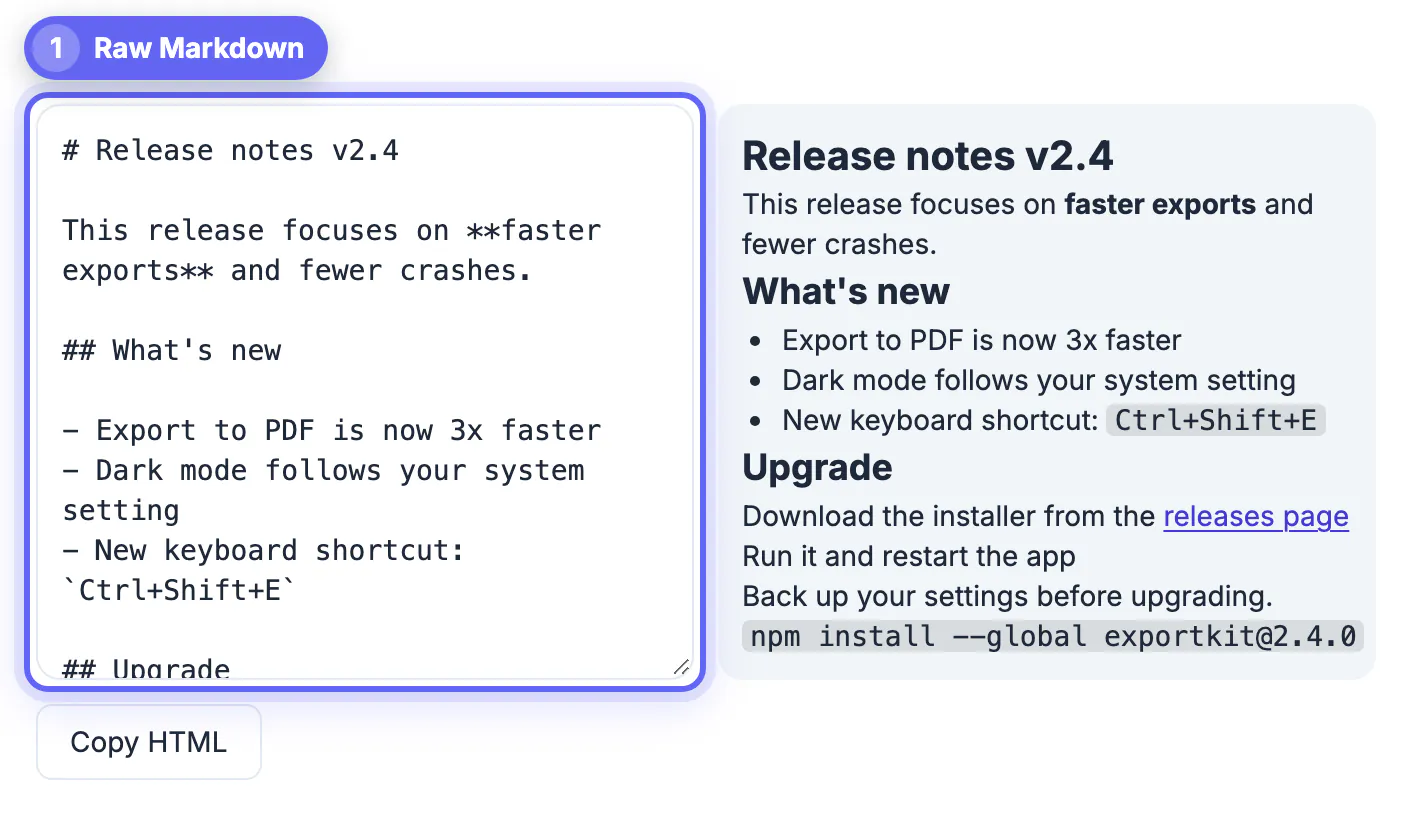
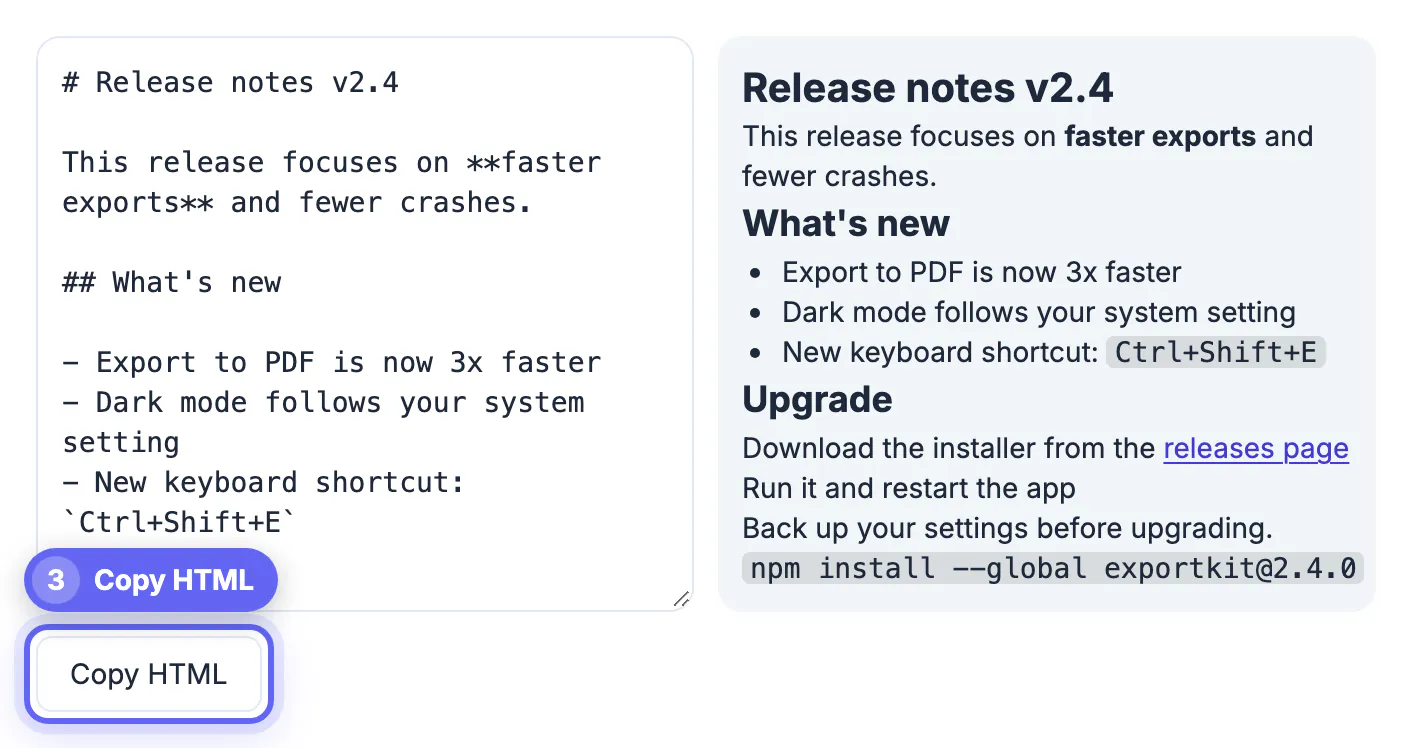
The tool has one export button, Copy HTML, and it copies the source produced by the marked library, not the styled preview. That decides how you paste:
- CMS HTML blocks, the WordPress Text tab and email template editors that accept source: paste what Copy HTML gives you.
- Gmail or Outlook compose: those windows show pasted tags as literal text, so select the rendered preview on the right and copy it with your browser instead.
- The preview is sanitized with DOMPurify so pasted content cannot run scripts on the page, but the copied source is the raw output, including any HTML embedded in the README such as
<details>or<p align="center">wrappers. Review it before it lands in a CMS.
Some GitHub-only conveniences also stay behind:
- Headings get no
idattributes, so a table of contents linking to#installationwill not jump anywhere. - Emoji shortcodes like
:rocket:and alert blocks like> [!NOTE]remain literal text. - Task-list items become disabled checkbox inputs, which most email clients drop; rewrite them as plain bullets.
Keeping images and links portable
A README lives in a repo where ./docs/logo.png resolves fine. Move it into an email and that path points nowhere. Before converting, replace relative references with absolute URLs hosted somewhere public. The same goes for anchor links to other repo files: point them at the rendered GitHub page or your live docs so recipients can actually follow them.
Troubleshooting a paste that looks wrong
When the result in the destination does not match the preview, work through the likely causes before editing the content again.
- Everything appears as visible tags: you pasted source into a rich-text field. Use the HTML or code view instead.
- Fonts and colours look off in Gmail: the editor applies its own styles. Select the text and use Remove formatting only if you want to reset them.
- Tables collapse in email: many clients render tables unevenly, so keep them narrow or convert the key figures into a list.
- Code blocks lose indentation: wrap them in a pre element, or paste as plain text inside a code card.
For the conversion itself, converting Markdown to HTML with a live preview covers the options, and a meta tag generator helps when you publish the page and need titles and descriptions.
Keeping one source for several destinations
If the same README feeds an email, a docs site and a blog, keep the Markdown as the master. Convert fresh each time rather than editing the HTML copies, so a change in one place can be repeated everywhere in a minute. Keep a short checklist in the repository for the manual steps, such as swapping image URLs and adding the unsubscribe footer for email.
Step-by-step
Common mistakes to avoid
Pro tips
Frequently asked questions
Will my code blocks keep their formatting in email?
They keep monospacing and indentation via <pre><code>, but color highlighting depends on the receiving client and usually won't appear.
Can I paste the result straight into WordPress?
Yes. Use the Custom HTML block in Gutenberg or the Text tab in the Classic editor and paste the raw HTML.
Do my documents get uploaded anywhere?
No. The conversion happens entirely in your browser, so even embargoed release notes stay on your device.
Why do my images disappear after pasting?
Relative paths only work inside the repo. Replace them with absolute, publicly hosted URLs before converting.
Does the copied HTML include any styling?
No. Copy HTML returns plain semantic tags with no CSS or inline styles, so the email client or CMS theme decides fonts and colors. For newsletters, add inline styles in your email tool after pasting.
Convert first, paste second: turning Markdown into real HTML is the difference between a professional release note and a message full of stray hashtags.
Related guides
Browse more: all text and developer guides · the Markdown to HTML tool