Batch Rotate Several PDFs at Once and Save a ZIP
To batch rotate multiple PDFs, drop all of them into GrabCast Rotate PDF at once, choose All pages, Portrait pages only or Landscape pages only, press Left, Right or 180, and click Download ZIP. You get one ZIP file with a separately rotated copy of every PDF, each keeping its own name with -rotated added. This is the scenario that eats an afternoon when done file by file: a teacher who fed a stack of worksheets into the copier upside down, an office assistant with a folder of sideways receipts, or a club treasurer whose scanner saved every statement at 180 degrees. The example below fixes two fictional math worksheets together, and the tips cover how to handle mixed batches where only some files are wrong.
🔄 Try Rotate PDF now — freeOpen →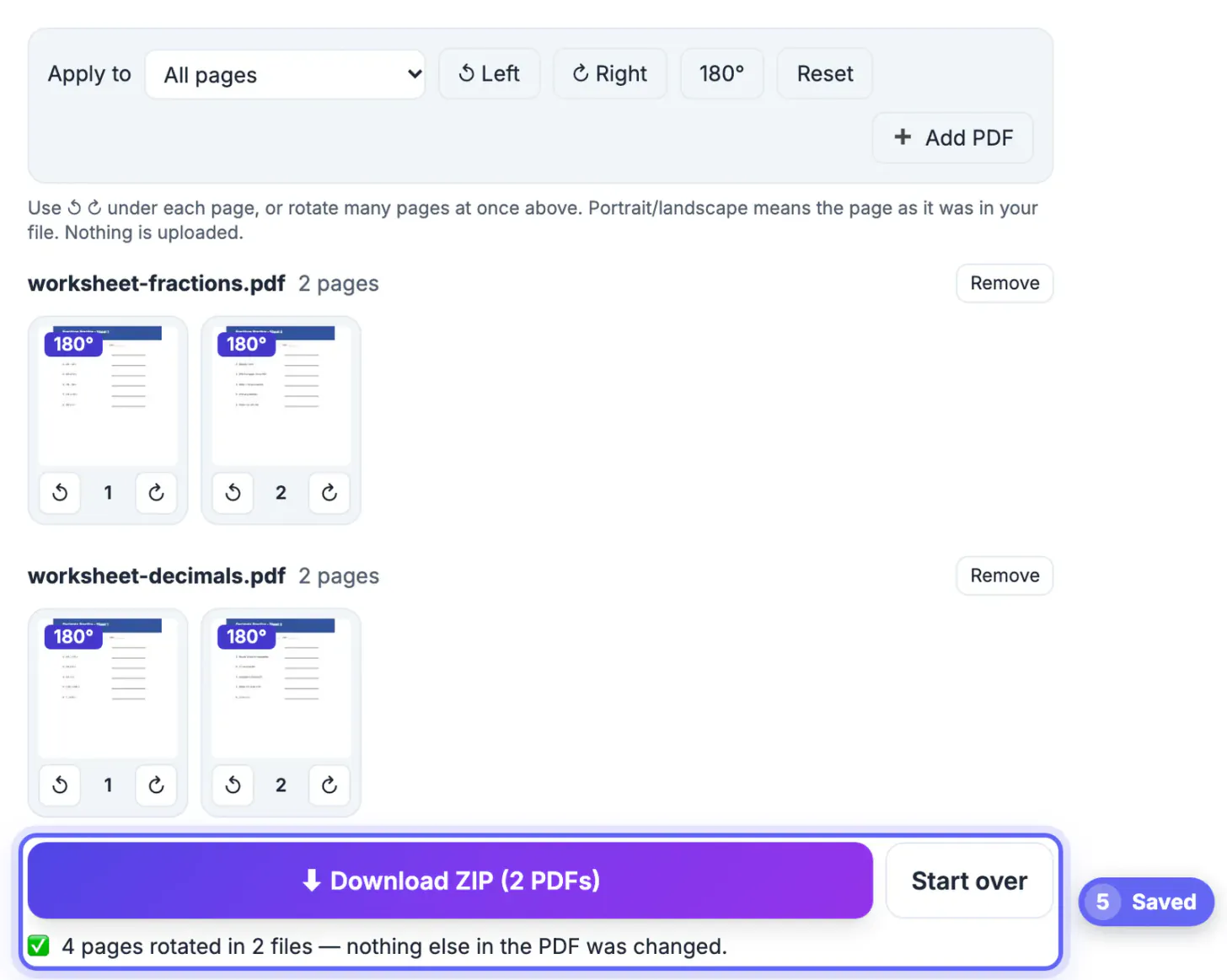
Orientation mistakes rarely come alone. A document feeder that grabs a stack face-down produces a whole run of upside-down files; a phone scanning app locked in landscape produces a week of sideways receipts. Opening each file, rotating it, saving it and renaming it is five actions per document, and it is easy to skip one or overwrite the wrong original. A batch pass collapses that into load, choose, rotate, download. It also keeps the fix consistent: every file in the batch gets exactly the same correction, and the thumbnails for all of them sit on one screen, so a file that does not match the pattern is obvious before you save. Because each PDF comes back as its own file inside the ZIP, nothing is merged or renamed beyond a clear suffix, and you can drop the corrected set straight back into the shared folder, learning platform or accounting app it came from.
Example: two worksheets scanned upside down
A fifth-grade teacher scanned two practice sheets, fractions and decimals, two pages each. The feeder took them upside down, so all four pages read the wrong way.
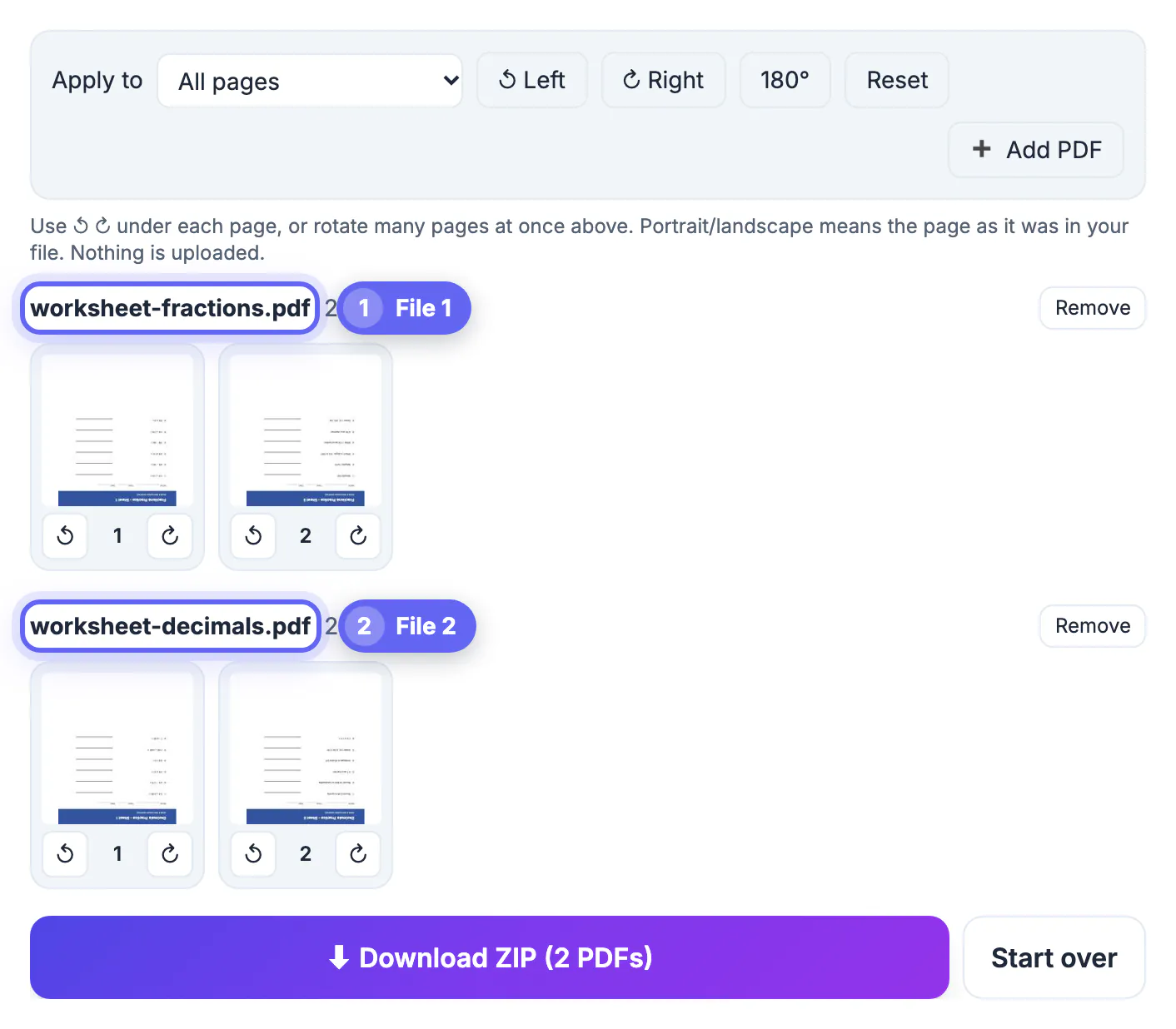
- Both files were dropped in together. The tool shows each one in its own row with its name, page count and a Remove button.
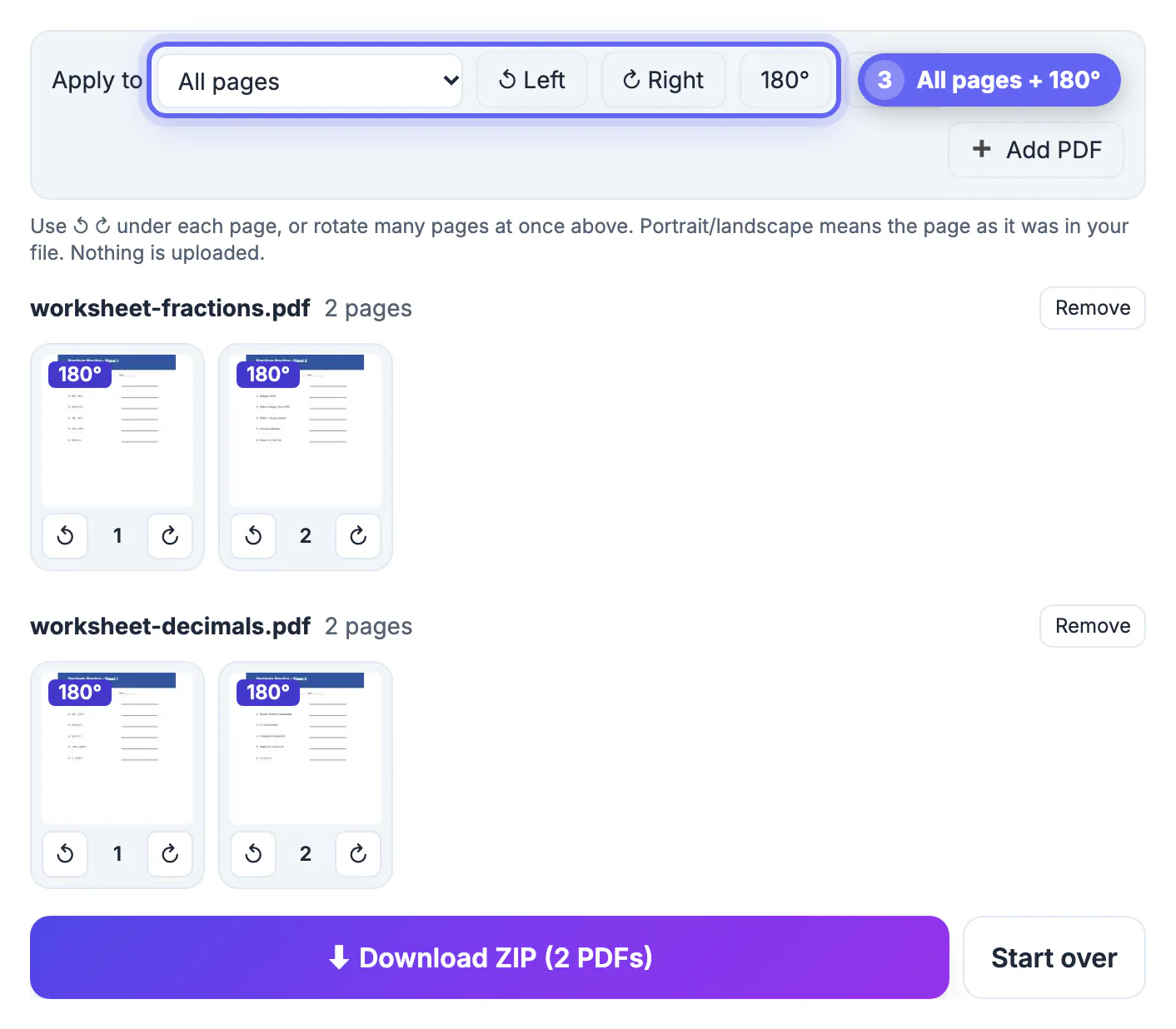
- Apply to stayed on All pages, and a single press of 180 turned all four pages right side up. Each thumbnail now carries a 180 degree badge.
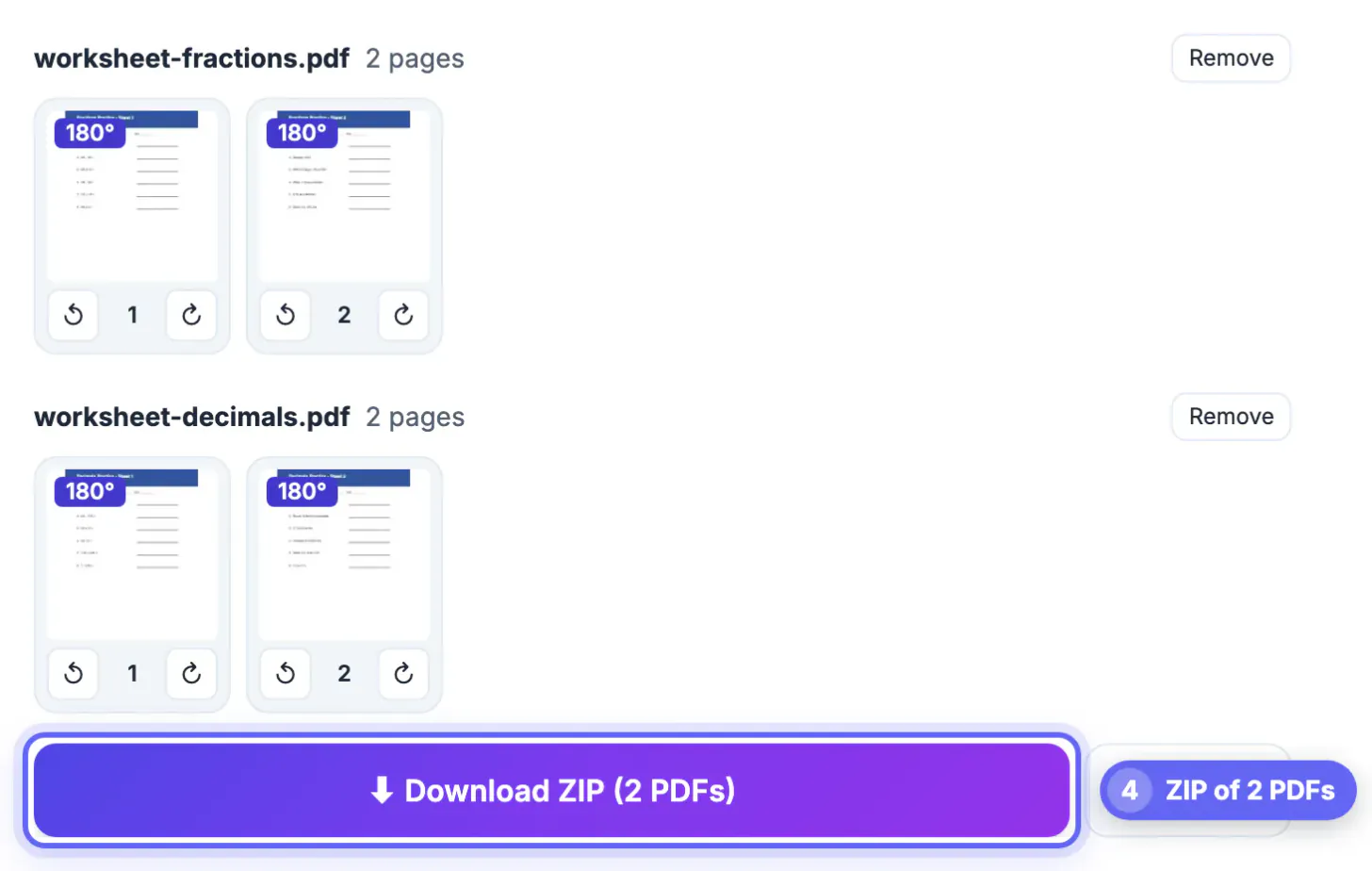
- With two files loaded, the download button reads Download ZIP (2 PDFs), a quick check that both are included.
- The status line confirmed 4 pages rotated in 2 files, and the ZIP, rotated-pdfs.zip, holds worksheet-fractions-rotated.pdf and worksheet-decimals-rotated.pdf.
The same approach scales to a whole folder of scans. More files simply mean more rows of thumbnails to glance over before saving.
Handling mixed batches
Real batches are rarely uniform. The bulk scope and per-page arrows combine, so you can still fix everything in one session.
- Most files upside down, a few fine: press 180 for all pages, then use the arrows under the few correct pages to turn them back, or remove those files with their Remove button.
- Receipts sideways, cover letters upright: choose Landscape pages only and press Left or Right; portrait pages are not touched.
- One file needs a different fix: apply the bulk change first, then adjust that file's pages with their own arrows.
- A file was added by mistake: click Remove next to its name, and the rest keep their settings.
Portrait and landscape are measured from each page as it was loaded, so the choice stays predictable even after you start rotating.
What lands in the ZIP
Knowing the output format helps you file it without surprises.
- One PDF per input file, each named after the original with -rotated added before .pdf.
- Only rotation values change. Text stays selectable, images keep their resolution, and form fields and links survive.
- Pages you did not rotate are saved exactly as they were, and each file keeps its own page count and order.
- With a single file loaded, you get that PDF directly instead of a ZIP.
The ZIP is built in your browser with the open-source JSZip library after the PDFs are rotated locally, so none of the documents are uploaded. Password-protected files are skipped with a message, since they cannot be opened without the password.
Once the pages face the right way, the Merge PDF tool joins them, and the OCR PDF tool adds searchable text.
Prevent the next upside-down batch
A few scanner habits cut down on repeat fixes.
- Check the feeder icon on the copier; most show which way the top edge should face.
- Turn on auto-rotate or auto-orientation in the scanning app, and test it on a page with plenty of text.
- For double-sided originals, choose the right flip setting, long edge for most portrait documents.
- Scan a single test page before a stack of fifty and open it on screen before continuing.
Even with good habits, pages with little text, such as answer grids or photos, trip up auto-orientation. A quick batch pass remains the cheapest safety net.
Step-by-step
Common mistakes to avoid
Pro tips
Frequently asked questions
Can I rotate multiple PDF files at once for free?
Yes. Drop several PDFs into GrabCast Rotate PDF, apply a bulk rotation, and download a ZIP with each rotated file. There is no sign-up and no watermark, and the files are processed in your browser.
Will the files be merged into one PDF?
No. Each file is saved separately with -rotated added to its name, and all of them are packed into one ZIP. If you need a single document, combine them afterward with Merge PDF.
Can different files get different rotations?
Yes. Apply a bulk change to all files, then use the arrows under individual pages in any file to adjust them, or remove files that do not need the change.
Does batch rotation change the quality of my scans?
No. Only each page's rotation setting is updated. Images keep their resolution and text layers from OCR remain searchable; the file is simply re-saved with the new orientation.
What happens with a password-protected PDF in the batch?
It cannot be opened or saved, so the tool shows a message and leaves it out. Remove the password with software you are authorized to use, then rotate it separately.
When a whole stack of PDFs comes out the wrong way, rotate them together: load every file, pick the scope, press one button, fix any exceptions, and download a single ZIP with a rotated copy of each document. Only the rotation settings change, nothing is uploaded, and the originals stay untouched until you decide to replace them.
Related guides
Browse more: all PDF guides · Rotate PDF