Batch Convert Word Files to PDF With One ZIP Download
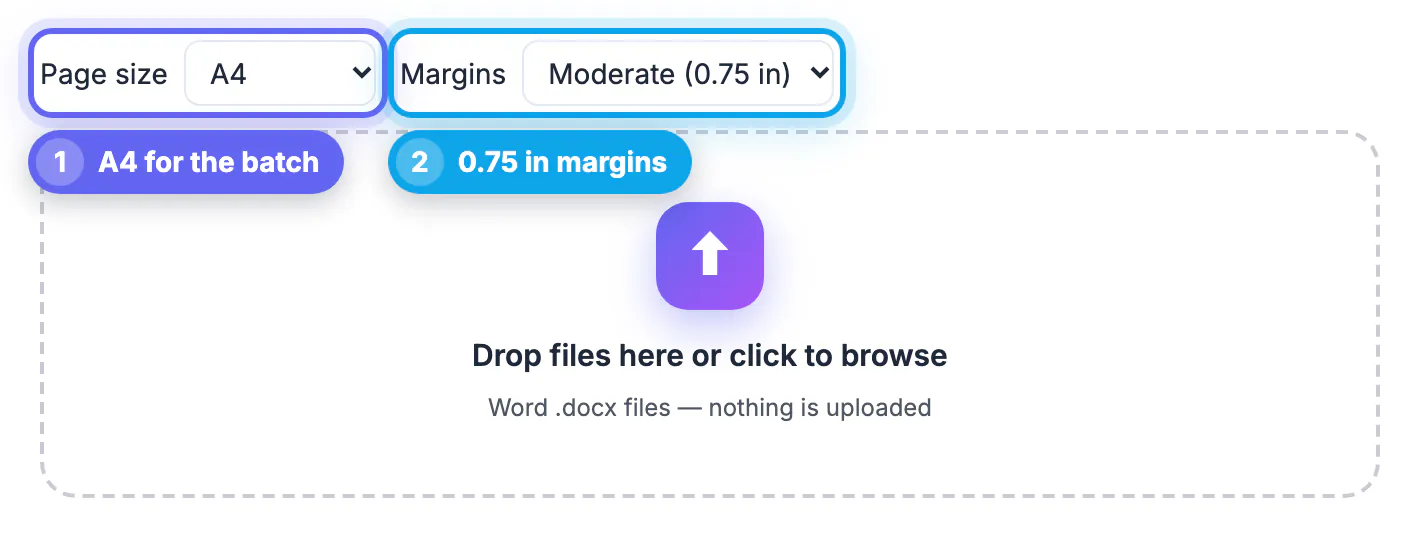
To batch convert Word files to PDF, open GrabCast's Word to PDF tool, set the page size and margins once, then select or drop all the .docx files together. Each document gets its own card with a Download PDF button, and a Download all (.zip) link saves the whole set in one file. This guide walks through a real example, three company policy documents converted to A4 in one pass, and covers naming, checking and the limits worth knowing before you convert a whole folder.
📄 Try Word to PDF now — freeOpen →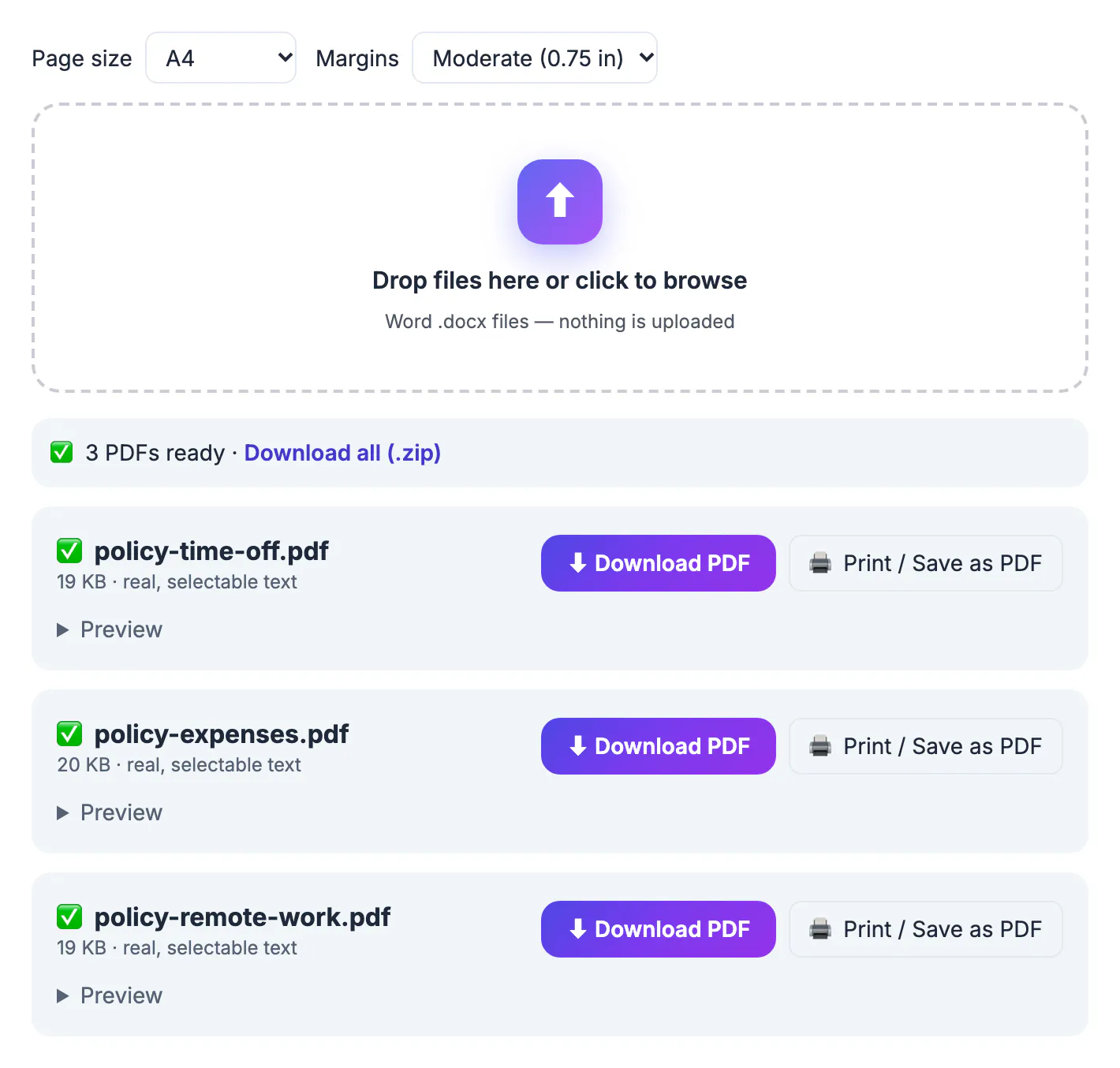
A small office rarely has a single document to convert. The onboarding packet has a remote work policy, an expense policy and a time-off policy; a teacher has twelve weekly handouts; a volunteer group has forms, a code of conduct and a schedule. Opening each file in Word, choosing Save As, picking PDF, finding the folder and repeating is slow and error-prone: one file ends up in Letter size instead of A4, another keeps a comment, a third is saved with a draft name. Converting the batch in one step with the same settings gives you a consistent set, and the ZIP makes it easy to hand over, upload or archive together. Reviewers also notice consistency: matching margins, identical paper size and predictable names signal that a packet was prepared with care.
How batch Word to PDF conversion works here
The tool accepts several .docx documents in a single drop or file picker selection. It loads the converter once, then processes the documents one after another in your browser.
- Page size and margins are read at conversion time, so set them before dropping the batch.
- Each document becomes a card with its PDF name, size in KB and the note real, selectable text.
- With more than one document, nothing downloads automatically; use the buttons on the cards or the ZIP link.
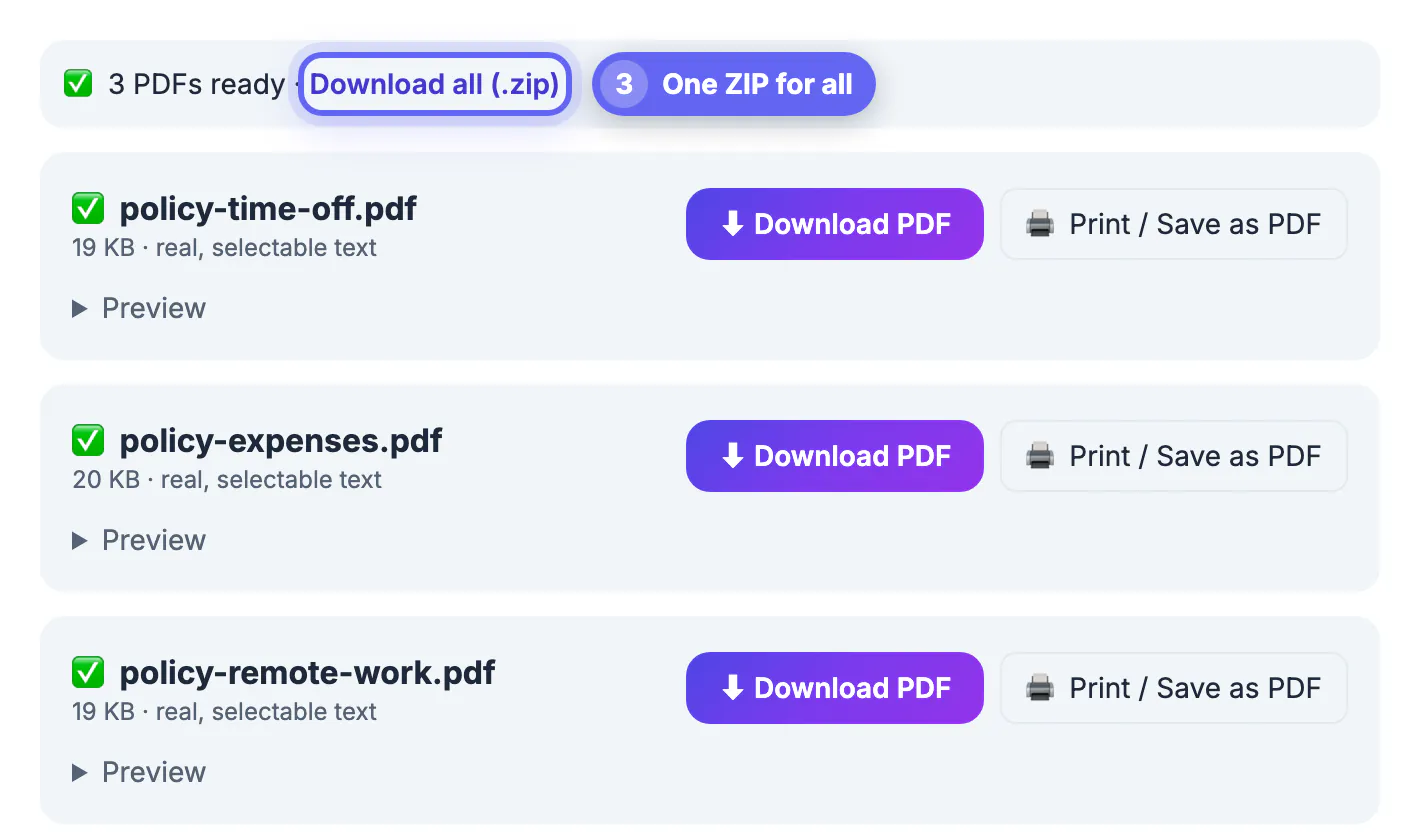
- Download all (.zip) saves every converted copy in one archive.
- Anything that is not .docx is filtered out, and a damaged or password-protected document gets its own error card without stopping the rest.
In the Harbor Lane Studio example, three policies came back as policy-remote-work.pdf, policy-expenses.pdf and policy-time-off.pdf, each around 19 to 20 KB, under a banner reading 3 PDFs ready.
Preparing a folder of Word files for a batch
The conversion is only as consistent as the documents going in. Ten minutes of preparation in Word pays off when the set lands in a shared drive or an HR system.
- Resave any old .doc documents as .docx; the older format is not supported.
- Accept tracked changes and delete comments everywhere, so no draft notes reach the output.
- Use the same heading styles across documents, so the set looks like it belongs together.
- Rename each document to the name you want on the output, since the converted copy keeps it.
- Remove embedded EMF or WMF drawings or replace them with PNG images; those vector formats are skipped.
A naming pattern such as policy-topic.docx or week-01-topic.docx keeps the archive sorted in a sensible order when it is unpacked, and it tells a new employee or a substitute teacher at a glance what each document covers.
Checking a batch of PDFs quickly
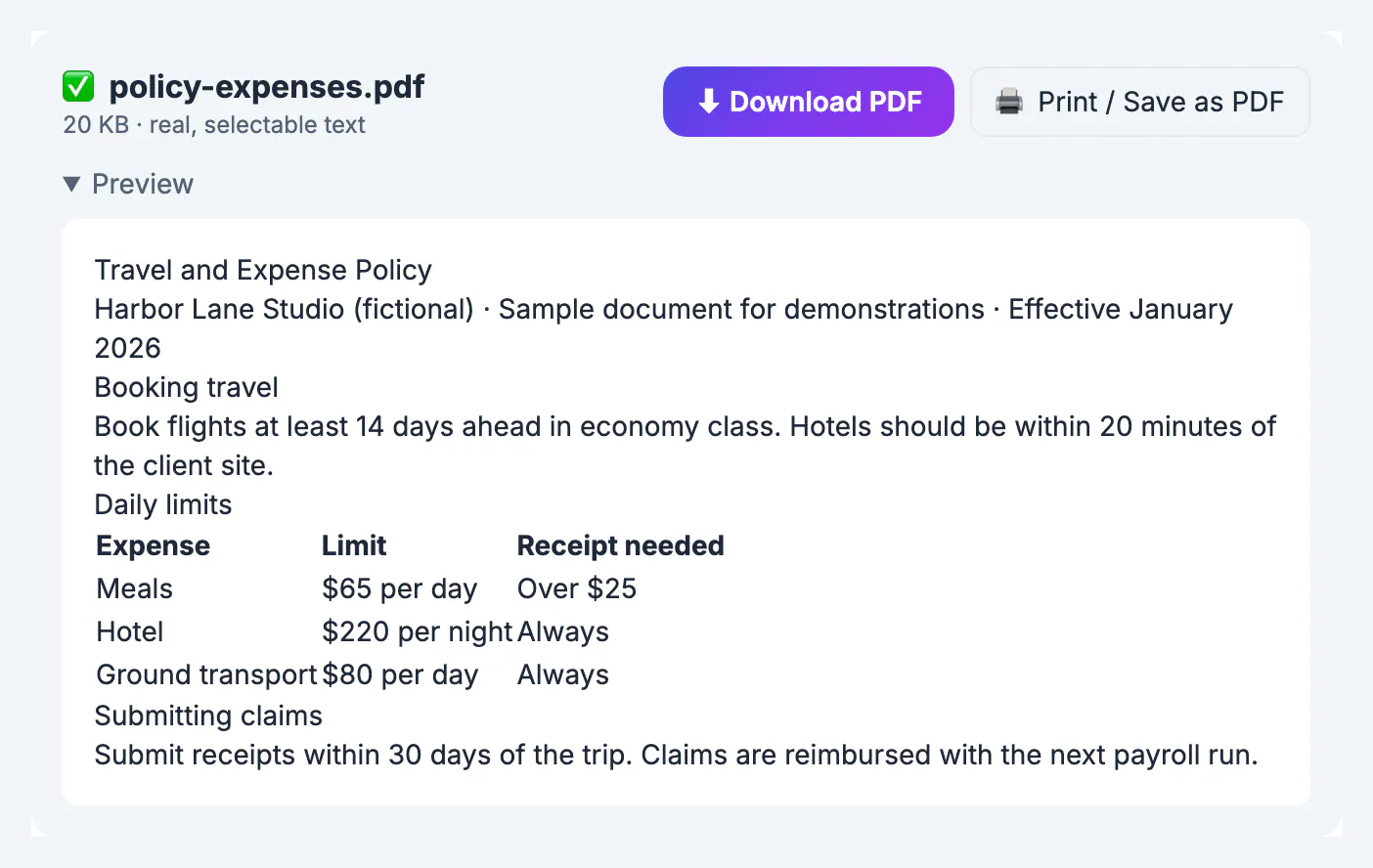
With a batch, spot checks are more practical than opening everything. Each card has a Preview that shows the converted content without leaving the page.
- Open the Preview of the longest document and the one with a table; those are most likely to need attention.
- In the expense policy, the Daily limits table should show Meals at $65 per day and Hotel at $220 per night in aligned rows.
- Look for a line such as 1 Word feature simplified on any card, and open that document's preview first.
- After unzipping, open one result and search for a term to confirm the text layer is real.
If one document needs changes, fix it in Word and drop only that file again. The others you already downloaded do not need to be regenerated.
Limits and alternatives for very large batches
Everything happens on your own device, which is what keeps confidential policies, student work and client letters private. It also means your computer does the work.
- A few dozen short documents convert comfortably on a typical laptop; very large batches are faster split into groups of twenty or so.
- Documents with complex layouts, custom fonts or text boxes are simplified; check them individually.
- If you need one combined document rather than separate ones, convert the batch, then join the results with Merge PDF.
- For hundreds of documents on a schedule, a desktop suite such as LibreOffice can convert a whole folder from the command line, and a short script can run it every night.
For the everyday case of a handful to a few dozen documents, the browser batch is the fastest route from a messy folder to a tidy, consistent set that colleagues can open on any device, including phones and tablets without Office installed.
A big batch can be heavy to email, so this email compression guide is worth a look.
Step-by-step
Common mistakes to avoid
Pro tips
Frequently asked questions
How many Word files can I convert at once?
There is no fixed file limit. Because the work runs in your browser, a few dozen typical documents convert comfortably in one go; split very large batches into smaller groups.
Do all the PDFs use the same page size?
Yes. Page size and margins are read when the batch is converted, so every document in that drop uses the same settings.
Can I get one combined PDF instead of separate files?
The converter makes one PDF per document. To combine them, download the ZIP, unpack it and join the files in the order you want with Merge PDF.
What happens if one file in the batch is broken?
That file gets an error card explaining the problem, such as a damaged or password-protected document, and the rest of the batch still converts.
Are the files uploaded during a batch conversion?
No. Each .docx is read and turned into a PDF inside your browser, and the ZIP is also built on your device.
Set the page size once, drop the whole folder of .docx files, spot-check a couple of previews and download everything as one ZIP. It is the fastest private way to turn a set of Word documents into consistent PDFs, and it works the same on a Mac, a Windows laptop or a school Chromebook.
Related guides
Browse more: all PDF guides · Word to PDF