Merge PDF Handouts and Worksheets for Teachers
To merge PDF handouts into one lesson packet, drop every worksheet, reading and exit ticket into GrabCast's Merge PDF tool, drag the page thumbnails into teaching order, remove the pages you do not need, and download a single file. It runs in the browser, so drafts of assessments or rosters with student names stay on your computer. One ordered packet means one print job, one staple and one upload to your learning platform.
📎 Try Merge PDF now — freeOpen →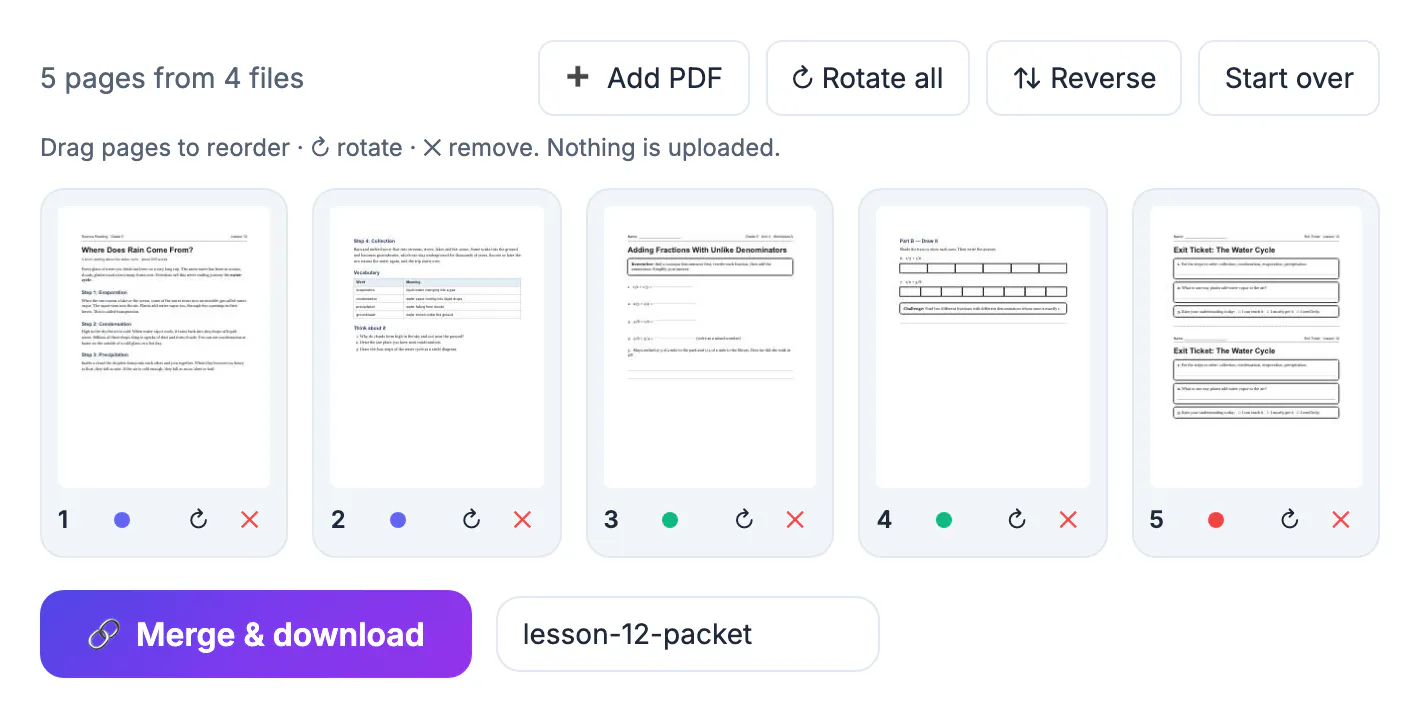
A Monday lesson might draw on a warm-up from last year's folder, two pages of a publisher workbook, a reading printed from a museum site and an exit ticket you made on Sunday night. Printed separately, that is four trips through the copier menu and a stack that students promptly lose. Merged, it is one file you print once, post once and hand to a substitute without explanation. Absent and remote students get the whole lesson in a single download, and next year you reuse the packet instead of rebuilding it. Keeping the work in the browser also matters: student names, accommodations notes and unreleased quizzes are exactly the material most districts ask teachers not to upload to unknown websites.
What teachers combine into one file
Almost any lesson or unit can become a single packet. These are the combinations that save the most time over a school year.
- A warm-up, the main worksheet and an exit ticket for a single class period.
- A week-long unit packet with a cover, daily pages and a vocabulary list students keep in their binder.
- A reading with its comprehension questions placed directly after it, not at the end.
- Emergency sub plans: the schedule, seating chart, directions and every handout the substitute will need, in order.
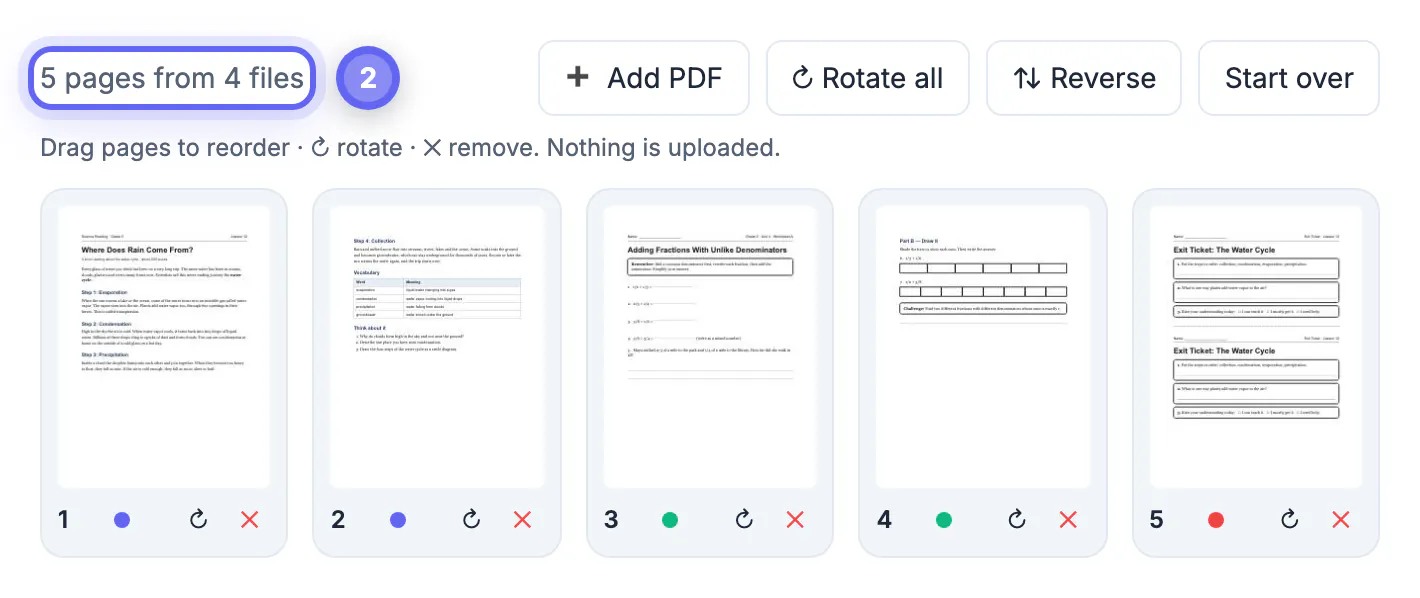
Mixing sources is where the tool helps most. Each file you add shows all its pages as thumbnails, and a small colored dot marks which file a page came from. That makes it easy to take only pages 3 and 4 of a 20-page workbook sample: drop the whole file in, then remove the pages you do not want with the small cross under each thumbnail. Nothing changes on the originals, which stay on your drive exactly as they were.
Merge PDF handouts in teaching order
Order is what makes a packet useful. Spend a minute on the thumbnail grid before you download and you avoid a reprint for 150 students.
- Drag thumbnails into the sequence you teach, with instructions or a cover page first.
- Rotate landscape pages, such as a wide timeline or a map, so they read correctly in a portrait packet.
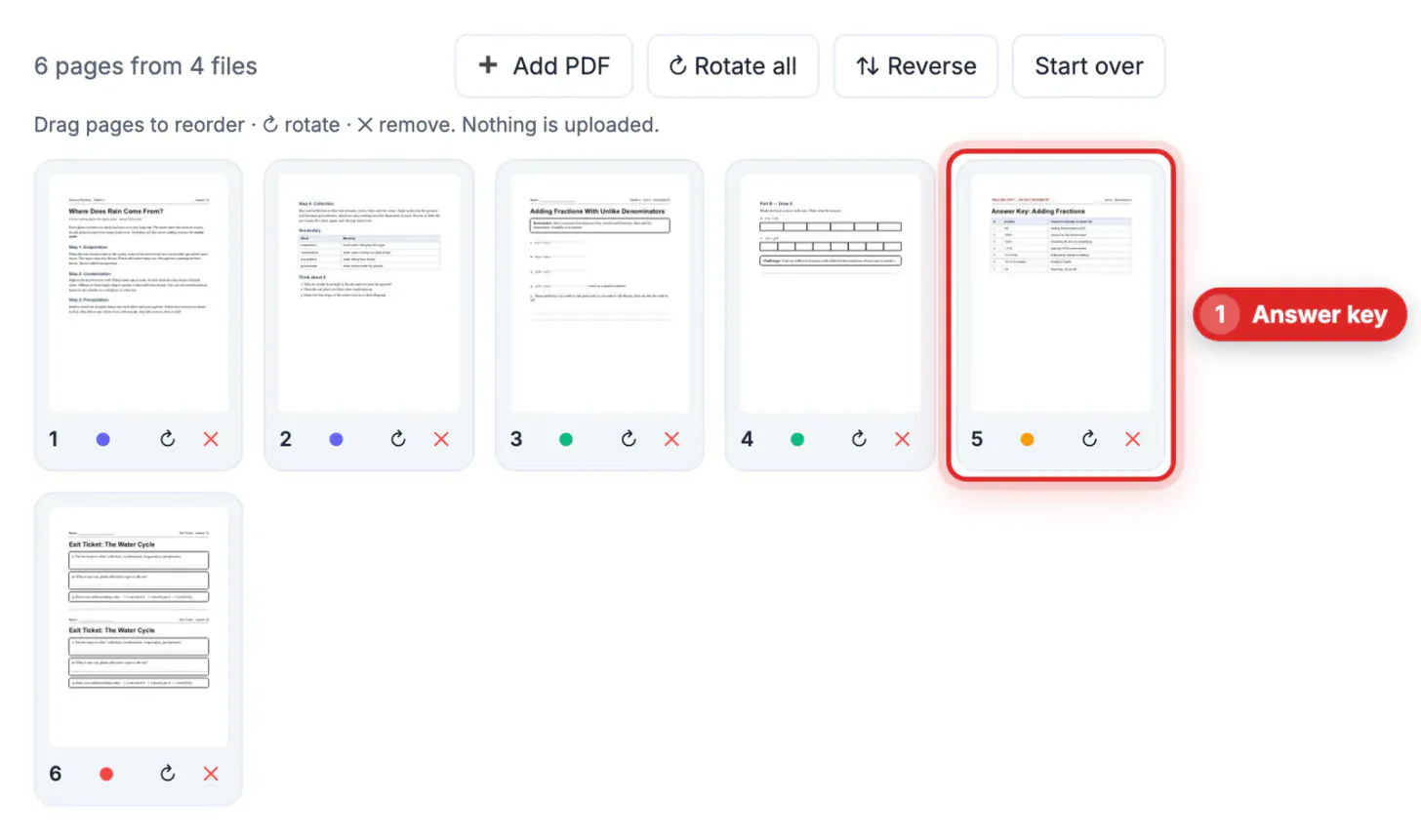
- Remove duplicate pages and answer keys; keep the key as its own file for yourself.
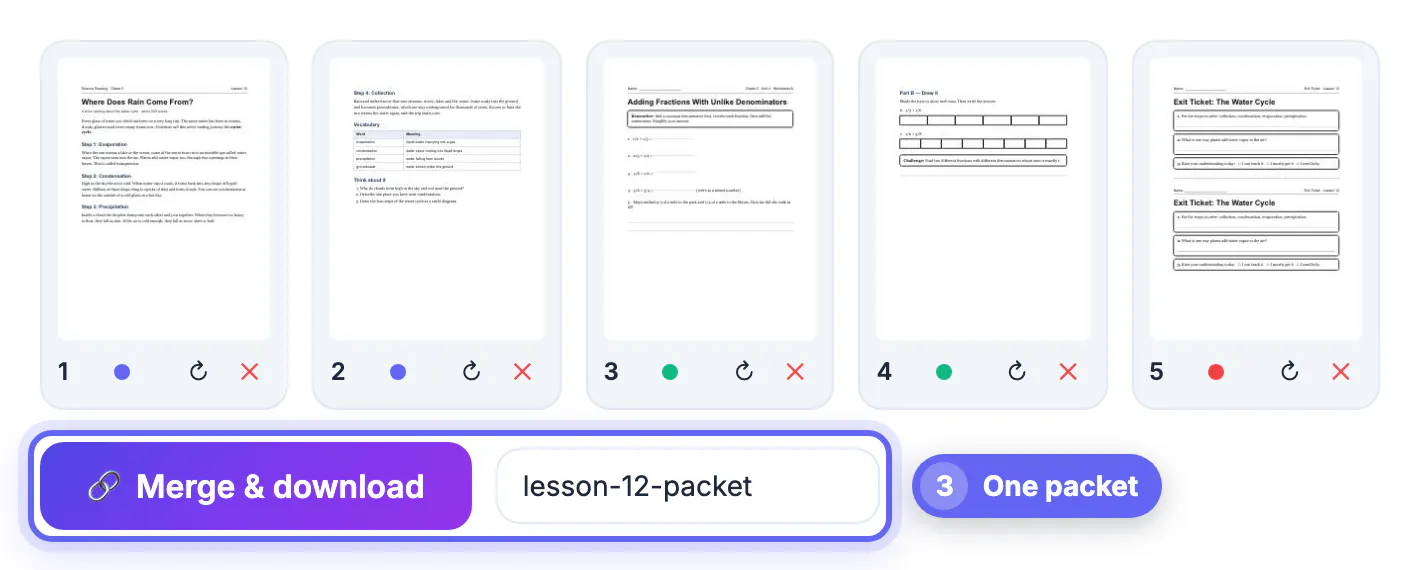
- Type a clear file name, for example Unit4-Ecosystems-Week2, before pressing Merge and download.
For double-sided printing, count pages as you go. If a handout ends on an odd page, the next one begins on the back of it, which is fine for a unit packet but awkward for a quiz students must hand in. A simple fix is to save a single blank page as blank.pdf once and drop it in wherever a new section should begin on a fresh sheet. The Add PDF button lets you bring in that page, or a forgotten worksheet, without starting over, and Reverse flips the whole order if a scanner fed everything backward.
Sharing packets with students, families and subs
A single PDF travels well through Google Classroom, Canvas, Schoology and email, and students on phones or Chromebooks open it without extra apps.
- Post one file per lesson or week, named with the date, so families can find the right packet quickly.
- If a platform rejects a large file, run the merged packet through a PDF compressor; merging keeps every page at its original quality, so scans can add up.
- Print from the same file you post, so in-class and remote students have identical page numbers to refer to.
- Leave a printed copy of the sub packet in a folder on your desk as well as in your email drafts.
Students who use screen readers need text they can select. Worksheets exported from Google Docs or Word keep their text when merged, but pages scanned on a copier are pictures, so offer a digital version of those pages where you can. And a note on copyright: publisher worksheets are usually licensed for your own classroom, so a packet built from them belongs on your course page rather than a public website.
Keeping a reusable packet library
The real payoff comes in the second year. A packet built once can be reused, lightly edited and shared with colleagues who teach the same course.
- Keep a master folder per unit containing the source files and the merged packet.
- Name source files with a day prefix, such as 01-warmup and 02-reading, so they sort in teaching order.
- When one worksheet changes, re-merge with the new version rather than editing the packet itself.
- Share the packet with your grade-level team so everyone starts from the same materials.
Because the tool runs entirely in your browser, it works on a school laptop even where software installs are locked down, and there is no account to create or subscription to renew. Large packets of a hundred or more pages take a little longer to show thumbnails on an older Chromebook, but they merge without trouble; close other tabs if the page feels slow.
If a worksheet exists only on paper, scan it with your phone before merging, and consider a text-to-speech voiceover for students who learn better by listening.
Step-by-step
Common mistakes to avoid
Pro tips
Frequently asked questions
Can I take just one or two pages from a longer file?
Yes. Add the whole file, then remove the pages you do not need from the thumbnail grid. The original file on your computer is not changed.
Are my lesson materials uploaded anywhere?
No. Merging runs in your browser, so files with student names, grades or draft assessments stay on your device.
Can I fix a sideways page?
Yes. Each thumbnail has a rotate button that turns the page 90 degrees at a time, and Rotate all turns every page at once.
Does it work on a school Chromebook?
Yes. It runs in Chrome with nothing to install. Very large packets may take longer to display thumbnails on older devices.
Can I open a password-protected worksheet?
No. Protected or damaged files cannot be read. Save an unprotected copy from the original source first, if you have the right to do so.
Merge PDF handouts into one ordered packet and you print once, post once and hand a substitute everything they need. Use the thumbnail grid to reorder, rotate and drop pages, keep answer keys separate, and let the browser keep student materials on your own computer.
Related guides
Browse more: all PDF guides · Merge PDF