Text to Speech Voiceovers for Teachers and E-Learning
Text to speech voiceovers let teachers paste a lesson script and download clear narration as an MP3 in a few minutes, without recording, re-recording or buying a narration subscription. GrabCast's tool offers 16 natural US and UK English voices, a speed slider from 0.7 to 1.3 times, and generates the audio on your own device, so scripts are never uploaded. This guide covers writing for the ear, fitting audio into slides and your learning platform, and the honest limits, including other languages.
🗣️ Try Text to Speech now — freeOpen →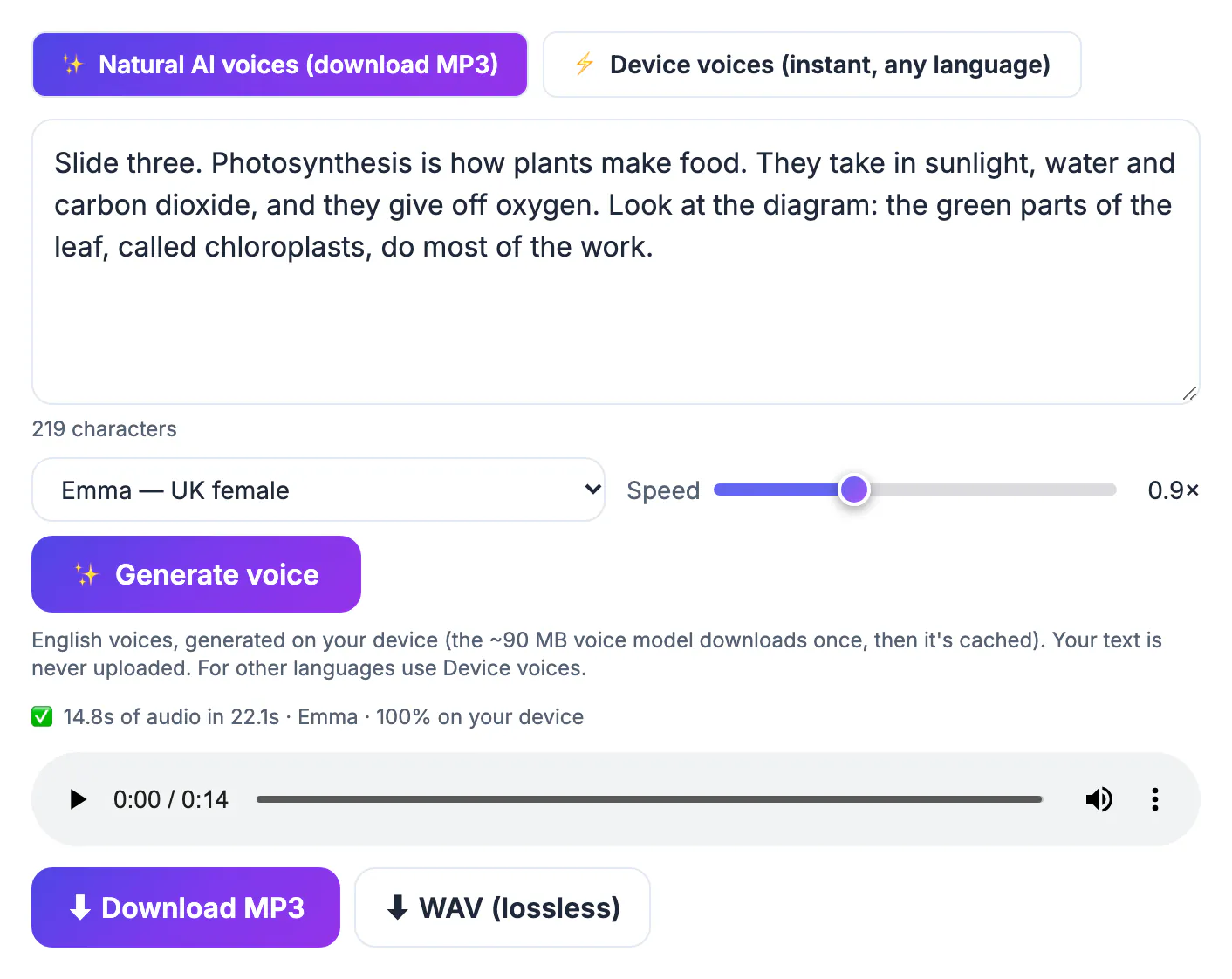
Recording your own voice for every slide deck means waiting for a quiet room, stumbling on a word at minute four and starting again, then doing it all over when a slide changes. A synthetic voice is consistent from the first module to the last, even when a course is built over months, and a changed slide needs one regenerated clip instead of a new recording. It saves your voice during a heavy teaching week, and it gives students who learn better by listening, or who need audio for accessibility, a version of the material they can replay at their own pace. None of this replaces your presence; it frees your own voice for the moments that need it.
How the voice engine works in your browser
The tool has two engines. Natural AI voices produce downloadable audio; Device voices use whatever voices your operating system already has and play instantly but cannot be saved.
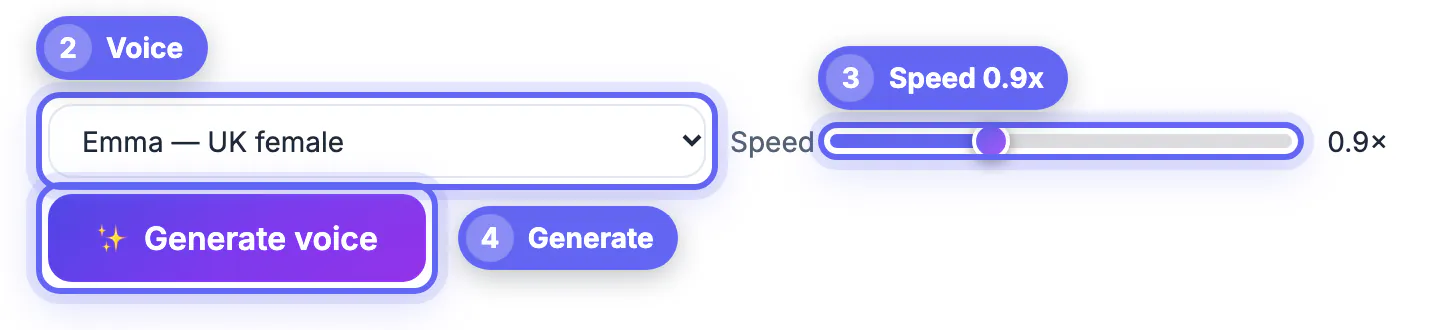
- Natural AI voices: 16 English options, ten American and six British, split between female and male, such as Heart, Michael, Emma and George.
- The voice model, about 90 MB, downloads once on first use and is cached, so later sessions start much faster.
- Up to 20,000 characters per run, roughly 3,000 words or around 20 minutes of narration, processed sentence by sentence with a progress bar and a Stop button.
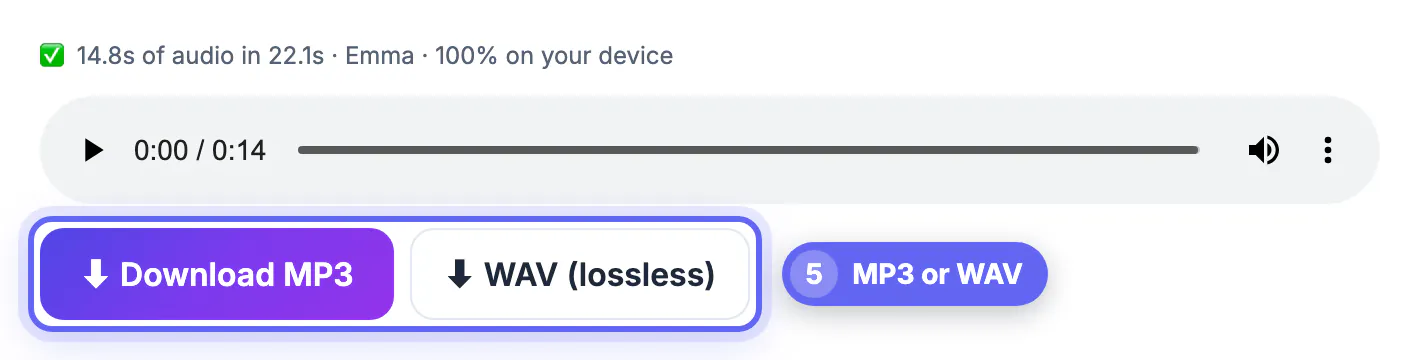
- Downloads come as MP3 for slides and learning platforms, or lossless WAV if you plan to edit the audio further.
Everything happens on your computer, which is why the first run takes a moment and why a recent Chrome, Edge or Safari works best. A school laptop from the last few years handles it comfortably; if the AI voice cannot run on an older machine, the tool says so and points you to Device voices. Because the script never leaves the browser, you can narrate material that includes student examples or unreleased assessments without sending it to a cloud narration service.
Writing lesson scripts that sound natural aloud
Text written for the page often sounds stiff when spoken. A few habits make a synthetic voice sound far closer to a real teacher at the front of the room.
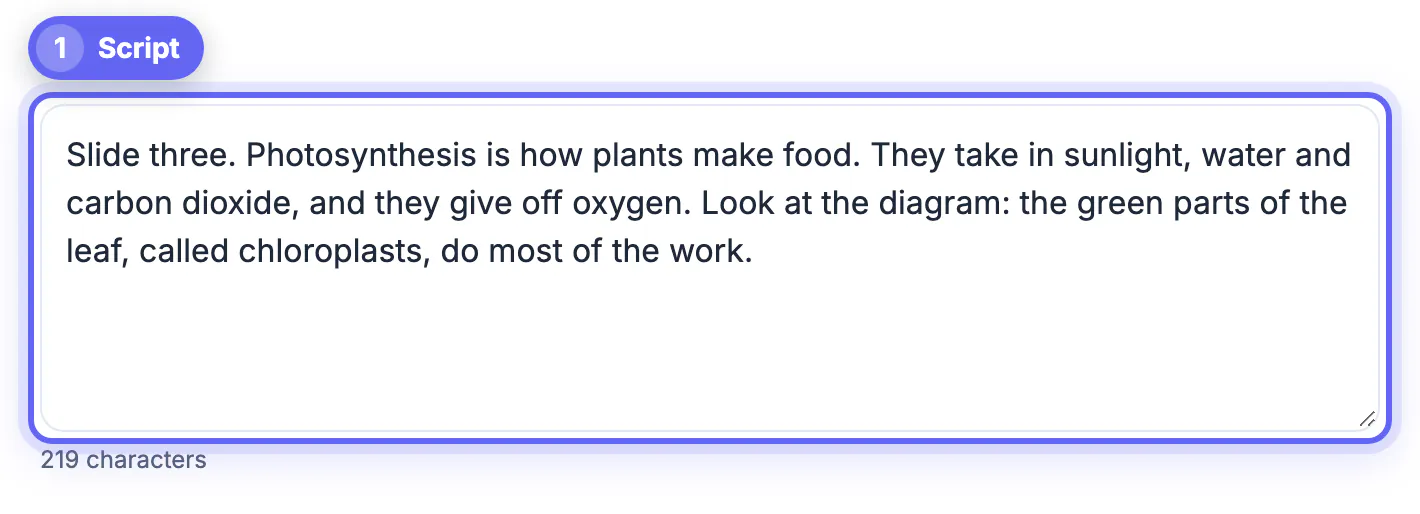
- Keep sentences short, around 15 to 20 words, the way you actually explain things in class.
- Use commas and periods to create pauses; a full stop gives a noticeably longer breath than a comma.
- Spell tricky words the way they sound, such as Lie-bnits for Leibniz or Mye-toe-sis for mitosis, and write numbers as you would say them.
- Read the script aloud once yourself; anything you stumble on, the voice will probably stumble on too.
Name pronunciation deserves particular care. There is no pronunciation dictionary, so respelling is the fix, and it is worth testing a two-line sample with a new name before generating a ten-minute file. Set the speed slider to about 0.9 for younger students or new content, and 1.1 for review material that students already know.
Text to speech voiceovers in slides and your learning platform
Short clips are easier to manage than one long file. Generate one MP3 per slide or per section, name each file with its slide number, and you can replace a single clip when content changes.
- PowerPoint: Insert, Audio, Audio on My PC, then set it to play automatically when the slide appears.
- Google Slides: upload the MP3 to Drive, then Insert, Audio and pick the file.
- Canvas, Schoology or Google Classroom: attach the MP3 directly to a page or assignment so students can listen on a phone.
- Flipped videos: drop the audio under a screen recording of the slides in your video editor.
Pair every clip with its script as text. The script already doubles as a transcript, which helps students with hearing impairments, English learners who like to read along and anyone reviewing before a test. Tell students and families plainly that some narration is computer-generated; transparency builds trust, and most students simply appreciate being able to replay an explanation.
You can turn the finished audio into a video for a class channel or a slide-less lesson.
Other languages and honest limits
The downloadable voices speak English only. That matters for world-language teachers, who need a different plan.
- Device voices cover whatever languages your computer or tablet has installed, often Spanish, French, German, Mandarin and many more, and are fine for live playback in class.
- Device voices cannot be downloaded, because browsers do not allow those voices to be recorded.
- For a saved Spanish or French clip, record yourself with the Voice Recorder, which has noise reduction and saves MP3.
- Emotion and emphasis are limited; a synthetic voice will not sound excited about a surprising result the way you would.
Keep your own voice for welcomes, feedback on student work and anything personal. Synthetic narration suits explanations, instructions and readings, where consistency matters more than warmth. Used that way, it removes hours of recording from a course build without making the course feel automated.
Step-by-step
Common mistakes to avoid
Pro tips
Frequently asked questions
Will a synthetic voice sound robotic?
Much less than older systems. Short spoken-style sentences, clear punctuation and a speed near 1.0 make a big difference.
Are my lesson scripts uploaded to a server?
No. The natural voices are generated on your device after a one-time model download, so scripts stay in your browser.
How long can a single file be?
Up to 20,000 characters per run, roughly 20 minutes of speech. For slides, shorter clips per slide are easier to maintain.
Can I make Spanish or French audio?
Device voices can read many languages aloud in class, but they cannot be downloaded. For saved clips in another language, record yourself with the Voice Recorder.
Should I tell students the narration is AI?
Yes. Being transparent is good practice, and pairing the audio with its script helps every learner follow along.
Text to speech gives teachers consistent, downloadable English narration for slides, flipped lessons and readings, generated on your own device. Write short spoken-style scripts, make one clip per slide, publish the script alongside it, and keep your own voice for the moments that need it.
Related guides
Browse more: all AI guides · Text to Speech