Script to Video With AI: A Voiceover-First Workflow
To turn a script into a video with AI, lock the narration first: tighten the words for speech, generate a voiceover, then cut visuals to that audio track and finish with captions. That order keeps timing honest and keeps costs near zero, because the free GrabCast tools cover the voice, a waveform video, and auto-generated subtitles, while paid AI video generators are only needed if you want synthetic footage or avatars. This walkthrough suits faceless YouTube explainers, course lessons, product demos and short social clips, and it notes the platform rules on AI content you should know before you publish.
🗣️ Try the Text to Speech tool now — freeOpen →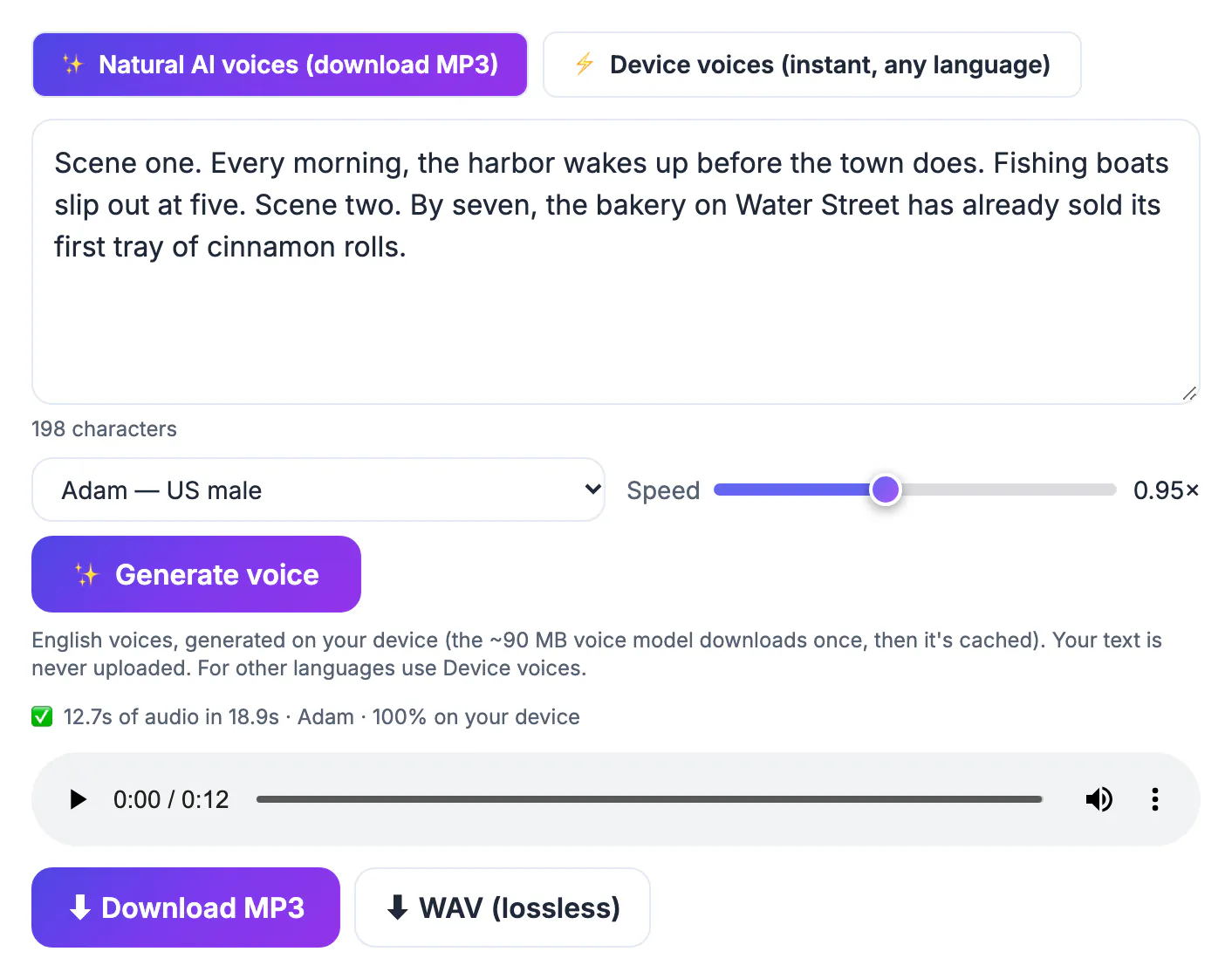
Viewers tolerate simple visuals far longer than a stilted or badly paced voice. Once the voiceover exists as a file, you know the exact length of every scene, and editing becomes a matter of laying images over sound instead of stretching narration to fill footage. It also protects your budget. Most AI video generators bill by credits or minutes, so rewriting a line after rendering footage costs real money, whereas regenerating one paragraph of speech costs nothing. Finally, captions come straight from the finished audio, so they match what is actually said rather than an earlier draft.
Edit the script for spoken delivery
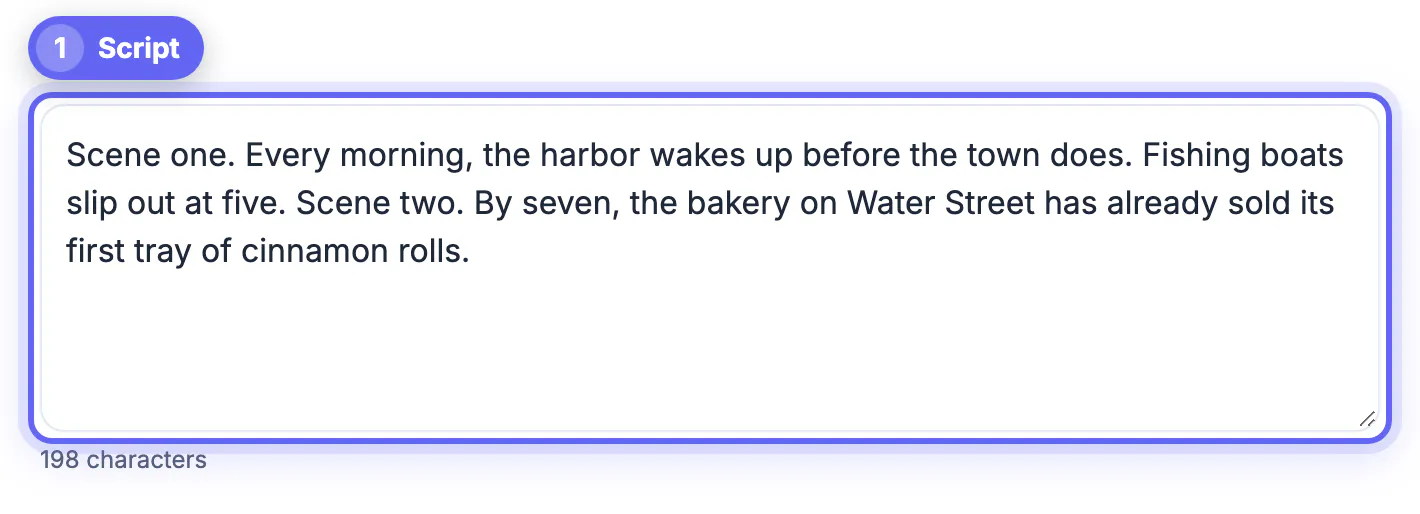
Narration runs at roughly 140 to 160 words per minute, so a 1,000-word draft is about seven minutes on screen. Decide the target length first; YouTube explainers often land between 6 and 10 minutes, while Shorts, Reels and TikTok want under 60 seconds, which is only 130 to 150 words. Cut until you hit the number.
Open with the payoff in the first sentence, not a greeting. Use short sentences, one idea per line, and write numbers, units and acronyms as they should be spoken. Mark scene changes in the draft with a simple tag such as [B-roll: dashboard close-up] so the visual plan grows alongside the words. If you draft with an AI writer, remember that it is a cloud service and treat what it produces as raw material to fact-check.
- 140 to 160 spoken words per minute
- Short-form clips: about 150 words maximum
- Hook in the first line, no slow intro
- Scene tags in brackets for the edit
Generate the AI voiceover
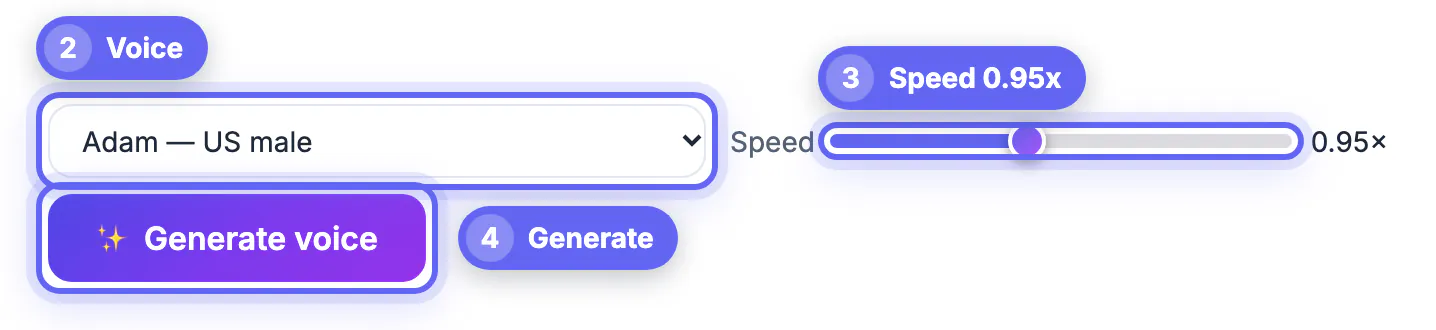
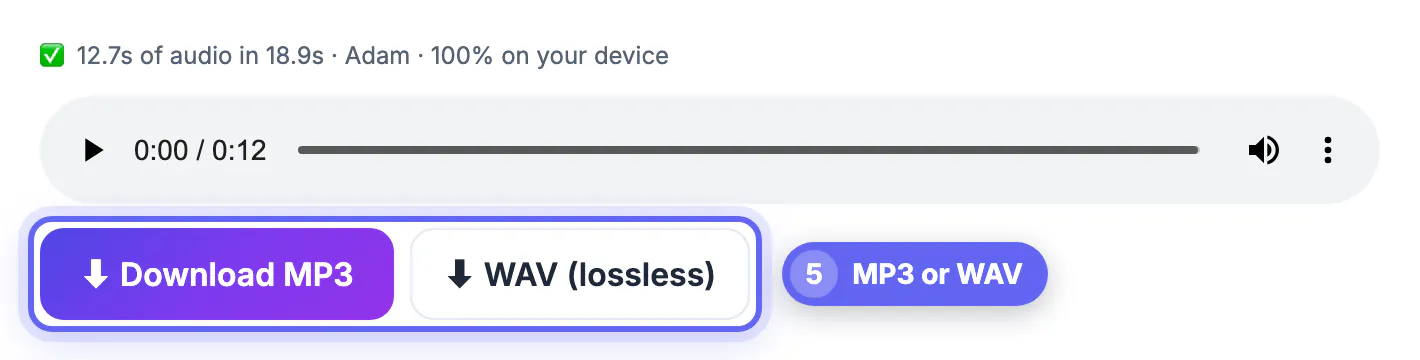
Paste the finished draft into GrabCast's narration tool with the Natural AI voices engine. After a one-time model download of about 90 MB, speech is generated on your device, and the text is not uploaded. There are 16 English voices in US and UK accents; a slightly slower speed such as 0.95 helps technical content, while 1.05 to 1.1 suits upbeat short clips. Download WAV for editing, since it avoids a second round of compression when the editor exports the final video.
Listen to the whole file with the script in front of you. Fix mispronunciations by changing the spelling in the script and regenerating that paragraph, then drop the fixed piece into your timeline. The box accepts up to 20,000 characters, so even a long lesson can be generated in one pass, with a progress bar sentence by sentence.
- WAV for editing, MP3 for quick sharing
- One voice per channel keeps the brand consistent
- Fix pronunciation by respelling, then regenerate
- Up to 20,000 characters per run
Build the visuals around the voiceover
The simplest visual is an audiogram. GrabCast's Audio to Waveform Video renders your narration as an MP4 with an animated wave, a title, a subtitle line and optional cover art, in 9:16, 1:1 or 16:9. It suits quotes, podcast-style explainers and teaser clips, and it runs in the browser.
For richer video, import the WAV into a free editor such as CapCut, Clipchamp or DaVinci Resolve and lay screen recordings, stock footage, slides or photos over it, cutting on the scene tags from your script. GrabCast's Screen Recorder captures a browser tab or window for software demos. Paid AI generators like Synthesia or HeyGen for presenter avatars, or Runway for generated footage, earn their fee when you need a face on screen or visuals you cannot film; check each vendor's current plans before committing.
- Audiogram: fastest route, fine for talk-led content
- Free editors for B-roll, slides and screen captures
- Avatars and generated footage: paid services
- Use only footage and music you have rights to
Add captions and export the finished video
Many viewers watch with the sound off, so captions matter. Load the finished file into GrabCast's Video Trimmer, which generates subtitles from the speech in the browser; you can edit the lines, burn in styled captions, embed a subtitle track, or download an .srt. For long videos, AI Studio can transcribe the voiceover and export SRT or VTT files for YouTube's subtitle upload.
Export 1080p MP4 for YouTube in 16:9, and 1080 by 1920 for vertical platforms. Before publishing, review the platform rules. YouTube asks creators to disclose realistic altered or synthetic content, and its monetization policies exclude mass-produced, repetitive videos; an original script with your own research and visuals is the safe side of that line. A synthetic voice reading your own explainer is common and allowed, but it should not imitate a real person.
- Burned-in captions for Shorts, Reels and TikTok
- SRT or VTT upload for YouTube search and accessibility
- 16:9 at 1080p for YouTube, 9:16 for vertical
- Never clone a real person's voice without consent
Step-by-step
Common mistakes to avoid
Pro tips
Frequently asked questions
Can I make a whole video with free tools?
Yes, for voice-led formats. Text to Speech, Audio to Waveform Video, Screen Recorder and Video Trimmer cover narration, simple visuals and captions at no cost. Presenter avatars and generated footage need paid services.
How many voices does Text to Speech offer?
Sixteen natural English voices, ten US and six UK, each downloadable as MP3 or WAV. Device voices add other languages but cannot be saved.
Is a paid AI video generator worth it?
When you need an on-screen presenter, translated lip-sync or footage you cannot film. For explainers built on slides, screen captures and stock clips, a free editor is enough.
Can YouTube monetize videos with an AI voice?
AI narration itself is not banned. Channels run into trouble when uploads are repetitive or mass-produced, or when realistic synthetic content is not disclosed as YouTube requires.
How long should my first video be?
Short enough to finish well. Three to five minutes, around 500 to 750 words of narration, is a practical first target.
Write for listening, lock a clean AI voiceover, cut visuals to that audio, and finish with accurate captions. The whole pipeline can stay free; pay for an AI video generator only when you truly need a presenter or footage you cannot make yourself.
Related guides
Browse more: all AI guides · the Text to Speech tool