Blog Post to Podcast: Adapt, Narrate and Publish Free
To turn a blog post into a podcast episode, rewrite the article as a spoken script, narrate it with a text-to-speech voice, add a short intro and outro, and upload the MP3 to a podcast host that generates your RSS feed. GrabCast's Text to Speech tool handles the narration for free: 16 natural US and UK English voices generated on your own device, with MP3 or WAV download and no account. What it will not do is rewrite your post or invent a two-host conversation, so most of this guide is about the adaptation, the part that decides whether listeners stay past the first minute.
🎧 Try the Text to Speech tool now — freeOpen →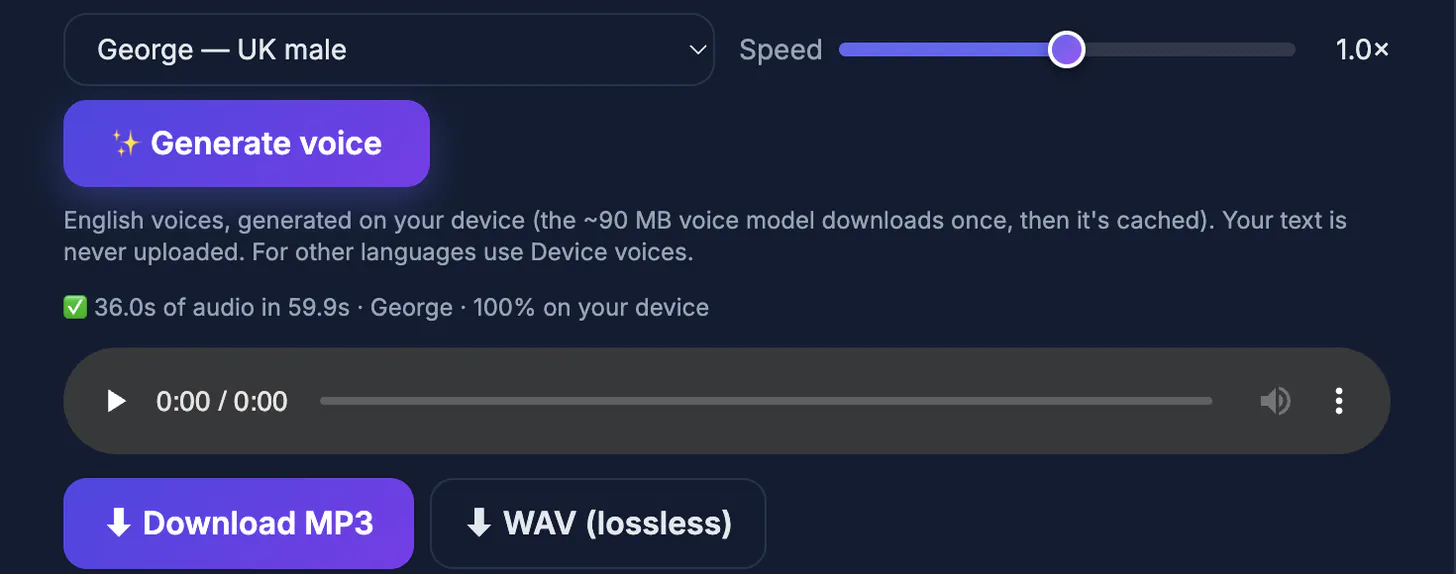
Readers and listeners are often different people. Someone who would never open a 2,000-word article on a phone will happily hear it during a commute, a workout or a dog walk. An audio edition also gives an existing post a second life in Apple Podcasts, Spotify and other directories, where discovery works differently from search. The honest trade-off is that a synthetic voice, however natural, will not replace a personality-driven show. It works best for evergreen explainers, how-to posts, newsletters and audio versions of long reads, where clarity matters more than banter.
Rewrite the article as a script for the ear
Written articles lean on things listeners cannot see: headings, bullet lists, bold text, tables, links and images. Go through the article and convert each of those for the ear. A bulleted list of five tools becomes a sentence that says there are five, then names them one by one. A table becomes two or three sentences that state the comparison that matters. A link becomes a spoken pointer, such as you will find the checklist in the show notes.
Shorten long sentences and repeat the key idea at the end of each section, because a listener cannot scroll back. Write numbers and abbreviations the way you want them spoken: 2026 as twenty twenty-six if the voice stumbles, percent instead of the symbol, and brand names spelled phonetically if they come out wrong. A 1,500-word article usually becomes 1,200 to 1,400 spoken words after this pass, around nine minutes of audio at a normal pace.
- Lists become counted sentences
- Tables become the one comparison that matters
- Links move to the show notes
- Tricky names get phonetic spelling in the script
Narrate with the Text to Speech voices
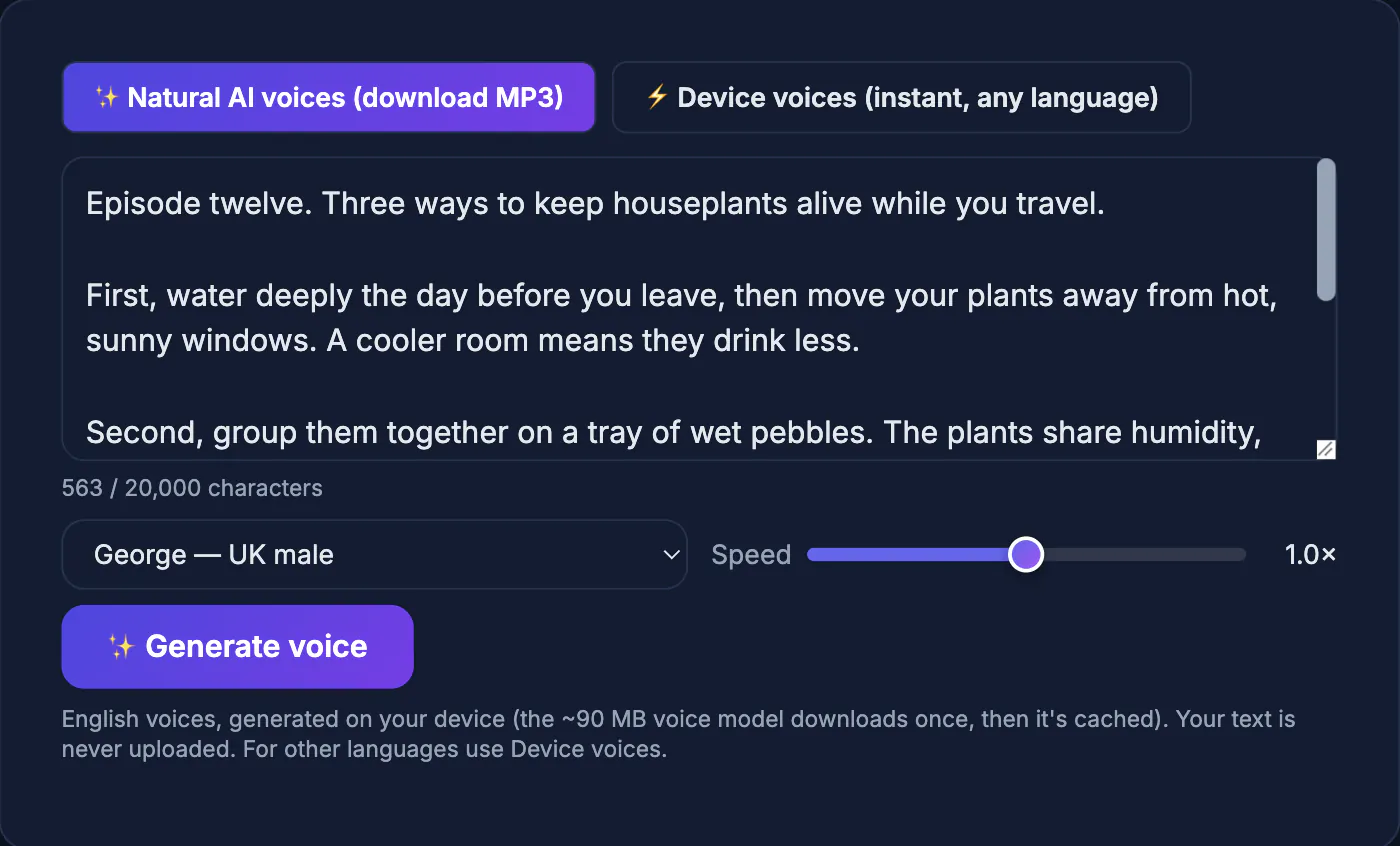
Paste the script into the narration tool and keep the Natural AI voices engine selected. The first run downloads a voice model of about 90 MB, which is then cached, and all generation happens in your browser; the text is not uploaded. Choose one of the 16 voices, for example Michael or Onyx for a deeper US male read, Heart or Bella for a warm US female one, or George and Emma for British English, and keep that voice for every episode so the show sounds consistent.
The speed slider runs from 0.7 to 1.3 times; 0.95 often suits dense material. The input box holds up to 20,000 characters, roughly 3,000 words, and the tool generates sentence by sentence with a progress bar, so a long script simply takes a few minutes. Download the MP3 (128 kbps mono, fine for spoken word) or a lossless WAV if you plan to edit and mix. The Device voices option supports many more languages but only plays aloud and cannot be downloaded.
- 16 English voices, US and UK accents
- Speed 0.7x to 1.3x
- Up to 20,000 characters per generation
- MP3 or WAV; generated on your device
Add a human intro and outro
A ten-second welcome in your own voice makes a narrated episode feel like a show rather than an audiobook sample. Record it with the Voice Recorder, which has noise reduction, trim and normalize, and saves MP3 or WAV. Say who you are, what the episode covers and, if you want to be transparent, that the main reading uses an AI voice. Close with one call to action, such as reading the full article with images at your site.
Joining the clips and adding music needs an audio editor; GrabCast does not mix tracks. Audacity is free on Windows, Mac and Linux and handles this well: place the intro, the narration and the outro on one track, add a quiet music bed if you like, and export at the same settings. Use only music you have a license for, such as tracks labeled for podcast use in a royalty-free library.
- Record a short personal intro with Voice Recorder
- Mention the AI narration if you want full transparency
- Join clips in Audacity or another editor
- License any music you add
Publish the podcast episode and promote it
Podcast directories do not host files; a podcast host does. Services such as Spotify for Creators, Buzzsprout, Transistor or Podbean store your MP3 and produce the RSS feed that Apple Podcasts, Spotify and others read. You will need show artwork, a square image between 1400 and 3000 pixels per side for Apple, a show description and episode notes with the links you removed from the script.
For social promotion, the Audio to Waveform Video tool turns a 30 to 60 second excerpt into an MP4 audiogram in 9:16, 1:1 or 16:9, with your cover art and episode title. Embed the episode player at the top of the original article as well, so readers who prefer audio can press play without leaving the page.
- Host creates the RSS feed; directories read it
- Square artwork, 1400 to 3000 px for Apple
- Episode notes carry the links and images
- Audiogram clip for social, player embedded in the article
Step-by-step
Common mistakes to avoid
Pro tips
Frequently asked questions
Can the tool turn my post into a two-host conversation?
No. It narrates exactly the script you give it in one chosen voice. You can write a dialogue and generate each speaker separately with different voices, then join them in an editor.
Is it really free with no login?
Yes. The natural voices run in your browser after a one-time model download, with no account, no character credits and no watermark.
Which languages are supported?
The downloadable natural voices are English only, in US and UK accents. Device voices cover many other languages but can only be played, not saved.
Will listeners notice it is synthetic?
Many will, especially on long episodes. A human intro, a well-adapted script and an honest mention of AI narration keep trust intact.
Can Apple Podcasts accept the MP3?
Yes, through a podcast host. The host stores the file and publishes the RSS feed that Apple Podcasts and Spotify read.
The voice is the easy part now; the adaptation is the craft. Rewrite the post for listening, narrate it with one consistent Text to Speech voice, add a human intro, and publish through a host with proper artwork and show notes.
Related guides
Browse more: all text and developer guides · the Text to Speech tool