Article to Audio: Turn Long Reads Into MP3s to Play
To convert an article to audio, copy the clean body text (reader mode makes that easy), paste it into GrabCast's free Text to Speech, choose one of 16 natural English voices and download the result as an MP3 you can play offline. A 5,000-word feature becomes roughly 35 minutes of listening and about 34 MB. Because the voice model runs on your own device, the article and your reading habits stay private, and there is no account or watermark. This guide is for people who save more long reads than they ever finish: it covers getting clean text, splitting long pieces, choosing a listening voice and speed, and moving the files to your phone.
🔊 Try the Text to Speech tool now — freeOpen →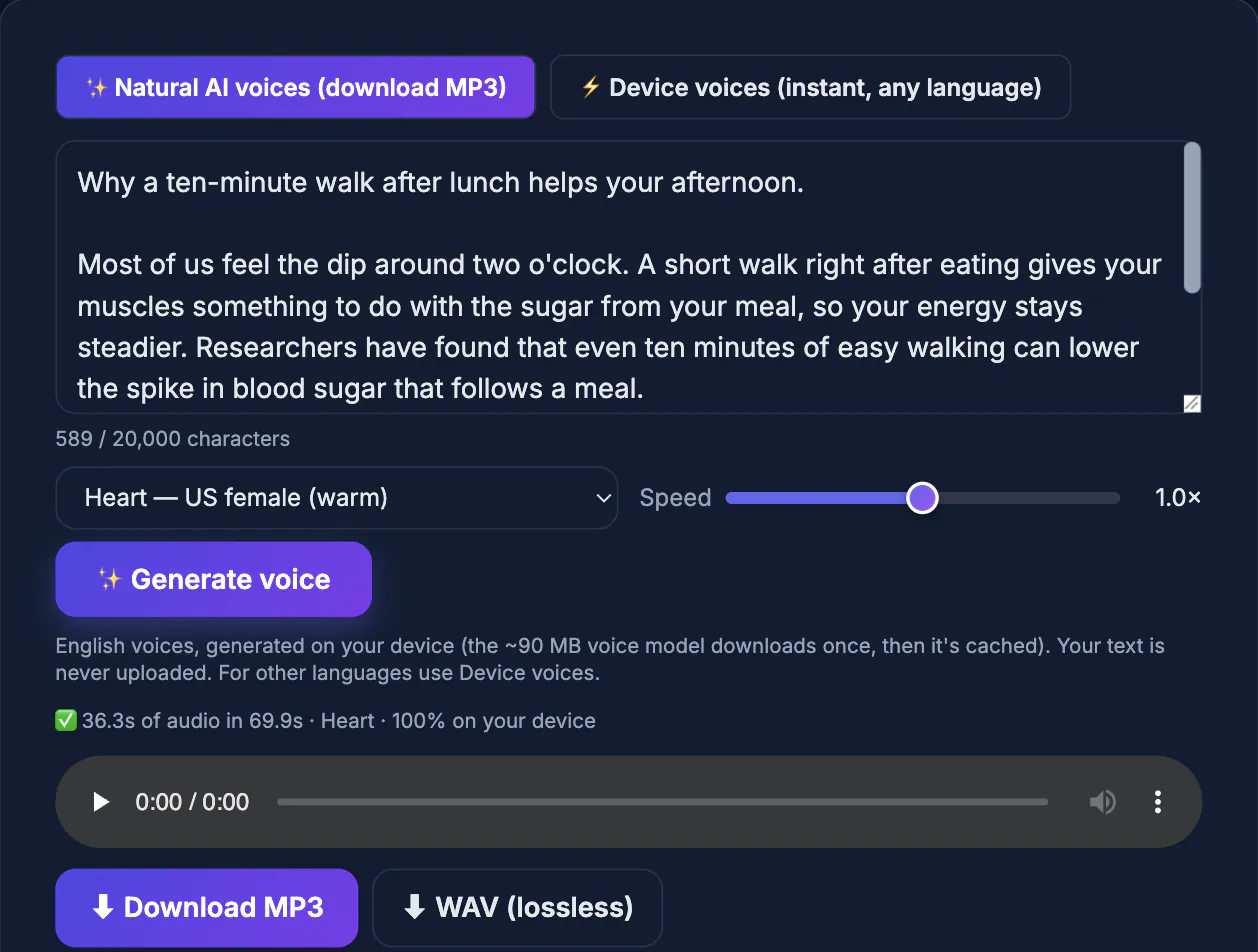
Most of us have a folder of saved long reads that never gets opened, because reading needs your eyes and a quiet half hour. Listening fits into time you already have: a commute, a run, dishes, a flight. It also helps readers with dyslexia, low vision or eye strain, and anyone studying in a second language who benefits from hearing pronunciation while following along. Built-in read-aloud features, such as Read Aloud in Microsoft Edge or Speak Screen on iPhone, are great for listening right now, but they stream as you go and leave no file behind. An MP3 you control can be queued, resumed later, sped up in any player and played in airplane mode without a signal.
Get clean text before you convert an article to audio
The voice reads everything you paste, so start with only the story itself.
- Open the page in reader mode: Safari Reader, Firefox Reader View or Edge Immersive Reader strip menus, ads and related links. Then select all and copy.
- Delete what is meant for eyes: image captions, pull quotes that repeat the body, newsletter sign-up boxes, share prompts and footnote markers.
- Replace URLs with a spoken cue such as link in the original, or remove them; a voice reading a long web address is painful.
- Add the headline and author as a first line, so the file announces itself when you open it weeks later.
- For PDFs such as reports or papers, pull the text out first with the PDF to Text tool, then fix hyphenated line breaks.
Two minutes of cleanup is worth it: a stray caption in the middle of a paragraph breaks the flow more than any voice quality issue, and a clean copy also gives you a tidy text file to search later when you want to quote a passage.
Splitting long reads into listenable parts
The text box holds 20,000 characters, roughly 3,000 English words or about 20 minutes of speech. Longer features need to be split, and good split points make the result nicer to listen to.
- Cut at section headings or scene breaks, never mid-paragraph.
- Name files in order, such as atlantic-heat-01.mp3, atlantic-heat-02.mp3, so players sort them correctly.
- Start each part with a short cue, such as Part two, so you know where you are when you resume.
- Inside each run, the tool itself breaks text into sentence-sized pieces and shows progress as part 3 of 40, then joins them with short natural pauses.
- If you only need the gist, summarize first with an AI summarizer and convert the summary; note that AI writing tools run in the cloud, unlike the voice model.
Generation happens on your device, so speed depends on its processor. A laptop handles a 20-minute part comfortably; an older phone can take a while, so start the long ones plugged in.
Choosing a voice and speed for long listening
A voice that sounds fine for 30 seconds can grate after 30 minutes. Pick for comfort rather than drama.
- Warm, mid-pitched voices wear best over long sessions: try Heart or Sarah (US female), Michael or Eric (US male), Emma or George (UK).
- Avoid the deepest voice for news and analysis; Onyx suits trailers better than a 40-minute read.
- Generate at 1.0x and speed up in your player later if you like; most phone players offer 1.25x to 2x without changing pitch.
- Use 0.8x to 0.9x for dense material or articles in a language you are still learning.
- Keep one favorite voice for your whole reading queue; consistency makes switching between articles effortless.
The downloadable voices are English only. To hear an article in another language, switch to Device voices, which play instantly in dozens of languages but cannot be saved as files.
Getting the audio onto your phone
Each part downloads as a 128 kbps mono MP3, about 1 MB per minute, or as a lossless WAV about three times larger. MP3 is the right choice for listening.
- iPhone: AirDrop the files or save them to iCloud Drive, then play from the Files app or a player such as VLC, which remembers your position.
- Android: copy to the Music or Download folder over USB, or save from Google Drive for offline use, and play in any audio app.
- Make a playlist in your player named Reading queue and add new parts as you make them.
- Delete parts you have finished; a month of daily long reads at 30 minutes each adds up to roughly 900 MB, which matters on a 64 GB phone.
Keep it personal. Converting an article for your own listening is a common fair use, but publishing or sharing narrated copies of paywalled or copyrighted pieces is not, so do not post them as podcasts without permission from the publisher.
Step-by-step
Common mistakes to avoid
Pro tips
Frequently asked questions
Can I convert an article to audio from a link?
Not directly; the tool reads text you paste, not a URL. Open the article in reader mode, copy the body text and paste it in.
How long can each part be?
Up to 20,000 characters, about 3,000 English words or roughly 20 minutes of listening. Split longer features at section breaks.
Is the article uploaded anywhere?
No. The Natural AI voices run in your browser, so the text and the audio stay on your device.
Can I listen to articles in other languages?
The downloadable voices are English only. Device voices can read many languages aloud instantly but cannot be saved as MP3.
Is it legal to make audio from articles?
Making a copy for your own listening is generally fine. Republishing narrated versions of someone else's article needs the publisher's permission.
Copy clean text from reader mode, split long features at natural breaks, choose a calm voice at normal speed and download MP3s for your phone. It turns a backlog of saved long reads into a private listening queue.
Related guides
Browse more: all text and developer guides · the Text to Speech tool