Add Subtitles to Video Free, No Watermark or Sign-Up
You can add subtitles to a video free with no watermark by opening it in the GrabCast Video Trimmer, pressing Generate subtitles on the Auto Subtitles tab, correcting the text, and then choosing how to deliver it: burned into the picture, embedded as a switchable track, or saved as a separate .srt or .vtt file. Speech recognition runs in your browser, so there is no sign-up and the video is not uploaded. This guide starts with the basics, including what an SRT file is and how AI produces timed lines, then shows which delivery option each platform expects, how to make subtitles comfortable to read, and where free editors usually hide their costs. It is written for small businesses, teachers, course creators and nonprofits publishing on YouTube, LinkedIn, a website or an internal portal.
✂️ Try Video Trimmer & Subtitles now — freeOpen →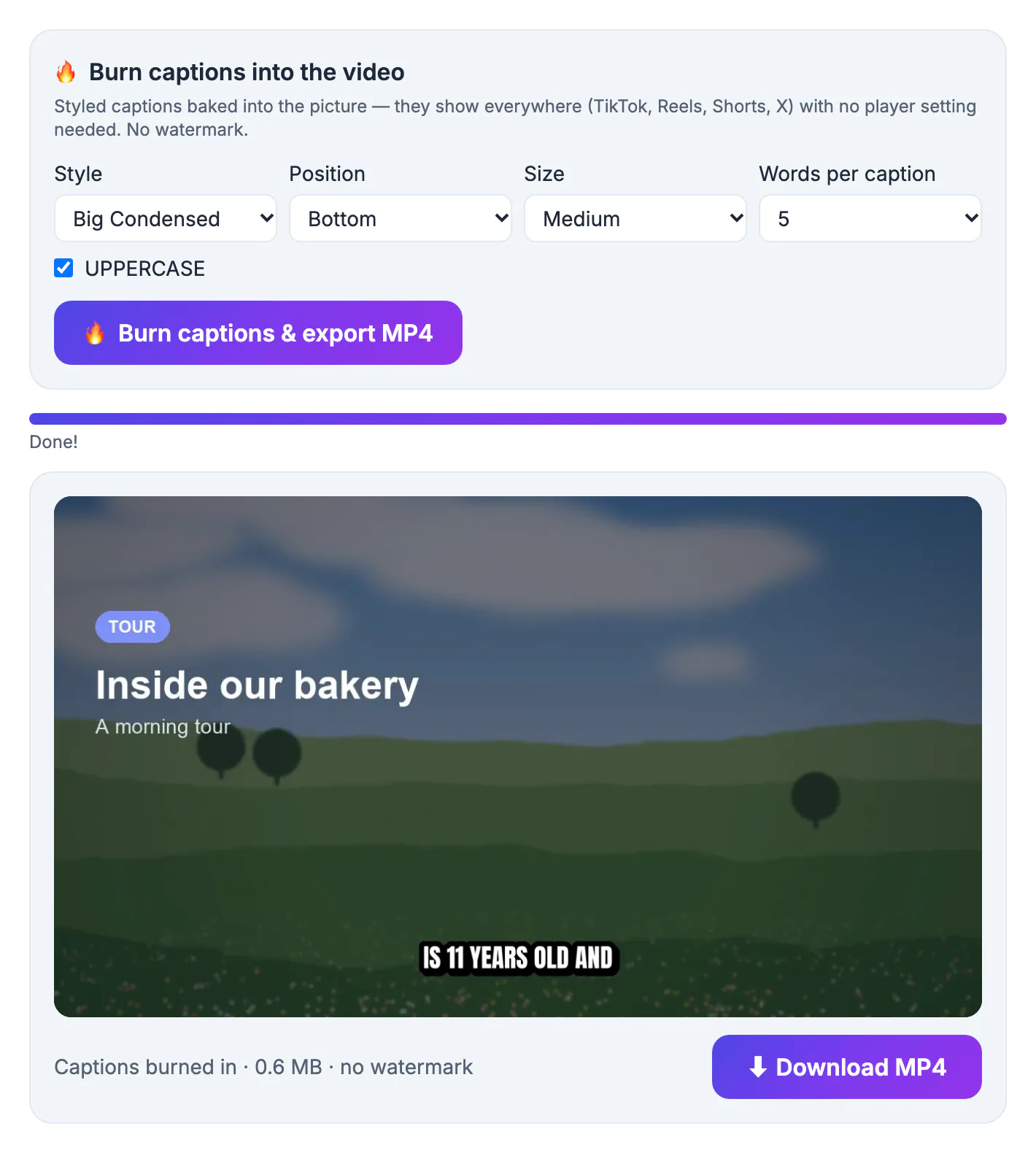
Plenty of editors advertise free subtitles and then add a condition at export: a logo stamped in the corner, a cap of a few minutes a month, 720p output unless you upgrade, or an account that stores your footage on their servers. For a company demo or a paid course, a third-party logo looks unprofessional, and uploading internal training material to an unknown service can breach policy. GrabCast avoids those trade-offs by doing the work in your browser, with no logo on any export and no account. The honest limit is model size: the Video Trimmer uses a compact Whisper model so it runs on ordinary laptops, which makes a proofreading pass more important than it would be with a large paid engine.
How to add subtitles to a video with AI, step by step
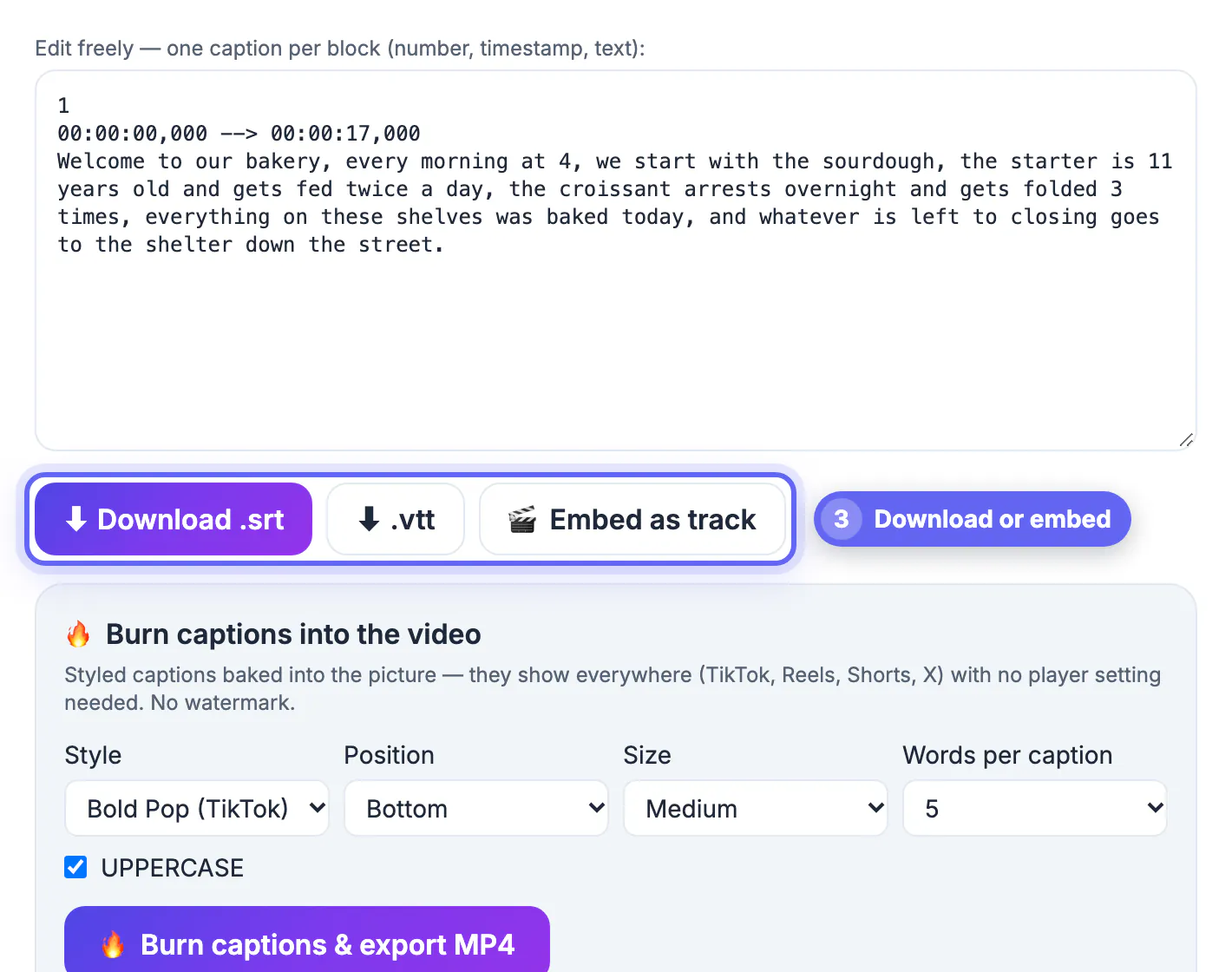
Subtitles are timed lines of text. The most common file format, SRT, stores each line as a block: a number, a time range such as 00:00:04,200 --> 00:00:07,900, and the words shown during that range. VTT is almost identical and is the format web players read.
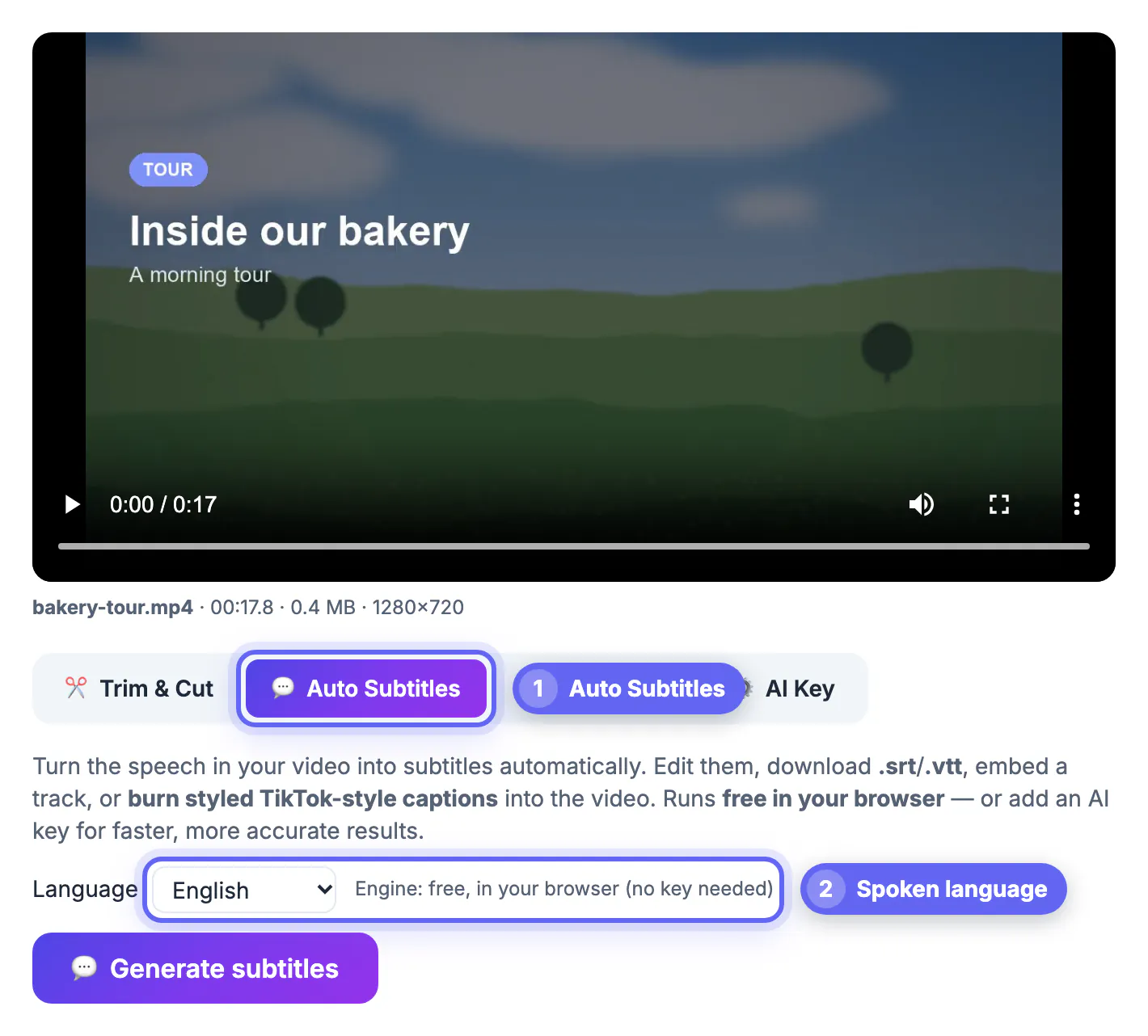
- Drop an MP4, MOV or WebM file into the Video Trimmer and open the Auto Subtitles tab.
- Choose the spoken language, or leave auto-detect on, and press Generate subtitles. The speech model downloads once, then stays cached.
- The result appears as editable SRT text. Change any word, split or merge blocks, and nudge times directly in the box.
- Optional: on the AI Key tab, add your own Groq or OpenAI key for faster, more accurate results on long videos. The key stays in your browser, but the audio then goes to that provider.
Clean audio matters more than any setting. Background music, echo and people talking over each other are the main causes of wrong words, so trim noisy stretches first if you can.
Burned in, embedded track or sidecar file
After editing, the tool offers three outputs. They are not interchangeable, so match the format to where the video will play.
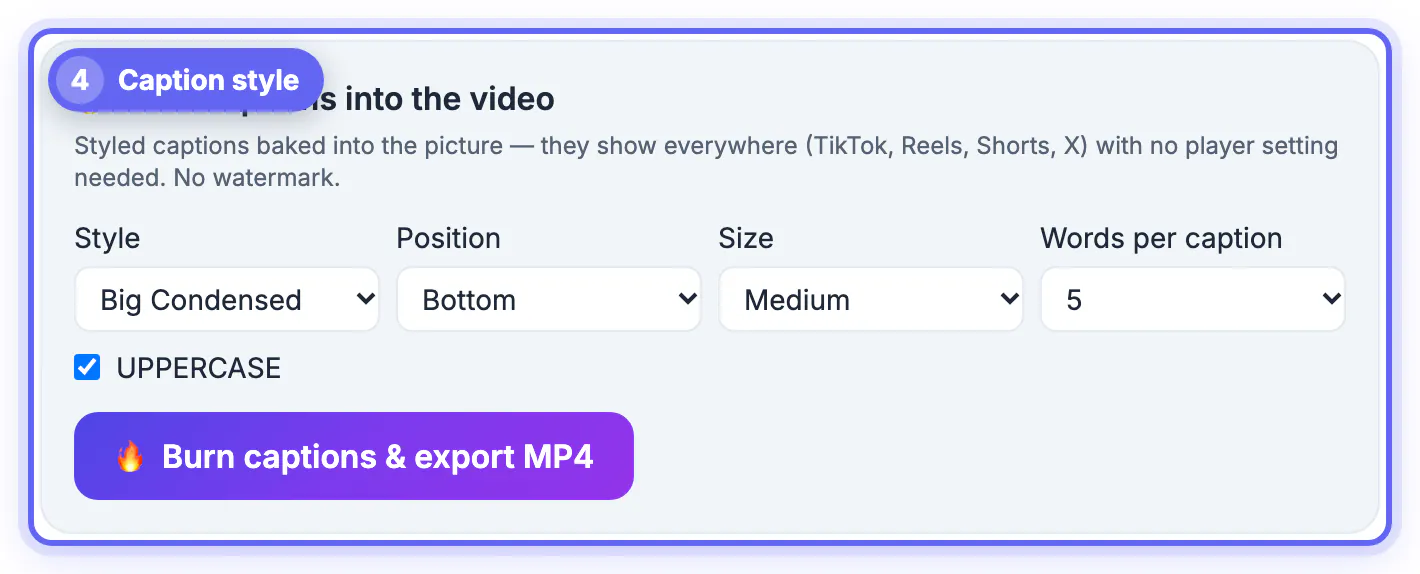
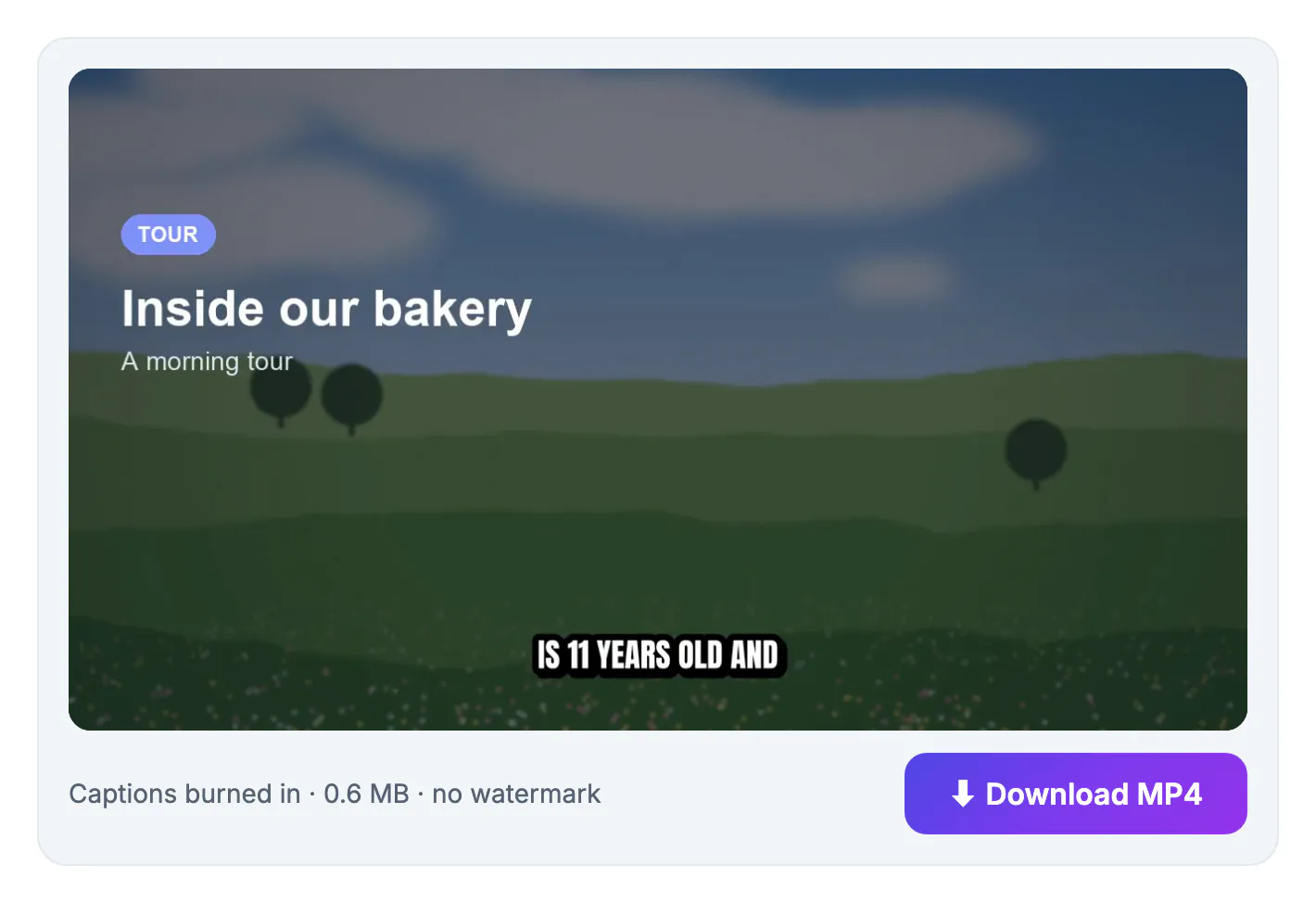
- Burned in: text drawn into the pixels and exported as a new MP4 in one of four styles. Always visible and works everywhere, but cannot be switched off or edited later.
- Embedded track: subtitles ride inside the MP4 as a soft track without re-encoding the picture, so it finishes in seconds. Viewers turn them on in players such as VLC or QuickTime.
- Sidecar file: a separate .srt or .vtt uploaded next to the video; platforms index the words and viewers can toggle them.
- All three come from the same edited text, so you can produce every version in one session.
A useful rule: burn for social feeds, upload a sidecar for platforms with a captions menu, and embed a track for files you email or share on a drive. Burning re-encodes every frame, so it takes longer on a phone than on a laptop.
Which subtitle format each platform expects
Destinations differ in what they read. Social apps generally ignore soft tracks, while video platforms prefer a separate file so viewers can switch languages and search engines can read the words.
- YouTube: upload the .srt in YouTube Studio under Subtitles; you can add more languages later.
- LinkedIn: native video posts accept an .srt caption file in the post editor.
- Vimeo and most course platforms: accept .srt or .vtt as a caption track.
- Your own website: the HTML video element loads a .vtt file through a track element.
For Instagram, TikTok and X, burn the subtitles in, because in-app captions are optional for viewers. When the same video goes to several places, export twice: a clean MP4 plus an .srt for YouTube and LinkedIn, and a burned copy for social feeds.
Readable, accessible subtitles
In the US, subtitles usually mean the spoken words, while closed captions also describe meaningful sounds for viewers who are deaf or hard of hearing. WCAG 2.1 expects captions for prerecorded video with audio, and public bodies and many companies follow it.
- Keep each block to two lines of roughly 42 characters, a common broadcast guideline.
- Leave every block on screen for at least one second, and check that lines appear as the words are spoken.
- Add speaker names when it is unclear who is talking, and sound cues such as [applause] or [phone rings] when they matter.
- Fix product names, acronyms and personal names, which compact models often mishear.
For a long lecture that needs higher accuracy, GrabCast AI Studio can transcribe with larger models up to Large-v3 Turbo and export an .srt you paste back into the Video Trimmer. The AI Translator converts .srt and .vtt files into other languages while keeping timestamps, but it sends text to a cloud AI, so skip it for confidential scripts.
Step-by-step
Common mistakes to avoid
Pro tips
Frequently asked questions
How can I add subtitles to a video free with no watermark?
Generate them in the GrabCast Video Trimmer, edit the text, then download an .srt or .vtt, embed a track, or burn them in. None of the outputs carry a watermark, and there is no sign-up.
What is an SRT file?
A plain text subtitle file where each block has a number, a start and end time, and the words to show. Nearly every editor and video platform accepts it, and you can open it in any text editor.
What is the difference between burned and soft subtitles?
Burned subtitles are part of the picture and always visible. Soft subtitles are a separate track or file that viewers can switch on or off, and platforms can index them.
Are AI-generated subtitles accurate?
On clear speech they are usually close, but names, jargon and overlapping voices cause errors. Always proofread, or use AI Studio's larger models for difficult recordings.
Is my video uploaded?
No. Trimming, transcription and burning run in your browser. Only if you add your own AI key is the audio sent to that provider.
Free subtitles only stay free if the export is clean, private and in the right format. Generate the SRT with AI, proofread words and timing once, then burn it in for social feeds, upload an .srt or .vtt for YouTube, LinkedIn and your site, and embed a track for files you share directly. You get professional results with no logo and no account.
Related guides
Browse more: all video and audio guides · Video Trimmer & Subtitles