Download a Video for a Presentation Legally, Then Trim It
The reliable way to download a video for a presentation is to use a file you have the right to keep: your own recording, a download of your own upload from YouTube Studio, a stock clip whose license allows downloads, or a file the creator sends you. Trim it to the seconds you need, compress it, and insert the MP4 into your slides so it plays without internet. If you only have permission to show someone else's YouTube video, embed it as an online video instead and make sure the room has a connection. This guide covers where to find clips you can legally use offline, how to embed the ones you cannot download, and how to trim, caption and shrink a clip so it plays smoothly in PowerPoint, Keynote or Google Slides.
✂️ Try Video Trimmer & Subtitles now — freeOpen →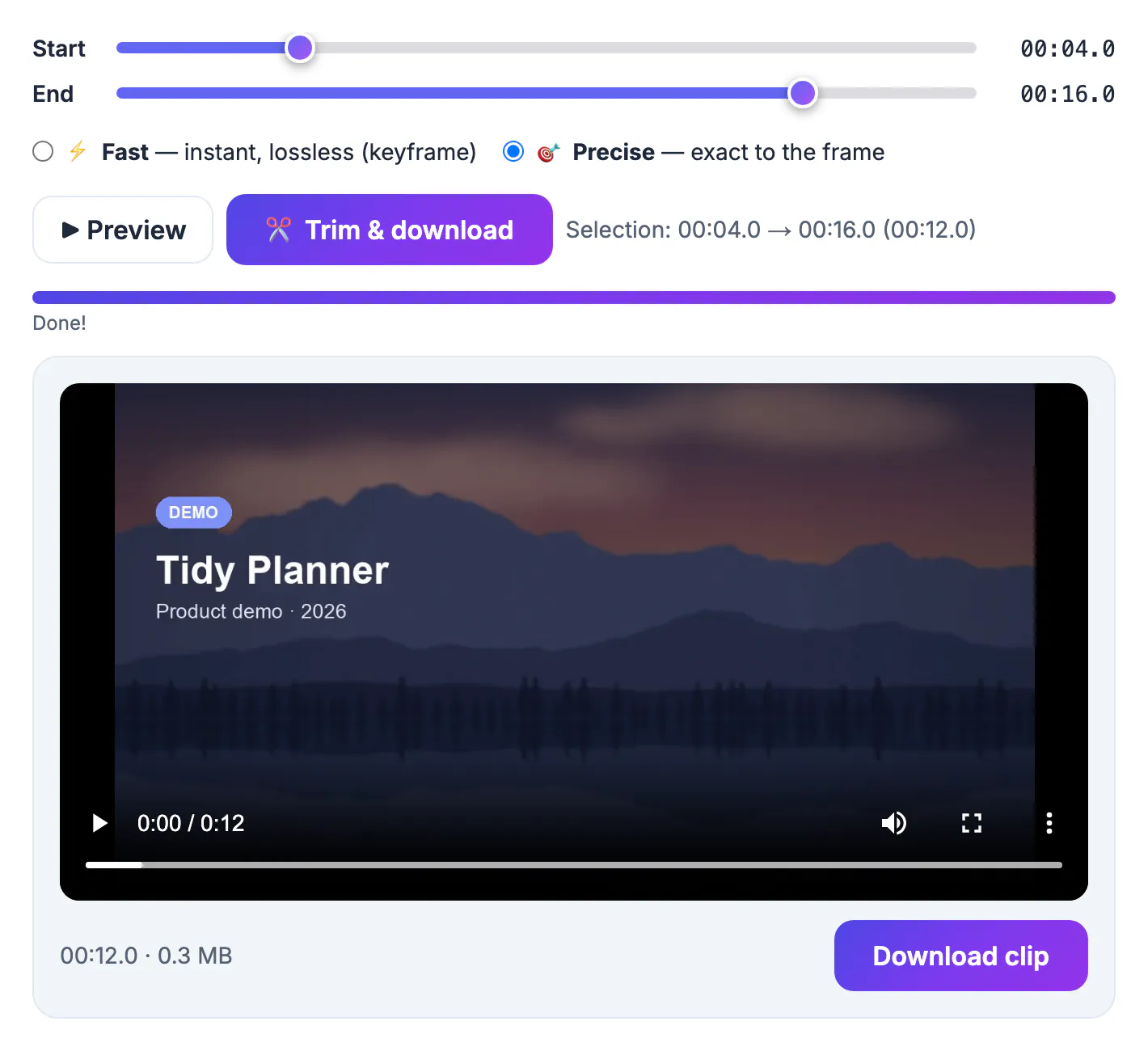
Conference Wi-Fi and hotel guest networks often block or throttle streaming sites, and an online video can start with an ad or a buffering wheel in front of a room full of people. A local MP4 starts instantly, works on a borrowed laptop and keeps playing if the network drops. It also lets you show exactly the 20 to 60 seconds that support your point, instead of scrubbing through a ten-minute video while the audience waits. The trade-off is rights: saving a copy is only fine when you own the video, the license allows it, or the owner provides a download. When none of those apply, streaming the video through an official embed is the correct option, and a little preparation makes it nearly as dependable.
Where to legally download a video for a presentation
Start with footage you are clearly allowed to keep and play offline.
- Your own recordings from a phone, camera or GrabCast Screen Recorder, which saves an MP4 in your browser.
- Your own YouTube uploads: in YouTube Studio open Content, use the three-dot menu on the video and choose Download to get an MP4 of your upload.
- Stock sites such as Pexels and Pixabay, whose licenses at the time of writing allow free personal and commercial use without attribution, with limits such as not reselling clips unaltered. Read each license page before a paid event.
- Vimeo videos with a Download button, which appears only when the owner has enabled downloads.
- Files from the creator: a short email asking to show a clip at a talk often gets a yes and the original file.
Identifiable people in stock clips can still carry publicity rights, so avoid using a stranger's face to endorse a product. Classroom use may be fair use for showing a clip, but it does not permit breaking a platform's terms to copy one.
When you cannot download it, embed it online
For someone else's YouTube video, an official embed keeps you within the platform's terms and still plays inside your slides.
- PowerPoint: Insert, Video, Online Video (labels vary by version), then paste the YouTube address.
- Google Slides: Insert, Video, then search YouTube or paste the video address; you can set start and end times in the format options.
- Keynote: recent versions can add a web video from YouTube or Vimeo; otherwise link to it from a slide.
- Reliability: test on the venue network the day before, keep a phone hotspot ready, and add a screenshot slide with the key quote in case the stream fails.
Setting start and end times in the embed shows only the relevant part, which gives you most of the benefit of trimming without copying the file.
Trim and caption the clip in Video Trimmer
A ten-minute 1080p video can run to hundreds of megabytes, and you rarely need more than a minute of it. The GrabCast Video Trimmer cuts MP4, MOV or WebM files in your browser with no upload and no watermark.
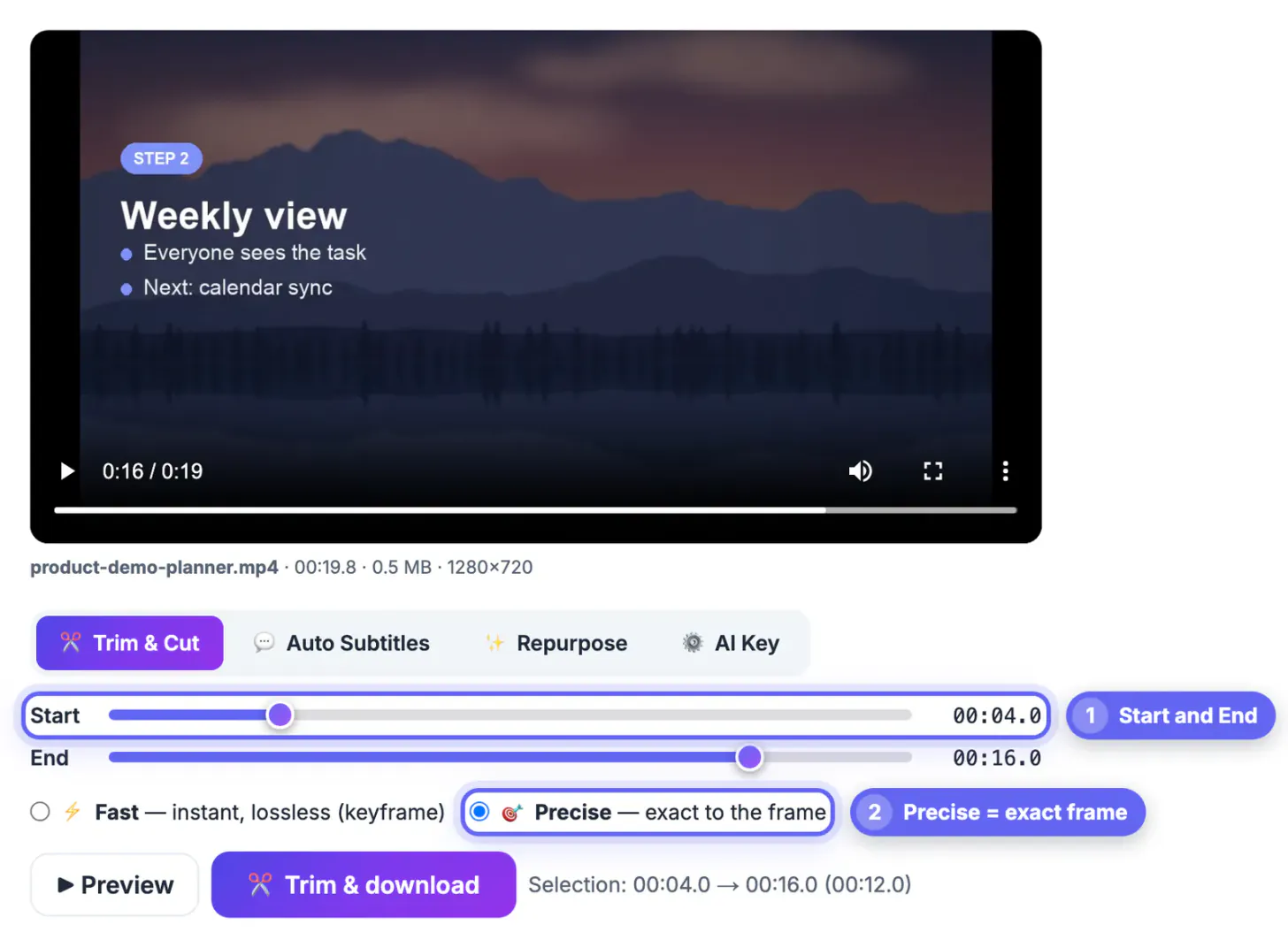
- Drag the Start and End handles, and use Preview to check the first and last words.
- Choose Fast for an instant, lossless cut at the nearest keyframe, or Precise when a quote starts mid-sentence and must begin on the exact frame.
- Leave about half a second before the first word so the audio does not start abruptly on a projector.
- On the Auto Subtitles tab, generate captions, fix names and jargon, and burn them in; burned text shows in every presentation app, while soft tracks depend on the software.
Captions help in noisy halls, for people who are hard of hearing, and when the venue speakers turn out to be weak.
Compress, insert and rehearse
Run the trimmed clip through the GrabCast Video Compressor. Set Resolution to 720p for most projectors, keep 1080p for a large LED wall, or use the Email 25 MB target when you have to send the deck. Every result is an H.264 MP4, which PowerPoint, Keynote and Google Slides handle well.
- PowerPoint: Insert, Video, This Device, then set Playback to start automatically or on click.
- Keynote: drag the MP4 onto the slide and set start and loop options in the Movie panel.
- Google Slides: upload the MP4 to Google Drive, then Insert, Video and pick it from Drive; playback still needs internet unless you present from a downloaded copy.
- Backup: copy the raw MP4 to a USB stick and your phone.
Rehearse on the computer you will actually present from, with its speakers or the venue's audio, and click through the video slide twice.
Step-by-step
Common mistakes to avoid
Pro tips
Frequently asked questions
Is it legal to download a video for a presentation?
Yes when you own it, the license allows it, or the owner offers a download. For other people's YouTube videos, embed them as online video or ask the creator for a file. This is general information, not legal advice.
Can I embed a YouTube video in PowerPoint?
Yes. Use Insert, Video, Online Video and paste the link. It streams during the talk, so it needs an internet connection.
Are Pexels and Pixabay videos free for presentations?
At the time of writing their licenses allow free personal and commercial use without attribution, with restrictions such as not selling clips unaltered. Check each site's current license.
What resolution should a presentation video be?
720p suits most projectors and keeps files small. Use 1080p for large LED walls or detailed screen recordings.
How do I keep the presentation file small?
Trim the clip to the seconds you need, then compress it to 720p or a size target such as 25 MB before inserting it.
Use video you own or that is licensed for download, trim it to the moment that matters, compress it, and insert the MP4 so it plays offline. For someone else's YouTube video, use an official embed, test the connection and keep a screenshot slide as a fallback.
Related guides
Browse more: all video and audio guides · Video Trimmer & Subtitles