Free Video Trimmer vs CapCut: When a Browser Cut Wins
If all you need is to cut the start and end off a clip and maybe add captions, a free video trimmer in the browser is faster than CapCut; if you are building an edit with several clips, music, transitions and effects, CapCut is the better tool. That is the short answer. The longer one depends on where your files live, whether you want an account, how often you edit, and what you are willing to trade for convenience. This comparison is fair to both, including the places where GrabCast is clearly weaker. Disclosure: some links below are affiliate links, and GrabCast may earn a commission at no extra cost to you.
✂️ Try Video Trimmer & Subtitles now — freeOpen →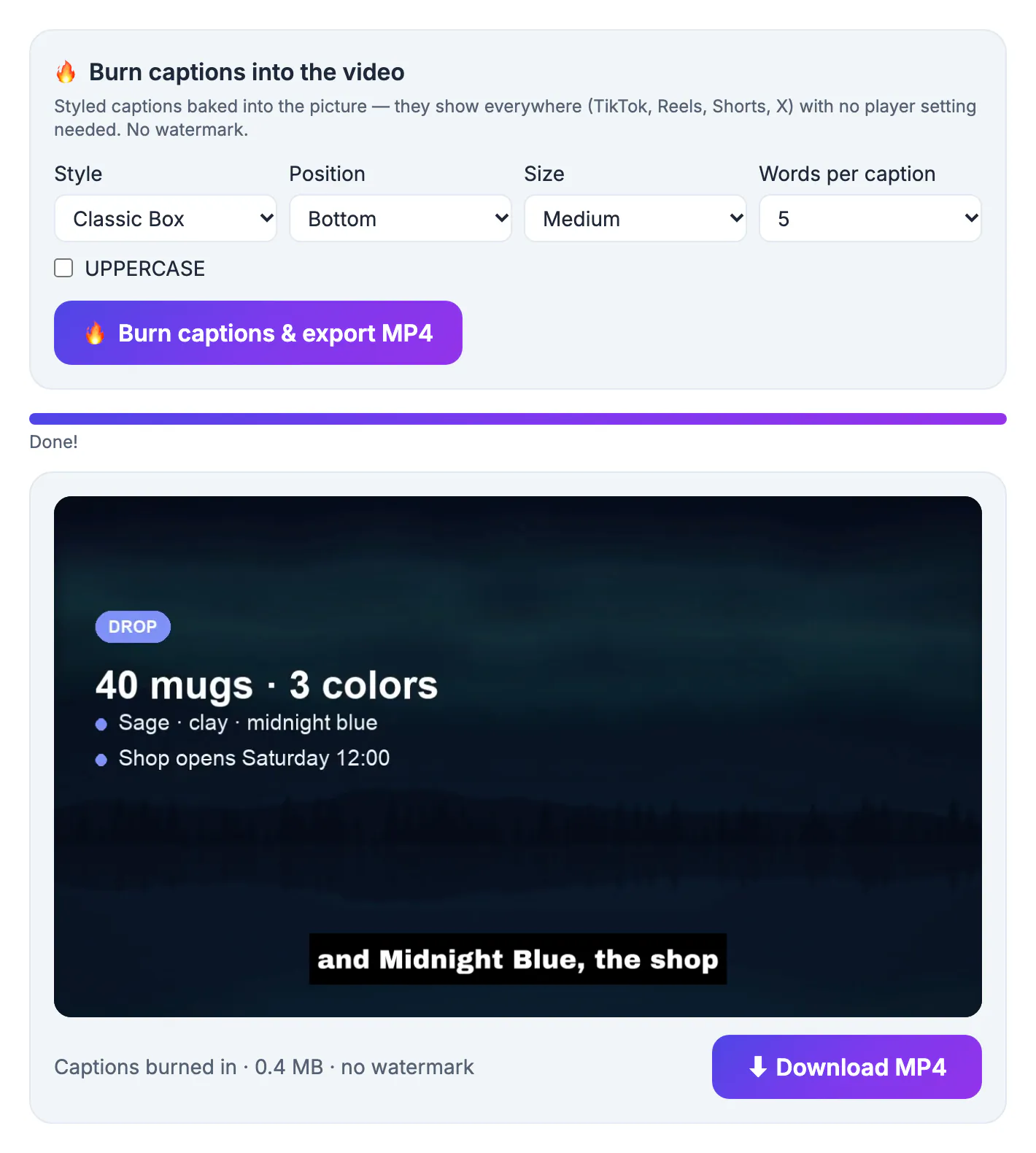
CapCut became the default editor for short-form creators because it is free to start, packed with templates and tightly linked to TikTok. But a large share of everyday edits are tiny: shave ten seconds off a screen recording, cut a Zoom clip for a colleague, trim a phone video to fit a Reel, add subtitles to a talking head. Opening a full editor, signing in and waiting for a project to load for a job like that feels heavy, which is why people search for lighter options. The right answer is rarely one tool forever; it is matching the size of the job to the size of the editor.
What each one is actually built for
CapCut, made by ByteDance, is a complete editor on iPhone, Android, Windows, Mac and the web. It has a multi-track timeline, a large library of transitions, effects, stickers and music, text templates, keyframe animation, green screen, speed ramps, auto captions and a growing set of AI features. Many premium effects and advanced tools now sit behind its Pro subscription, and exporting template-based edits can add an ending clip you need to remove.
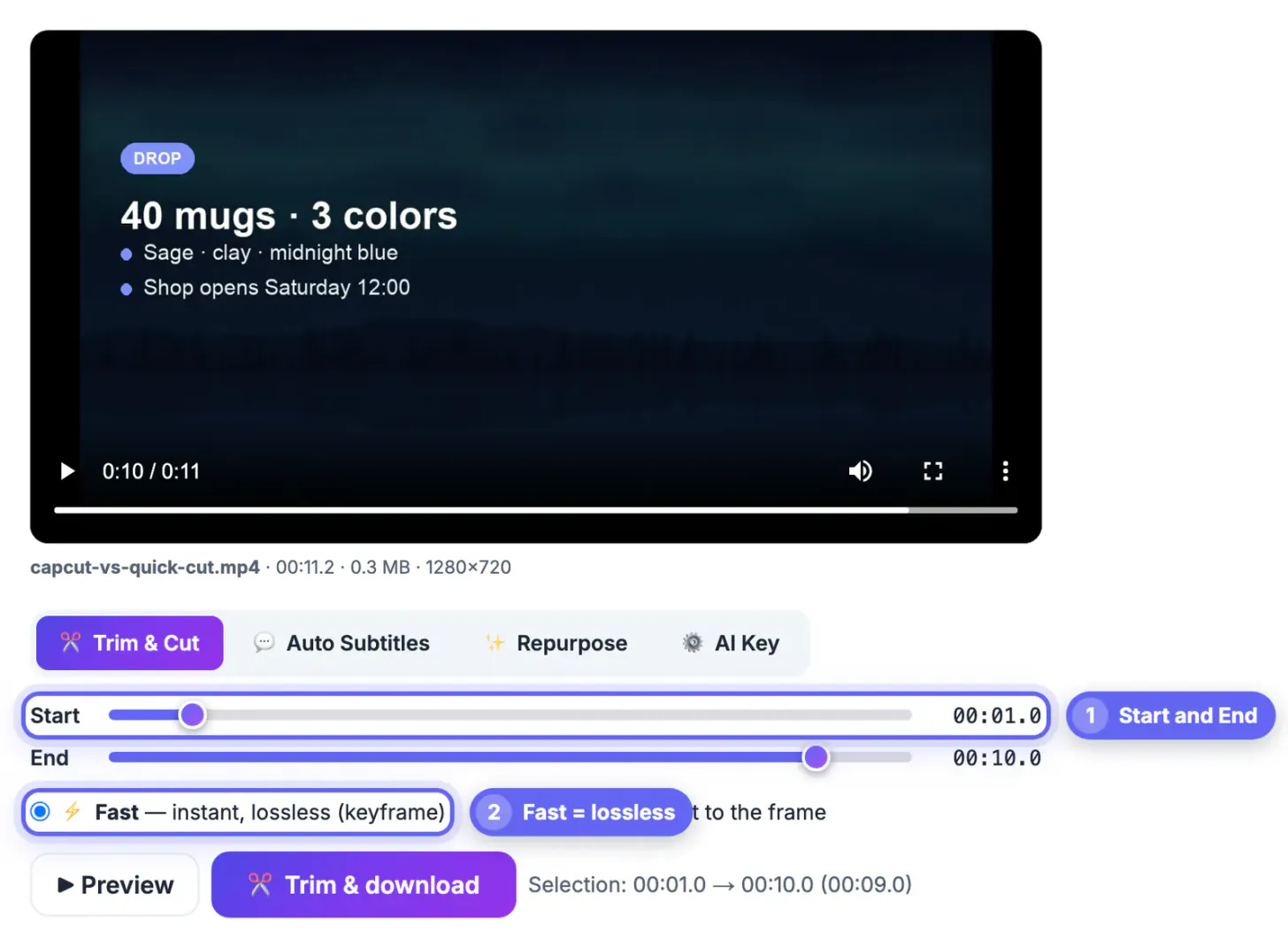
The GrabCast page does a narrower job. You open it in a browser tab, drop in one file and get three things: a cutter with Fast and Precise modes, automatic subtitles you can edit and export, and a Repurpose tab that turns the speech into a summary, chapters and social captions. There is no timeline, no music library and nothing to install.
Install, account and where your footage goes
CapCut asks you to install an app on mobile or desktop, and signing in unlocks cloud storage, templates and cross-device projects. That is convenient if you edit on your phone and finish on a laptop, but it means your projects can live on ByteDance servers, and availability in the US has depended on ongoing regulation of ByteDance apps.
GrabCast needs no install or account. Cutting and the free subtitle engine run inside the browser on your own device, so the footage is not uploaded. Two exceptions are worth stating plainly: if you paste your own Groq or OpenAI key for faster transcription, the audio goes straight to that provider, and the Repurpose tab sends the transcript text to an AI service to write the summary and captions.
- Best for confidential work recordings, client footage and classroom clips: in-browser processing
- Best for editing across phone and desktop on the same project: CapCut's cloud sync
- Neither adds a watermark to a simple trim you export yourself
Captions and exports side by side
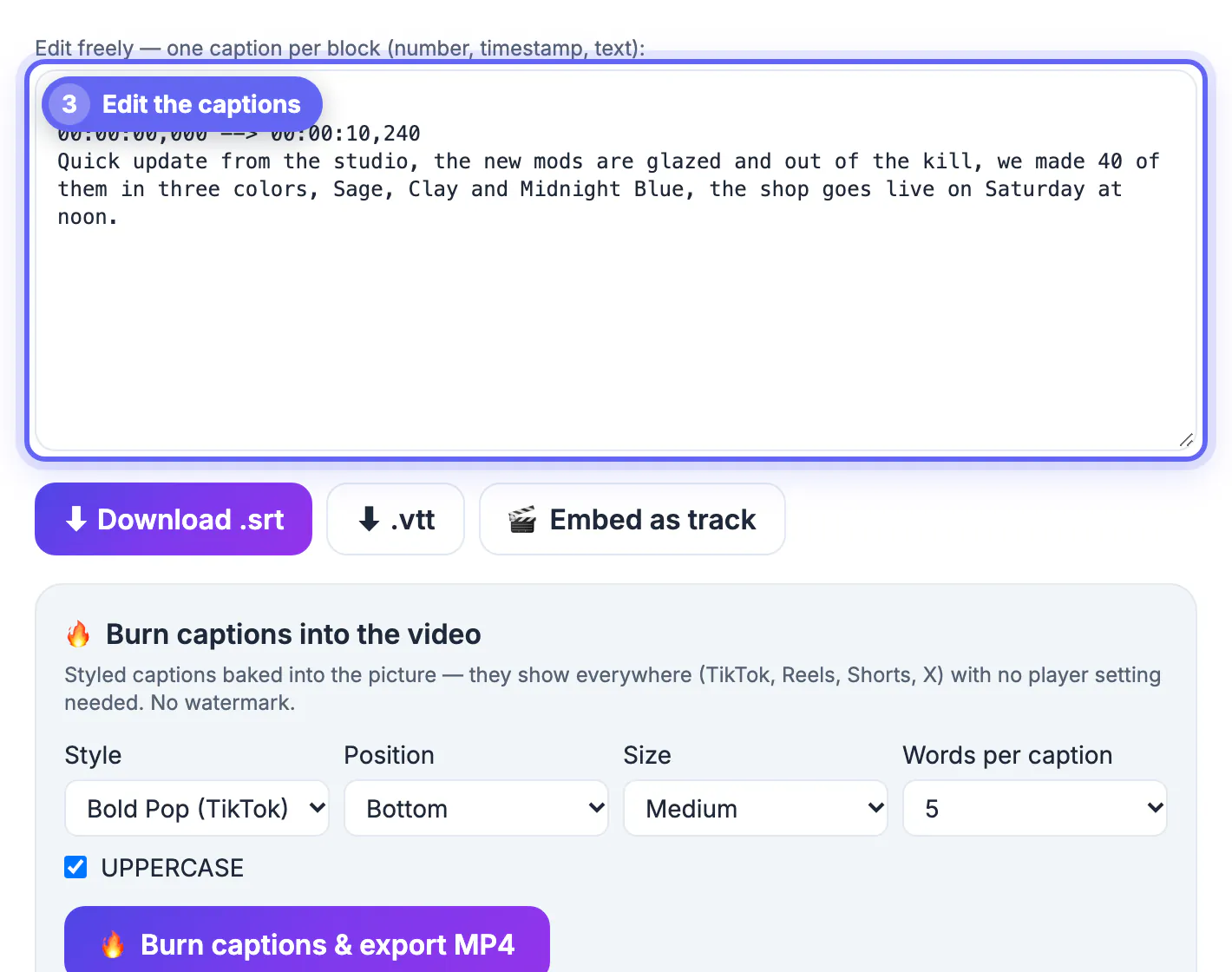
Both can create captions from speech automatically. CapCut offers a deep set of animated text styles and lets you tweak each word on the timeline. GrabCast gives you the transcript as plain SRT text you can correct in a box, downloads as .srt or .vtt for YouTube and LinkedIn, embeds a soft subtitle track, or burns styled captions into an MP4 using Bold Pop, Yellow Outline, Classic Box or Big Condensed, with 3, 5, 8 or full-line chunks and top, middle or bottom placement.
For the cut itself, Fast mode copies the streams without re-encoding, so quality is identical to the source and the export is nearly instant, though it starts on the nearest keyframe. Precise mode lands on the exact frame at the cost of an encode. CapCut always renders a new file from its timeline, with resolution and frame rate choices up to 4K.
When CapCut is the better choice
Be honest about the job. If any of these apply, CapCut or another full editor will save you time and frustration.
- You need to join several clips, reorder scenes or cut a stumble out of the middle
- You want music, sound effects, transitions, zooms, speed ramps or animated stickers
- You are reframing horizontal footage into a vertical 9:16 edit with tracking
- You edit mostly on your phone and want templates that match TikTok trends
- You need filters, color grading or green screen on the same project
GrabCast is the better pick for single-range cuts, private recordings, quick subtitles in SRT or VTT, and machines where you cannot or would rather not install software, such as a work laptop or a school Chromebook. Many creators use both: trim and caption in the browser for quick posts, and open CapCut for the edits that deserve a timeline.
For size or shape problems, the Video Compressor shrinks files, and the Crop & Resize Video tool changes the frame for vertical platforms.
Movavi Video Editor is a paid desktop editor for Windows and Mac, a third path when you want offline editing instead of CapCut or a browser tool. It offers a timeline for many clips, plus automatic subtitles and noise removal per its product page. A free trial exists with limits such as a watermark, so check the current terms and price.
See Movavi plans →Step-by-step
Common mistakes to avoid
Pro tips
Frequently asked questions
Is CapCut free?
CapCut has a free tier that covers basic editing, and a Pro subscription that unlocks premium effects, some AI tools and extra cloud storage. Which features sit where changes over time, so check its plan page before you commit.
Does GrabCast add a watermark?
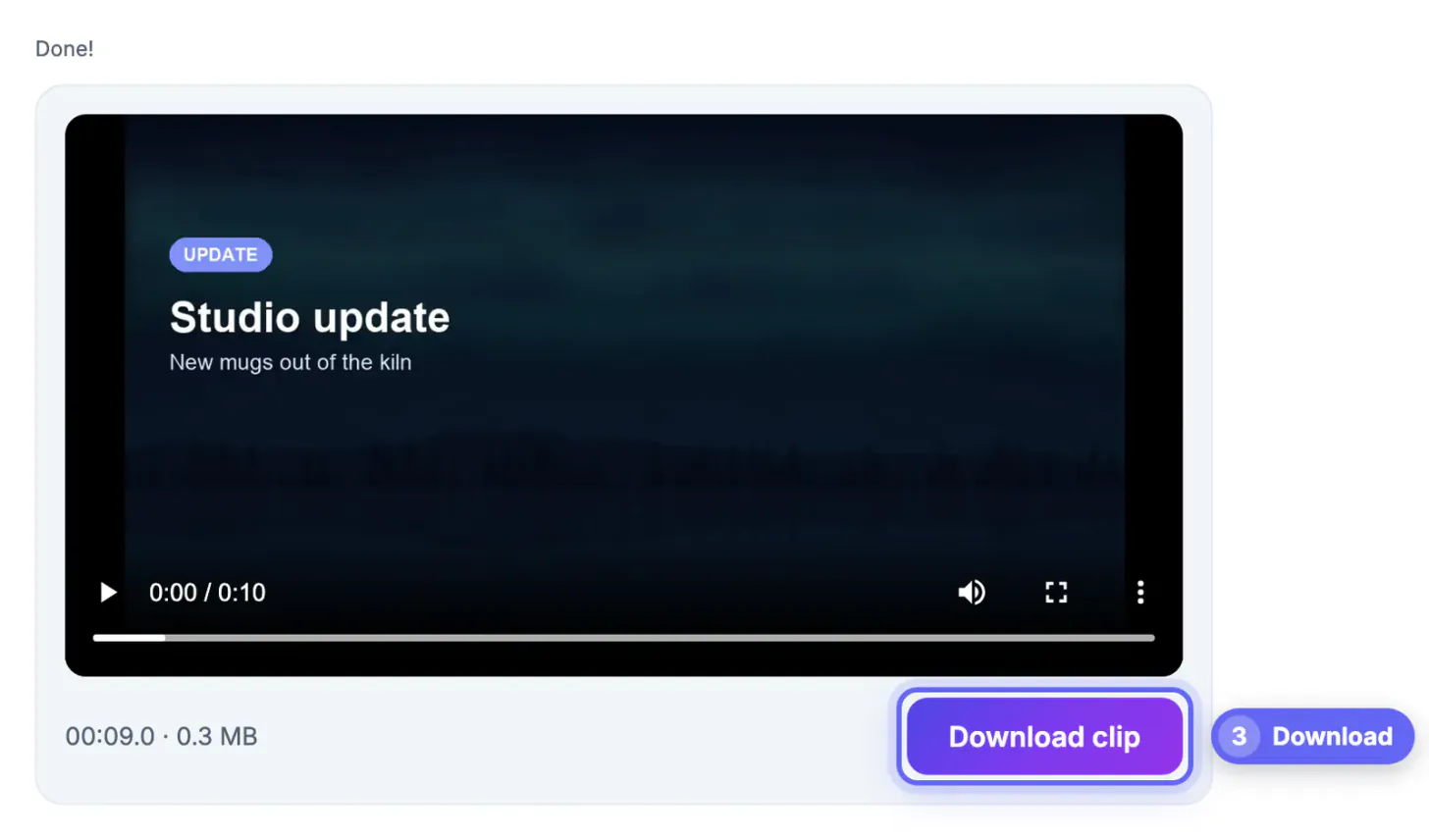
No. Trimmed files, subtitle files and videos with burned-in captions are exported without any watermark, logo or ending clip, and no account is needed.
Can GrabCast replace CapCut completely?
No, and it does not try to. It handles single-range cuts, automatic subtitles and content repurposing. For multi-clip timelines, music, transitions and effects, a full editor like CapCut is the right tool.
Which one is more private?
Cutting and the free subtitle engine in GrabCast run in your browser, so the footage stays on your device. CapCut processes projects in its app and can sync them to its cloud when you are signed in.
Does trimming in the browser lower quality?
Fast mode copies the original streams, so quality is identical to the source. Precise mode re-encodes to hit the exact frame and looks nearly identical at normal viewing. Either way, the resolution of the clip is not reduced by the cut.
Use the browser trimmer for single cuts, captions and private footage with nothing to install; use CapCut when the project needs a timeline, music, transitions or effects. Many creators keep both, and choosing by the job rather than by habit saves the most time.
Related guides
Browse more: all video and audio guides · Video Trimmer & Subtitles