Free Screen Recorder vs Loom: Local Files or Share Links
Choose Loom when the recording is a message for other people who need an instant link, comments and proof they watched; choose GrabCast's free screen recorder when you want a private MP4 on your own disk with no account, no upload and no watermark. Both capture your display, microphone and a webcam bubble, so the real decision is about what happens after you press stop. This comparison covers workflow, plan limits, privacy and the places where the browser option is simply weaker.
🎥 Try Screen Recorder now — freeOpen →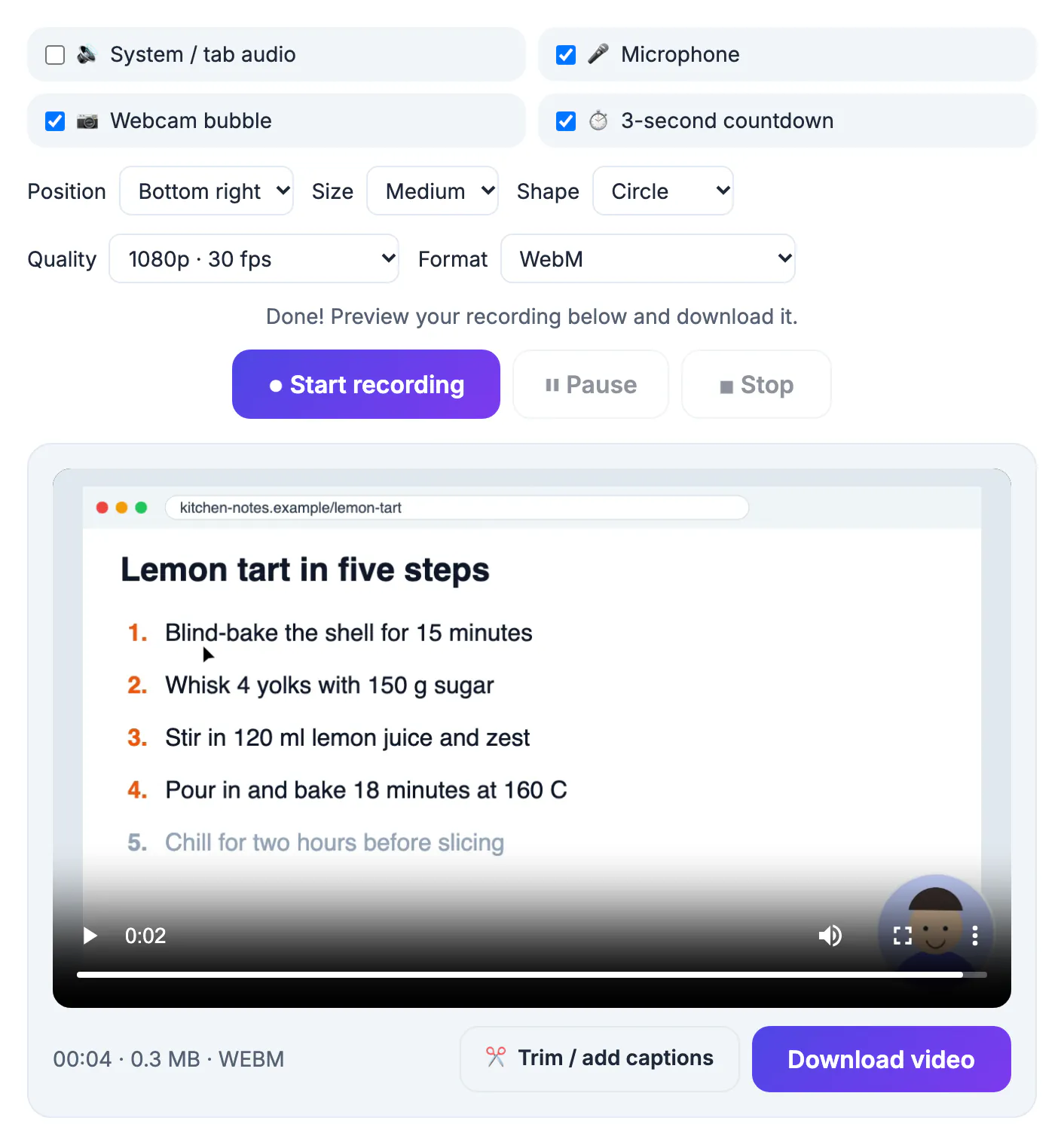
Capturing pixels is a solved problem; every modern browser can do it through the built-in screen-sharing picker. What differs is everything around the file. Loom was designed as a messaging product, so its value is the hosted link, the notifications and the conversation that forms under a video. A local recorder is designed as a file maker, so its value is control: you decide where the footage lives, how it is edited and who ever sees it. Most frustration comes from using one when you needed the other: a hosted link for footage that should never leave the company, or a heavy local file for a two-minute update that deserved a quick link and a comment thread.
Two different ideas of a screen recording
Loom, now part of Atlassian, records through a desktop app for Mac and Windows, a Chrome extension or its mobile apps. When you stop, the video is already uploading, and a share link lands on your clipboard within seconds. Viewers can watch in a browser without an account, leave time-stamped comments and emoji reactions, and you can see who watched. Paid plans add AI titles, summaries and chapters, team workspaces and admin controls, plus integrations with Slack, Jira, Confluence and Gmail.
GrabCast works entirely in a browser tab on a desktop computer. You pick a whole display, a single window or one tab, and the finished recording is saved as a file on your computer. Nothing is uploaded, nothing is hosted and no account exists to sign in to.
Feature by feature, with the gaps included
On capture itself the two are closer than you might expect.
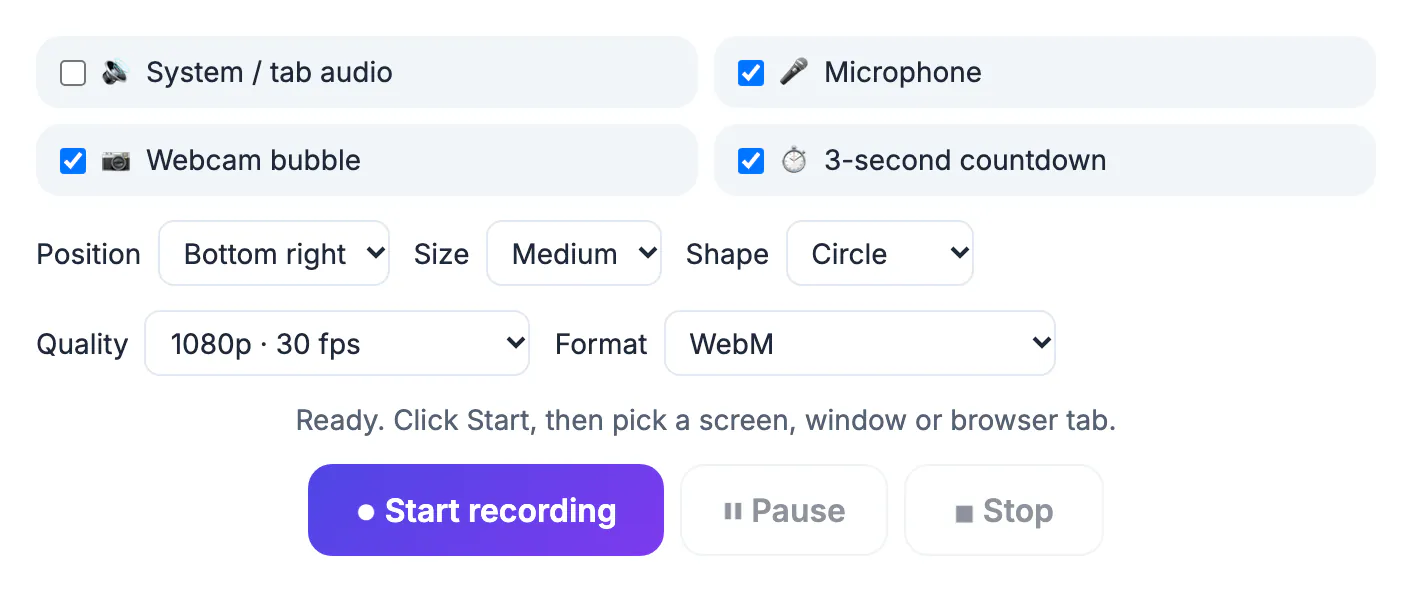
- Webcam bubble: both; in the browser version it needs Chrome or Edge, with circle or rounded shape, four corner positions and three sizes
- Audio: both record the microphone, and the browser version adds echo cancellation and noise suppression; system or tab audio depends on your browser and operating system
- Quality: the browser version offers 1080p at 30 or 60 fps or a lighter 720p, saved as MP4 or WebM
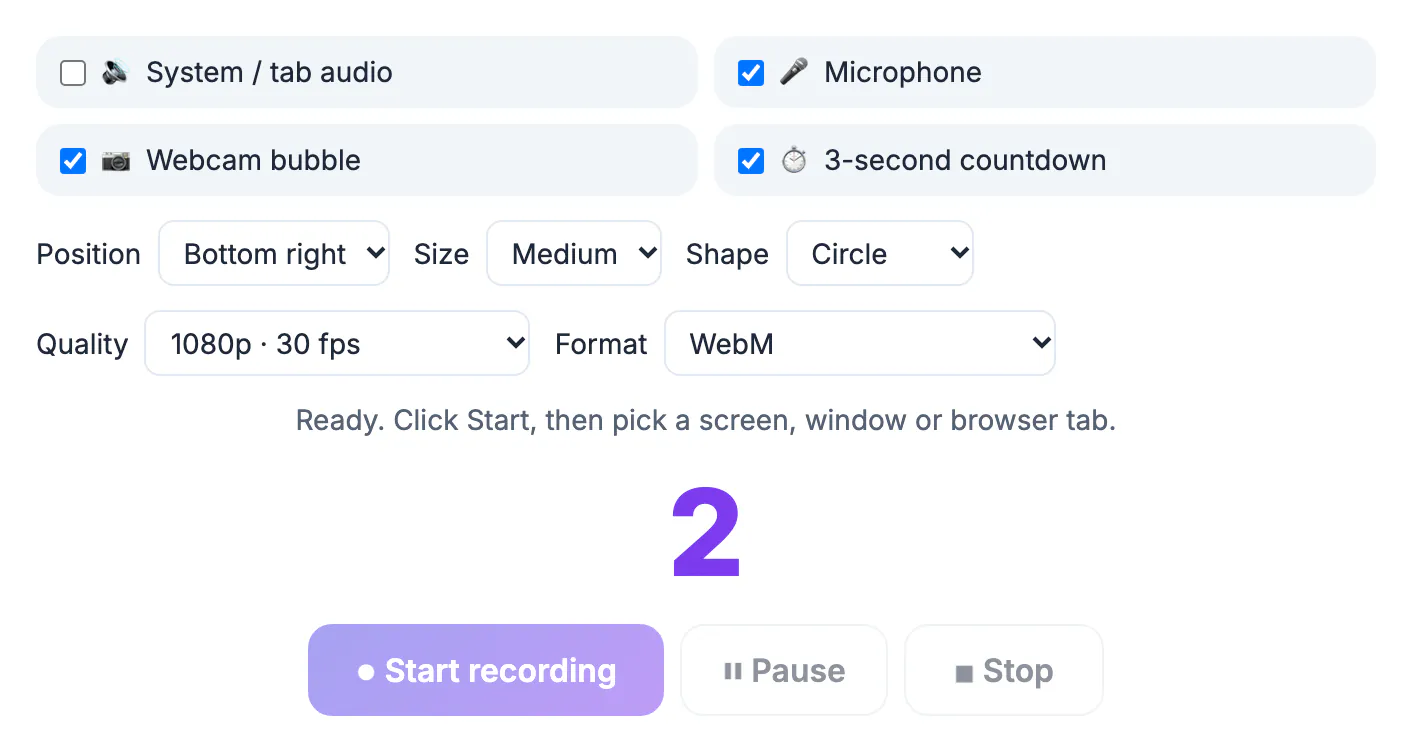
- Pause and resume, plus a 3-second countdown: both
- Sharing link, comments, reactions and view insights: Loom only
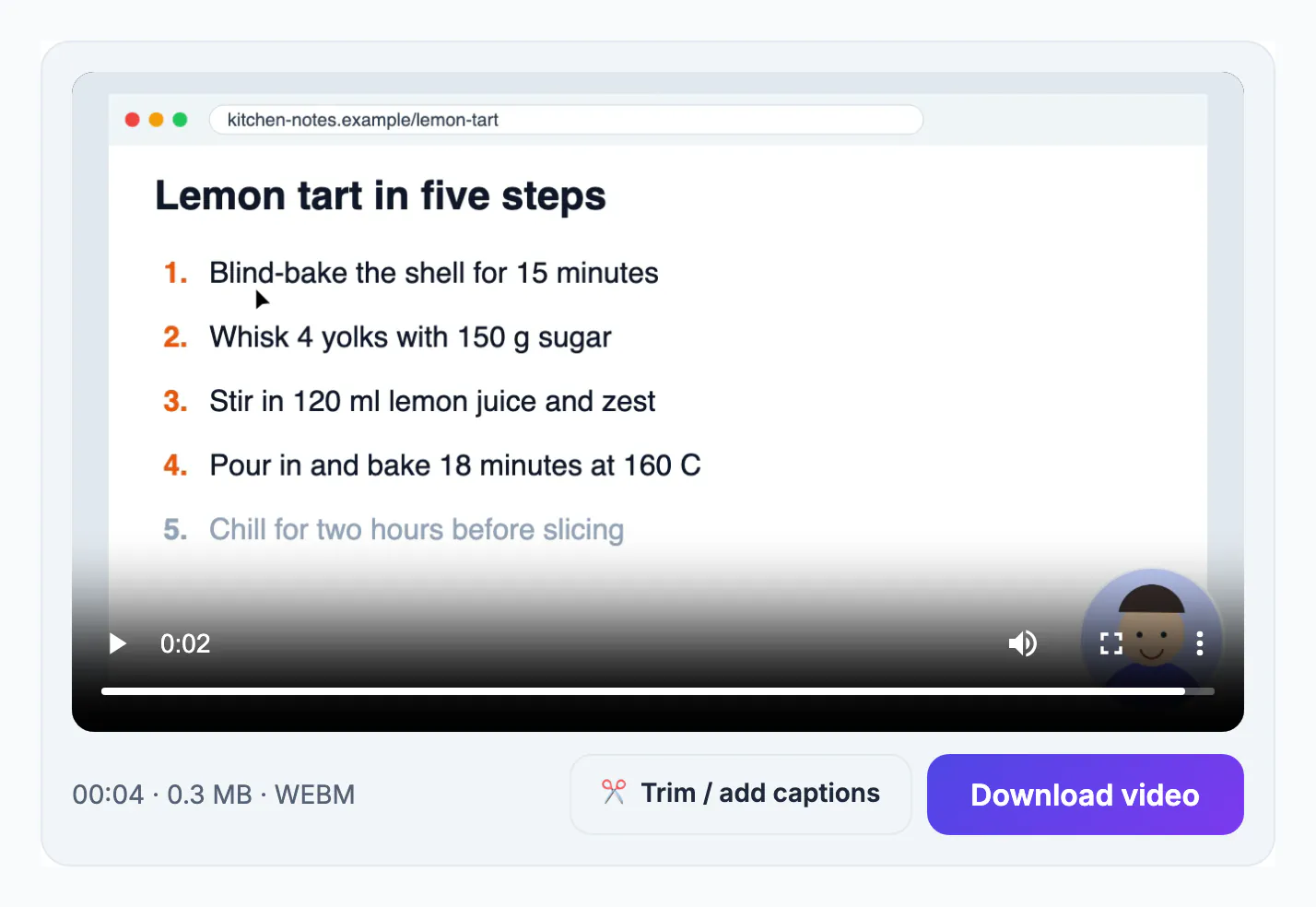
- Editing: Loom trims and stitches in its web editor; the browser version links to a free trimmer with automatic subtitles, where you load the saved file
- Mobile: Loom has phone apps, while browsers on phones and tablets cannot capture the display at all
If you need proof of who watched, or a thread of feedback under a walkthrough, Loom has no real substitute here.
Plans, limits and the cost of convenience
Loom's free Starter plan caps both the length of each video and how many you can keep in your library, and the AI features and longer recordings live on paid Business and Enterprise tiers. The exact limits change, so check its pricing page before you build a routine around the free tier.
The browser option has no plan at all: no time cap, no video count and no watermark. Its practical limit is your machine. The recording is held in memory until you press stop and save, so hour-long 1080p60 sessions want a computer with plenty of free RAM, and closing the tab before saving loses the take. Recording long training sessions in chunks of 20 to 30 minutes is a sensible habit on any laptop.
If your recordings grow large, the Video Compressor helps keep them manageable before you share them.
A simple way to decide
Ask where the video goes next. If the answer is a teammate's inbox, a Slack thread or a Jira ticket, Loom's instant link and comments save everyone time, and paying for a team plan is often cheaper than the meetings it replaces.
If the answer is your own editor, a course platform, a YouTube upload, a client's secure portal or an archive folder, a local MP4 is what you actually want, and there is no reason to route the footage through someone else's cloud first.
- Bug reports and async stand-ups for a team already on Atlassian: Loom
- Tutorials and course lessons you will edit and publish elsewhere: the browser option
- Recordings containing customer data, health records or unreleased products: the browser option, stored where your policy says
- Quick feedback on a design where you want to know it was watched: Loom
Step-by-step
Common mistakes to avoid
Pro tips
Frequently asked questions
Is Loom free?
Loom has a free Starter plan with limits on video length and on how many videos you can store, plus paid Business and Enterprise plans with AI features and longer recordings. The exact caps change, so check its pricing page. Viewers never need a paid plan to watch a video you share.
Does GrabCast's screen recorder have a time limit?
There is no set limit, no watermark and no account. The practical limit is your computer's free memory, because the recording is held in the browser until you stop and save it.
Can I get a share link from the browser recorder?
No. It saves a file to your computer and never uploads it. To share, put the file in your own cloud storage, a course platform or a video host and send that link.
Which one is better for privacy?
The browser recorder keeps footage on your device because nothing is uploaded. Loom stores recordings in its cloud under its security and privacy policies, which many companies approve but some regulated teams do not.
Can either record on a phone?
Loom has iPhone and Android apps. Browser-based recording does not work on phones or tablets because mobile browsers block display capture, so use the phone's built-in screen recorder instead. Both iPhone and Android include one in the quick settings or Control Center panel.
Loom is a messaging product built around links, comments and view stats, and it is worth paying for when a team lives on async video. The browser recorder is a file maker: free, no account, no watermark and private by design. Pick by where the video goes after you press stop.
Related guides
Browse more: all video and audio guides · Screen Recorder