Record Your Screen With Your Webcam in the Corner
To record your screen with your webcam in the corner, open the GrabCast Screen Recorder in Chrome or Edge, tick Webcam bubble, choose a corner, size and shape, then click Start and pick the screen, window or tab to capture. The camera is drawn straight into the video, so the MP4 you download already has your face in the corner, with no editor and no watermark. This guide covers the settings that make a webcam overlay look professional, where to put the bubble so it never hides what matters, and how to keep the file size sensible. Disclosure: some links below are affiliate links, and GrabCast may earn a commission at no extra cost to you.
🎥 Try the Screen Recorder tool now — freeOpen →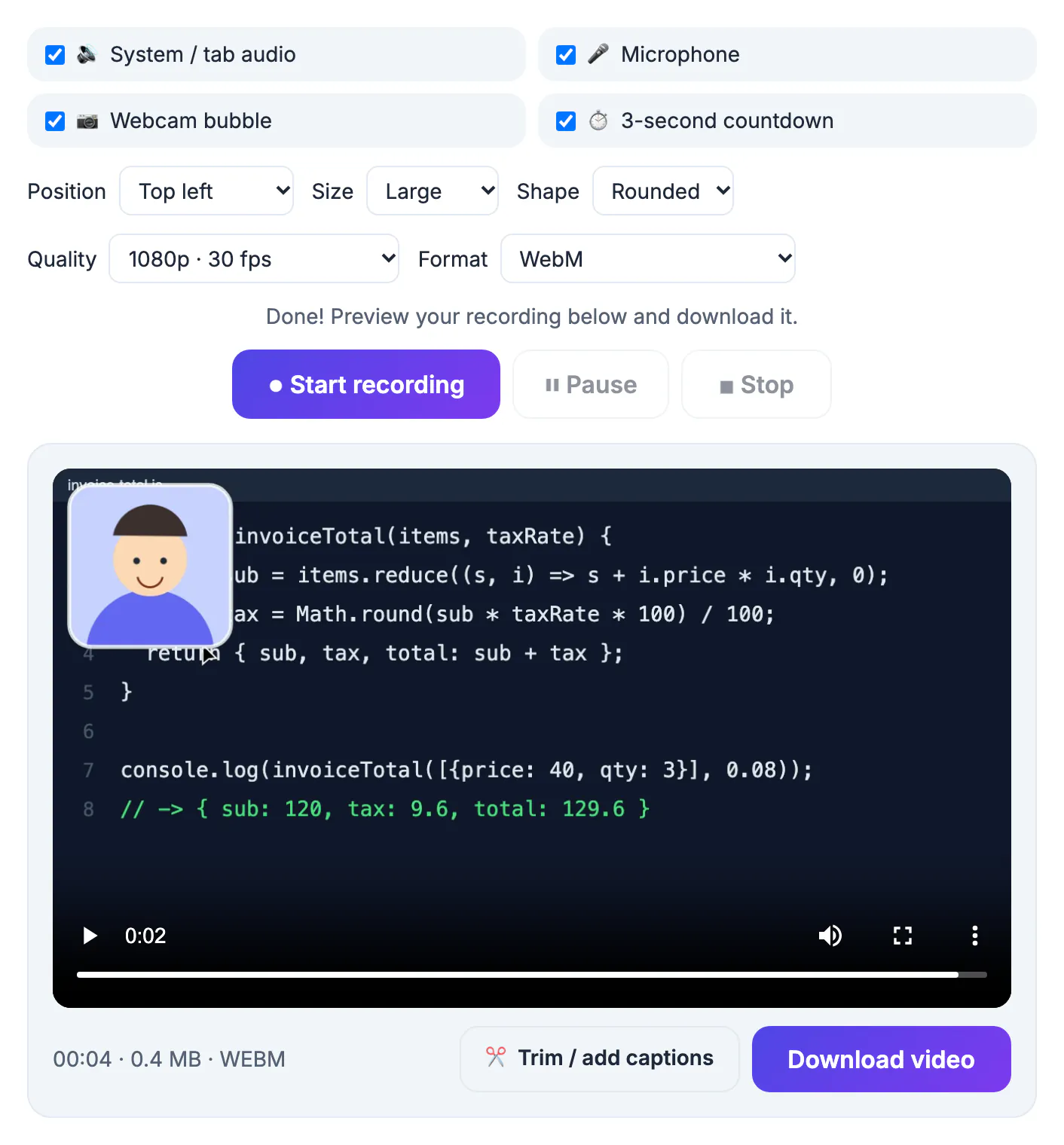
A screen-only walkthrough is easy to skip because there is no person to connect with. A small webcam overlay adds expression, eye contact and the reassurance that someone real is explaining things. Sales teams use it for personalized demos, teachers for lessons, support staff for bug walk-throughs and creators for reaction or tutorial content. Viewers tend to stay longer when they can see the speaker, and a face in the corner makes async updates feel closer to a quick meeting than to a silent recording.
The webcam overlay settings, explained
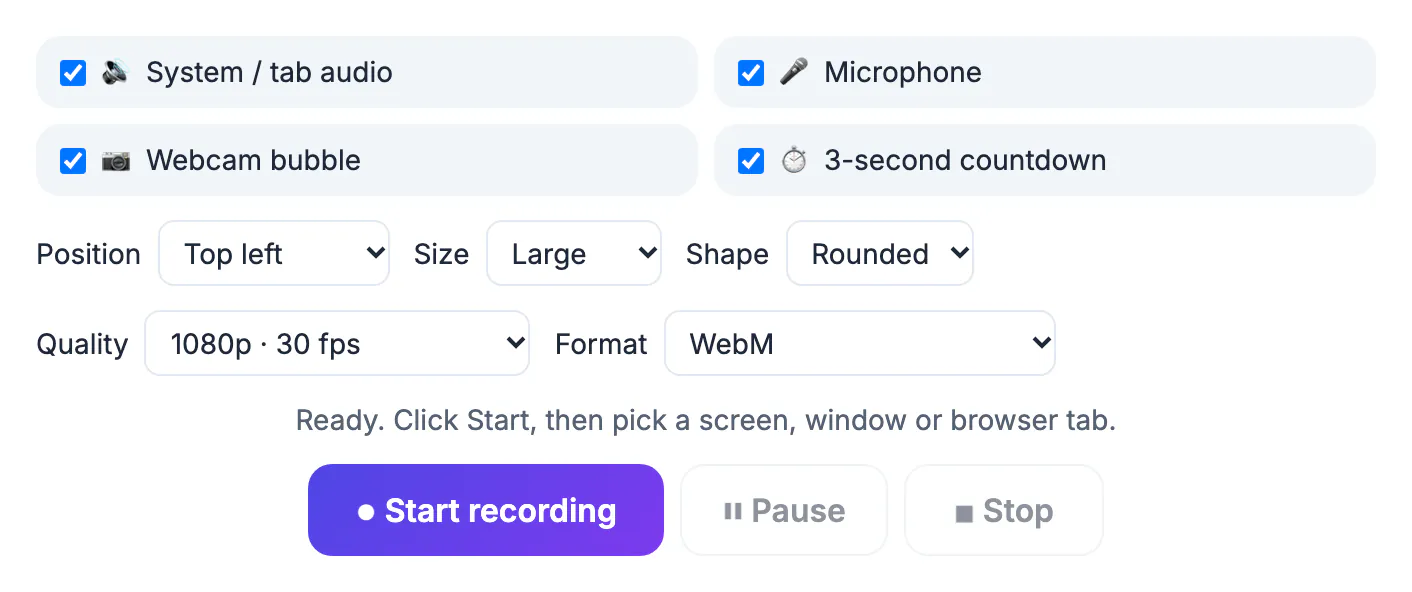
When you tick Webcam bubble, a second row of options appears. Each one affects how the final video looks, so set them before you press Start.
- Position: bottom right, bottom left, top right or top left; bottom right is the default and suits most slides and web pages
- Size: small, medium or large; medium is the default and works for most tutorials, while small keeps dense spreadsheets readable
- Shape: a circle for a friendly, modern look or a rounded rectangle when you gesture with your hands or share the frame with someone
- Camera access: your browser asks permission once; if you block it, the recording continues without the bubble instead of failing
The overlay is composited into the video while you record. That keeps things simple, but it also means you cannot move or remove the bubble afterward, so a ten-second test clip is worth the time.
Audio, quality and format for a webcam recording
The rest of the panel controls sound and picture. For talking-head tutorials, the microphone matters more than the resolution.
- Microphone: tick it to narrate; a headset or USB mic beats a laptop mic that also picks up keyboard noise
- System or tab audio: include it when you demo video, music or app sounds; leave it off for a quiet voice-only lesson
- Quality: 1080p at 30 fps for most work, 1080p at 60 fps for fast motion such as games or scrolling, 720p when file size matters most
- Format: MP4 plays everywhere, including phones and most editors; WebM is offered where the browser supports it
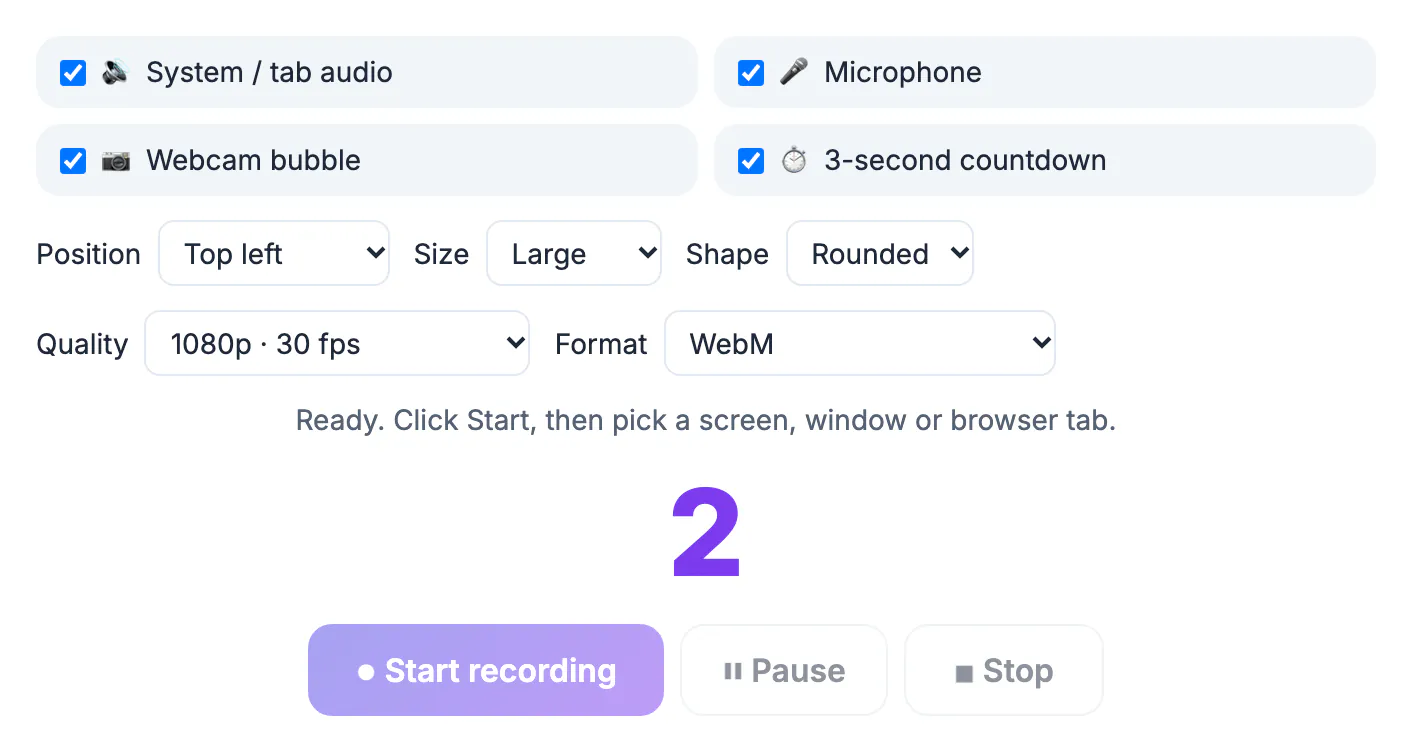
- 3-second countdown: leave it on so you have a moment to look at the camera before the first word
As a rough guide, the recorder targets about 8 Mbps at 1080p 30 fps, 12 Mbps at 60 fps and 4 Mbps at 720p, which works out to very roughly 60 MB, 90 MB and 30 MB per minute before any compression afterward.
Background hum in the recording? The Audio Noise Reduction tool can clean it up afterwards.
Where to put the webcam bubble
The best corner is the one your content never uses. Spend a few seconds looking at the screen you will share before choosing.
- Slides and documents: bottom right usually sits over empty margin or page numbers
- Web apps: avoid the top right if that is where menus, account icons or save buttons live
- Code editors: bottom left can cover the file tree, so top right often works better
- Share a single tab or window instead of the full desktop so notifications and the taskbar clock stay out of the frame
Look and sound like you meant it
Most webcam overlays fail on lighting and framing, not software. A few small changes make a cheap camera look far better.
- Face a window or lamp so light falls on your face; a bright window behind you turns you into a silhouette
- Raise the camera to eye level, stacking the laptop on books if needed, so you are not filmed from below
- Look at the lens when you introduce the topic and when you wrap up, then look at the screen while demonstrating
- Use Pause during long loading screens and Resume when you are ready, so viewers never watch a spinner
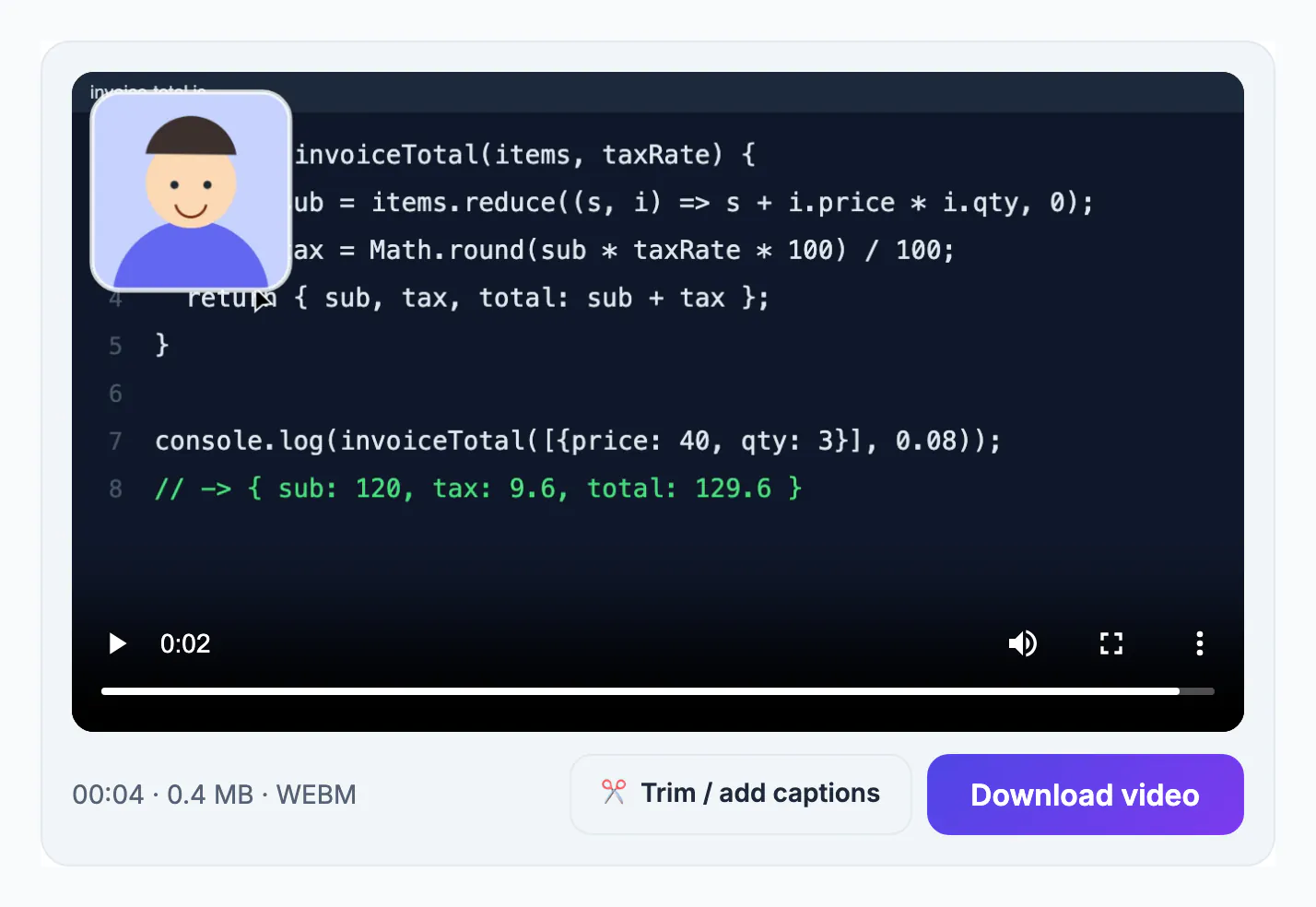
When you stop, the preview shows the length, file size and format. Download it, then open it in the Video Trimmer to cut the start and end and add captions generated from your speech.
Movavi Screen Recorder is a paid desktop app for Windows and Mac whose product page lists a webcam overlay, noise reduction and scheduled recordings. It is an option if you want an offline recorder for long weekly sessions. The GrabCast recorder above already adds a webcam bubble for free, so try that first and check Movavi's current price and trial limits before paying.
See Movavi plans →Step-by-step
Common mistakes to avoid
Pro tips
Frequently asked questions
Which browsers support the webcam bubble
The webcam overlay works in Chrome and Edge on desktop. Screen recording itself also works in Firefox and Safari, but the webcam option is greyed out there.
Is my recording uploaded anywhere
No. The screen, camera and audio are captured and encoded in your browser, and the file is saved straight to your device. There is no account and no watermark.
Can I move the webcam after recording
No. The bubble is burned into the video as it records. Choose the corner before you start, or record a short test to check placement. If you often need to reposition the camera later, record the screen and camera as separate files in a full video editor instead.
Does the recording keep going if I switch tabs
Yes. The recorder is designed to keep capturing smoothly while its tab sits in the background, so you can present from another tab or window.
Can I record on my phone
No. Mobile browsers do not allow screen capture from a web page, so you need a desktop or laptop computer running a current browser. Phones have their own built-in screen recording in the control center or quick settings, though without a webcam overlay.
For a screen recording with your face in the corner, use Chrome or Edge, tick Webcam bubble, choose a corner your content never uses, light your face, test for ten seconds, and download a watermark-free MP4 that is ready to share.
Related guides
Browse more: all video and audio guides · the Screen Recorder tool