Record Audio on a Chromebook Free: No App Needed
To record audio on a Chromebook free, open GrabCast's Voice Recorder in Chrome, allow the microphone once and press the big button; the finished take saves as MP3 or WAV to Downloads or Google Drive. There is no Play Store install, so it usually works even on a locked-down school device where Android apps are blocked by the district admin.
🎙️ Try the Voice Recorder tool now — freeOpen →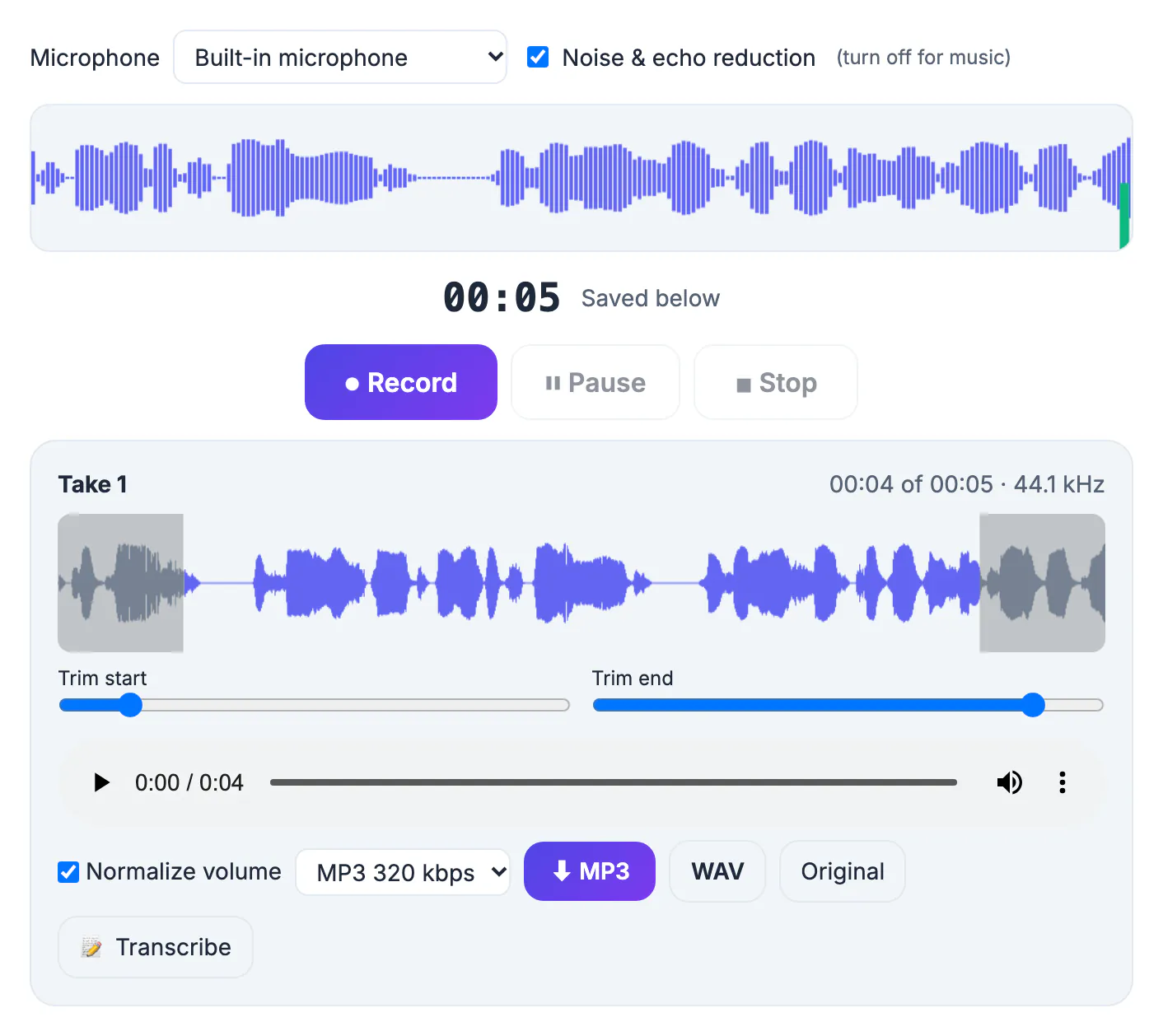
ChromeOS has no simple built-in sound-only capture app. The Screen capture tool (Shift + Ctrl + Show windows) can include your mic, but it saves a WEBM video, which is overkill for a two-minute oral response and awkward to trim. Android recorder apps from the Play Store are often disabled on managed student accounts, and Linux apps are off by default. A web page sidesteps all three problems: it runs inside Chrome, which every Chromebook already trusts, it needs no admin approval to install, and processing happens on the laptop itself, so a class interview or a practice speech never sits on a stranger's server.
What students and teachers capture on a Chromebook
Most classroom jobs are short, spoken and due today. A browser capture page fits them better than a full editing suite, and the files are small enough to attach anywhere. At 128 kbps an MP3 runs about 1 MB per minute, so a 3-minute answer is roughly 3 MB.
- Oral responses for Google Classroom, such as a 90-second book summary or a Spanish speaking check
- Interviews for a history project with a grandparent, a coach or a local business owner
- Read-aloud fluency samples a teacher can listen to again at home
- Feedback clips a teacher leaves instead of typing a long comment on an essay
- Rehearsal takes for a debate opening, a presentation or a choir part
If the assignment asks for a video, use the Screen capture tool instead; for anything that is voice only, a lean MP3 is easier to grade and far lighter to upload over school Wi-Fi.
Teachers can flip the workflow too: a 60-second spoken instruction clip posted to Classroom helps students who read slowly or are learning English, and it takes less time than typing the same directions.
How to record audio on a Chromebook, step by step
The flow is identical on a personal device and on a managed school one, as long as the admin has not blocked site microphone access.
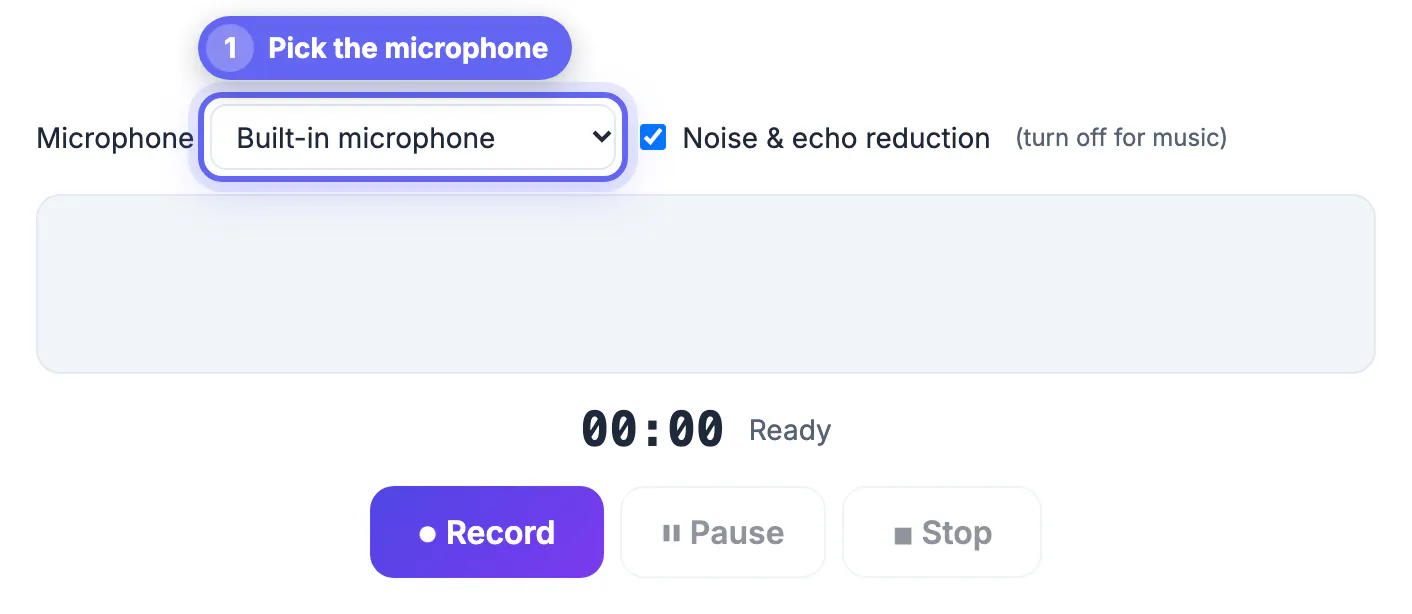
- Open the Voice Recorder page in Chrome and click the start button; Chrome shows a permission bubble near the address bar
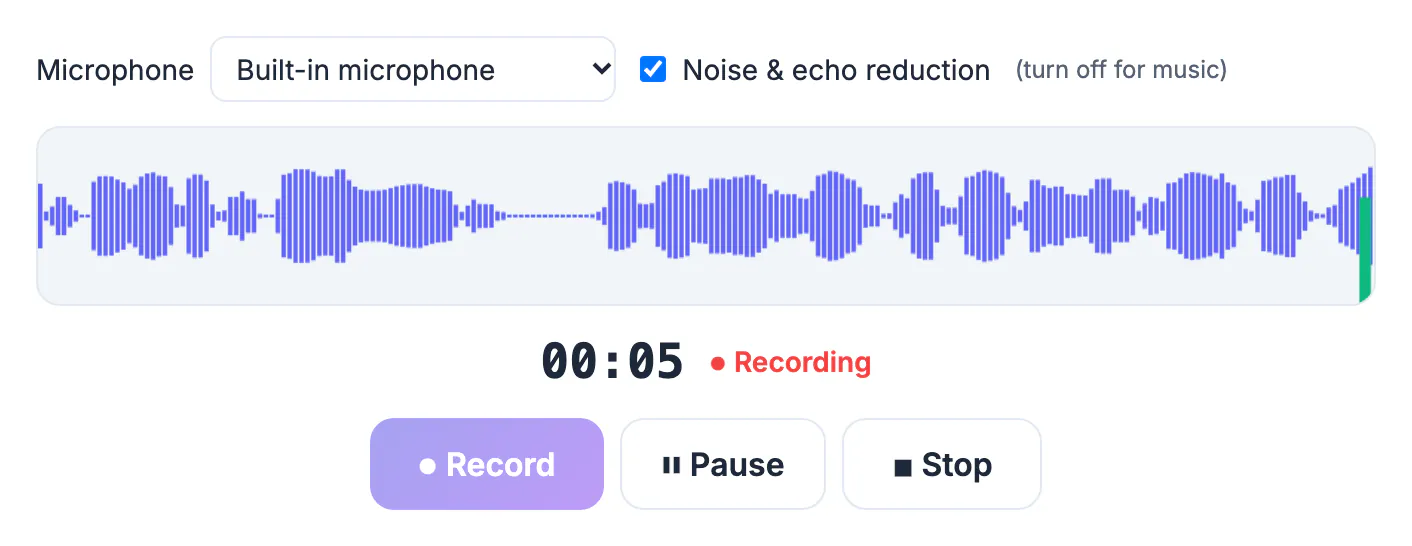
- Choose Allow, then watch the live level meter bounce while you speak a test sentence at normal volume
- Use pause and resume to skip interruptions, such as a bell or a classmate asking a question, instead of starting over
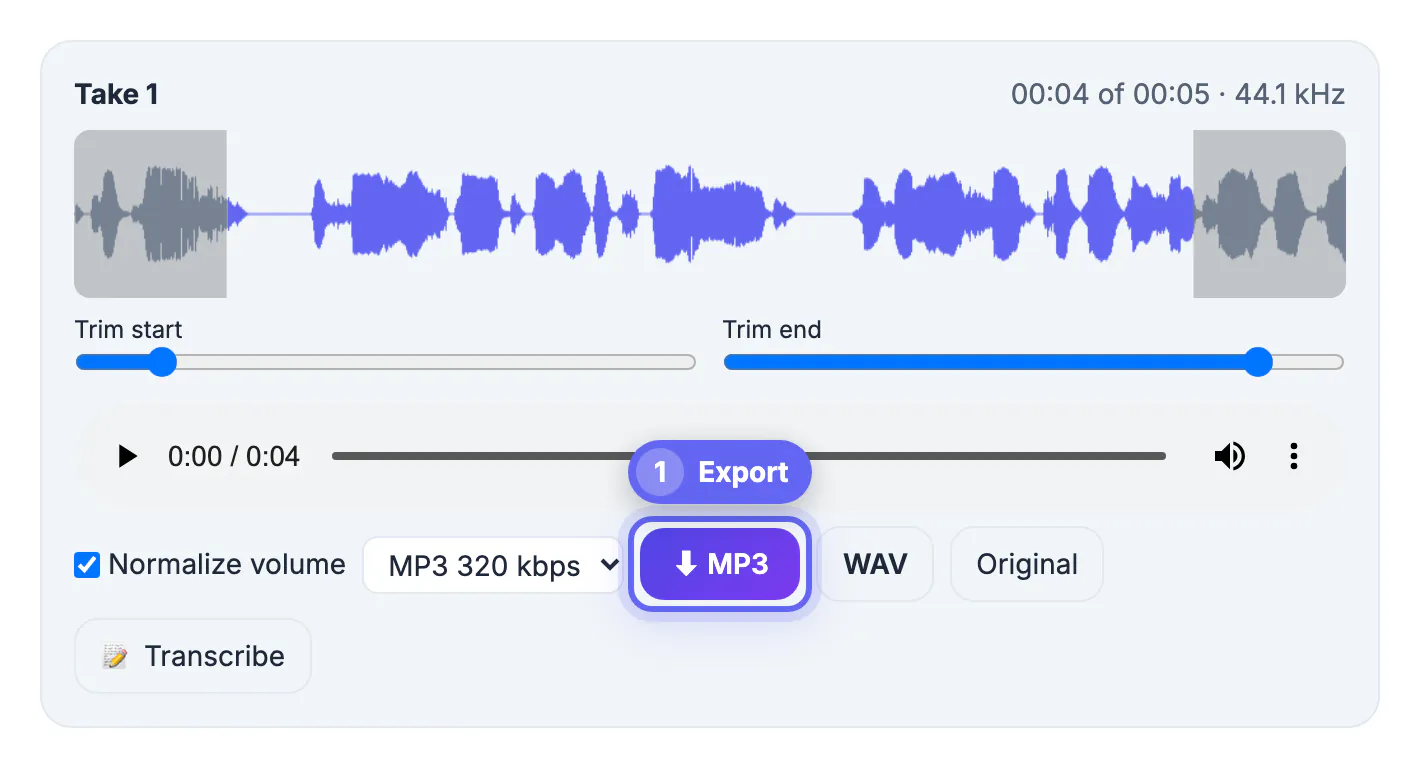
- Stop, play the take back, trim dead air from the start and end, and leave Normalize volume on; noise reduction is set before you record and is on by default
- Save as MP3 for small uploads or WAV when a teacher or editor wants uncompressed sound
WAV is honest but heavy: about 5 MB per minute in mono and 10 MB in stereo, which adds up fast on a 32 GB student laptop.
Working within managed school device rules
District admins control Chromebooks through the Google Admin console, and a few of their settings decide whether any web capture page will work at all.
- If the microphone icon in the address bar shows a crossed-out symbol, the permission was denied; click it and choose Allow
- Settings, then Privacy and security, then Site settings, then Microphone lists every site you have allowed or blocked
- When the mic option is grayed out entirely, the admin has disabled it, and only your teacher or IT office can change that
- Downloads land in the Files app; drag them to My Drive so they sync and do not vanish when a shared cart device is wiped
- Nothing leaves the laptop during processing, which matters for student privacy rules such as FERPA
Shared cart Chromebooks often erase local files at sign-out, so move each take to Drive before you close the lid.
Getting clear sound in a noisy classroom
The built-in mic sits in the top bezel beside the webcam on most models, including Lenovo, HP and Acer education laptops. It hears the whole room, so placement matters more than any setting.
- Keep your mouth about 12 to 18 inches from the screen edge and speak toward the camera, not the keyboard
- Turn off the classroom fan or step into the hallway; noise reduction softens a steady hum but cannot erase a nearby conversation
- A basic USB or 3.5 mm headset mic costs under 20 dollars and beats the built-in mic for interviews
- Close other tabs that use the mic, such as a Meet call, since two pages cannot share it cleanly
- Do a 10-second test take, play it back with headphones, and only then capture the real thing
Normalize evens out the loudness afterward, but it also lifts background noise, so run noise reduction first on a noisy clip.
To tidy a recording afterwards, try the Remove Silence tool and the Audio Cutter for trimming the ends.
Step-by-step
Common mistakes to avoid
Pro tips
Frequently asked questions
Does a Chromebook have a built-in audio recorder?
Not a simple one. The Screen capture tool can include your microphone, but it saves a WEBM video file. For sound only, a browser recorder that exports MP3 or WAV is quicker and lighter.
Will this work on a school-managed Chromebook?
Usually yes, because it runs in Chrome with no install. The one blocker is an admin policy that disables site microphone access; if the mic setting is grayed out, ask your teacher or IT office.
Where do my recordings save on a Chromebook?
They download to the Downloads folder in the Files app. Drag them to My Drive, or change Chrome's download location to Drive, so they sync and survive a device reset.
Is my recording uploaded to a server?
No. Capture, trimming, noise reduction and export all happen inside your browser on the Chromebook, which keeps student voices and interviews private.
How long can I record?
There is no fixed cap, but very long takes use memory. For a full 45-minute lesson, pause and save in chunks of 15 to 20 minutes, especially on 4 GB models.
Record audio on a Chromebook free in Chrome: allow the mic, capture with pause and resume, trim and clean the take, then save a light MP3 or WAV to Google Drive, all without a Play Store install or an upload.
Related guides
Browse more: all video and audio guides · the Voice Recorder tool