Record Your Voice Online Free: Clean MP3 or WAV
You can record your voice online free by opening GrabCast's Voice Recorder, allowing your microphone and speaking; noise reduction cleans up hiss as you record, and when you stop you trim the ends and download an MP3 or WAV. Everything runs in your browser tab, so a voiceover draft, an audition read or a personal voice message never passes through anyone's server.
🎙️ Try the Voice Recorder tool now — freeOpen →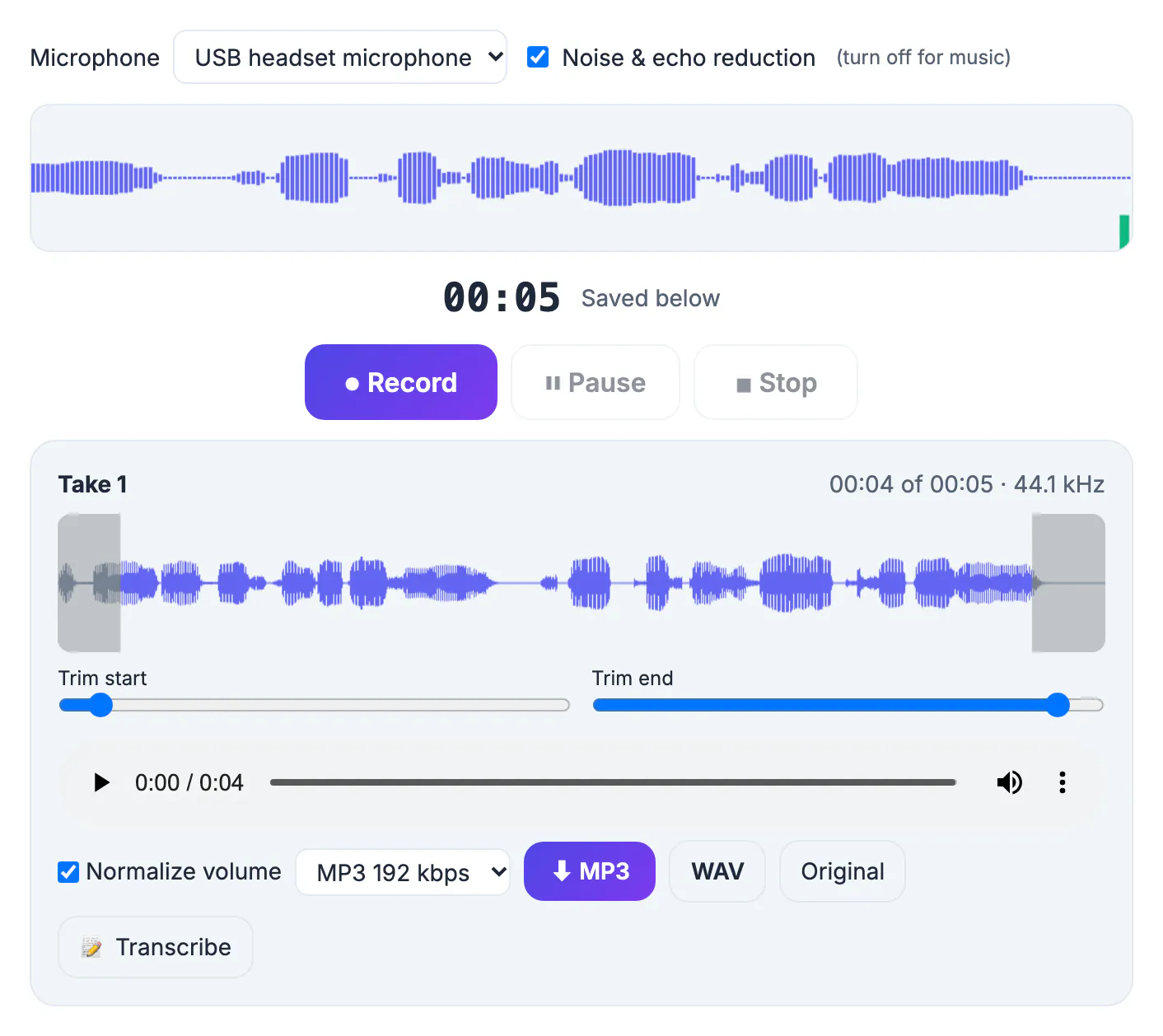
Desktop audio editors such as Audacity are powerful, but for a single spoken take they add setup time: choosing an input device, setting a project rate, learning an export dialog. A web page covers the 80 percent case in under a minute. You get a live level meter to catch clipping before it happens, pause and resume so one flub does not ruin a long read, and the three cleanup moves most amateur narration actually needs: trim, noise reduction and loudness normalization. When a project grows into multi-track editing, you can still open the exported WAV in a full editor later, so nothing is lost by starting simple.
What people capture with an online recorder
The tool is built for single-speaker takes up to a few minutes long, where speed and clean sound matter more than multitrack editing.
- Voiceover drafts for a slideshow, an explainer or a YouTube tutorial before hiring a pro
- Audition and casting reads that an agent wants as a plain MP3 attachment
- Voice messages and spoken greetings for a wedding slideshow or a friend overseas
- Pronunciation practice for a language exam, saved so you can compare week over week
- Podcast intros, outros and ad reads that you drop into an existing episode
For a two-person interview over the internet, a call app with separate tracks is a better fit; this page captures one microphone at a time.
Phones work as well as laptops. On an iPhone or Android device, open the page in Safari or Chrome, hold the handset about a hand's width from your mouth, and switch on airplane mode or Do Not Disturb so a notification chime does not land in the middle of a take.
How to record your voice online in five moves
The whole session takes about as long as the take itself, plus a minute for cleanup.
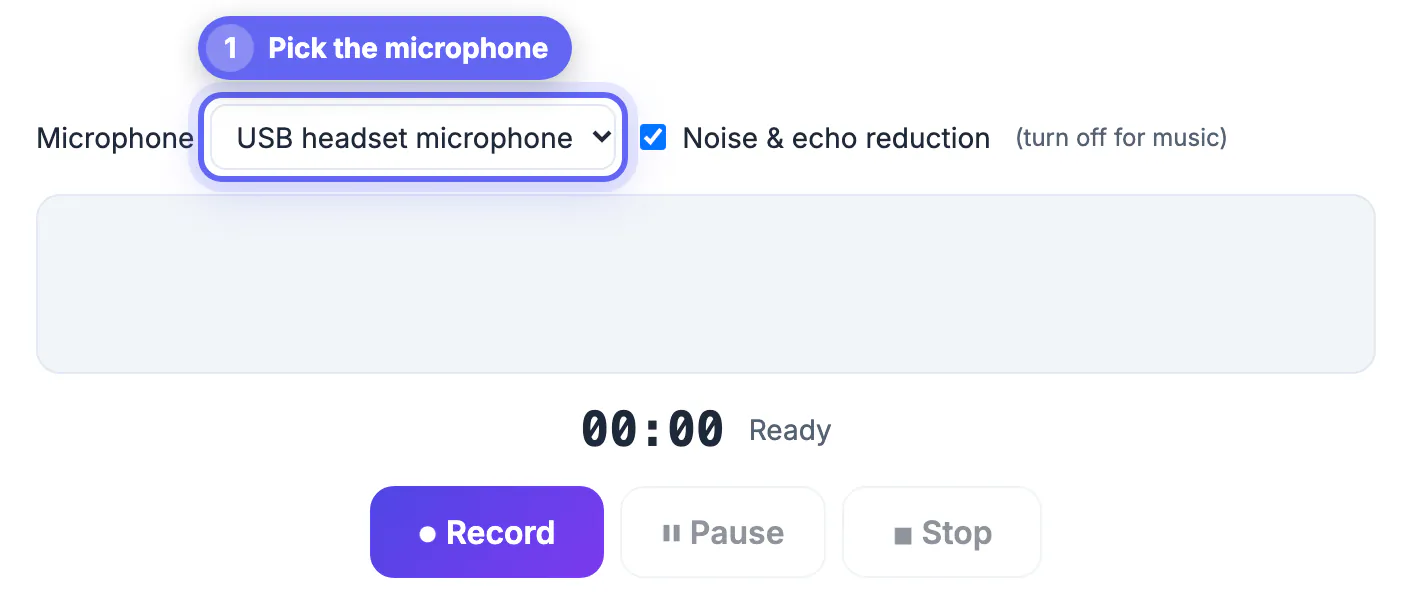
- Pick the right input: if you have a USB mic plugged in, choose it in the tool's Microphone list rather than the laptop's built-in one
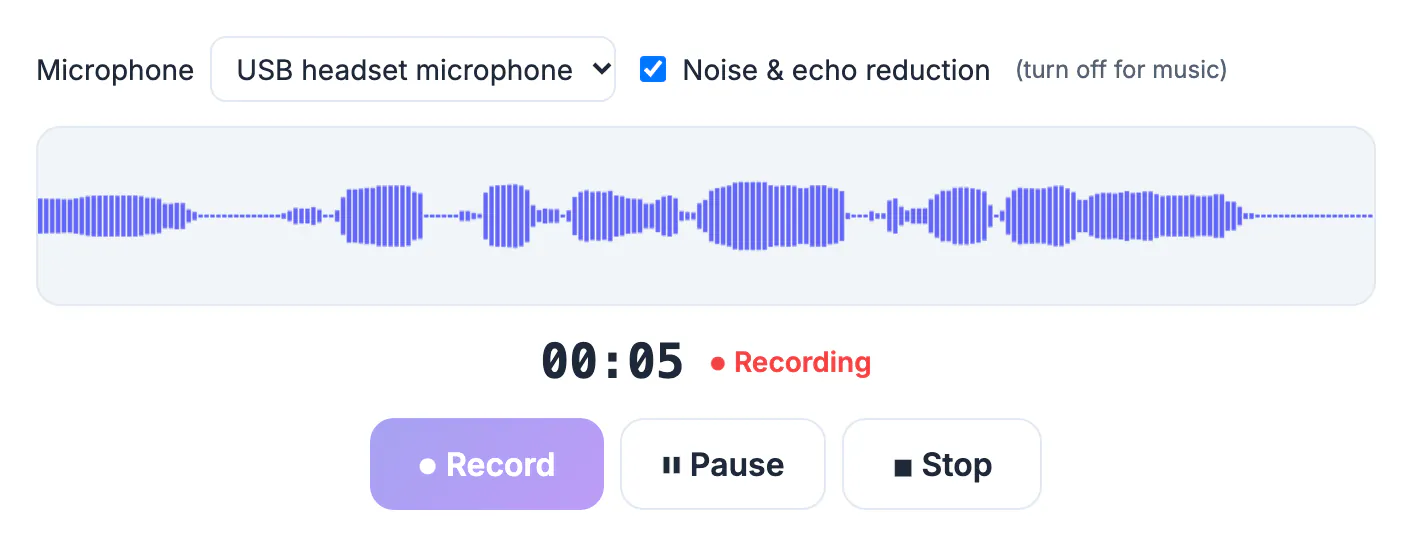
- Watch the level meter while you read the first line; peaks should sit around two thirds of the bar, never slamming the top
- Pause between paragraphs to breathe, sip water or turn a page, then resume on the same file
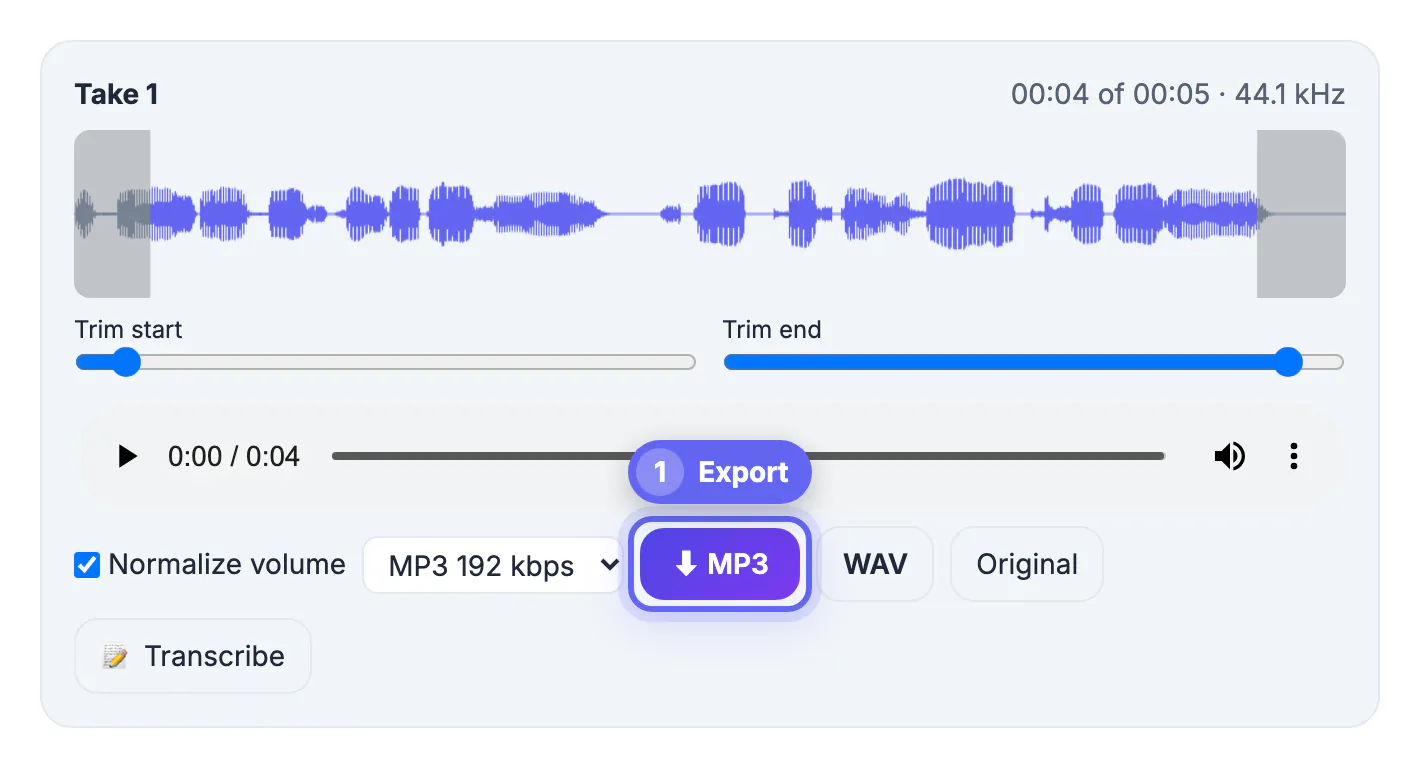
- Stop, listen through headphones, and trim the click of the mouse at the start and the silence at the end
- Leave Normalize volume on, then export MP3 for sharing or WAV for further editing; noise reduction was already applied while you recorded
If you hear crackle or harsh distortion on playback, the input was too hot; move back a few inches and do it again rather than trying to fix it afterward.
Retakes are cheap, so use them. Professional narrators routinely read a tricky sentence three times in a row, then keep the best version during trimming; you can do the same by pausing, repeating the line and cutting the weaker attempts afterward.
Getting studio-like sound at home
Room and distance shape the result far more than the microphone price. A 25-dollar USB mic in a quiet, soft room beats a 200-dollar condenser in a bare kitchen.
- Sit 4 to 6 inches from the mic and speak slightly across it, not straight into it, to soften pops on P and B sounds
- Choose a small room with carpet, curtains or a closet full of clothes; hard walls cause the hollow, echoey sound listeners notice first
- Switch off the fridge, the AC and notification sounds, since noise reduction handles steady hum but not a phone buzz
- Keep a steady distance; leaning in and out makes volume jump, which even normalize cannot fully smooth
- Read from a script on a tablet, not rustling paper, and mark breathing points in advance
Noise reduction is a trade-off: a strong setting removes hiss but can make a voice sound slightly watery, so compare before and after on headphones.
A quick self-check: play the finished file on cheap earbuds and on a laptop speaker. If it sounds clear on both, it will sound fine on almost any device your listeners use, from car stereos to smart speakers.
If the recording picks up background noise, read how to reduce background hiss and hum before you export.
MP3 or WAV and keeping files private
Both formats come out of the same take, so the choice depends only on what happens next.
- MP3 at around 128 to 192 kbps is roughly 1 to 1.5 MB per minute and plays everywhere, ideal for email, chat and upload forms
- WAV is uncompressed, about 5 MB per minute in mono, and is the safe choice if an editor will cut, mix or master it
- Never convert an MP3 back to WAV expecting better quality; the detail lost in compression does not come back
- Processing happens in your tab and nothing is uploaded, so personal messages and unreleased scripts stay on your device
- Name files descriptively, such as Intro-v2-2026-09.mp3, and keep the WAV master of anything you might reuse
Because nothing is stored online, closing the tab before downloading discards the take, so save first and tidy up afterward.
If you plan to caption or quote the take later, run the WAV or MP3 through the AI Studio transcriber, which also works locally, and you will have a text version in a couple of minutes.
Step-by-step
Common mistakes to avoid
Pro tips
Frequently asked questions
Can I record my voice online without downloading an app?
Yes. The recorder runs in a normal browser tab on Windows, Mac, ChromeOS, Android and iPhone, with no install and no account.
Is my voice recording uploaded anywhere?
No. Capturing, trimming, noise reduction, normalizing and exporting all happen locally in your browser, and the file downloads straight to your device.
Should I save as MP3 or WAV?
Use MP3 for sharing and uploads because it is small and universal. Use WAV when someone will edit or mix the audio, because it keeps every detail.
What does normalize do?
It raises or lowers the whole take so the loudest part reaches a consistent target level. It evens out overall volume but will also lift any background noise.
Can I pause and continue the same recording?
Yes. Pause and resume keep adding to one file, so you can stop for a breath or a page turn without creating separate clips to join later.
Record your voice online free in a quiet, soft room, keep peaks below the top of the meter, pause instead of restarting, then trim, clean and export MP3 for sharing or WAV for editing, all without uploading a word.
Related guides
Browse more: all video and audio guides · the Voice Recorder tool