Record Screen on Mac With No App to Install
You can record the screen on a Mac without installing anything in two ways: press Shift-Command-5 to use the capture toolbar built into macOS, or open GrabCast's Screen Recorder in Chrome, Edge, Firefox or Safari. The built-in toolbar is great for a quick clip saved as a MOV file; the browser route adds a webcam bubble, pause and resume, a 1080p60 preset, tab audio and MP4 export from one page. Either way the file stays on your Mac. This guide compares the two honestly and fixes the problems that catch almost everyone the first time: the privacy permission, missing sound and oversized files.
🎥 Try Screen Recorder now — freeOpen →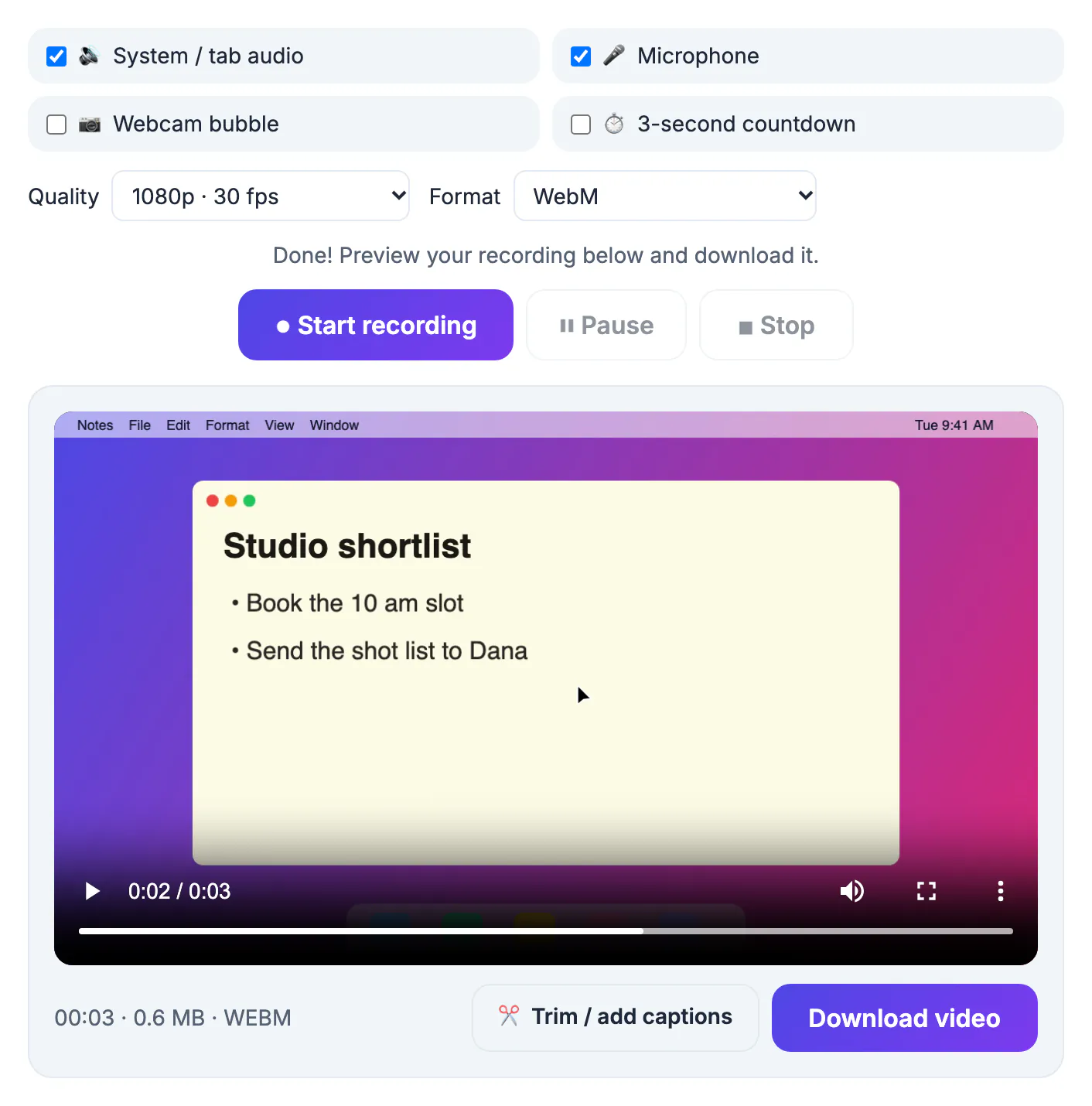
Plenty of Mac users cannot install software freely. Work laptops are often managed, so new downloads need an admin password or an IT ticket, and school machines are locked down tighter still. Even on a personal MacBook Air with 256 GB of storage, a heavyweight recording suite is a lot of space for a task you do twice a month. A capture tool that lives in the operating system or in a browser tab avoids all of that. It behaves the same on an Intel iMac and a new M-series laptop, updates itself, and leaves nothing running in the menu bar when you are done. The trade-off is fewer advanced editing features, which most quick captures never need. If you later find yourself recording daily, adding zoom effects or editing multi-track timelines, that is the moment a dedicated app earns its disk space; until then, the built-in toolbar and a browser tab cover bug reports, quick demos, lecture snippets and feedback videos for colleagues.
Shift-Command-5 vs a browser recorder on a Mac
Both options are free and already available. The right one depends on whether you need extras such as your face on camera or computer sound.
- Shift-Command-5 captures the whole display or a dragged region and saves a MOV file to the Desktop by default.
- Its Options menu lets you pick a microphone, a save location and a timer, but it does not capture system sound.
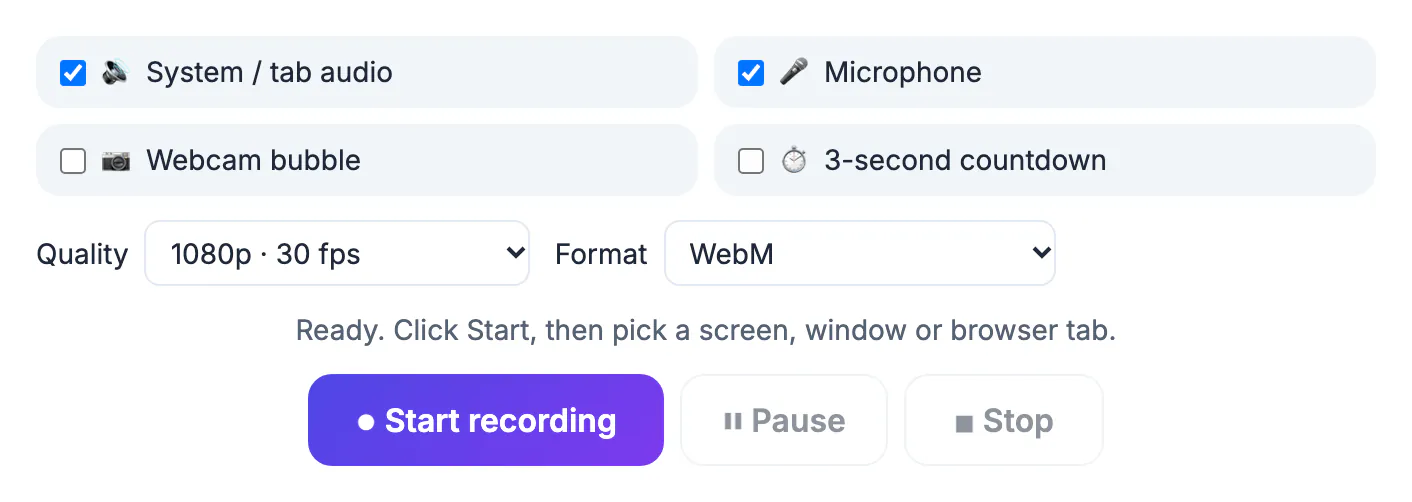
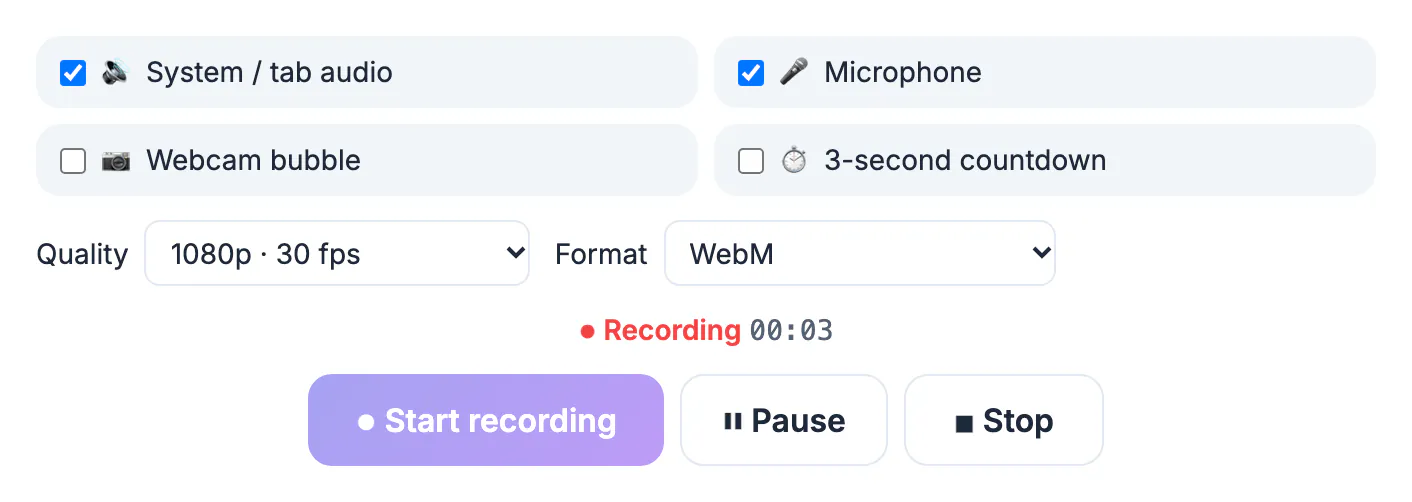
- The GrabCast tool adds pause and resume, a three-second countdown, and 1080p30, 1080p60 or 720p presets.
- In Chrome or Edge it can overlay a webcam bubble in any corner, in a circle or rounded square.
- It saves MP4 where the browser supports it, which drops straight into Google Slides, Windows PCs and most upload forms.
Grant the screen permission once
macOS blocks every program from seeing the display until you allow it. The first capture attempt triggers a prompt, and missing it is the reason for most black or wallpaper-only videos.
- Open System Settings, then Privacy and Security, then Screen and System Audio Recording (called Screen Recording on older versions).
- Switch on the browser you use, such as Chrome, Safari, Edge or Firefox.
- macOS asks you to quit and reopen that browser; the permission only takes effect after a relaunch.
- Camera and Microphone have separate switches on the same Privacy page, so check them if the bubble or voice is missing.
- Safari also asks per website, so allow the site when the sharing prompt appears.
Getting sound into a Mac capture
Voice is easy; computer sound is where the Mac is strict. Plan for this before you record a video that relies on audio playing on screen.
- Your microphone works in both tools once permission is granted.
- Browsers on macOS generally cannot capture the whole system's sound, but sharing a single Chrome or Edge tab can include that tab's audio.
- If the sound you need comes from a desktop program, play the media in a browser tab instead, or accept that a virtual audio driver such as BlackHole means installing something.
- Using AirPods as the mic switches Bluetooth to a lower-quality headset mode; the MacBook's built-in mic array often sounds better.
- Capture ten seconds and play it back before a long take to confirm both voice and tab sound are there.
Retina files, sizes and sharing
Retina displays have far more pixels than a typical video needs, which can make captures huge. The browser tool asks for about 1080 lines of height, keeping files reasonable.
- Expect roughly 60 MB per minute at 1080p30, 90 MB at 1080p60, and 30 MB at 720p.
- Shift-Command-5 captures at the display's full resolution, so a few minutes on a 5K iMac can run to several hundred megabytes.
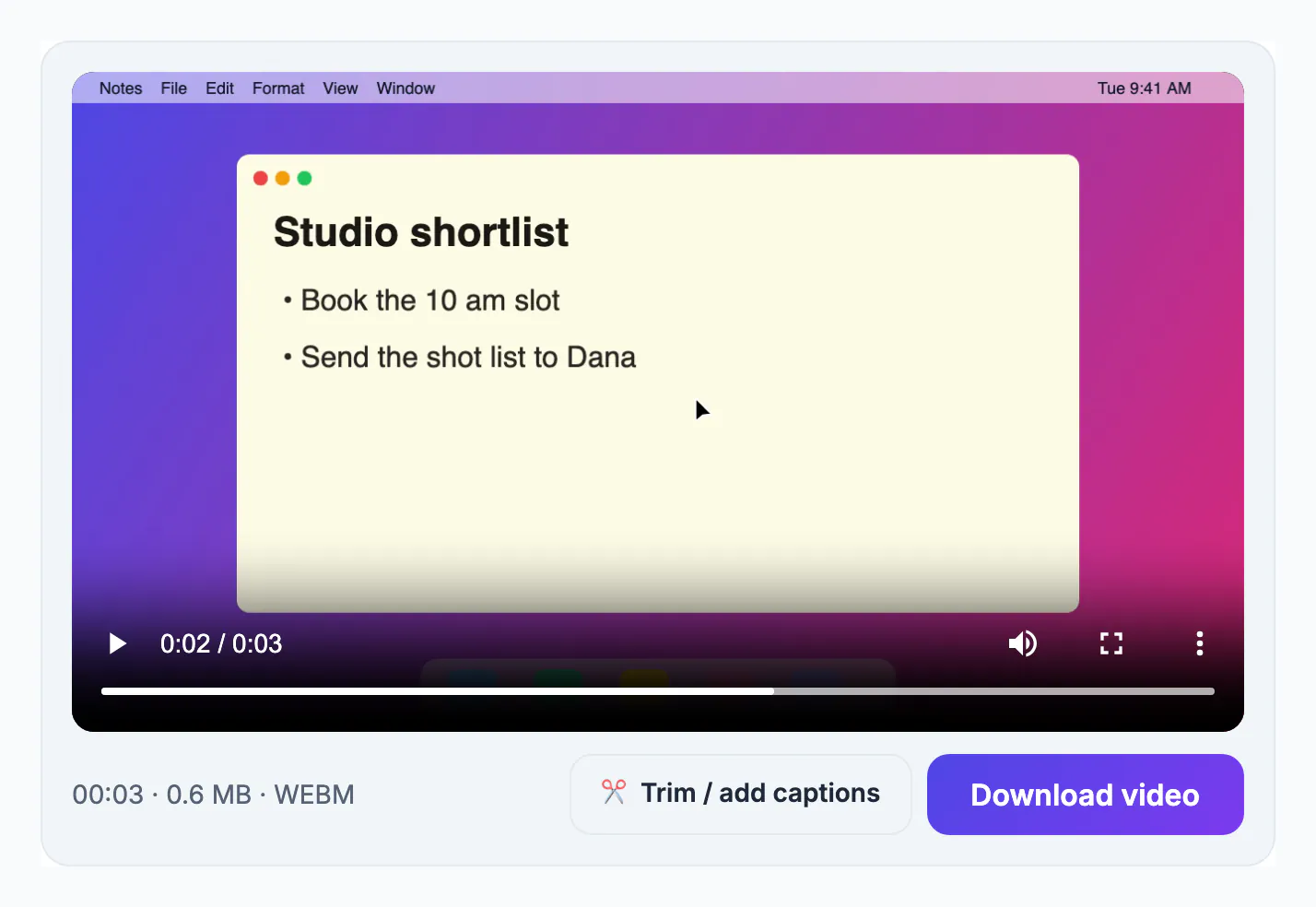
- Downloads land in your Downloads folder named with the date and time, ready for AirDrop, Messages or a shared drive.
- Cut the fumbled start and the reach for Stop in the Video Trimmer, and use Video Compressor if a mail limit still blocks the file.
- Turn on Do Not Disturb from Control Center first so notifications do not slide into the shot.
Step-by-step
Common mistakes to avoid
Pro tips
Frequently asked questions
Do I need QuickTime Player?
No. QuickTime's New Screen Recording command opens the same Shift-Command-5 toolbar, and the browser recorder needs nothing extra at all. Both are already on your Mac, so there is nothing to download, license or keep updated separately.
Why is my Mac recording black?
The browser lacks screen permission. Enable it under System Settings, Privacy and Security, Screen and System Audio Recording, then quit and reopen the browser before recording again. If it is already on, toggle it off and on once; macOS updates occasionally reset the list.
Can I record system sound on a Mac without installing anything?
Only partly. Sharing a Chrome or Edge tab can include that tab's audio, but capturing all system sound on macOS generally requires a virtual audio driver, which is an install.
Does it work on Apple silicon Macs?
Yes. The recorder runs in the browser, so M1, M2, M3, M4 and Intel Macs behave the same with any up-to-date Chrome, Edge, Firefox or Safari.
Where do my recordings go?
The browser version downloads to your Downloads folder as MP4 or WebM, named with the date and time, after you preview it and press the download button. The Shift-Command-5 toolbar saves MOV files to the Desktop unless you pick another location in Options.
Your Mac already records its own screen. Use Shift-Command-5 for quick silent clips and the GrabCast Screen Recorder when you want voice, a webcam bubble, tab sound or MP4, and grant the privacy permission once so every later capture just works.
Related guides
Browse more: all video and audio guides · Screen Recorder