Best Free Screen Recorder: What to Compare
The best free screen recorder for most people captures 1080p with system audio and your mic, adds a webcam bubble, and saves an MP4 with no watermark and no install. Windows and macOS each ship a recorder, OBS Studio is free and powerful, and Loom is built for quick shares, yet each misses something. This roundup shows what each option really does in 2026 and which one fits tutorials, bug reports, lessons and quick walkthroughs. Disclosure: some links below are affiliate links, and GrabCast may earn a commission at no extra cost to you.
🎥 Try Screen Recorder now — freeOpen →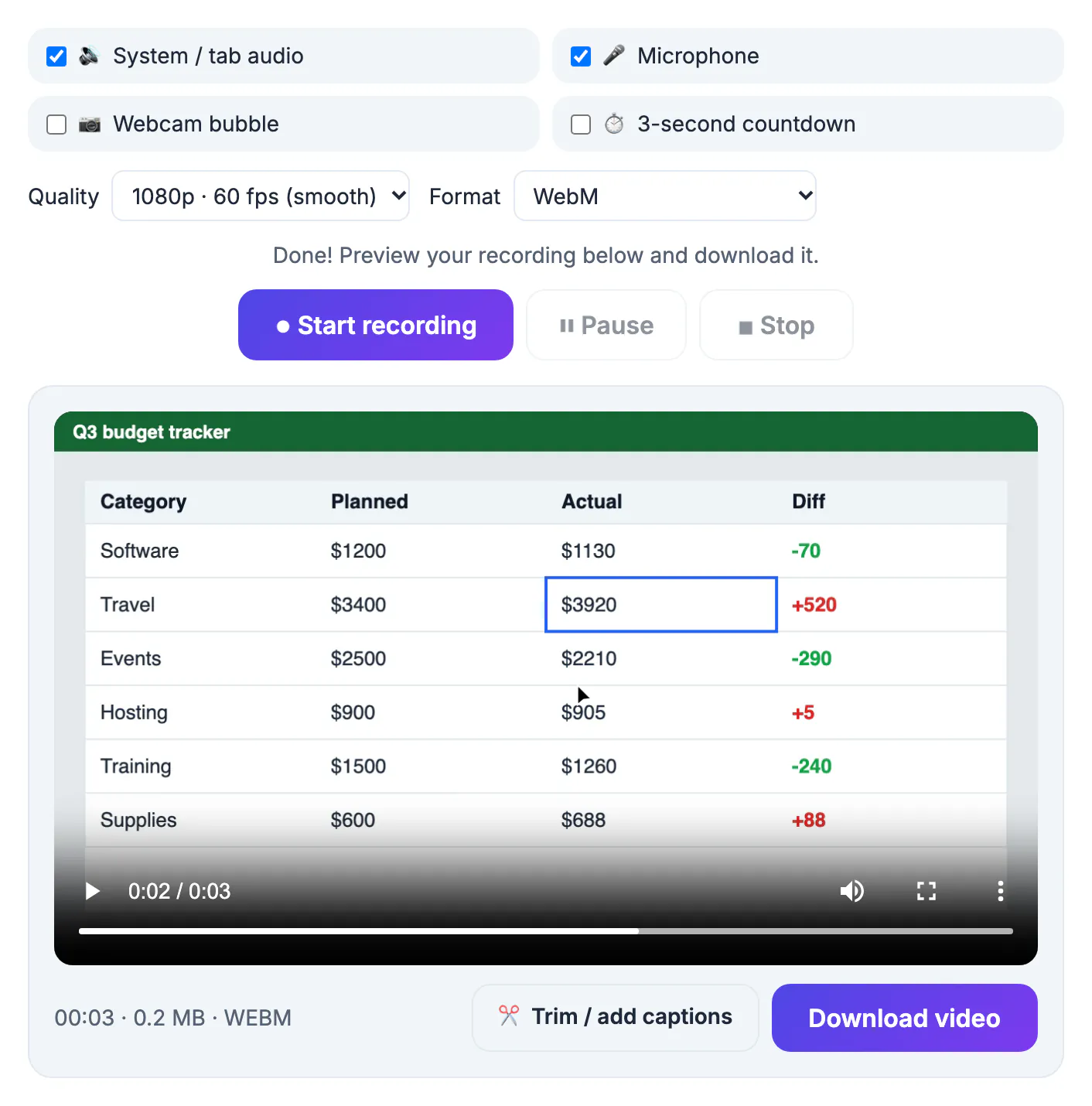
Built-in capture covers the basics and then stops. The macOS Screenshot toolbar, opened with Shift-Command-5, records the display and a microphone but not the sound your apps play. Xbox Game Bar on Windows records one app window at a time and not the desktop itself. Snipping Tool now records video, yet it offers no webcam overlay and no pause. OBS fills every gap but asks you to set up scenes, sources and encoders before your first take. The result: people either live with missing audio or spend an evening learning a broadcast tool to record a two-minute how-to. Paid recorders solve this with polish and cloud storage, which is worth it for teams sharing dozens of walkthroughs a week. Individuals, teachers and support staff usually need something in between: every common feature, available in seconds, with the file saved on their own computer.
Free screen recorder options side by side
- macOS Screenshot toolbar: zero setup and saves a MOV, but no app sound, no pause and no webcam bubble
- Windows Snipping Tool and Game Bar: built in, but no camera overlay, and Game Bar skips the desktop and File Explorer
- OBS Studio: free, unlimited, every feature a streamer needs; expect about an hour of setup and a steeper learning curve
- Loom: instant share links and viewer analytics, but an account is required and the free plan caps video length
- GrabCast Screen Recorder: a browser page with system audio, mic, webcam bubble, pause, countdown, 60fps and MP4, no account
If you record once a month, the built-in option plus a separate audio fix may do. If you record weekly, the missing features start costing real time.
What the GrabCast recorder does, precisely
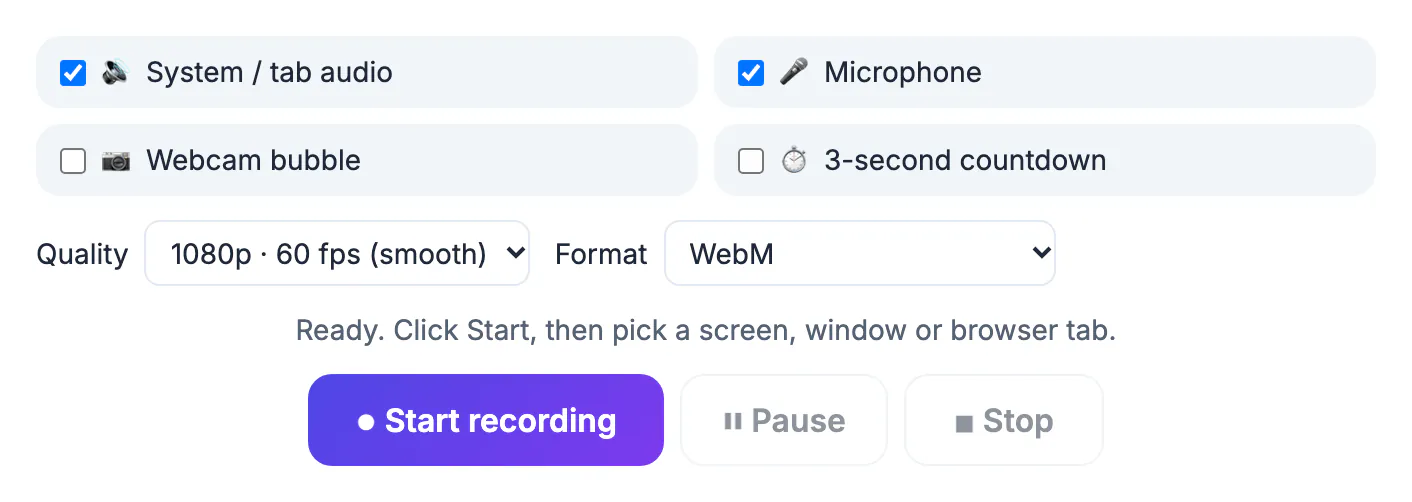
Tick what you want captured: system or tab audio, microphone (with echo cancellation and noise suppression), a webcam bubble and a 3-second countdown. The bubble can sit in any corner, in small, medium or large size, as a circle or a rounded square, and it keeps recording smoothly even while you work in another tab.
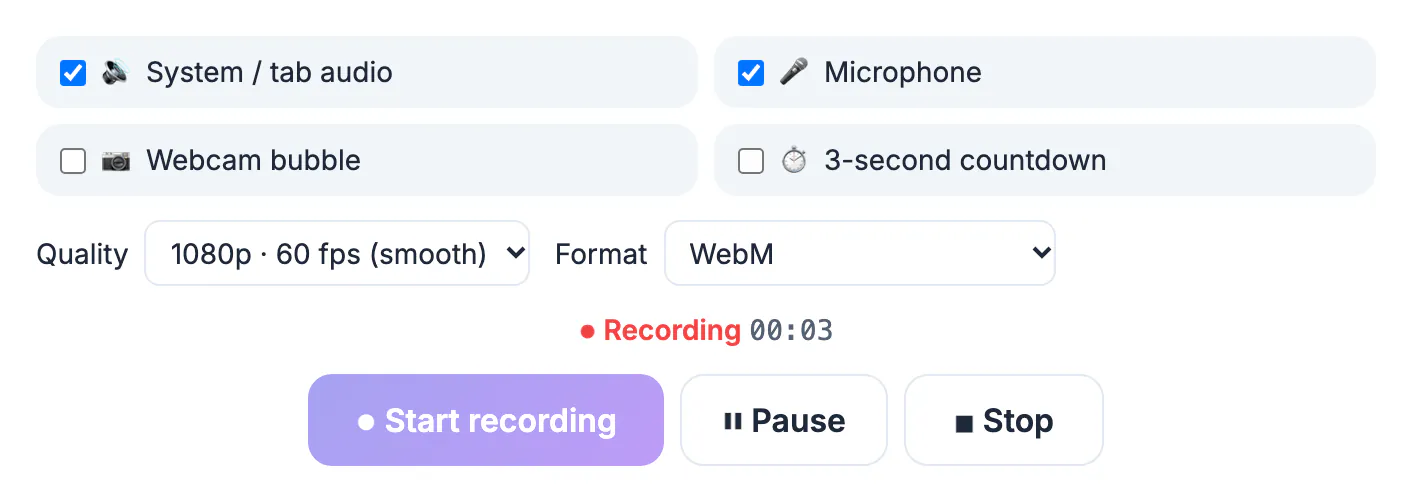
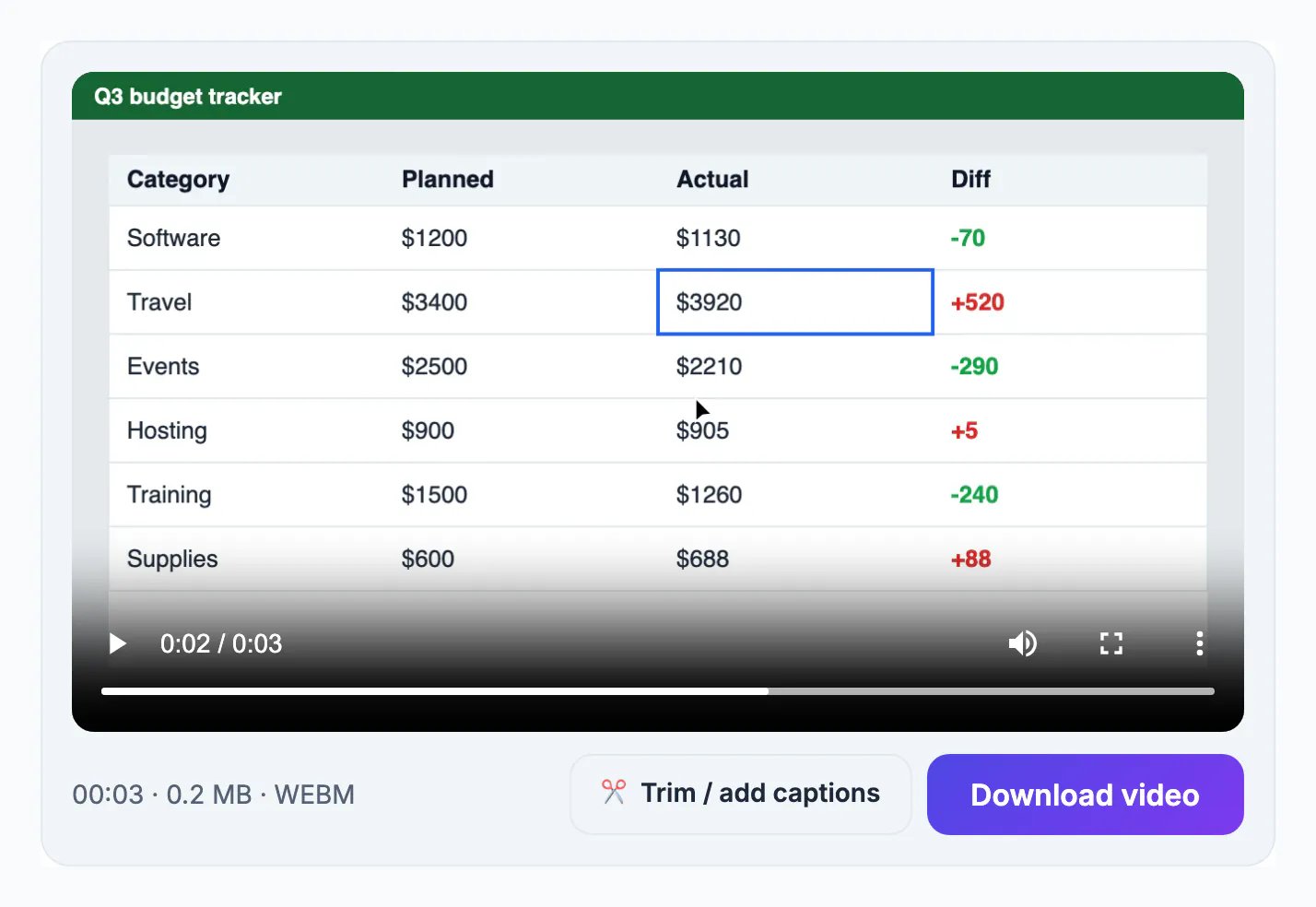
Pick 1080p at 30 fps, 1080p at 60 fps for fast scrolling or cursor-heavy demos, or 720p for smaller files. Save as MP4, which plays everywhere, or WebM. A Pause button lets you stop to open the next app without cutting later. When you stop, the clip plays back in the page with its length and size, ready to download; the Trim / add captions button then opens the Video Trimmer, where you load the saved file to cut it or add captions.
Because the capture runs in the page, there is nothing to update, no background service using memory, and no login screen between you and the record button. Close the tab and nothing keeps running.
File size and quality math before you hit record
Recorders set a bitrate, and bitrate decides file size far more than duration does. GrabCast records at roughly these rates:
- 720p at 30 fps: about 4 Mbps, or around 30 MB per minute
- 1080p at 30 fps: about 8 Mbps, or around 60 MB per minute
- 1080p at 60 fps: about 12 Mbps, or around 90 MB per minute
- A 10-minute 1080p lesson therefore lands near 600 MB; compress it before emailing
Use 60 fps only when motion matters, such as scrolling code, games or animation. Slides and talking over a document look identical at 30 fps and take a third less space.
If a recording ends up too large, the Video Compressor can shrink it afterwards.
Honest limits of a browser recorder
- Desktop only: phone and tablet browsers do not allow screen capture, so use iOS or Android built-in recording there
- The webcam bubble needs Chrome or Edge; Firefox and Safari record screen and audio without the overlay
- System audio depends on browser and OS: sharing a Chrome tab always includes that tab sound, while full-desktop audio works best on Windows
- No live annotation, zoom or scene switching; for streaming or multi-camera shoots, OBS remains the right tool
Everything stays on your computer: the recording is built in the page and saved by your browser, so nothing is uploaded unless you choose to share the file.
For most tutorials, bug reports and short lessons, those limits never come up. If they do, the fallback is simple: record on the phone’s own recorder, or use OBS for the one project that needs scenes.
Movavi Screen Recorder is a paid desktop app for Windows and Mac. Its product page lists webcam overlay, noise reduction and scheduled recordings, and it offers a free trial with limits such as a watermark. It is worth a look if you record every week and want an offline app rather than a browser tab. Try the free GrabCast recorder first, and check the current terms and price before buying.
See Movavi plans →Step-by-step
Common mistakes to avoid
Pro tips
Frequently asked questions
What is the best free screen recorder with no watermark?
OBS Studio and the GrabCast Screen Recorder are both free with no watermark. OBS suits streaming and complex scenes; GrabCast suits quick tutorials with system audio, mic, webcam bubble and MP4 export, with nothing to install. Both save files you own, so you can post to YouTube, a course platform or a help center without re-exporting.
Can I record my screen with my face in the corner for free?
Yes. Turn on the webcam bubble in Chrome or Edge, pick a corner, size and shape, and it is drawn into the recording as you capture. The camera feed is mirrored like a video call, so gestures and pointing look natural to viewers.
Does the recorder upload my video anywhere?
No. The recording is assembled in your browser and saved to your computer. It only leaves your device if you share the file yourself.
Is there a time limit on recordings?
There is no fixed cap or account quota. The practical limit is disk space and memory; at 1080p 30 fps, plan on about 60 MB per minute. At 720p the rate drops to about 30 MB per minute, handy for long lectures on a laptop with little free space.
Why is there no sound from my apps in the recording?
The system audio box must be ticked, and in the share dialog you must allow audio. On a Mac, sharing a single Chrome tab is the reliable way to capture its sound. Firefox and Safari generally do not pass system audio to web pages, so use Chrome or Edge when app sound matters.
For quick tutorials, demos and lessons, the best free screen recorder is one that captures sound, face and screen in one MP4 without an install or watermark. Keep OBS for streaming, and use the browser recorder for everything you need to ship today.
Related guides
Browse more: all video and audio guides · Screen Recorder