Best Free Online Video Trimmer: How to Judge
The best free online video trimmer cuts exactly where you ask, keeps the original quality, and hands back a file with no watermark and no upload. Most tools look identical on the landing page, so the only fair way to compare them is to trim the same clip in each and inspect the result. Below is what to check, how built-in apps and upload sites stack up, and when GrabCast is or is not the right pick. Disclosure: some links below are affiliate links, and GrabCast may earn a commission at no extra cost to you.
✂️ Try Video Trimmer & Subtitles now — freeOpen →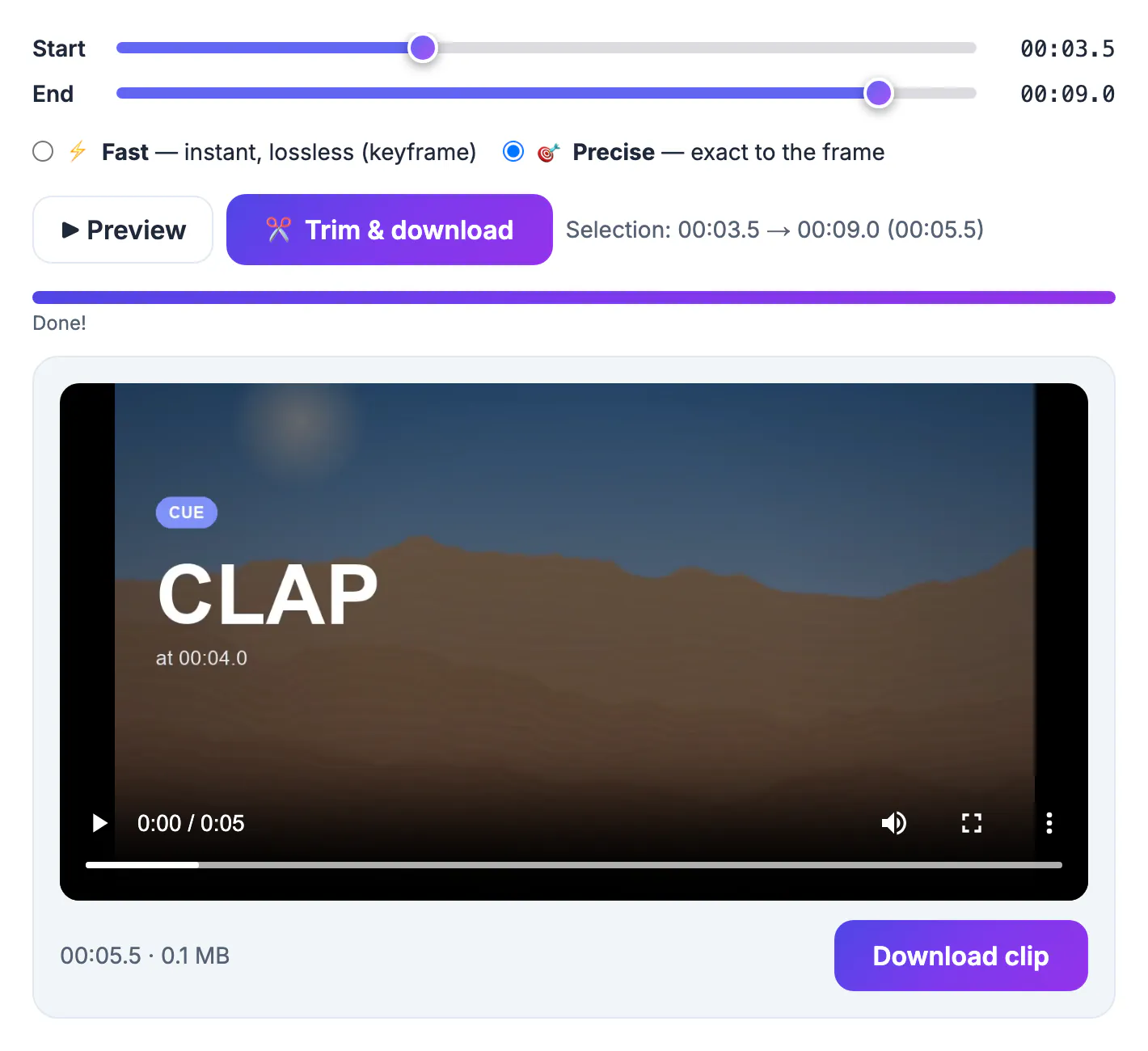
Cutting a clip sounds trivial, but compressed footage is stored as keyframes, full pictures every second or two, with small change-only frames in between. A tool can either copy the existing data and snap the cut to the nearest keyframe, which is instant and lossless, or decode and re-encode everything so the cut lands on the exact frame you chose. Re-encoding costs time and a little quality; copying can start your clip up to a second or two early. Many free sites re-encode at a low bitrate to save server costs, which is why a crisp 1080p phone clip sometimes comes back soft and blotchy. The quickest tell is file size: if a 100 MB source trimmed in half comes back at 12 MB, the tool re-encoded aggressively, and fine detail such as text on a slide or leaves on a tree will show it. A faithful lossless cut of half the length should weigh roughly half as much.
Four tests that expose a weak video trimmer
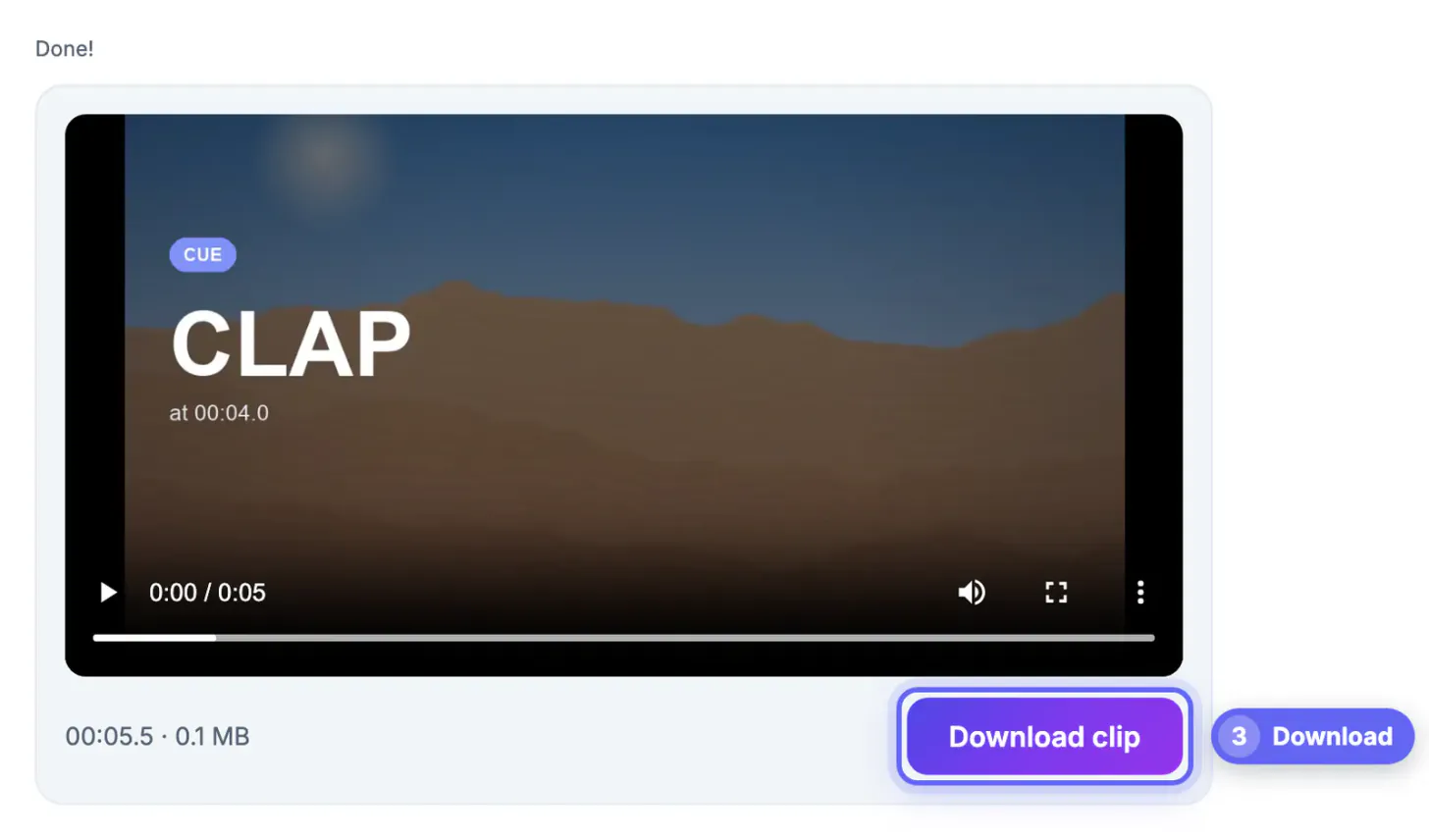
- Cut accuracy: trim to start on a hand clap and check whether the first frame shows the clap or a moment before it
- Fidelity: compare resolution, frame rate and bitrate before and after; a 12 Mbps source should not come back at 3 Mbps
- Audio sync: watch a talking head at the end of the output; lips drifting from sound means a sloppy re-encode
- Honesty of the export: no logo in a corner, no forced sign-up to download, and no resolution cap on the free plan
Your phone or computer already shows file details. On a Mac, press Command-I on the output; on Windows, open Properties and the Details tab to read frame rate and bitrate.
Run all four checks on the same source and keep a note of the numbers. Two minutes of inspection saves you from discovering a soft, out-of-sync export after it is already posted to a client or a feed.
Built-in apps, upload sites and editors compared
- iPhone Photos and Android Gallery: fine for chopping the ends off a clip you shot, but no frame-exact control or subtitles
- QuickTime on Mac and Clipchamp on Windows: free and capable, yet one is Mac-only and the other wants a Microsoft sign-in
- Upload sites: work anywhere, but you wait for the upload, often face a size cap, and your footage sits on someone else’s server
- Desktop editors like DaVinci Resolve: professional precision with a real learning curve and a multi-gigabyte install
A browser trimmer that works locally sits between these: it runs on any desktop or phone browser like an upload site, but nothing leaves the device, like a desktop app.
How GrabCast handles cuts and exports
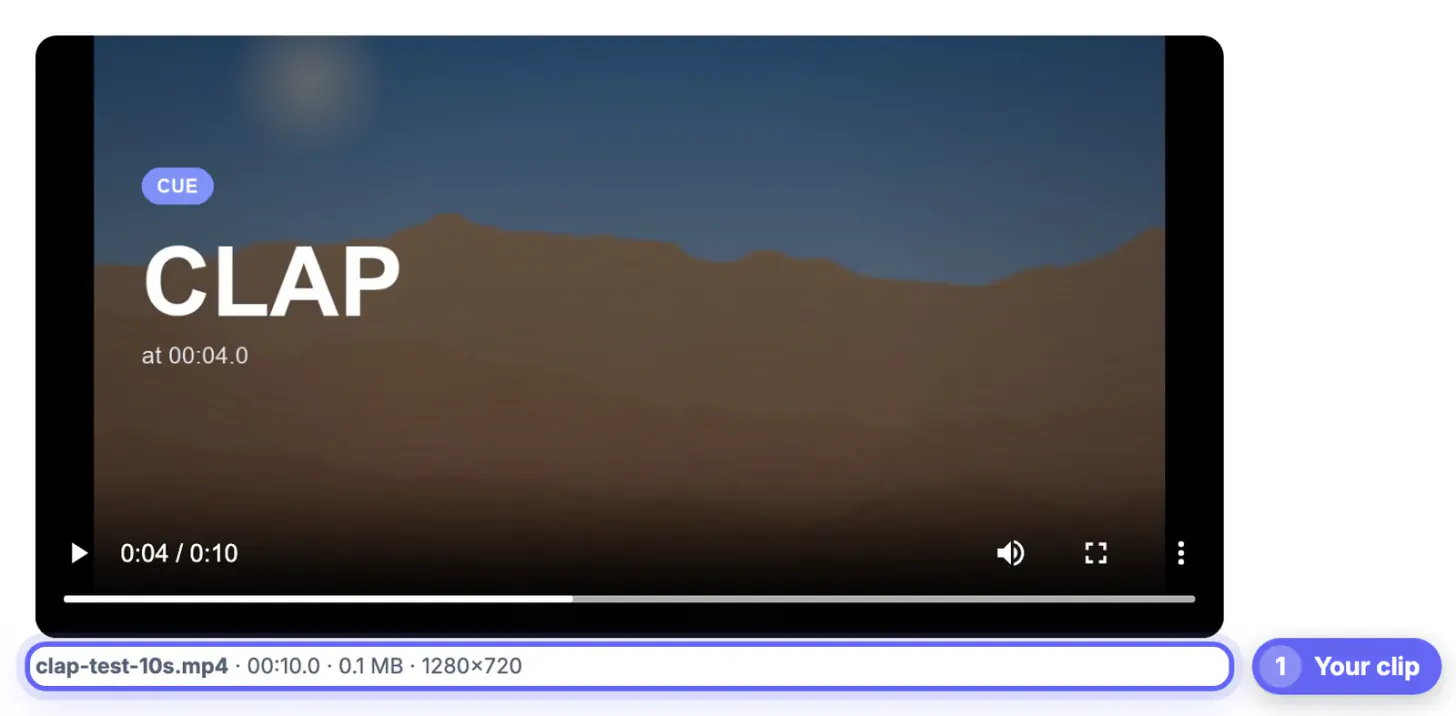
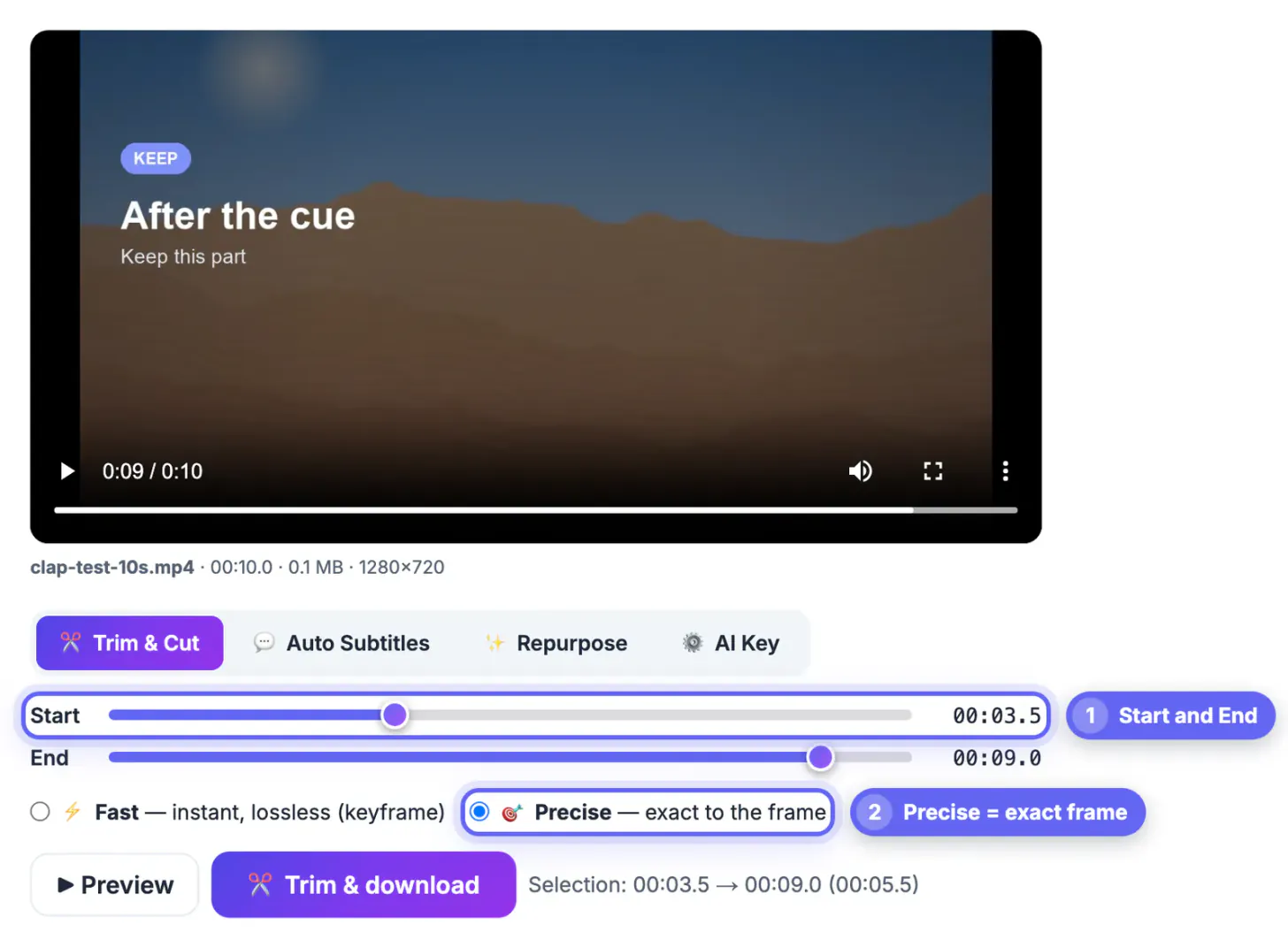
Drop a clip and GrabCast shows it with Start and End sliders plus a Preview button. Pick Fast for an instant, lossless keyframe copy, or Precise to cut on the exact frame with a re-encode. The engine is ffmpeg compiled for the browser; it downloads once (about 32 MB) and is cached after that.
The same page also generates subtitles, burns styled captions into an MP4 and builds a repurposing pack of chapters and summaries. Nothing is uploaded for the trim itself, and there is no watermark or account. The limit is memory: very large files, roughly over 500 MB, can fail in a browser, and phones cope best with clips under about 150 MB.
When another tool is the better call
A fair roundup admits the gaps. GrabCast cuts one continuous range per pass and is not a timeline editor, so it will not splice five scenes, add transitions or mix music.
- Multi-clip edits with music and transitions: a phone editor or Clipchamp does this better
- Hour-long 4K recordings: a desktop editor avoids browser memory limits
- Quick chop of a clip already in your camera roll: the built-in Photos trim is fastest
- Private footage, precise cuts and captions in one pass, on any computer: that is the sweet spot for GrabCast
Most people end up with two tools: a local browser trimmer for quick, clean cuts and a full editor for the rare big project.
Match the job to the tool and you will rarely need more than a browser tab plus one full editor for the occasional big project.
If your trimmed clip is too large, the Video Compressor helps, and the Crop & Resize Video tool handles aspect ratio changes.
Movavi Video Editor is a paid desktop editor for Windows and Mac with a multi-clip timeline, plus features such as automatic subtitles and noise removal listed on its product page. It suits long projects with many clips, music and titles that outgrow a browser tool. A free trial exists with limits such as a watermark, so test your own footage first and check the current price.
See Movavi plans →Step-by-step
Common mistakes to avoid
Pro tips
Frequently asked questions
What is the best free online video trimmer?
The one that matches your source quality, cuts where you ask and exports without a watermark or upload. For private, precise single-range cuts with optional captions, GrabCast fits; for multi-scene edits, a timeline editor such as Clipchamp or CapCut is the better tool.
Does trimming a clip reduce its quality?
Not with a lossless keyframe copy, which reuses the original data. A frame-exact trim re-encodes, which costs a little quality; GrabCast Precise mode uses a high-quality setting, so the difference is hard to spot on normal screens.
Why does my trimmed clip start slightly early?
Lossless mode must begin on a keyframe, and phones place one every second or two. Switch to Precise mode when the cut has to land on an exact frame. For quick social cuts, the extra half second rarely matters and Fast mode saves time.
Is there a file size limit?
There is no fixed cap, but everything runs in your device memory. Desktop browsers comfortably handle a few hundred megabytes; phones do best under about 150 MB. Very large files can fail, so trim long recordings on a computer.
Can I trim on an iPhone without an app?
Yes. Open the trimmer in Safari, pick the clip from Photos, set the range and download. It works on Android Chrome too, within the phone memory limits above. The first run downloads the cutting engine once, so start on Wi-Fi; later trims open instantly from cache.
Judge a video trimmer by the file it hands back: exact cuts, source-level quality, clean audio sync, no watermark and no upload. Test three tools on one clip and the winner is usually clear within ten minutes.
Related guides
Browse more: all video and audio guides · Video Trimmer & Subtitles