Trim Video on iPhone in Safari, No App Download
To trim a video on your iPhone without an app, open GrabCast's Video Trimmer in Safari, pick the clip, drag the Start and End sliders, and tap Trim and download; Fast mode copies your footage without re-encoding, so it keeps the exact quality you shot. Be honest with yourself first, though: for a simple trim, the Photos app's own Edit button already does this well. The browser option earns its place when you need a frame-exact MP4 that plays on any Windows PC, captions generated from the speech, or a cut you can make on a work phone without installing anything. Here is how it behaves on a phone, including memory limits and the save-to-Photos step people miss.
✂️ Try Video Trimmer & Subtitles now — freeOpen →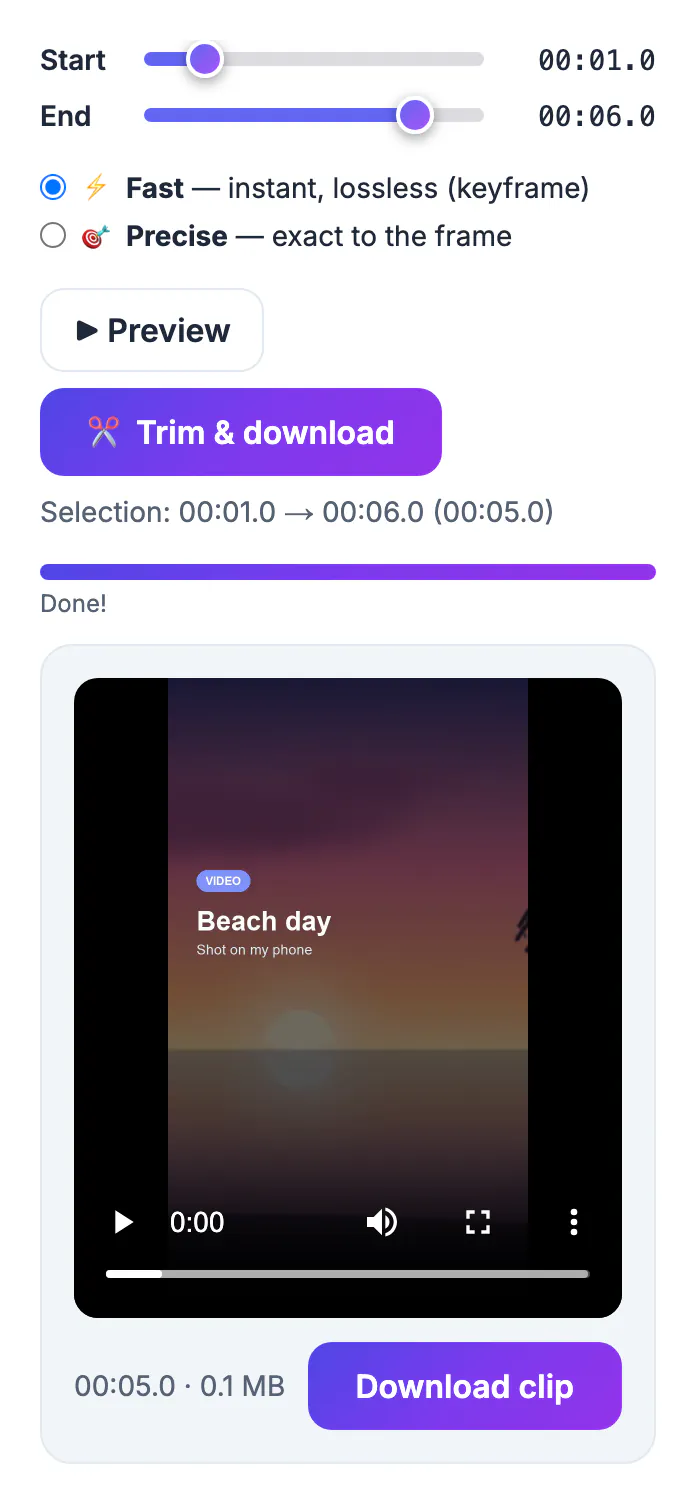
Photos is great for chopping the ends off a clip, and it can save the result as a new clip so the original survives. Its limits show up in other places. iPhone footage is usually HEVC in a MOV container, which some Windows PCs, older Android phones and school portals still refuse to play; converting it means another app. Photos also cannot add subtitles, and caption apps in the App Store often come with subscriptions, watermarks or ads. On a managed work iPhone, installing a new editor may be blocked outright. A trimmer that runs in Safari solves those cases, reads the file locally, and leaves nothing behind once you close the tab. It is also useful when you borrow someone else's phone or iPad for a quick edit and do not want to sign into their App Store account, or when storage is too full to install yet another editor.
Pick the clip without surprise conversions
Tap the drop area and iOS offers the Photo Library, Take Video or Choose File. Which one you use can change the file you actually get.
- Depending on your iOS version and settings, the photo picker may hand the browser a converted, more compatible copy.
- If the size shown in the tool looks smaller than expected, save the clip to Files first and pick it from Choose File.
- Settings, Camera, Formats decides how you shoot: High Efficiency records HEVC, Most Compatible records H.264.
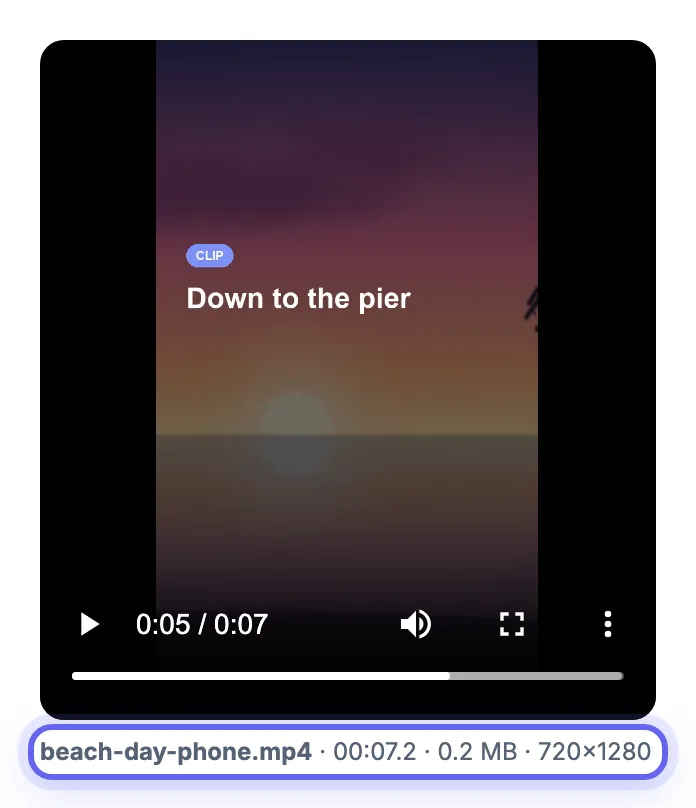
- Once loaded, the tool shows the clip's name, length, size and resolution so you can confirm it is the original.
- Everything is read on the phone; nothing is sent to a server.
Memory limits on an iPhone
Because the whole file must fit in the browser's memory, a phone handles far less than a laptop. The tool warns you before you hit the wall.
- An information note appears above about 150 MB, and a stronger warning above about 250 MB.
- Apple estimates one minute of HEVC at roughly 60 MB for 1080p30, 170 MB for 4K30 and 400 MB for 4K60.
- That means a 4K60 clip longer than about 35 to 40 seconds is likely too big to process in Safari.
- For longer 4K footage, make a rough cut in Photos first, or AirDrop the file to a Mac and trim it there.
- Close other tabs and apps before a large export to give Safari as much memory as possible.
Fast or Precise on a touchscreen
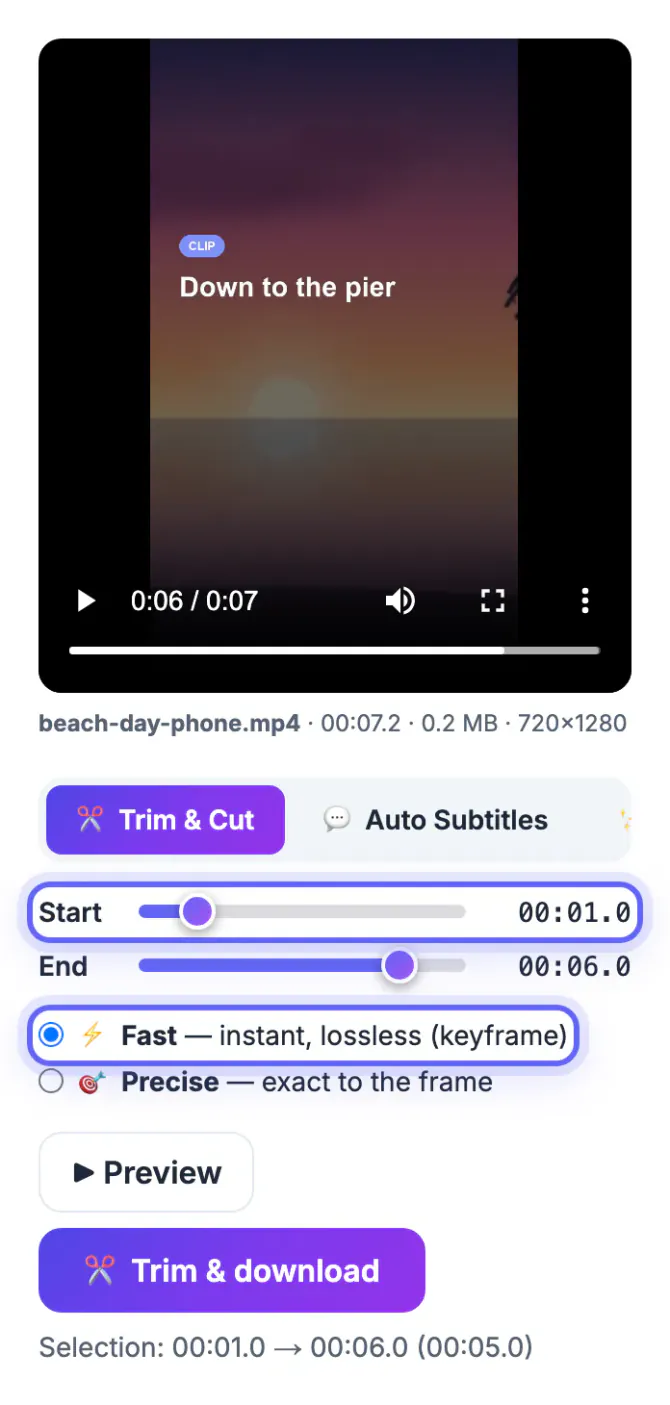
The sliders show time to a tenth of a second. Drag slowly, then tap Preview, which plays only the selected range.
- Fast copies the streams, keeps the original HEVC MOV, and finishes in seconds; its start snaps to the nearest keyframe.
- Precise re-encodes the kept range to an H.264 MP4 at CRF 20, which plays almost anywhere but is slow and battery-hungry for 4K on a phone.
- HDR clips keep their look with Fast; Precise produces standard H.264, so bright HDR footage can look flatter.
- The trimming engine is a one-time download of about 32 MB, so load it on Wi-Fi if your data plan is tight.
- The same page has an Auto Subtitles tab, but transcription is heavy for a phone, so keep captioned clips short.
Save the trimmed clip back to Photos
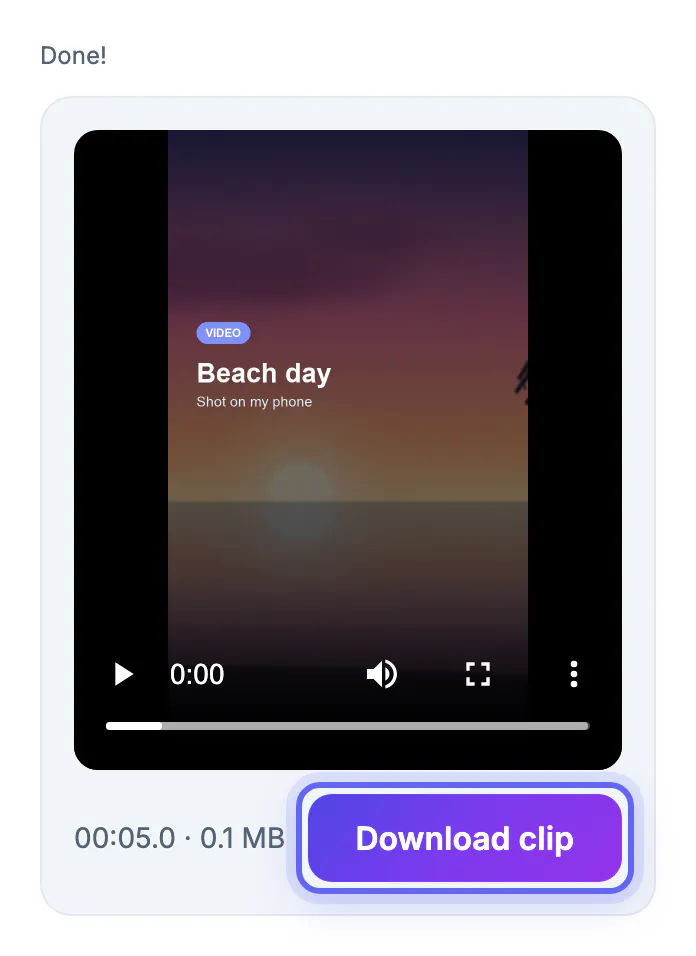
This is the step that confuses most people. Safari saves downloads to the Files app, not to your camera roll.
- After tapping Trim and download, open the Safari downloads list from the arrow icon in the address bar.
- Tap the file to open it, then tap Share and choose Save Video to add it to Photos.
- Alternatively open Files, go to Downloads, press and hold the clip, and use Share from there.
- Delete the copy in Downloads afterwards so a 4K clip does not quietly use storage twice.
- Check the saved clip plays from the first frame before posting or sending it.
If the clip is still big, the Video Compressor shrinks it, and the Video Converter helps when another app needs a different file type.
Step-by-step
Common mistakes to avoid
Pro tips
Frequently asked questions
Does this work on iPad and in Chrome for iPhone?
Yes. It works in Safari on iPad, and Chrome or Firefox on iOS use the same WebKit engine, so behavior is very similar. iPads usually handle larger files than iPhones because they have more memory, especially Pro models.
Is my video uploaded anywhere?
No. The trimming engine downloads once and then runs inside Safari, so the clip is read and processed on the phone itself.
Will a Fast trim lower the quality of my iPhone video?
No. Fast mode copies the original HEVC or H.264 stream without re-encoding, so resolution, frame rate and HDR stay as recorded. Only the start point may shift to the nearest keyframe.
Can I add subtitles on the phone?
Yes, through the Auto Subtitles tab, which can export SRT or VTT or burn captions into the video. On a phone it works best with short clips of a minute or two.
Why not just use the Photos app?
For a plain trim, Photos is fine and often faster, and it keeps the original safe if you choose Save Video as New Clip. Use the browser trimmer when you need an MP4 for other devices, captions, or a frame-exact cut without installing an app.
On an iPhone, Photos handles simple trims, and Safari handles the rest. Use GrabCast's Video Trimmer in Fast mode to keep original quality, Precise mode for a universally playable MP4, stay under about 250 MB, and save the result from Files back to Photos.
Related guides
Browse more: all video and audio guides · Video Trimmer & Subtitles