Trim Video Without Losing Quality: Fast vs Precise Cuts
To trim a video without losing quality, cut it with a stream copy: the tool copies the compressed frames as they are instead of decoding and recompressing them, so the part you keep is bit-for-bit what your camera recorded. GrabCast's Video Trimmer does exactly that in its Fast mode, inside your browser, and offers a Precise mode for the rare cut that must land on an exact frame. The catch with lossless cutting is that the start point snaps to a keyframe, so it can shift slightly. Below: how keyframes decide where a clean cut can happen, when a re-encode is worth it, and what file sizes, formats and memory limits to expect.
✂️ Try Video Trimmer & Subtitles now — freeOpen →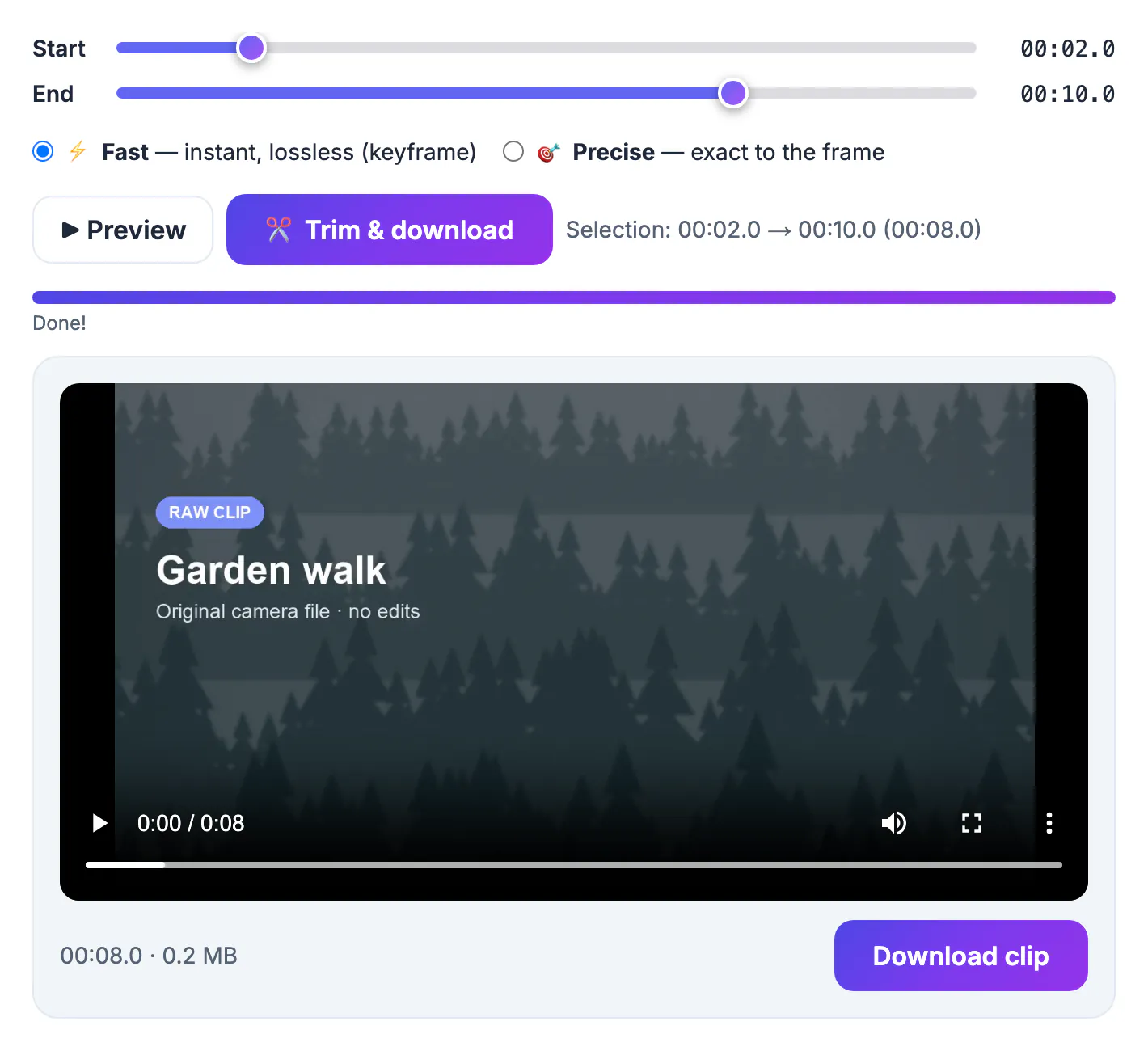
Many online cutters decode your whole file and compress it again, often at a lower bitrate to save their own bandwidth and storage. Every round of lossy compression throws away detail, and it shows first in the hardest scenes: banding in blue skies, smeared shadows in night shots, blocky confetti and water. A 1080p phone clip recorded at around 16 Mbps can come back at a quarter of that, looking fine on a thumbnail and soft on a TV. Server-side tools also make you upload the full file and download the result, which for a 2 GB recording on home Wi-Fi can take longer than the edit itself. Copying the stream avoids both problems, because nothing is recompressed and nothing leaves your computer. It is also dramatically faster: a copy finishes in about the time it takes to read the file from disk, while a full re-encode of a long 4K recording can keep a laptop fan spinning for many minutes and drain a noticeable share of battery.
How keyframes decide where a lossless cut can start
Compressed footage stores a complete picture only every so often, called a keyframe. The frames in between record just what changed, so they cannot be shown without the keyframe before them. That is why a copy-only cut must begin on one.
- Phone cameras commonly place keyframes a second or two apart; screen recordings and some exports space them further.
- With a stream copy, the cut usually begins at the keyframe just before your chosen start, so the clip may open a fraction of a second to a couple of seconds early.
- The end point is far less sensitive, which is why most trims look exact at the tail.
- If a talking-head clip opens half a word early, nudging the start slider forward by a few tenths often fixes it.
Fast mode vs Precise mode in the Video Trimmer
The two modes trade speed and fidelity against frame accuracy. Pick per clip rather than setting one forever.
- Fast copies the streams without re-encoding, keeps the original codec and container (MP4, MOV, WebM, MKV or M4V), and finishes in seconds even for long files.
- Precise re-encodes only the kept range to H.264 MP4 with AAC audio at CRF 20 using the veryfast preset, which is visually very close to the source but technically a new generation.
- Precise output plays almost everywhere, a quiet bonus when an HEVC MOV from an iPhone refuses to open on an older Windows PC.
- If a Fast copy fails on an unusual file, the tool falls back to a re-encode automatically so you still get a result.
- Preview plays just the selected range, so check both edges before you export.
Sizes, memory and the one-time engine download
Everything runs on your device, so your hardware sets the limits rather than a paid tier. Knowing the numbers avoids failed exports.
- The trimming engine is about 32 MB, downloaded once and then cached, and it warms up while you pick your range.
- The whole file is held in browser memory; on a computer you get a heads-up around 900 MB and a stronger warning past about 2 GB.
- On phones the warnings start near 150 MB and 250 MB, because mobile browsers get far less memory.
- A Fast cut's size scales with its length: 30 seconds kept from a 10 minute, 600 MB clip comes out near 30 MB.
When a small re-encode is the right call
Perfect preservation is not always the goal. Sometimes accepting a re-encode is the smarter move, especially when the clip is headed somewhere that will recompress it anyway, or when a hard deadline makes an exact opening frame matter more than theoretical fidelity.
- YouTube, Instagram and TikTok re-encode every upload anyway, so a Precise cut at CRF 20 is invisible after posting.
- Burning captions into the picture always requires a re-encode, because new pixels are being drawn.
- Keep Fast cuts for archives, client masters and anything you may edit again later.
- If the trimmed file is still too big for an email or form limit, run it through Video Compressor as a separate step.
If the trimmed clip is headed to TikTok or Reels, crop it to 9:16 vertical after you cut.
▶ Watch: How to trim a video (0:45)
Video transcript
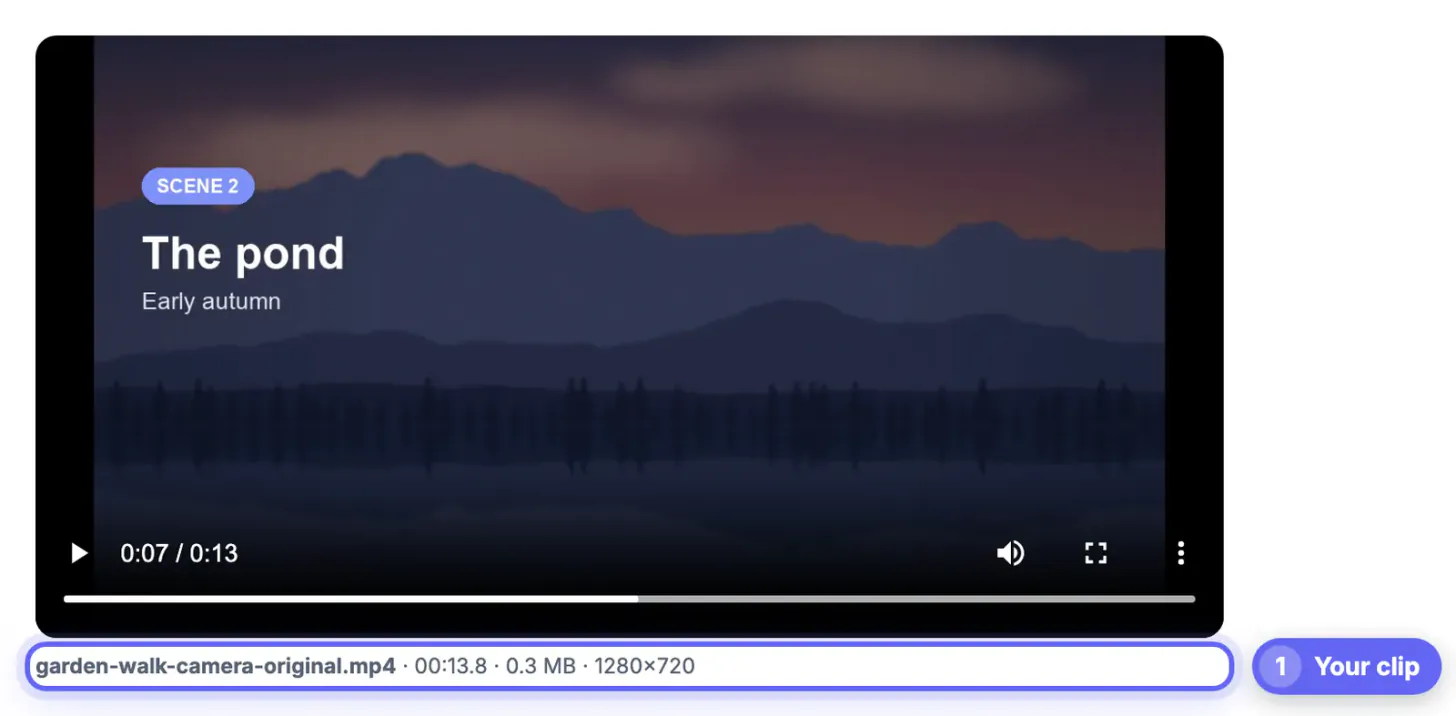
- Add your video. Drop an MP4, MOV or WebM. It opens in the player on the page.
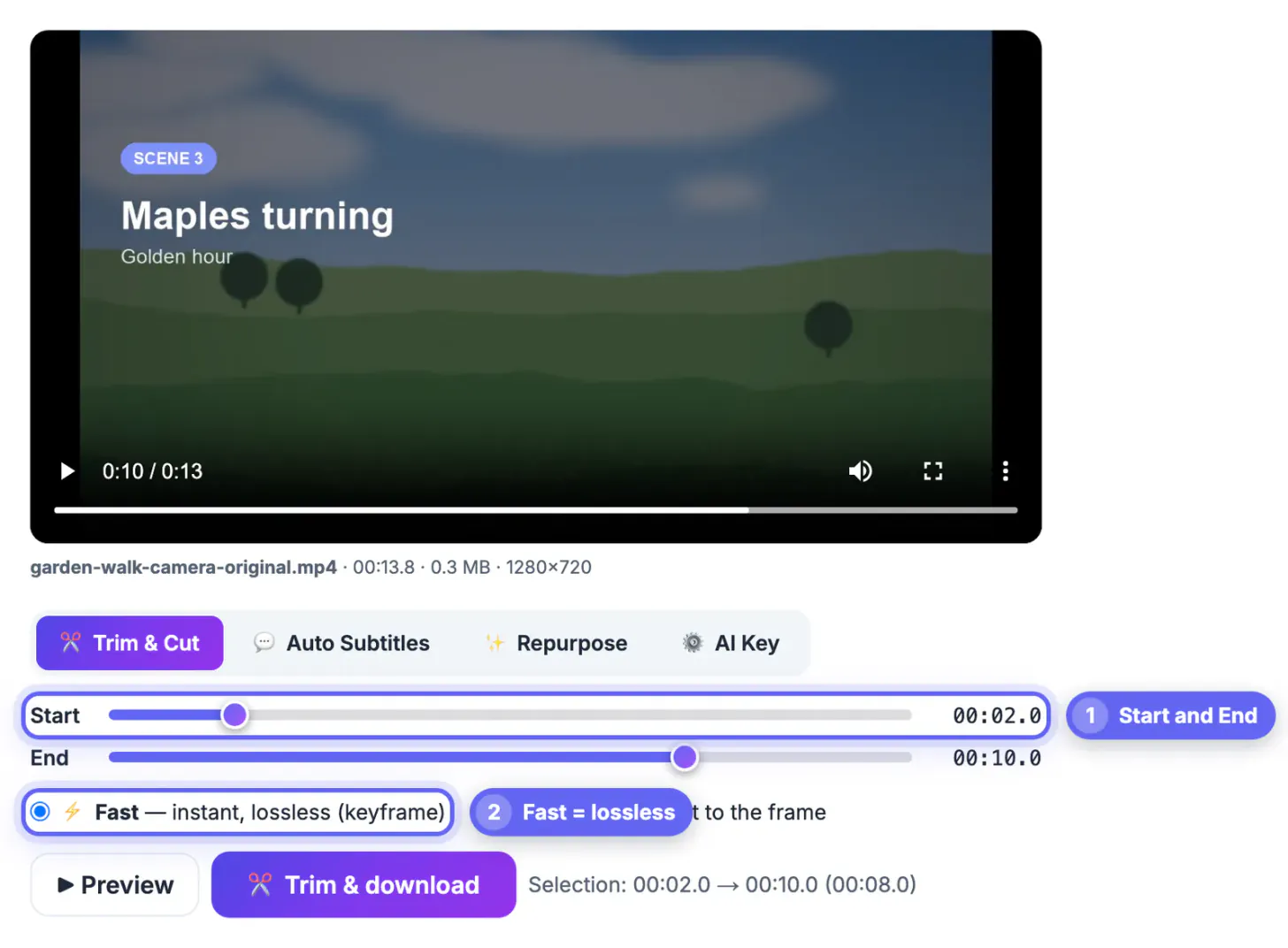
- Set the start. Drag the Start slider to the first moment you want to keep.
- Set the end. Drag the End slider to the last moment. The selection length updates.
- Choose Precise. Precise cuts exactly on your frames. Fast is instant but snaps to keyframes.
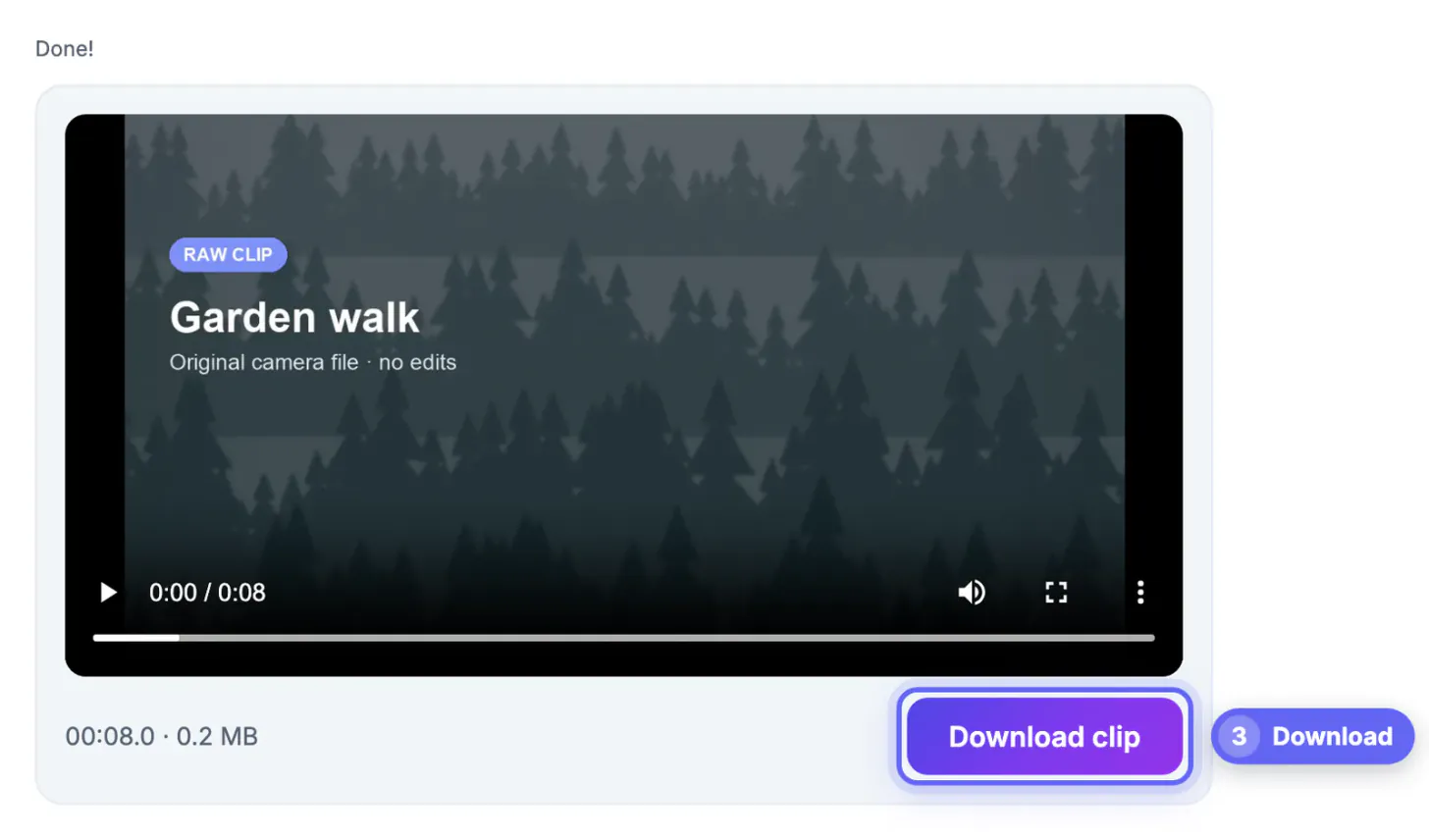
- Trim the clip. The cut happens right here in your browser. Preview the result before you save it.
- Download the clip. You get an MP4 with no watermark, ready to share or edit further.
Step-by-step
Common mistakes to avoid
Pro tips
Frequently asked questions
Is Fast mode truly lossless?
Yes for the frames it keeps. It copies the compressed video and audio streams without decoding them, so picture quality, resolution and bitrate match the source exactly.
Why does my trimmed clip start a little early?
A copy-only cut has to begin on a keyframe, so it starts at the nearest one before your chosen point. Use Precise mode if the first frame must be exact, or move the start slider slightly later and try Fast again, since landing past the next keyframe removes the extra footage.
Will Precise mode lower the quality?
Slightly, in theory. It re-encodes at CRF 20, a high-quality setting that most people cannot tell apart from the source at normal viewing distance, but it is a new generation of compression.
Is my video uploaded to a server?
No. The trimming engine runs in your browser tab and processes the file locally; only the one-time engine download comes from GrabCast.
What is the largest file I can trim?
On a desktop, files up to roughly 2 GB usually work in a modern browser with enough RAM. Phones cope with far less, so warnings start around 150 MB there. For bigger phone clips, move the file to a computer first or cut it into shorter pieces.
Lossless trimming is about copying, not recompressing. Use Fast mode for clean keyframe cuts that keep every original pixel, switch to Precise only when a frame-exact edge or a universally playable MP4 matters, and let your device, not a server, do the work.
Related guides
Browse more: all video and audio guides · Video Trimmer & Subtitles