Crop Video to 9:16 Vertical for TikTok, Reels, Shorts
To crop video to 9:16, you cut a tall window out of a wide frame and scale that window to 1080 × 1920 or 720 × 1280, the sizes TikTok, Instagram Reels and YouTube Shorts expect. The part of the job that matters is choosing which vertical slice survives, because a 16:9 shot loses roughly two thirds of its width. GrabCast's Crop & Resize Video puts a draggable 9:16 frame on top of your clip, shows the exact output size and exports an H.264 MP4 on your own device. This guide walks through the crop with a 960 × 540 beach clip, then covers framing rules, output sizes and the limits worth knowing before a long export.
📐 Try Crop & Resize Video now — freeOpen →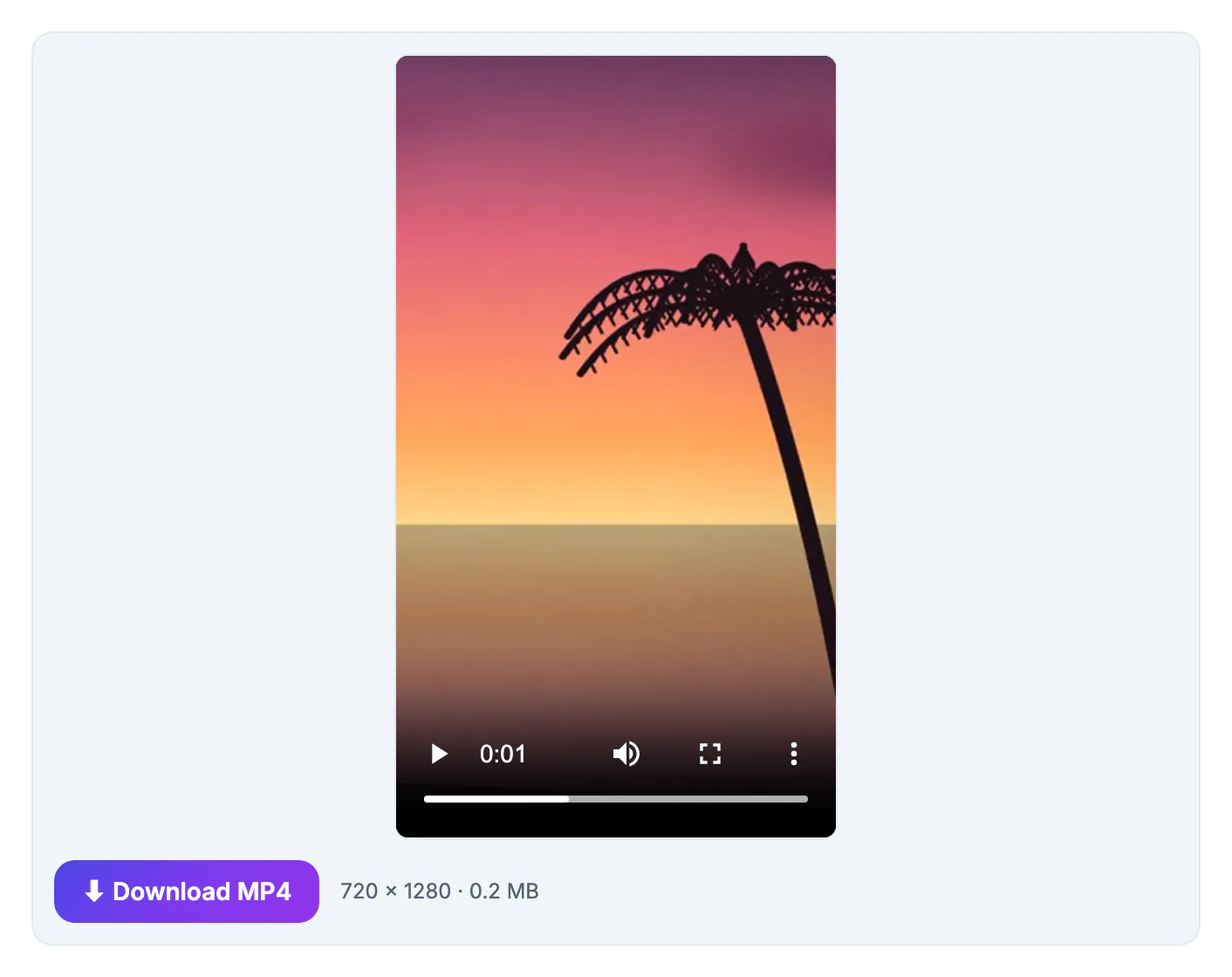
Upload a landscape clip straight to a vertical platform and the app shrinks it into a thin band with empty space above and below, or zooms into the dead center and cuts off whoever was standing to the side. Neither is what you filmed. A 16:9 frame is 1.78 times wider than it is tall, while 9:16 is 0.56, so a full-height vertical window keeps only about 32 percent of the original width. On a 1920 × 1080 source that is a slice 608 pixels wide; on the 960 × 540 example used here it is 304 pixels. Which 304 pixels you keep decides whether the viewer sees the speaker, the product or a blank wall. Cropping it yourself also means you control the scaling: the tool resizes the chosen window once, cleanly, instead of letting each platform guess. Because everything runs in the browser, you can try three or four framings of an unreleased clip without sending it to anyone's server first.
How much of the frame a 9:16 crop keeps
The math is simple and worth knowing before you film. The crop keeps the full height of the source and a width equal to height × 9 ÷ 16.
- A 1920 × 1080 clip gives a 608 × 1080 window, which is then scaled up to 1080 × 1920 if you choose 1080p output.
- A 1280 × 720 clip gives 405 × 720; at 720p output that becomes 720 × 1280.
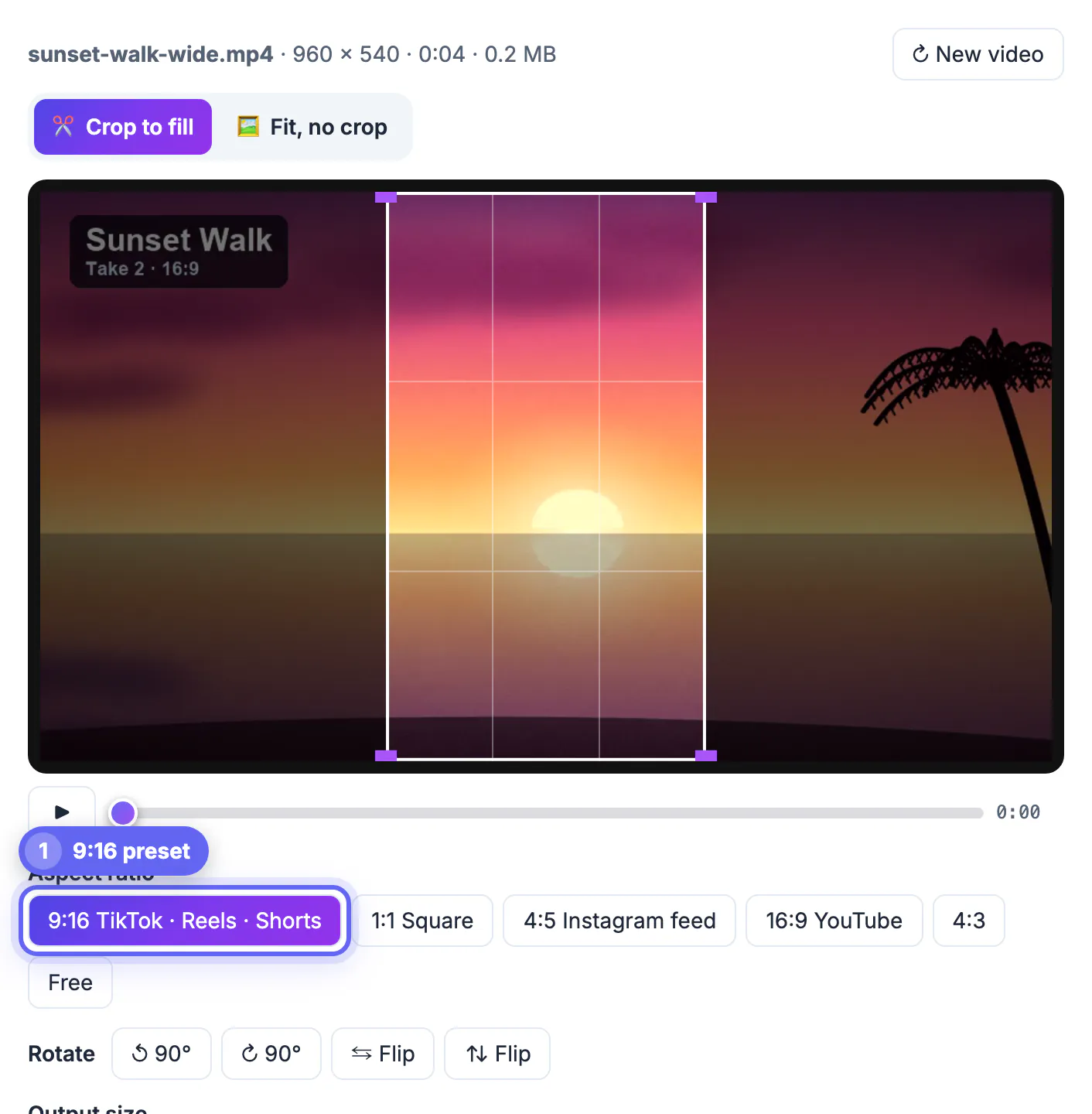
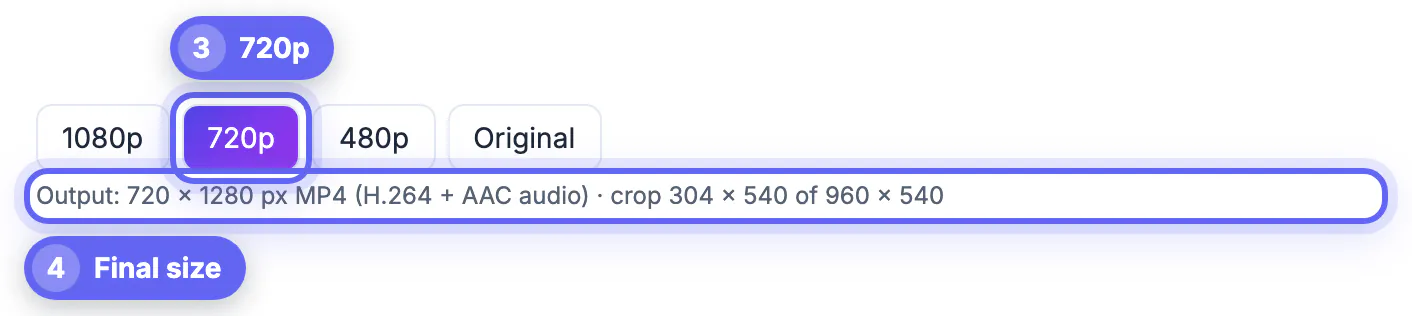
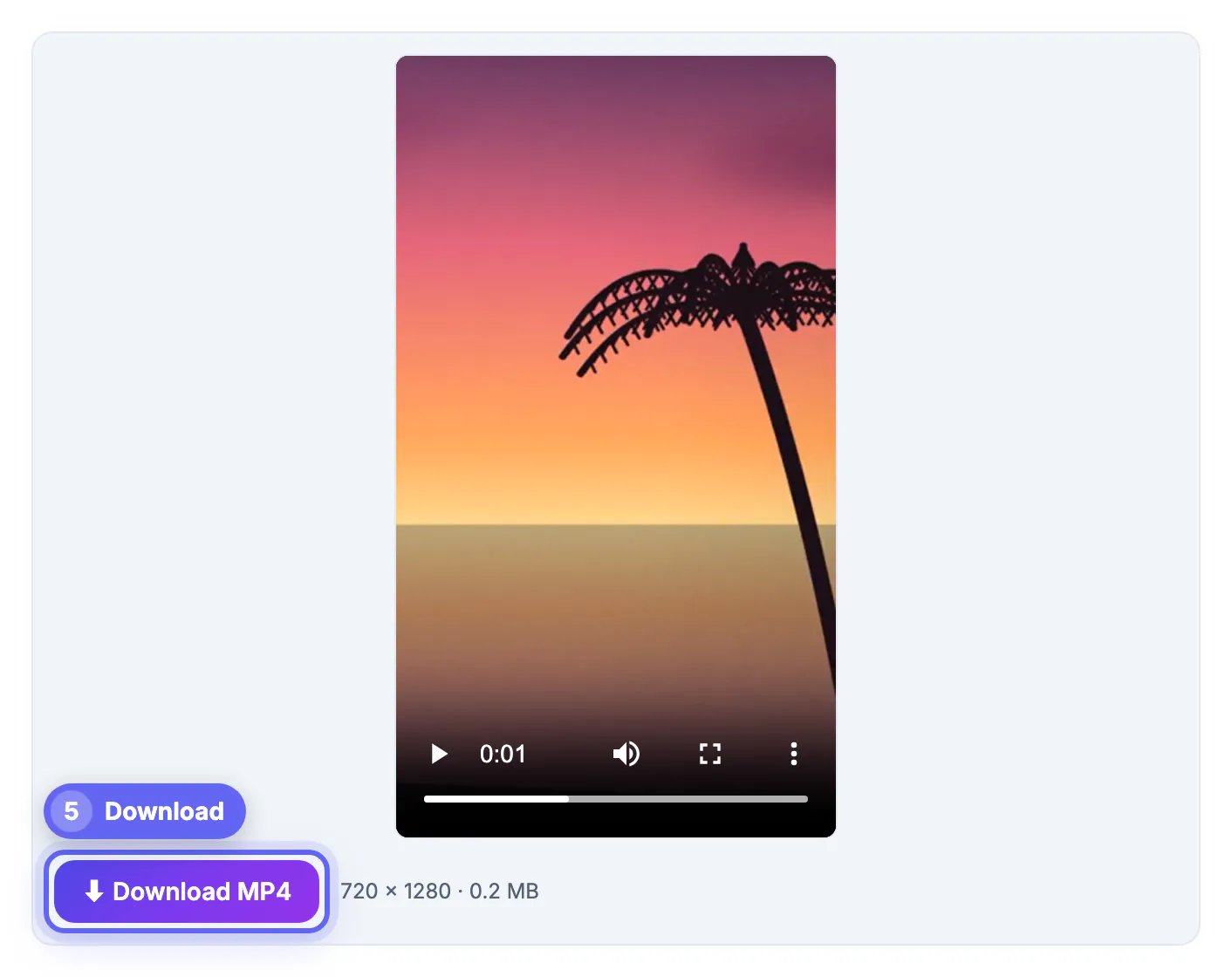
- The 960 × 540 beach clip in the screenshots keeps 304 × 540, and the summary line reads crop 304 × 540 of 960 × 540.
- Upscaling a narrow slice cannot add detail, so a crop from 4K or 1080p footage looks noticeably sharper than one from 720p.
- If you know a clip will end up vertical, keep the subject near the center third when you record and leave headroom above it.
Framing the 9:16 crop: drag, resize and nudge
When the video loads, the 9:16 frame sits in the middle with a rule-of-thirds grid and a purple handle on each corner. Everything outside the frame is dimmed so you can judge the composition at a glance.
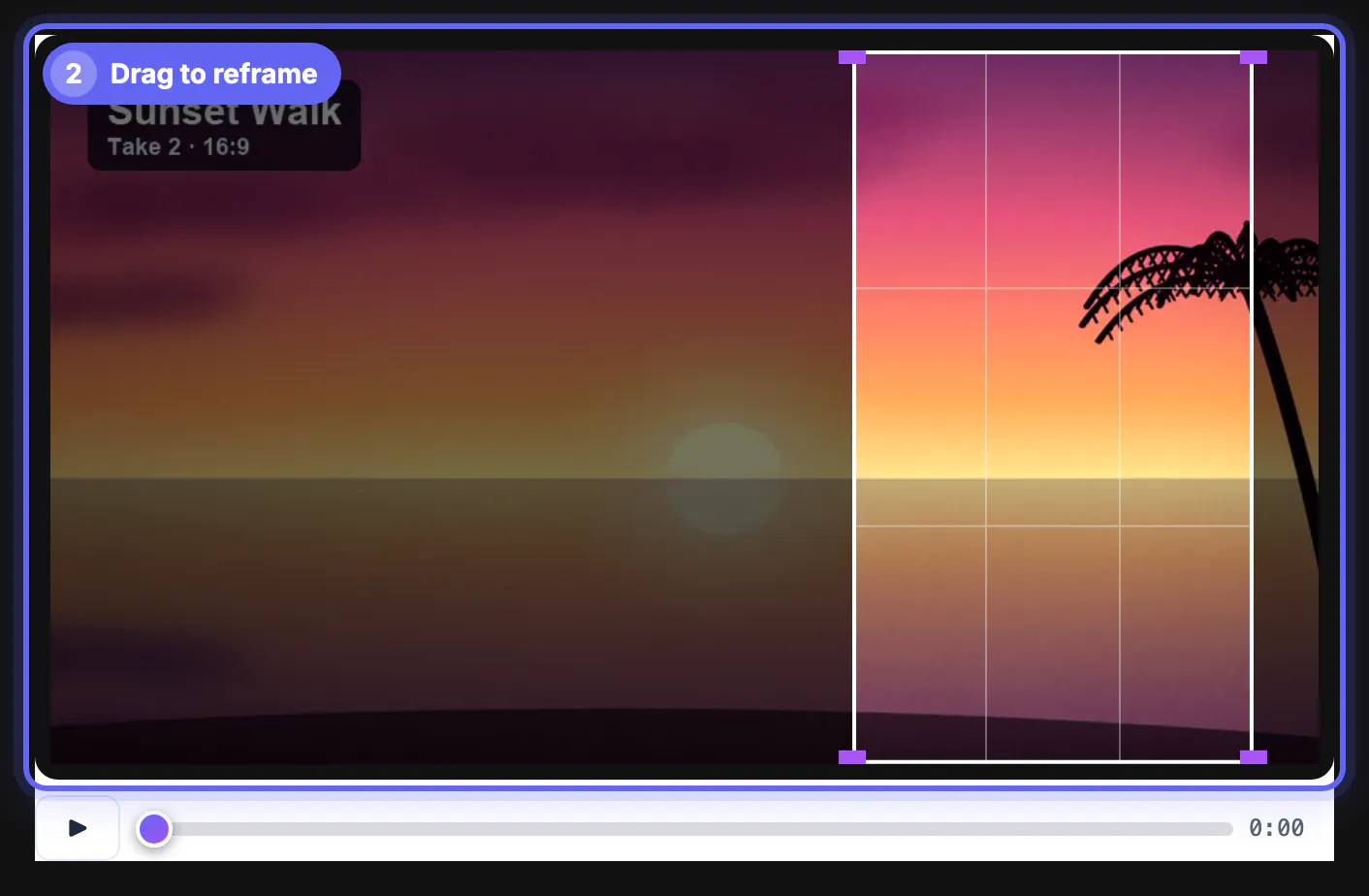
- Drag inside the frame to slide it left or right; it stops at the edges of the picture, so you can never crop into empty space.
- Drag a corner to make the window smaller, which zooms in; the 9:16 shape is locked while you resize.
- Click the preview and use the arrow keys for fine moves of about 2 percent of the frame, or hold Shift for 10 percent steps.
- Scrub the position slider or press play to check that the subject stays inside the window for the whole clip, not just the first frame.
- The crop box is fixed for the entire video, so a subject who walks across the frame needs a wider choice such as 4:5, or the Fit mode.
Output sizes: 1080 × 1920 versus 720 × 1280
Output size sets the short side of the exported video. The tool starts at 720p for most clips and switches to Original automatically when a source is smaller than 720 pixels on both sides.
- 1080p exports 1080 × 1920, the full-resolution size for TikTok, Reels and Shorts.
- 720p exports 720 × 1280 and takes about half the encoding work, which matters on a phone or an older laptop.
- 480p is for quick drafts or messaging apps where file size matters more than sharpness.
- Original keeps the cropped window's own pixel size without scaling, useful when you plan to finish the edit elsewhere.
- Every export is an MP4 with H.264 video at quality level CRF 23 and AAC audio at 128 kbps; frame rate and length match the source.
Large exports can be slimmed with the Video Compressor before you upload.
Limits of browser-based vertical cropping
Encoding happens on your own processor with ffmpeg compiled to WebAssembly, so nothing is uploaded, but your hardware sets the pace.
- The engine is about 32 MB, downloaded once and then cached by the browser.
- The tool warns you above roughly 600 MB on a computer and 120 MB on a phone, with a stronger warning past 1.5 GB and 250 MB.
- A long 1080p export can take several minutes; trimming the clip first with the Video Trimmer makes it much faster.
- Only the first audio track is kept, and ticking Remove audio exports a silent file.
- Clips your browser cannot preview, often HEVC files on some systems or MKV and AVI files, need converting to MP4 before cropping.
Step-by-step
Common mistakes to avoid
Pro tips
Frequently asked questions
What size is a 9:16 video for TikTok and Reels?
1080 × 1920 pixels is the standard. The tool exports exactly that at 1080p, or 720 × 1280 at 720p, which the apps also accept and which encodes about twice as fast.
Can I move the crop during the video, like a pan?
No. The crop window is fixed for the whole clip. If your subject moves across the frame, trim the clip into sections and crop each one separately, or use Fit, no crop to keep the full picture.
Will cropping to 9:16 lower the quality?
The video is re-encoded to H.264 at CRF 23, which looks very close to the source at normal viewing size. The bigger factor is upscaling: a 608-pixel-wide slice of 1080p footage stretched to 1080 wide will look softer than the original.
Is my video uploaded to a server?
No. The preview uses your browser's own video player and the export runs locally in WebAssembly. Only the one-time engine download comes from GrabCast.
Does it add a watermark?
No. The export is free, needs no sign-up and has no watermark or logo added to the frame.
Cropping to 9:16 is a framing decision more than a technical one. Put the vertical window where the story is, check it across the whole clip, export at 1080 × 1920 for the final post or 720 × 1280 for speed, and keep the landscape original for other formats.
Related guides
Browse more: all video and audio guides · Crop & Resize Video