Combine Vertical and Horizontal Videos Into One Clip
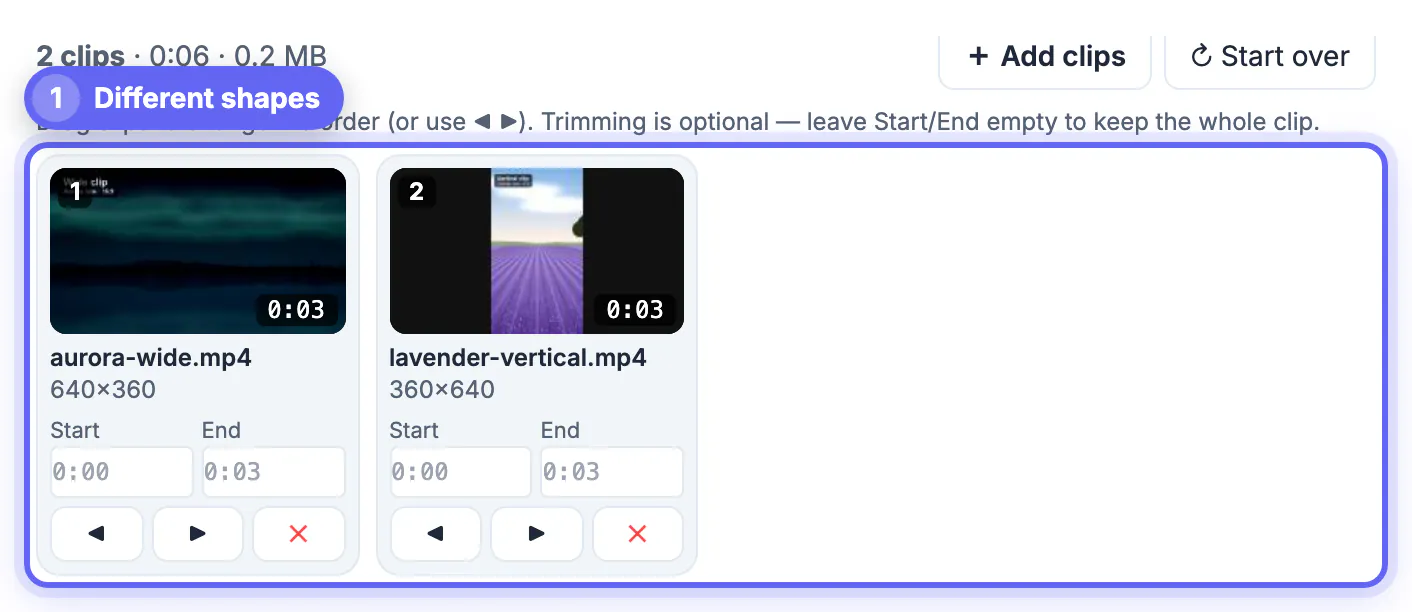
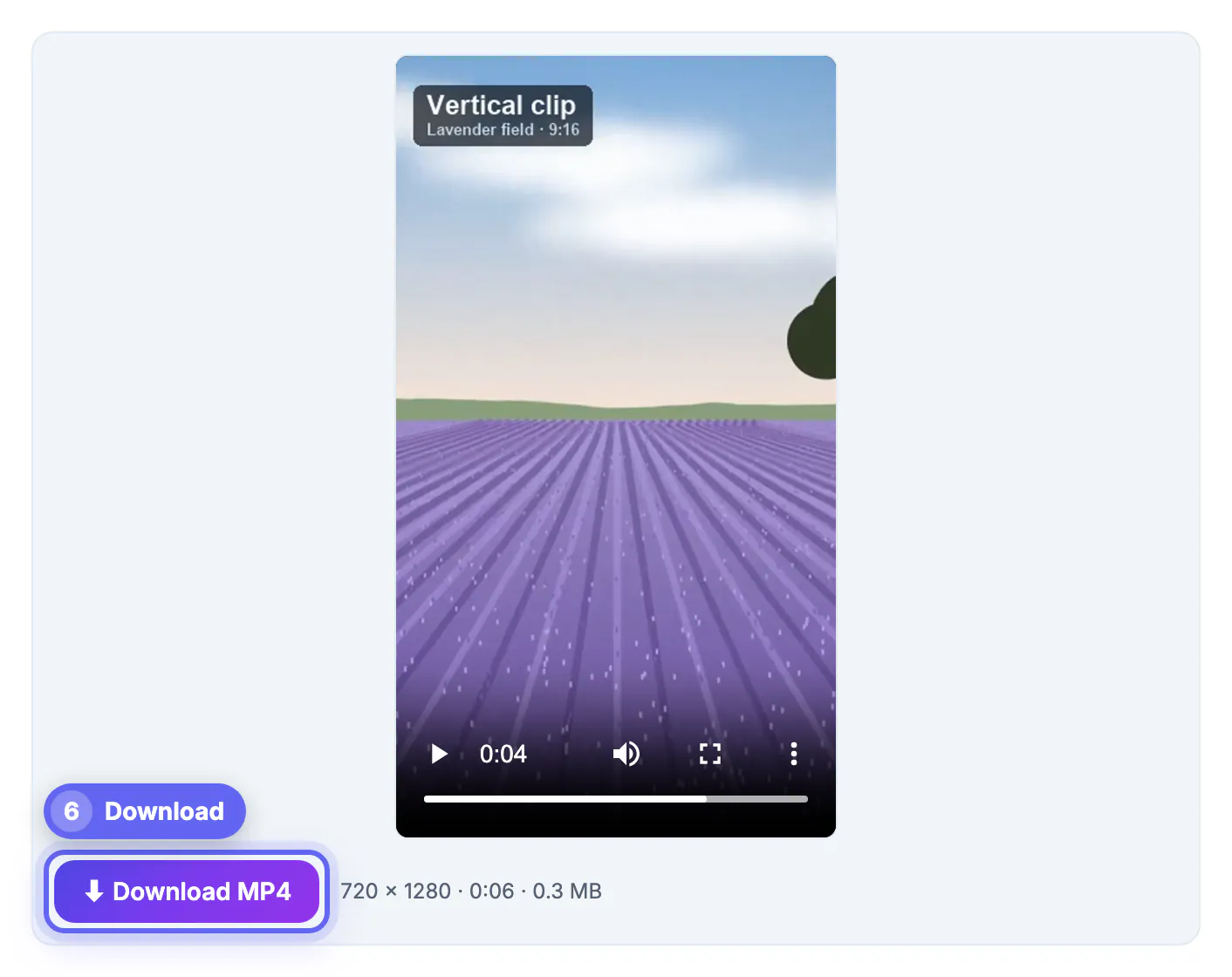
To combine vertical and horizontal videos into one clip, choose a single canvas for the result, then decide how each clip that does not match it should fill the frame. GrabCast's Merge Videos lets you pick a 9:16, 1:1, 4:5 or 16:9 canvas and fit odd-shaped clips with a blurred background, black bars or a crop that fills the frame. In the example, a 640 × 360 wide clip and a 360 × 640 vertical clip become one 720 × 1280 video for Reels or TikTok, six seconds long. The sections below cover how to choose the canvas, what each fill option does and what to expect from the re-encode.
🎞️ Try Merge Videos now — freeOpen →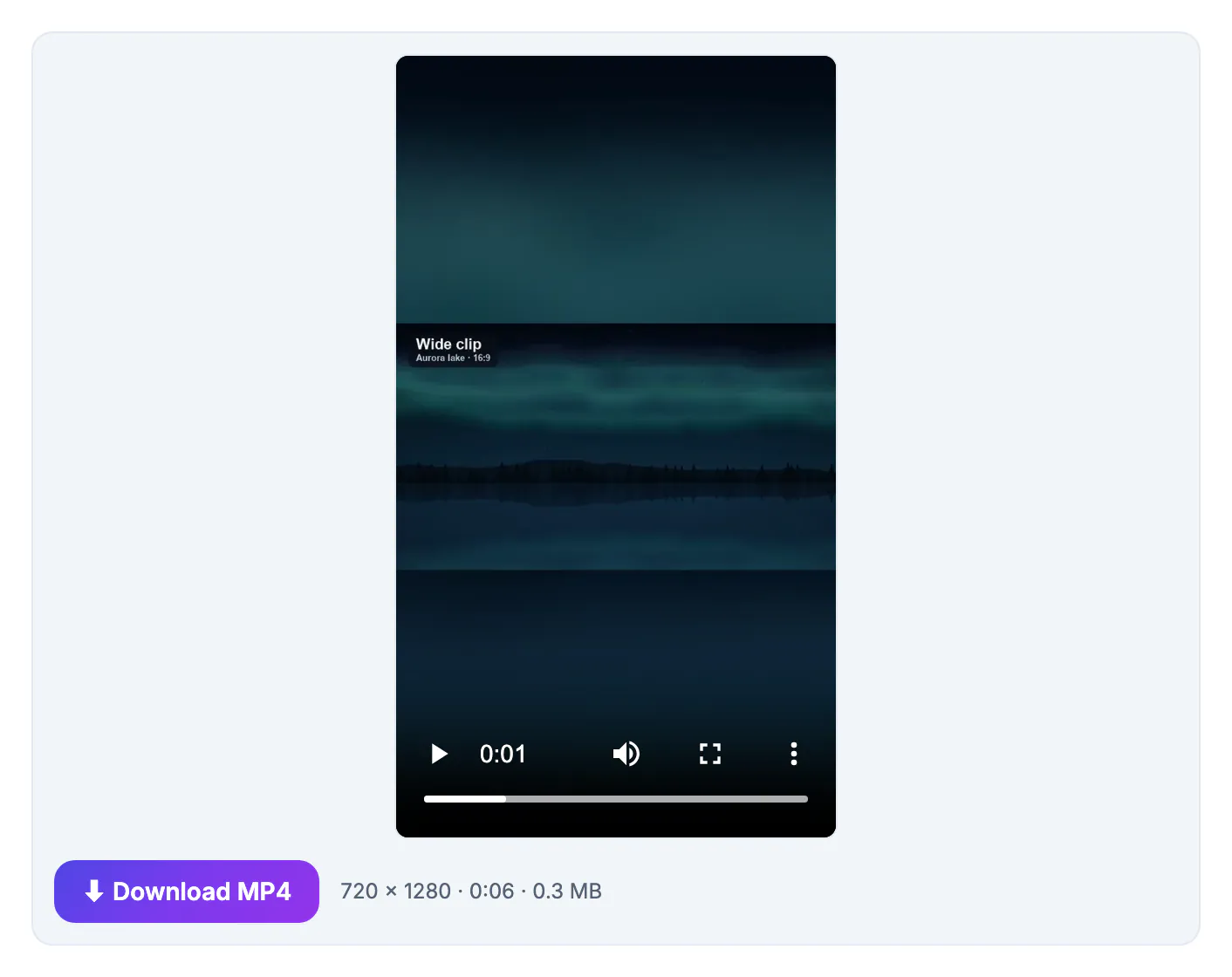
Holiday footage, event coverage and family videos rarely come from one camera held one way. A friend shoots vertical on a phone, you shoot horizontal on a camera, and a third clip comes from a screen recording. Most quick joiners either refuse different sizes or stretch every clip to the first one's shape, which squashes faces and bends horizons. Doing it properly means scaling each clip into a shared frame without distorting it, then filling the leftover space in a way that looks deliberate. The frame rate has to be unified too, or the motion stutters at every joint, and clips without sound need silent audio so the soundtrack does not slip out of sync. Handling all of that by hand in a desktop editor is slow for a one-minute recap. A merge tool that treats shape, size, frame rate and audio together turns it into a few clicks, and doing it in the browser keeps personal footage on your own device.
Choosing the canvas for mixed clips
The canvas is the shape of the finished video. Pick it for where the video will be watched, not for whichever clip happens to be first.
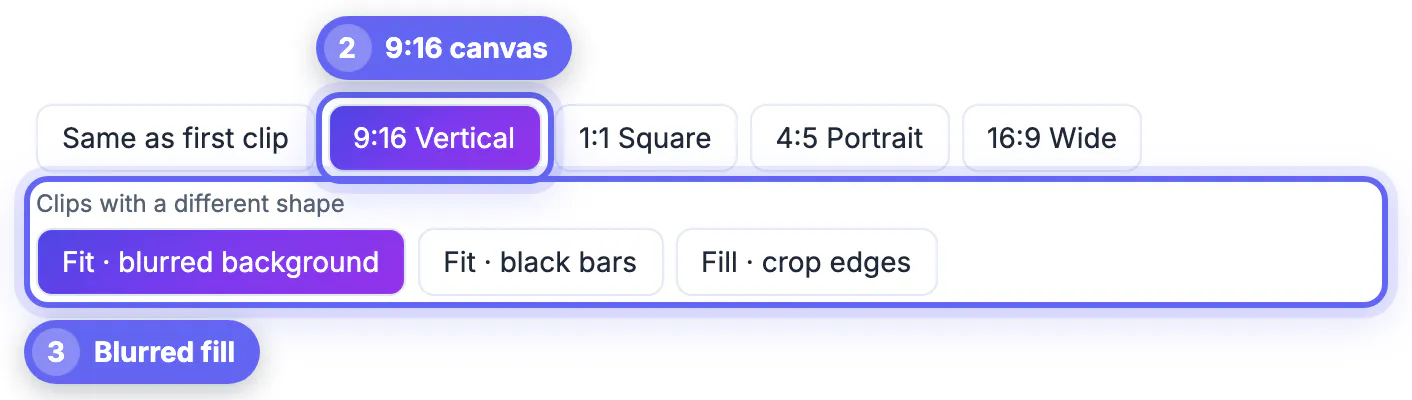
- 9:16 Vertical suits TikTok, Reels, Shorts and Stories; wide clips become bands across the middle.
- 16:9 Wide suits YouTube, TVs and presentations; vertical clips become narrow columns in the center.
- 1:1 Square and 4:5 Portrait are compromises for feeds, where both shapes lose less space.
- Same as first clip copies the first clip's shape, which is only a good choice if most clips share it.
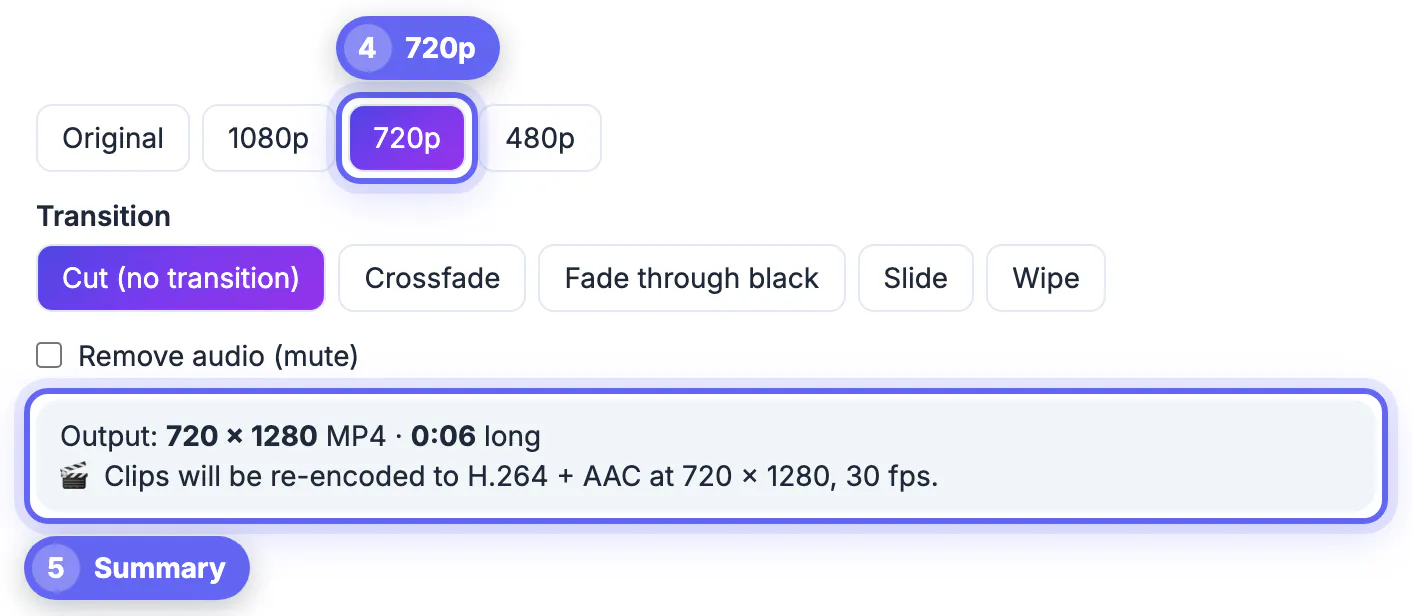
- The summary above the Merge button always states the final size and length, for example 720 × 1280 MP4, 0:06.
When most of the footage is vertical, 9:16 keeps those clips full screen and only the wide ones get a fill; when most is horizontal, 16:9 does the same in reverse.
Blurred fill, black bars or crop edges
The option row labeled Clips with a different shape appears whenever the clips do not all match the canvas.
- Fit · blurred background keeps each whole picture and fills the gaps with a blurred, enlarged copy of the same clip.
- Fit · black bars keeps each whole picture with plain black bands, the classic letterbox or pillarbox look.
- Fill · crop edges enlarges the clip until it covers the frame and trims whatever sticks out, so there are no bands but the sides or top are lost.
- The choice applies to every mismatched clip, while clips that already match the canvas simply scale to fit.
- For a wide landscape inside 9:16, the blurred fill usually looks the most natural; for a talking head filmed horizontally, crop edges may be better.
Fill · crop edges works best when every mismatched clip has its subject near the center. If subjects sit off to the side, crop those clips individually first so you control what is kept.
Output size, frame rate and audio for mixed merges
Mixed shapes always require a re-encode, so the output settings matter more here than in a simple join.
- Output size sets the short side: 720p on a 9:16 canvas gives 720 × 1280, 1080p gives 1080 × 1920.
- If the first clip is larger than 1080p and the clips differ, the tool switches to 1080p automatically, because re-encoding 4K in a browser is very heavy.
- All clips are converted to the first clip's frame rate, so put a 30 fps clip first if you want a 30 fps result.
- Clips without audio get silence of the right length, so the others stay in sync; Remove audio exports a silent file.
- The result is H.264 at CRF 23 with AAC audio at 128 kbps, 48 kHz.
Encoding time grows with both the output size and the total length, so a 30-second recap at 720p finishes far sooner than a 5-minute one at 1080p.
Need a soundtrack under the combined video? The Add Music to Video tool adds one.
Checking a combined vertical and horizontal video
A mixed merge is worth watching once all the way through, because each clip is transformed differently.
- Scrub to each joint in the result player and confirm the fill style looks consistent from one clip to the next.
- Check that faces in horizontal clips are still large enough to read on a phone when fitted into 9:16.
- Listen at the joints for jumps in loudness between clips from different devices.
- If one clip needs a different treatment, crop it separately first in Crop & Resize Video and merge the prepared file.
- The downloaded MP4 is named after the first clip with -merged added.
A final check on the device where the video will be watched is the most reliable test, since phone screens show fill bands and small faces very differently from a laptop.
Step-by-step
Common mistakes to avoid
Pro tips
Frequently asked questions
Can I merge portrait and landscape videos together?
Yes. Pick one canvas for the result, such as 9:16 or 16:9, and every clip is scaled into it. Clips with a different shape are fitted with a blurred background or black bars, or cropped to fill the frame.
Will my vertical clips be stretched?
No. Clips are scaled with their proportions kept; the leftover space is filled, or the edges are cropped, depending on the option you choose.
What size should a mixed 9:16 video be?
720 × 1280 at 720p or 1080 × 1920 at 1080p. Both are accepted by TikTok, Reels and Shorts; 720p encodes much faster.
Why can't mixed clips be joined losslessly?
Clips of different sizes have to be scaled and placed on a shared canvas, which means drawing new frames. A lossless join is only possible when every clip already matches.
Is the footage uploaded anywhere?
No. The clips are processed in your browser on your own device; nothing is sent to a server.
Mixed vertical and horizontal footage combines cleanly once you choose the canvas for the destination and a fill style for the odd clips. A blurred fill at 720 × 1280 suits most social recaps, and a quick scrub through each joint confirms the edit before you post it.
Related guides
Browse more: all video and audio guides · Merge Videos