Podcast Clip to Audiogram Video: From Timestamp to Post
To turn a podcast clip into an audiogram video, load the episode audio into GrabCast's Audio to Waveform Video tool, type the clip's start time and length in seconds, choose a format such as 9:16 for Reels, pick a waveform style, add cover art and a title, and click Create MP4 video. The MP4 renders on your own computer with no upload and no watermark. Add captions afterward in the Video Trimmer, because most people meet your clip with the sound off. This walkthrough follows one clip from timestamp to published post, with the exact settings to use at each step and the small checks that separate a clip people finish from one they scroll past.
🎙️ Try the Audio to Waveform Video tool now — freeOpen →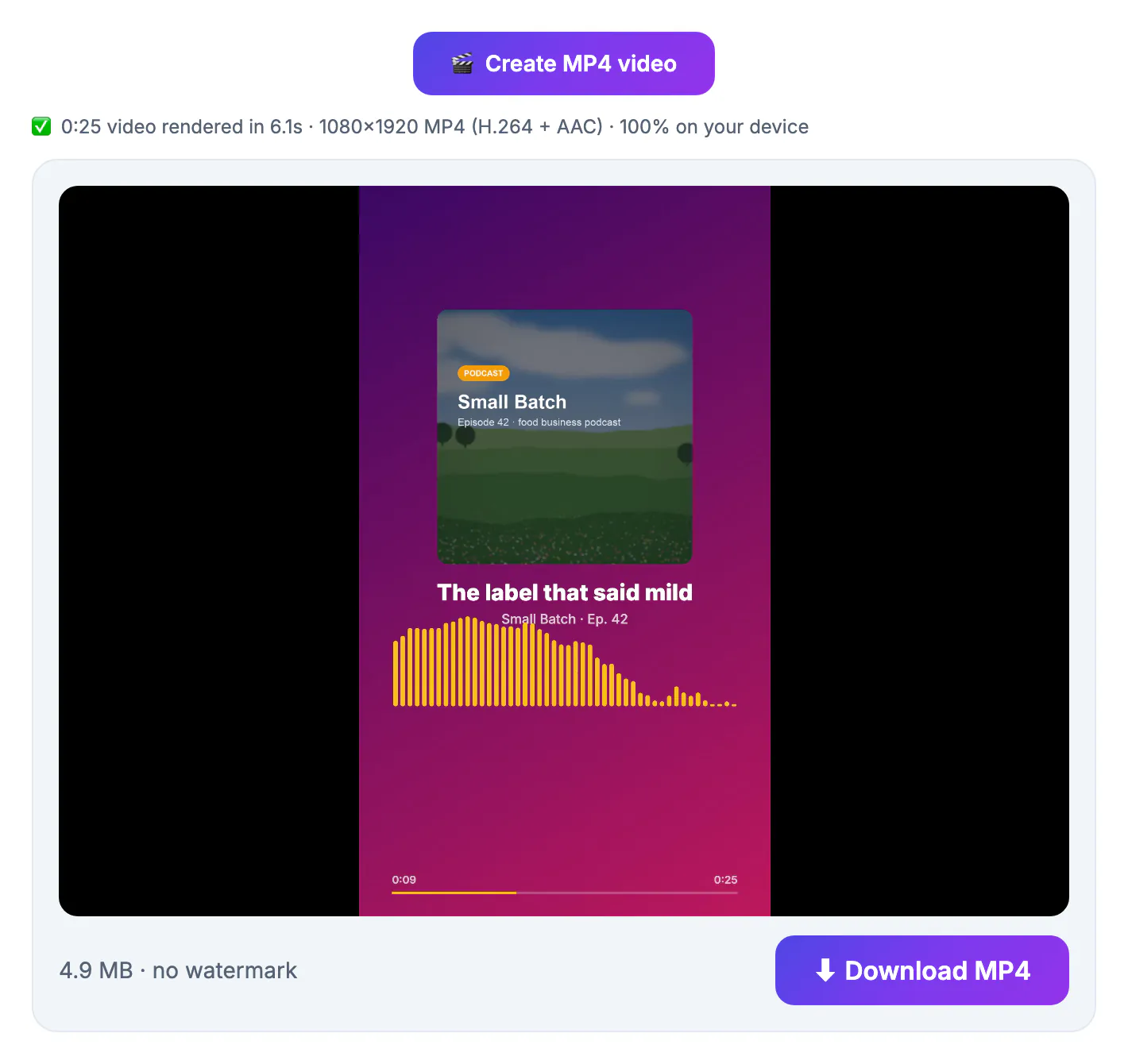
A new-episode graphic tells people something exists; a clip gives them a reason to care. Someone who hears a 45-second argument, a surprising number or a genuine laugh gets a sample of what the show sounds like, and that is what makes a stranger press play on the full episode. Because each clip is a small, self-contained piece of work, the details matter: a clip that starts on a throat-clear loses viewers in the first second, and a waveform with no captions says nothing to a muted feed. Doing one clip carefully, with the right start point, a readable title and burned-in captions, usually outperforms three rushed ones. Once the settings are saved in your head, repeating the process takes around fifteen minutes.
Find the timestamp for the podcast clip
Choose the moment before opening any tool. The best clips make sense to someone who has never heard the show.
- Aim for 30 to 60 seconds; shorter clips rarely finish a thought, and longer ones lose viewers before the payoff.
- Start on the hook sentence itself, not on the host's question that leads into it.
- End on a complete thought or a laugh, never mid-sentence.
- If you have a transcript, paste it into the AI Clip Finder for 20 to 45 second suggestions with timestamps; it uses a cloud AI, so only text is sent.
Write down the start in seconds, for example 1,245 for 20:45, and the length, for example 48. A quick test helps: play the moment to someone unfamiliar with the show. If they need context first, move the start closer to the payoff. Check the words just before your start point too: a clip that opens mid-word or on a breath sounds accidental, so shift the start a fraction of a second earlier or later until the first syllable is clean.
Set up the audiogram video: format, style and art
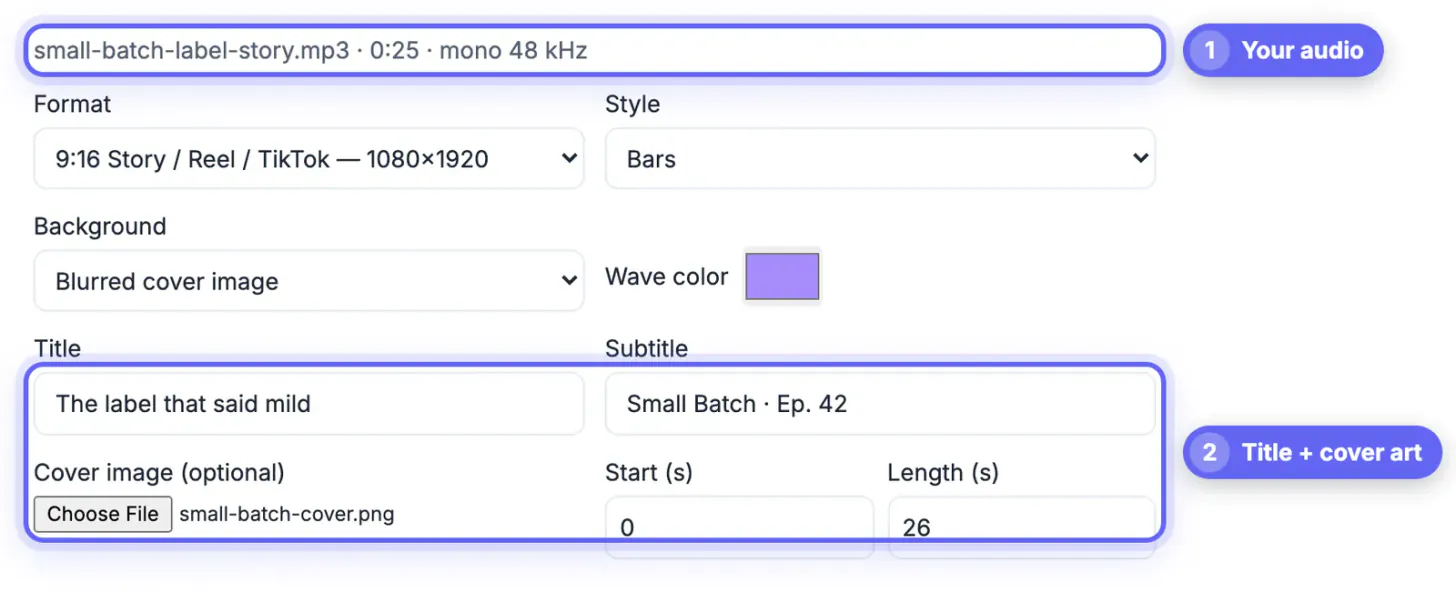
Open Audio to Waveform Video and drop in the episode as MP3, M4A, WAV, OGG or FLAC, or a video file to use its soundtrack. The file is decoded on your device.
- Start (s) and Length (s): enter the numbers you noted. There is no need to cut the audio in an editor first; by default the length equals the file's duration, capped at 10 minutes.
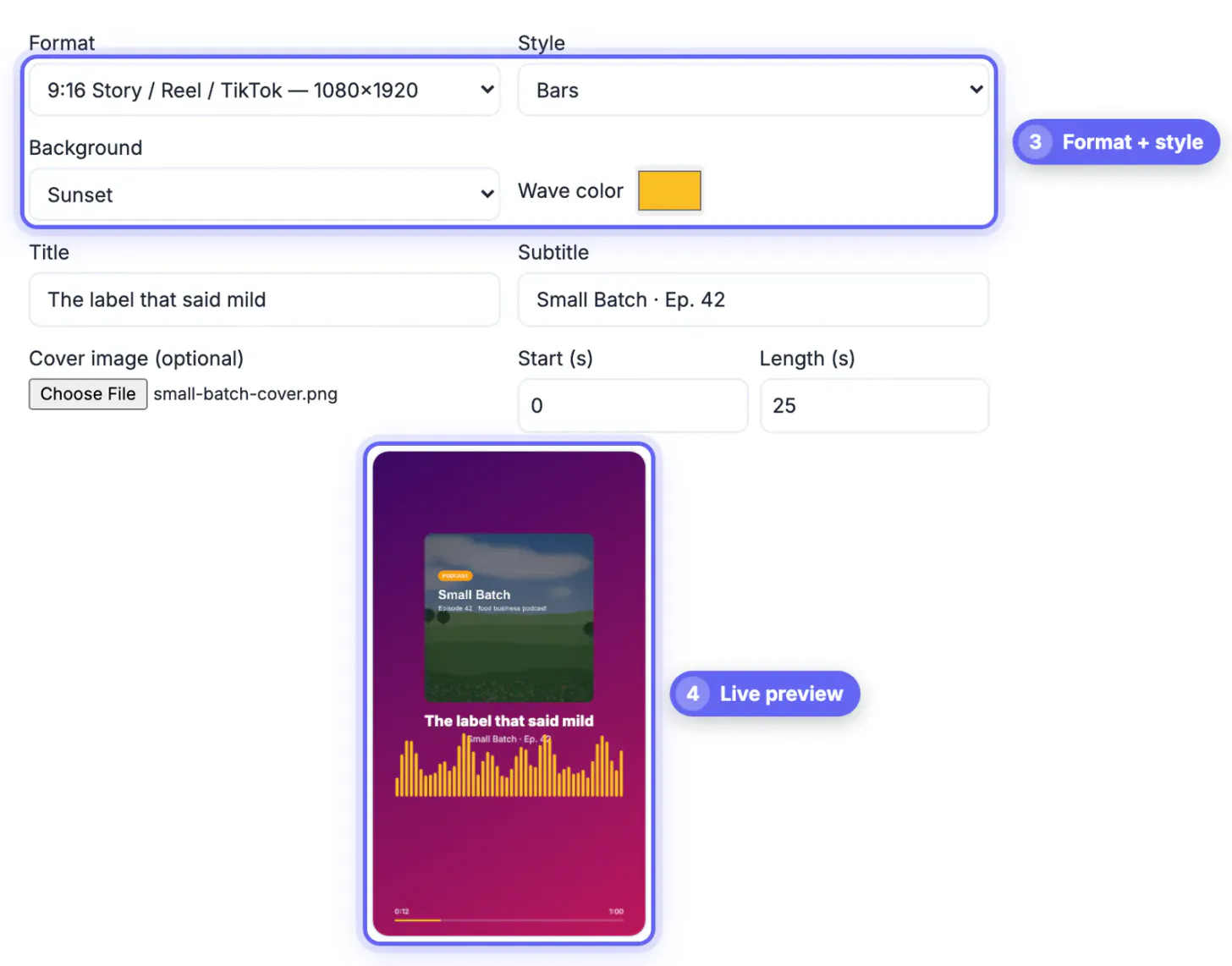
- Format: 9:16 at 1080 by 1920 for TikTok, Reels and Shorts; 1:1 at 1080 by 1080 for feeds; 16:9 at 1920 by 1080 for YouTube; or 16:9 at 720p for the fastest render.
- Style: Bars, Mirror bars, Smooth wave or Circle, plus a background and a wave color that match your cover.
- Art and text: add a title, an optional subtitle such as the episode number, and your cover image. With a cover, the background switches to a blurred version of it; with Circle, the art sits inside the ring.
Write the title as the hook, for example Why most budgets fail in month two, rather than the episode name.
Render, preview and download
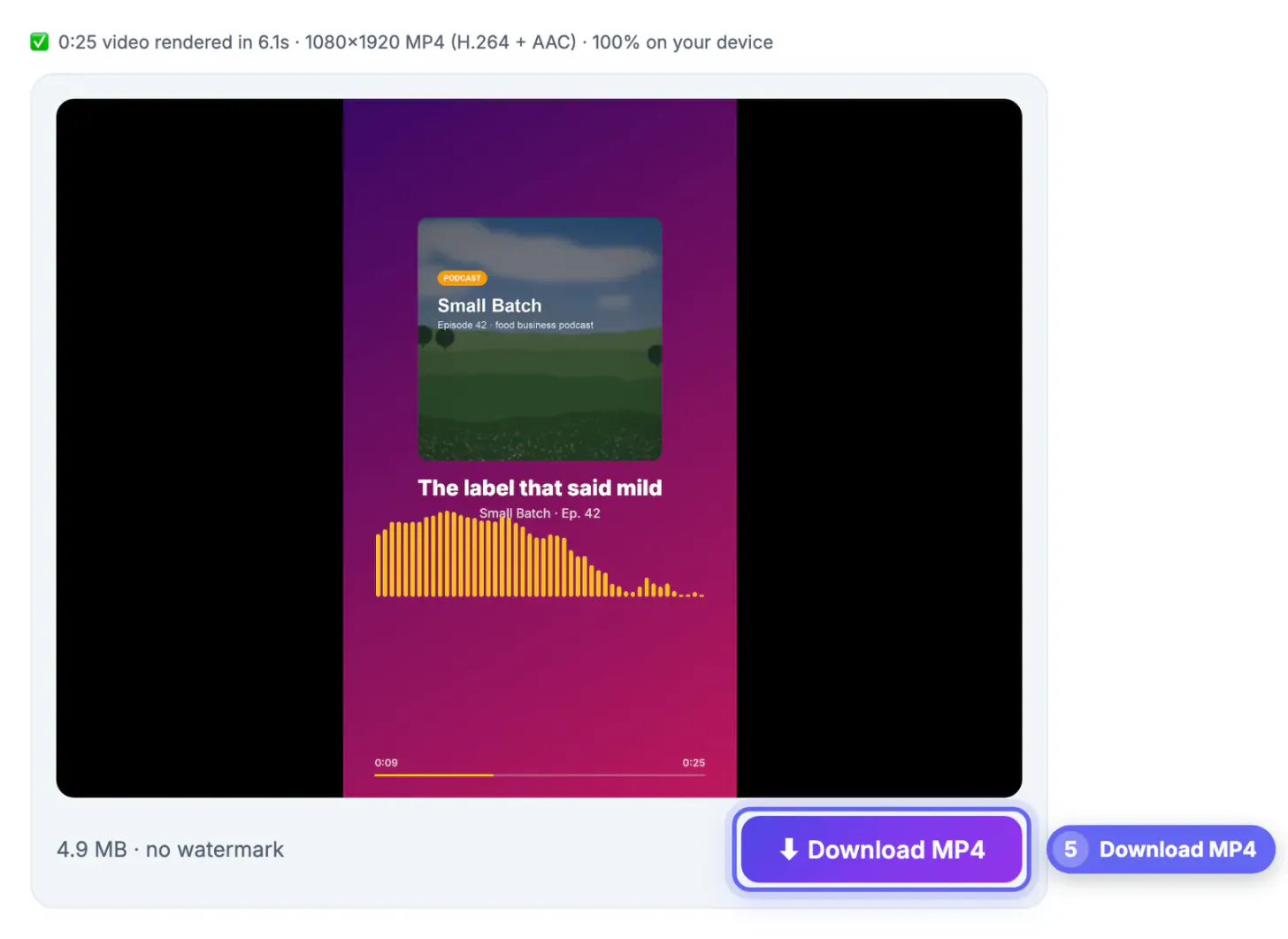
Click Create MP4 video and keep the tab open while it renders. On a browser with WebCodecs, the video is encoded offline, which is usually faster than playing the clip in real time.
- The export is an MP4 with H.264 video at 30 frames per second and AAC audio, or Opus where the browser lacks an AAC encoder.
- Use the latest Chrome, Edge or Safari on a computer; if the page says your browser cannot make MP4, switch browsers.
- If a long or high-resolution render fails, shorten the length or choose 16:9 720p, which uses less memory.
- Preview before downloading: check the first second is the hook and the ending is not cut mid-word.
Your audio and cover image never leave your device; the page only fetches a small MP4 packaging library the first time you render.
Add captions and post the clip
The waveform tool does not add captions, and a muted waveform explains nothing. Open the downloaded MP4 in the Video Trimmer, go to Auto Subtitles, press Generate subtitles and correct guest names and numbers.
- Burn captions with Bold Pop or Classic Box at 3 to 5 words per caption for a vertical clip.
- Choose Middle placement if your title and cover sit in the lower half of the frame.
- In the post text, pose the question the clip answers and link the full episode in your bio, a pinned comment or the description.
- Tag the guest; guests are often the most likely people to reshare.
Export a second shape later, such as 1:1 for LinkedIn, if the clip does well; the settings take a minute to change. Post natively on each platform rather than sharing a link to another app, since feeds tend to favor uploaded video. Timing matters less than consistency, but posting the first clip on the day the episode goes live lets curious viewers find the full conversation immediately, while the topic is still fresh in your own feed.
Step-by-step
Common mistakes to avoid
Pro tips
Frequently asked questions
Do I need to cut the audio before making the audiogram?
No. Load the full episode and set Start (s) and Length (s) to the moment you want. The length defaults to the audio duration, capped at 10 minutes.
What aspect ratio should I use?
9:16 for TikTok, Reels and Shorts, 1:1 for feeds and LinkedIn, and 16:9 for YouTube or website embeds. A 720p 16:9 option renders fastest.
Does the tool add captions?
No. Add them afterward in the Video Trimmer, which generates subtitles from the speech and burns them into the MP4 without a watermark.
Is my podcast audio uploaded?
No. Decoding, rendering and MP4 encoding all happen in your browser, so the audio and cover image stay on your device.
Why does it say my browser cannot make MP4?
Rendering needs WebCodecs with H.264 support. Use the latest Chrome, Edge or Safari on a computer, and try a shorter length or 720p if a render fails.
Pick a moment that stands alone, note its start and length, and let Audio to Waveform Video render it in the right shape with your cover art and a hook title. Burn captions in the Video Trimmer, post with a question and a link to the episode, and you have turned one timestamp into a clip people can follow with the sound off.
Related guides
Browse more: all video and audio guides · the Audio to Waveform Video tool