Reaction GIFs From Any Clip: Timing, Size, Sharing
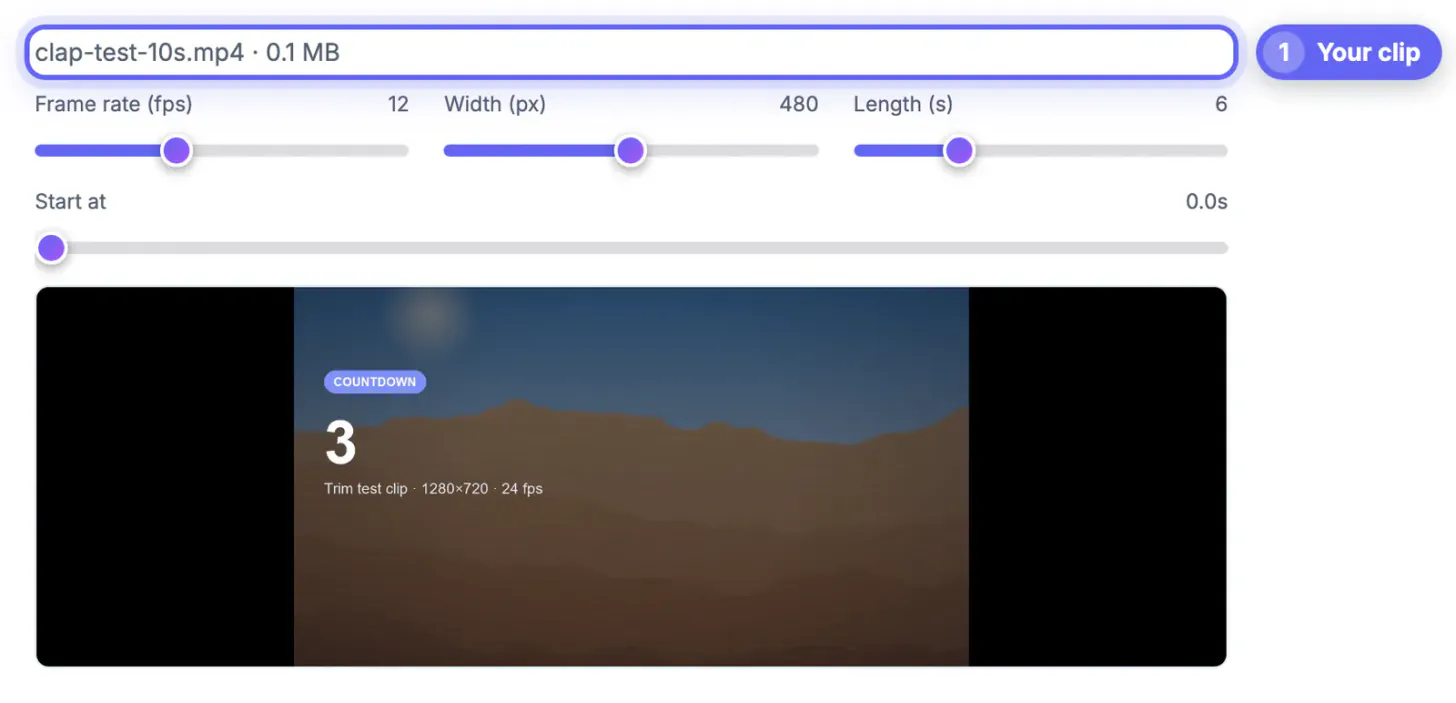
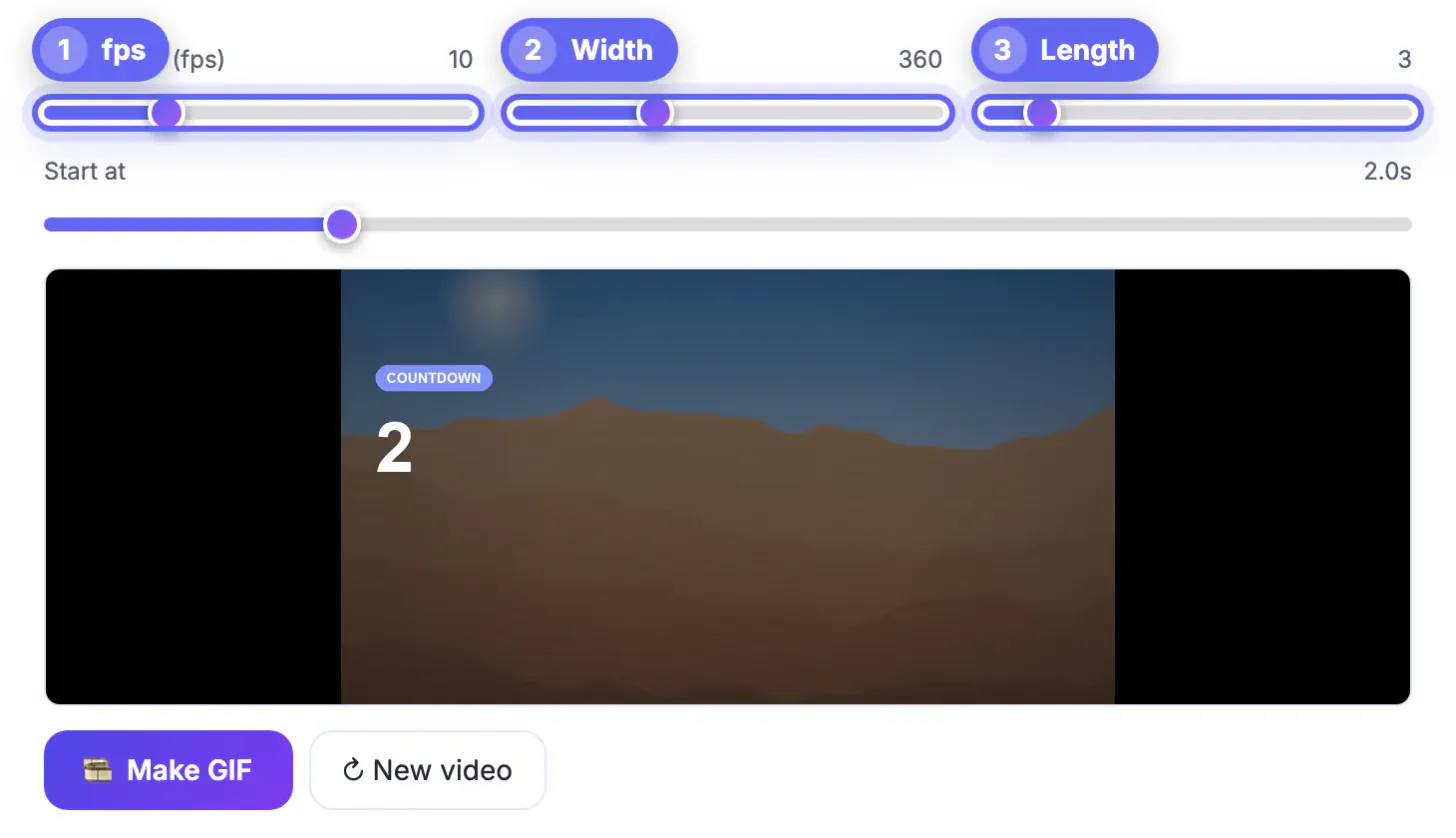
A great reaction GIF is one short beat, usually one to three seconds, cut so the expression lands the instant the loop starts. To make one from a video, open GrabCast Video to GIF, park the start slider just before the eye roll or double take, set the length to 2 or 3 seconds, and export at a chat-friendly width of 320 to 400 pixels.
🎞️ Try Video to GIF now — freeOpen →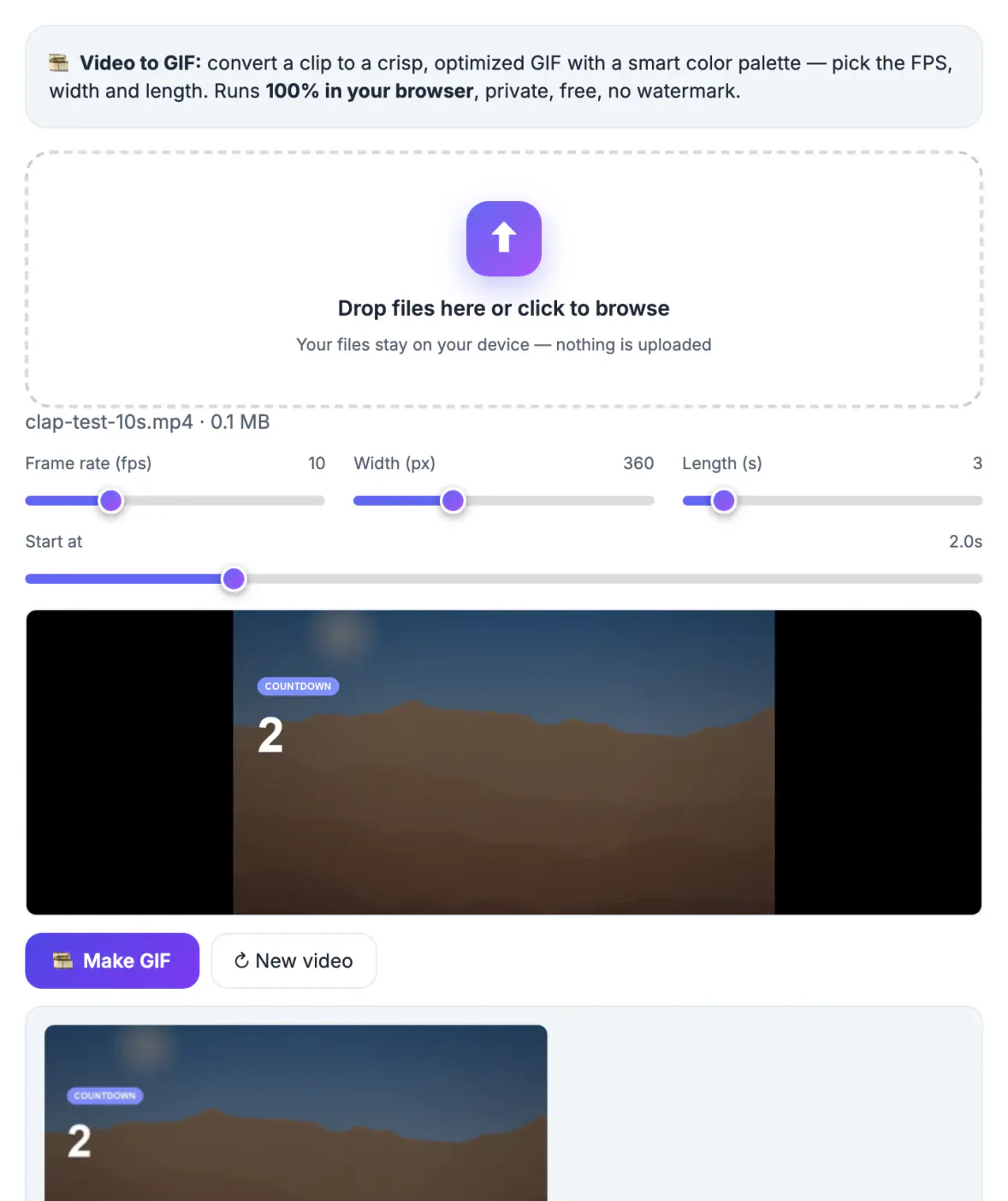
The built-in GIF pickers in Slack, Discord and iMessage all draw from the same libraries, so everyone ends up using the same overused shrug. A reaction cut from your own footage, like your dog's betrayed stare, a coworker's legendary sigh in a team video, or your kid's victory dance, is instantly recognizable to the people in the group and impossible to find anywhere else. Inside jokes travel further than stock memes. Making your own also lets you control the crop and the timing, which matters more than resolution: a reaction that starts half a second late loses the joke entirely. Homemade reactions also age better than trending ones, because they are tied to your group's history instead of last month's viral moment.
Finding the moment worth a reaction GIF
Scrub through the footage looking for a single, readable change on someone’s face or body. Reactions work when a viewer understands the emotion in under a second without sound or context.
- Slow blinks, side eyes and exaggerated nods read well even at small sizes
- Pets reacting to food, doors or vacuum cleaners are reliable crowd favorites
- Sports celebrations and fails work if the key motion stays inside the frame
- Skip moments that only make sense with dialogue; the output has no sound
A useful test: mute the clip, watch it once, and ask whether a friend would understand the mood instantly. If you need to explain it, keep looking. Faces filling at least a third of the frame usually pass that test comfortably.
Timing the beat with the start slider
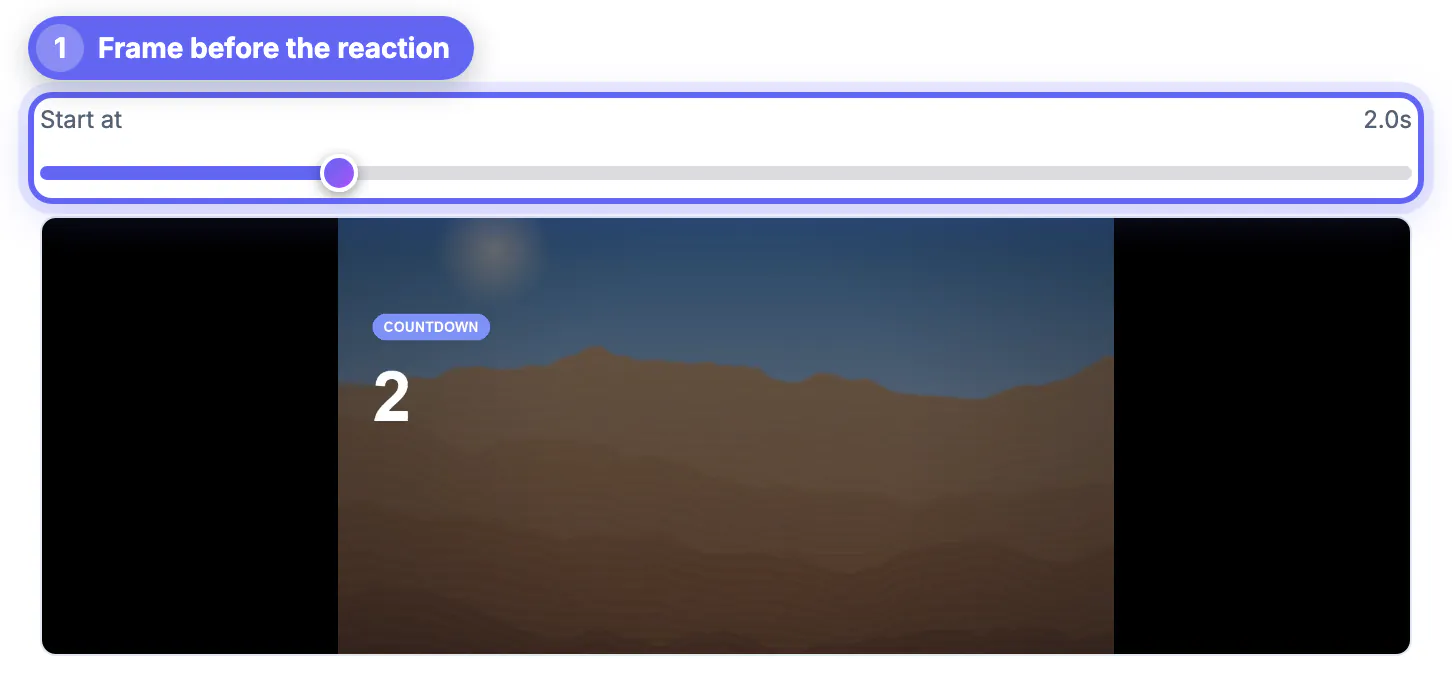
The Start at slider moves in 0.1 second steps while the preview jumps to that frame. That precision is what separates a sharp reaction from a sloppy one, because the funniest part of an expression is usually its first half second.
- Start about 0.3 seconds before the expression begins so viewers see the change happen
- Use a length of 2 seconds for a single look and 3 for a double take
- End right after the peak; a lingering tail makes the loop feel slow
- Replay the export and nudge the start by 0.1 or 0.2 if the timing feels off
Frame rate shapes comedic feel as well. Around 12 fps keeps subtle expressions natural, while dropping lower makes a clumsy fall look even more slapstick.
Size targets for chat apps
Reactions are viewed small, often on phones, so there is no reason to export them large. Lighter files send instantly and do not eat into anyone’s mobile data.
- Discord: free accounts can upload up to 10 MB; animated server emoji must stay under 256 KB
- Slack and Teams: 320 to 400 px wide keeps reactions quick to load in busy threads
- iMessage and WhatsApp: both accept animations, though WhatsApp may convert them to short silent videos
- For emoji-sized reactions, try 160 to 200 px wide at 10 fps and one second long
When a file comes out too heavy, reduce width first, then length, then frame rate. Most people never notice the difference between 360 and 300 px inside a chat bubble, but they always notice a slow load.
For a smaller file, the Video Compressor shrinks the source clip first, and the GIF Maker builds GIFs from other media.
Respecting the people in the clip
Cutting a reaction from your own family or team footage is the safest option. A face frozen in a loop can spread far beyond the group chat, so think before sharing.
- Ask friends or coworkers before turning their expression into a shared reaction
- Clips from films and TV are widely shared, but the footage still belongs to its owner
- Avoid anything that mocks a stranger filmed in public
- Keep work reactions in work channels; context disappears once a file is forwarded
When in doubt, keep a reaction inside the group that already knows the backstory. The same clip that is affectionate among friends can read as mockery to strangers.
Step-by-step
Common mistakes to avoid
Pro tips
Frequently asked questions
How long should a reaction GIF be?
One to three seconds. That is long enough to show a complete expression and short enough to loop without feeling repetitive or taking up much of the chat window. Anything longer starts to feel like a video clip rather than a quick emotional reply.
Can I add text to my reaction?
GrabCast Video to GIF does not overlay text. If your clip needs a caption, film it with text already on screen, or use the Meme Generator for a still image with a classic top and bottom caption. A second option is posting the caption as your own chat message right above the animation.
What width works best for Discord and Slack?
Around 320 to 400 pixels. Chat apps display reactions small, so larger widths only add weight without any visible benefit on phones. Mobile users see reactions at even smaller sizes, so 320 px is a safe default for most groups.
Will my video be uploaded when I make a reaction?
No. The whole conversion happens inside your browser, so personal footage of family, pets or colleagues never leaves your device. That also means you can make reactions from private family footage without worrying about a third-party copy.
Can I make an animated emoji for my Discord server?
Yes, if you keep it under 256 KB. Try a one-second clip at about 160 px wide and 10 fps, then lower the width further if the file is still too heavy. Server owners with boosted perks still need to respect the same per-emoji size cap, so plan small from the start.
Make a reaction GIF from a video by nailing the timing first: start just before the expression, keep it to one to three seconds, and export small enough to send instantly. Build a small personal library over time, and your group will start requesting favorites by name.
Related guides
Browse more: all video and audio guides · Video to GIF