MP4 to GIF: Convert a Clip Without the Bloat
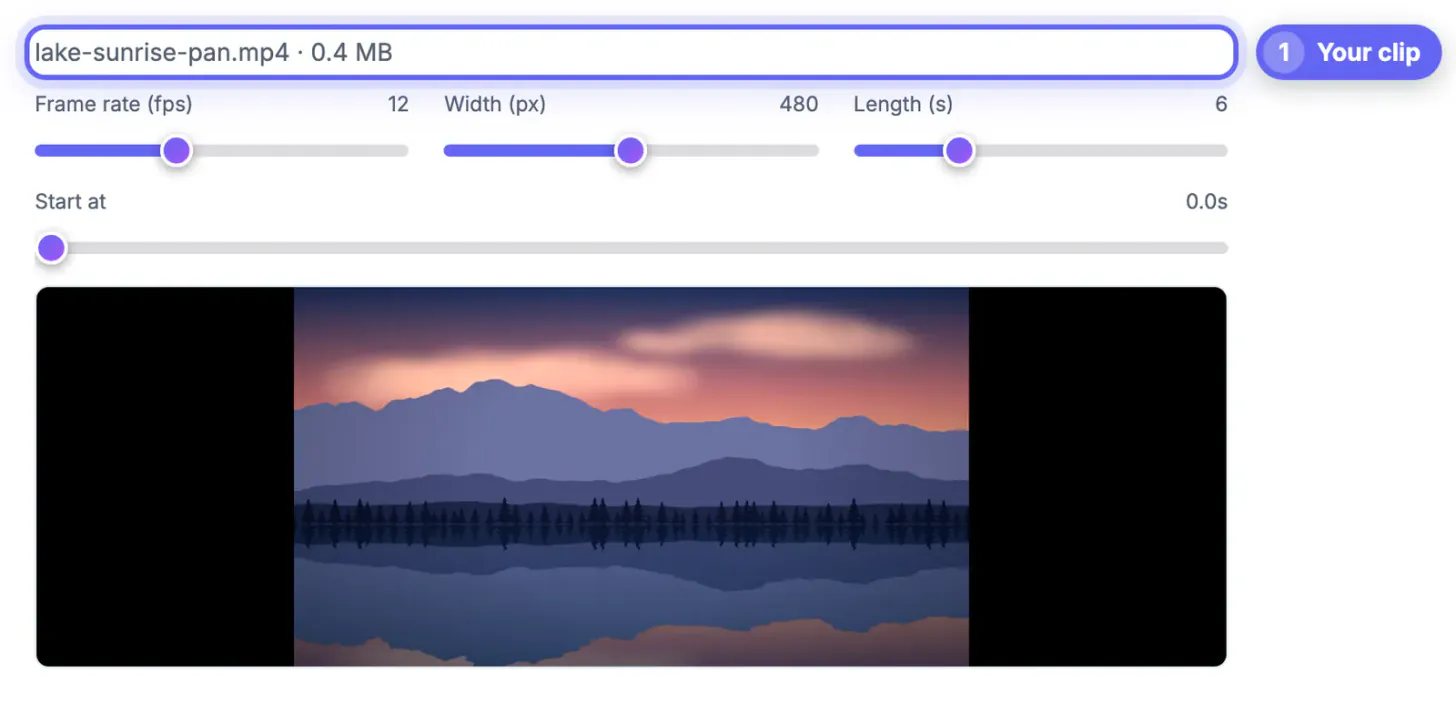
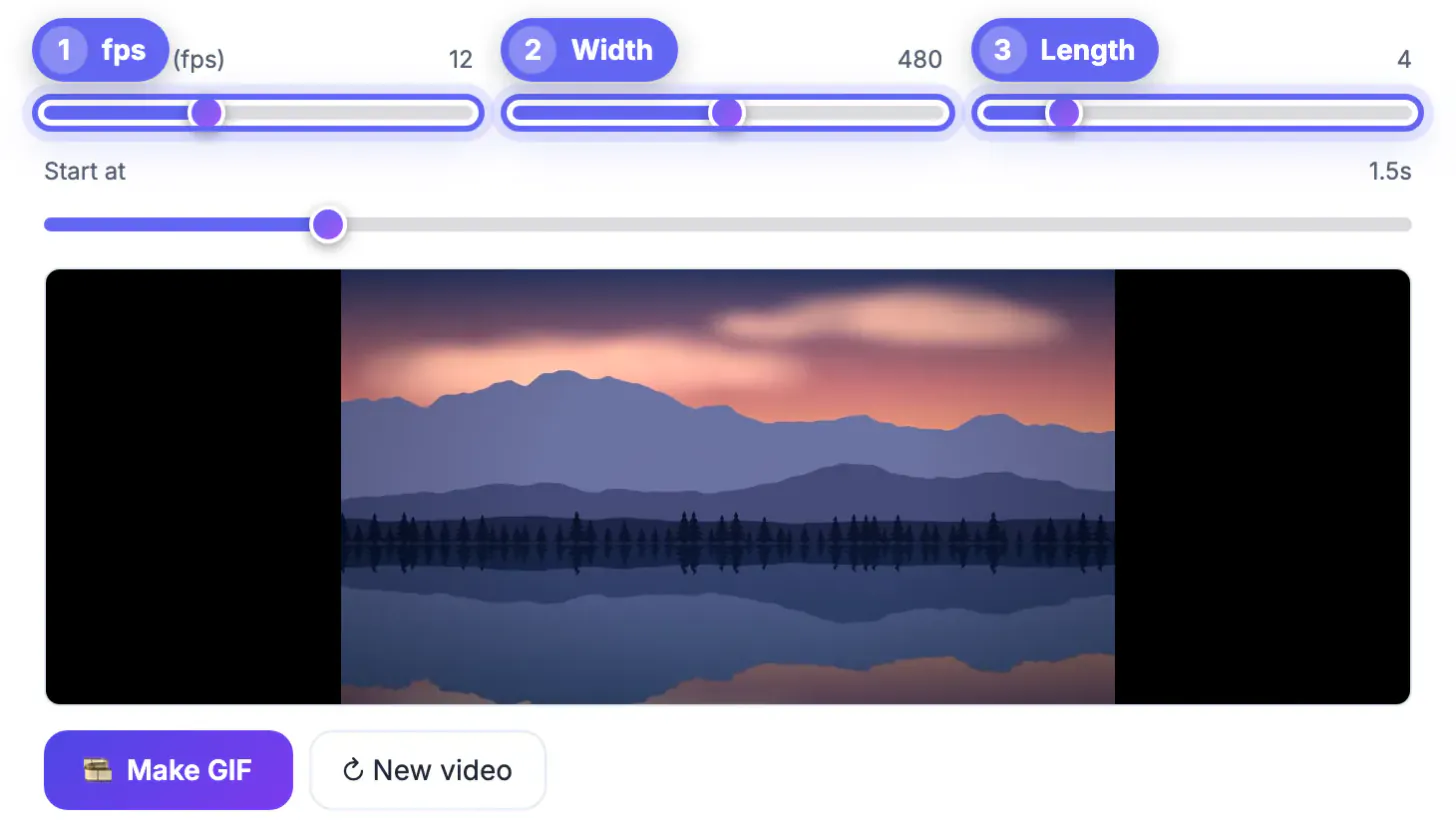
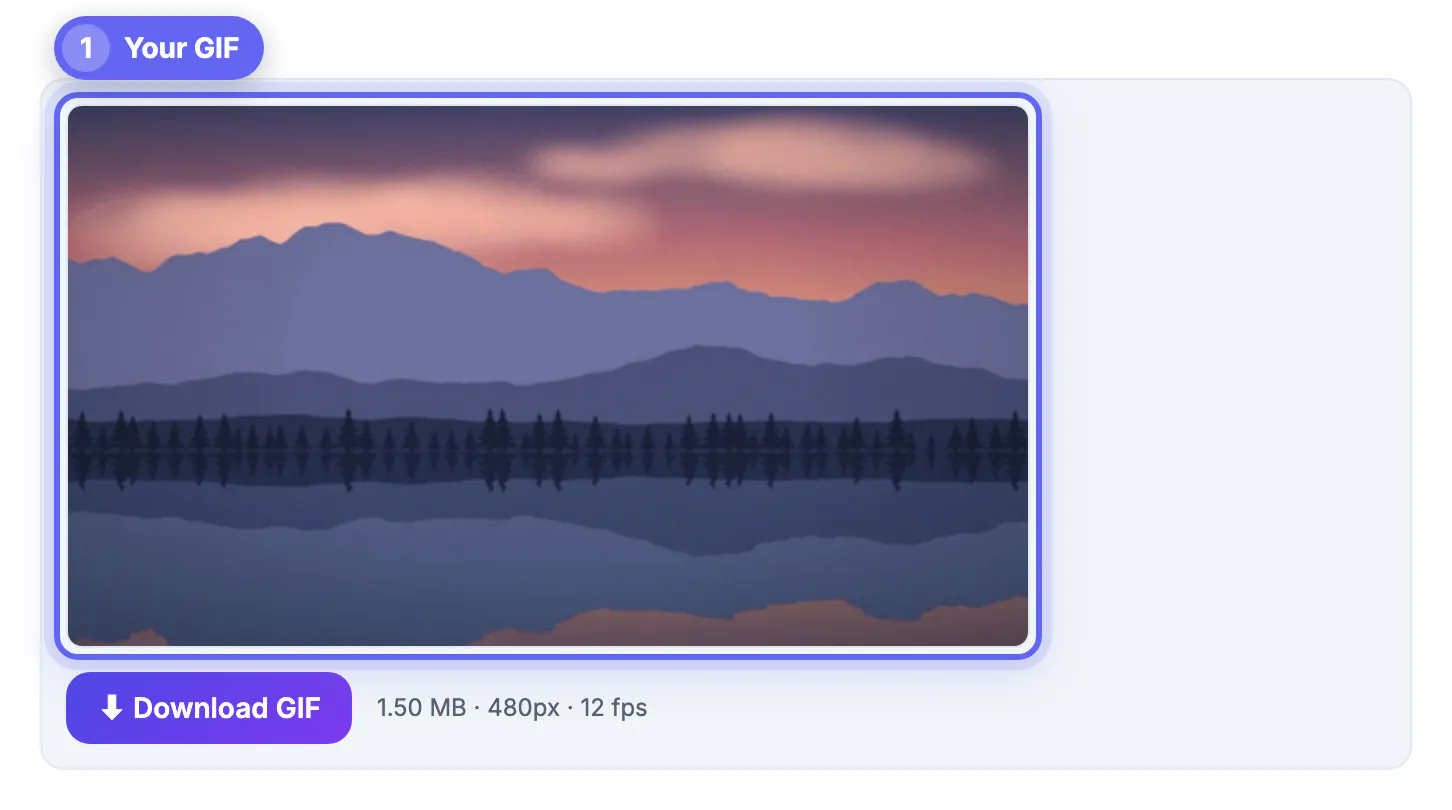
To convert MP4 to GIF, load the clip into GrabCast Video to GIF, choose a start point, a length of 1 to 20 seconds, a frame rate and a width, then click Make GIF. The default of 12 fps at 480 px wide is a sensible starting point, and the whole job runs on your own device, so the file is never uploaded and the result carries no watermark.
🎞️ Try Video to GIF now — freeOpen →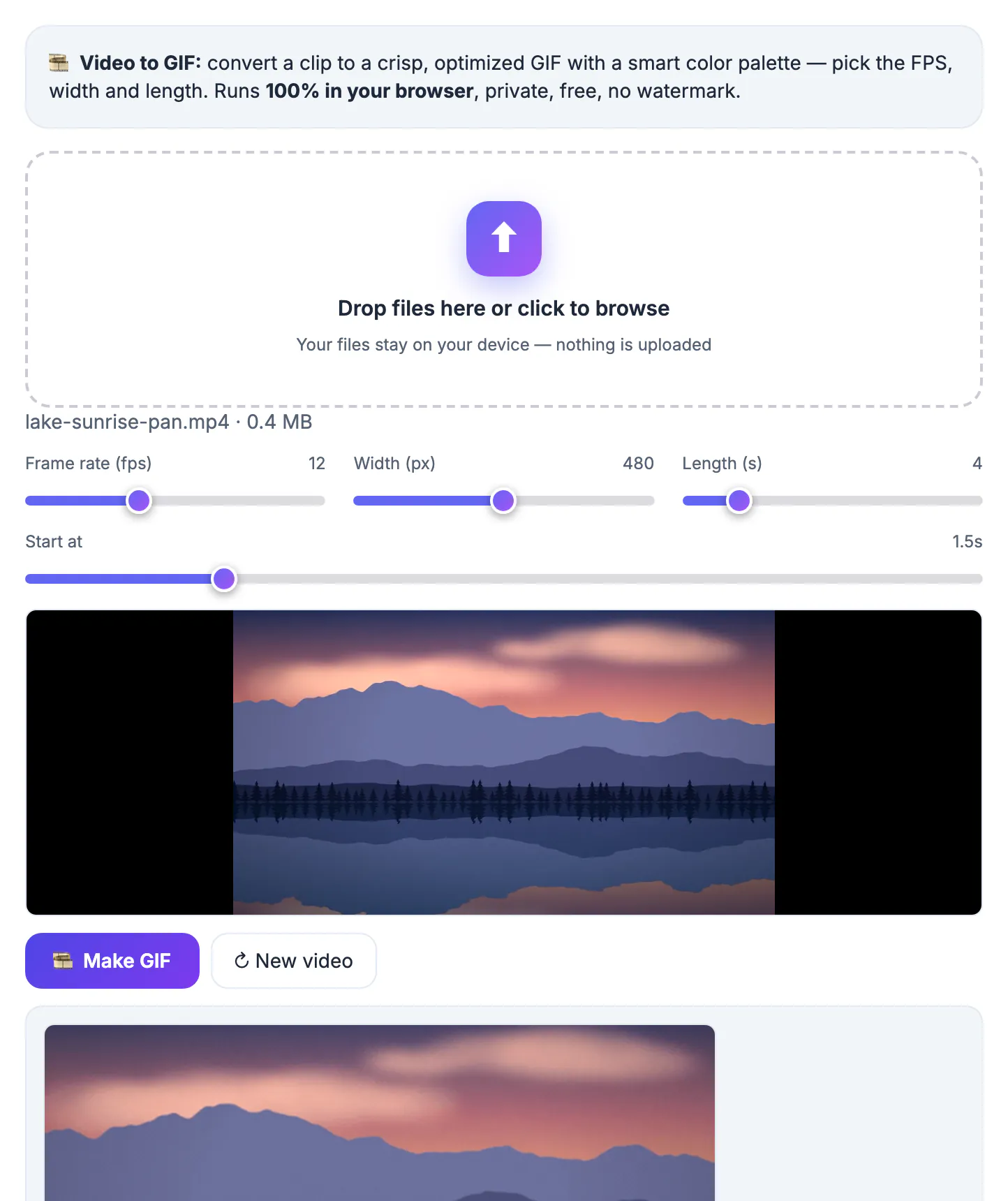
An MP4 needs a player, a click and often an account on whatever platform hosts it. A GIF is treated like a picture: it autoplays, loops forever, and renders inside GitHub READMEs, Notion pages, Jira tickets, Confluence docs, Slack threads and most email clients, including older Outlook builds that refuse embedded video. That makes the format ideal for a 4-second UI demo, a bug reproduction or a quick how-it-works snippet. The catch is efficiency. GIF is a 1987 format limited to 256 colors per frame with no modern motion compression, so the same few seconds can weigh five to ten times more than the source MP4. Good settings are what keep that penalty small. Picking the right few seconds matters just as much, since every extra second is paid for in full on every single view.
What happens when you convert MP4 to GIF
Modern video stores millions of colors and only records what changes between frames. The older animation format stores every frame as an indexed image with at most 256 colors. So the converter has to make two decisions for you: which 256 colors best represent the whole clip, and how to fake the missing shades. GrabCast handles both with a two-pass process built on FFmpeg running inside the browser.
- Pass one scans the selected seconds and builds a custom palette weighted toward the colors that actually move
- Pass two renders every frame against that palette with ordered Bayer dithering, which avoids crawling noise
- Frames are scaled with the Lanczos filter, so text and thin UI lines stay crisp after downsizing
- Audio is dropped automatically, because the format has no sound track at all
Settings that decide the final file size
Three sliders do nearly all the work, and they multiply together. Doubling the width roughly quadruples the pixels per frame, doubling the frame rate doubles the frame count, and doubling the length doubles it again. A 6-second clip at 12 fps and 480 px usually lands somewhere between 1 and 4 MB depending on motion.
- Frame rate: 5 to 24 fps; 10 to 12 looks smooth for screen recordings, 15 to 20 suits fast live action
- Width: 160 to 800 px in 20 px steps; 480 fits chat, 640 to 800 suits documentation screenshots
- Length: 1 to 20 seconds; every extra second costs the same as the one before it
- Start at: a slider with 0.1 second precision and a live preview so you land on the right frame
A practical workflow is to export once at the defaults, note the size, then change a single slider at a time. If a documentation page needs readable menu labels, keep 640 px and cut frame rate to 8 or 10 instead of shrinking the width.
Typical MP4 sources and the settings that suit them
Different footage behaves very differently once it is squeezed into 256 colors. Flat interfaces compress beautifully, while grainy phone video at night fights the palette on every frame.
- Screen capture of an app: 10 fps, 640 px, 5 to 8 seconds, often well under 2 MB
- Phone clip of a product or pet: 12 to 15 fps, 480 px, 3 to 5 seconds
- Gradient-heavy sunset or sky shot: expect some banding; keep it short and accept a larger file
- Talking head or presentation: consider a still image plus a link, since lip motion rarely reads well
Limits worth knowing before you export
The format is old, and no converter can remove its basic constraints. Knowing them up front saves a round of re-exports.
- No audio, ever, so captions or on-screen text must already be in the source footage
- Smooth gradients and skin tones can band or show a fine dot pattern from dithering
- Some platforms, including X and Reddit, quietly re-encode uploaded animations into video anyway
- For your own website, a muted autoplay MP4 or WebM is lighter; keep the animated image for places that block video
One more honest trade-off: dithering makes busy footage look richer, but it also adds pattern noise that resists compression. Calm, static backgrounds are always your cheapest frames.
If the clip needs trimming or a different frame, try the Crop & Resize Video tool and the GIF Maker.
Step-by-step
Common mistakes to avoid
Pro tips
Frequently asked questions
How big will my GIF be compared with the MP4?
Usually several times larger for the same seconds, because the format lacks modern motion compression. A 6-second, 480 px, 12 fps export commonly lands between 1 and 4 MB; lower width, frame rate or length to go smaller. As a rough budget, most chat and ticketing tools handle anything under 5 MB smoothly.
What is the maximum length I can convert?
The Length slider goes from 1 to 20 seconds per export. For longer material, a short muted MP4 is a far better choice than an enormous animated image.
Is my MP4 uploaded to a server?
No. The conversion runs inside your browser with a self-hosted FFmpeg engine, so the video stays on your device and works even on a slow connection once the page has loaded. Nothing is stored on a GrabCast server, and closing the tab discards the working copy.
Why do colors look slightly speckled?
That is dithering, the technique used to imitate shades outside the 256-color palette. It is most visible on smooth gradients; shorter clips with fewer distinct scenes get a more accurate palette.
Can I convert on an iPhone or Android phone?
Yes, in a current mobile browser. Phones have less memory, so keep the source clip short and the width at 480 px or below for the smoothest experience. On older phones, close other tabs first so the browser has more memory for the render pass.
Convert MP4 to GIF by picking only the seconds that matter, then balance width, frame rate and length; the smart palette handles color, and the file never leaves your device.
Related guides
Browse more: all video and audio guides · Video to GIF