Post One Video to TikTok, Reels and Shorts the Right Way
Posting the same clip to TikTok, Instagram Reels and YouTube Shorts is among the most efficient things a small creator or business can do, as long as each upload looks native to its app. The three common mistakes are reposting a file with another app's watermark, letting captions or text sit under a different app's buttons, and pasting one caption everywhere. This guide shows a simple workflow: export one clean vertical master in GrabCast's free Shorts Maker, check it against each app's safe zone, tailor the caption and title per platform, and plan the three posts together. The example is a 20-second product demo for a fictional paper planner brand, Tidy Planner.
📱 Try the Shorts Maker now — freeOpen →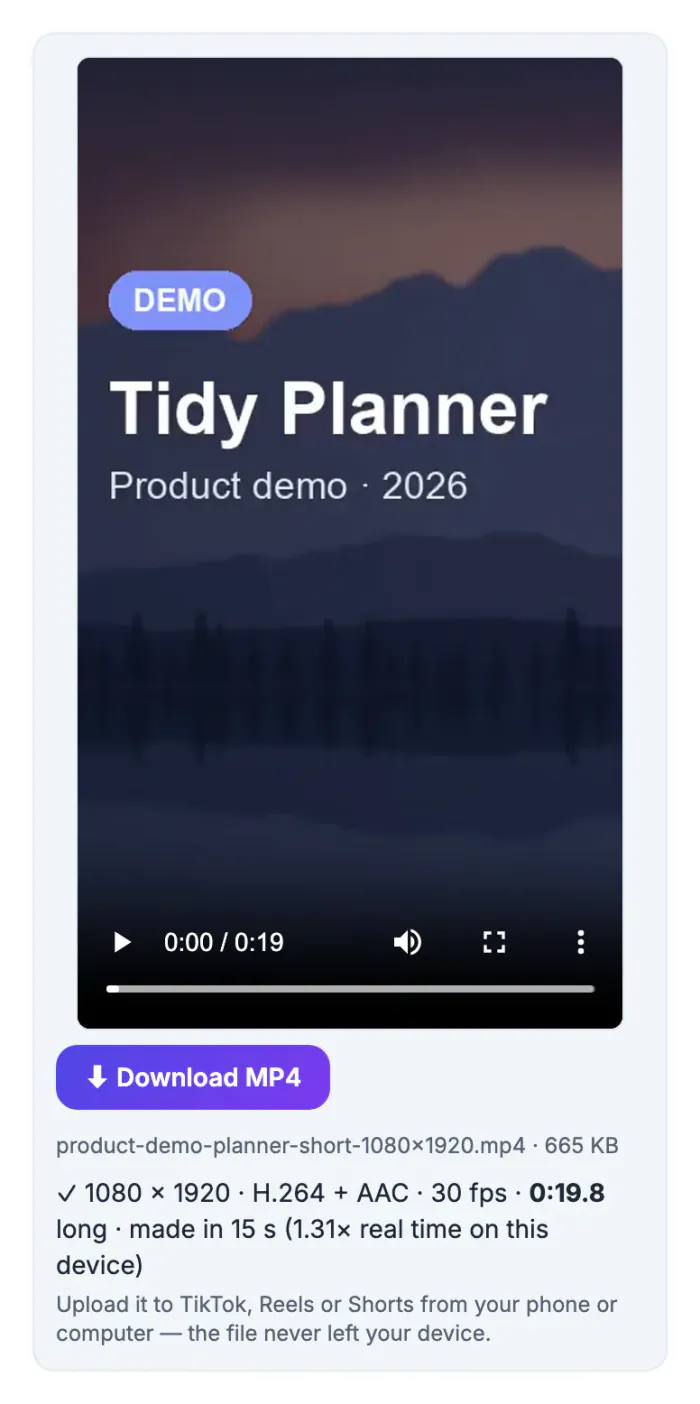
The quickest way to cross-post is to download your TikTok and upload the file to Reels and Shorts. It is also the worst. The downloaded file carries TikTok's watermark, and Instagram has said it recommends Reels less when they show another app's watermark; it also looks like a repost to viewers. Each download is a re-encode, so quality drops. And TikTok's text overlays were placed for TikTok's buttons, which sit in slightly different places from Instagram's and YouTube's. Working from your own master file avoids all of that: one high-quality 9:16 export with captions positioned in the area all three apps leave clear, plus separate captions and titles written for each audience. It takes a few more minutes and gives every platform a fair start.
What each app needs from one vertical video
The three apps agree on the basics, 9:16 at 1080 by 1920, and differ on length and details. At the time of writing:
- TikTok: vertical video, MP4 or MOV; videos posted through TikTok's API can run up to 10 minutes, and uploads in the app can be longer.
- Instagram Reels: 9:16 recommended, MP4 or MOV, 3 seconds to 15 minutes when published through Instagram's API.
- YouTube Shorts: vertical or square and 3 minutes or less; longer or horizontal videos become regular videos.
- Facebook Reels, if you also post there: 3 to 90 seconds through Meta's API.
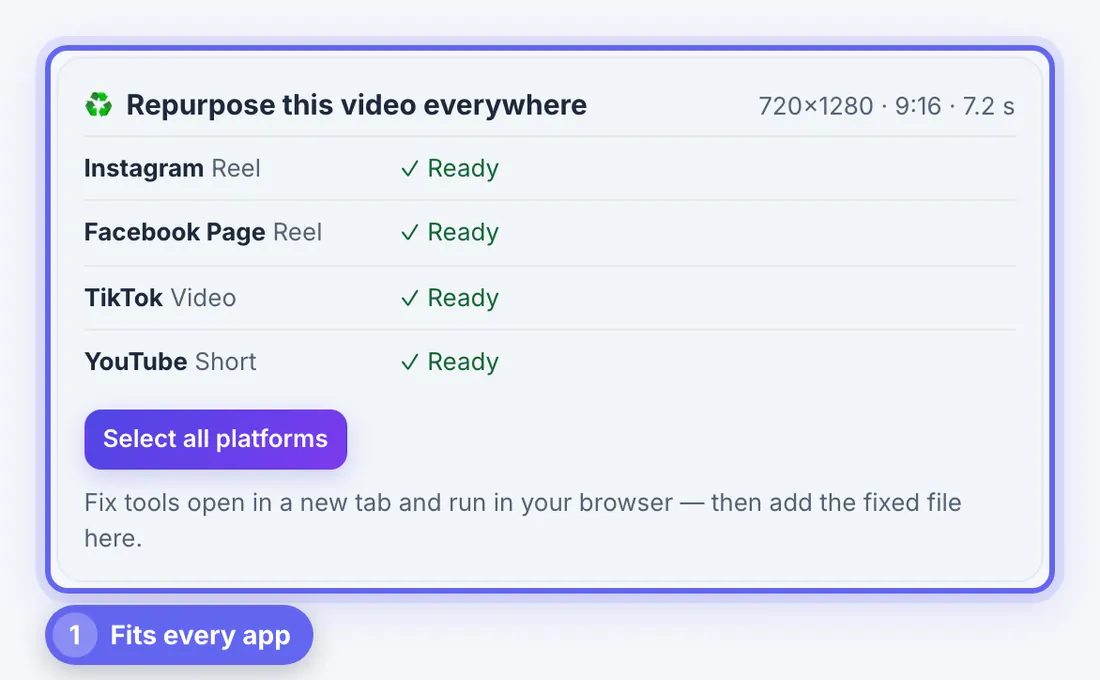
A clip under 90 seconds therefore fits all four, which is a good target for a repurposed demo. The Social Media Scheduler's Repurpose this video everywhere panel reads a file once and shows Ready or a fix for Instagram Reel, Facebook Page Reel, TikTok Video and YouTube Short side by side.
Export one clean master with the Shorts Maker
Start from your original recording, not from a downloaded copy. In the Shorts Maker:
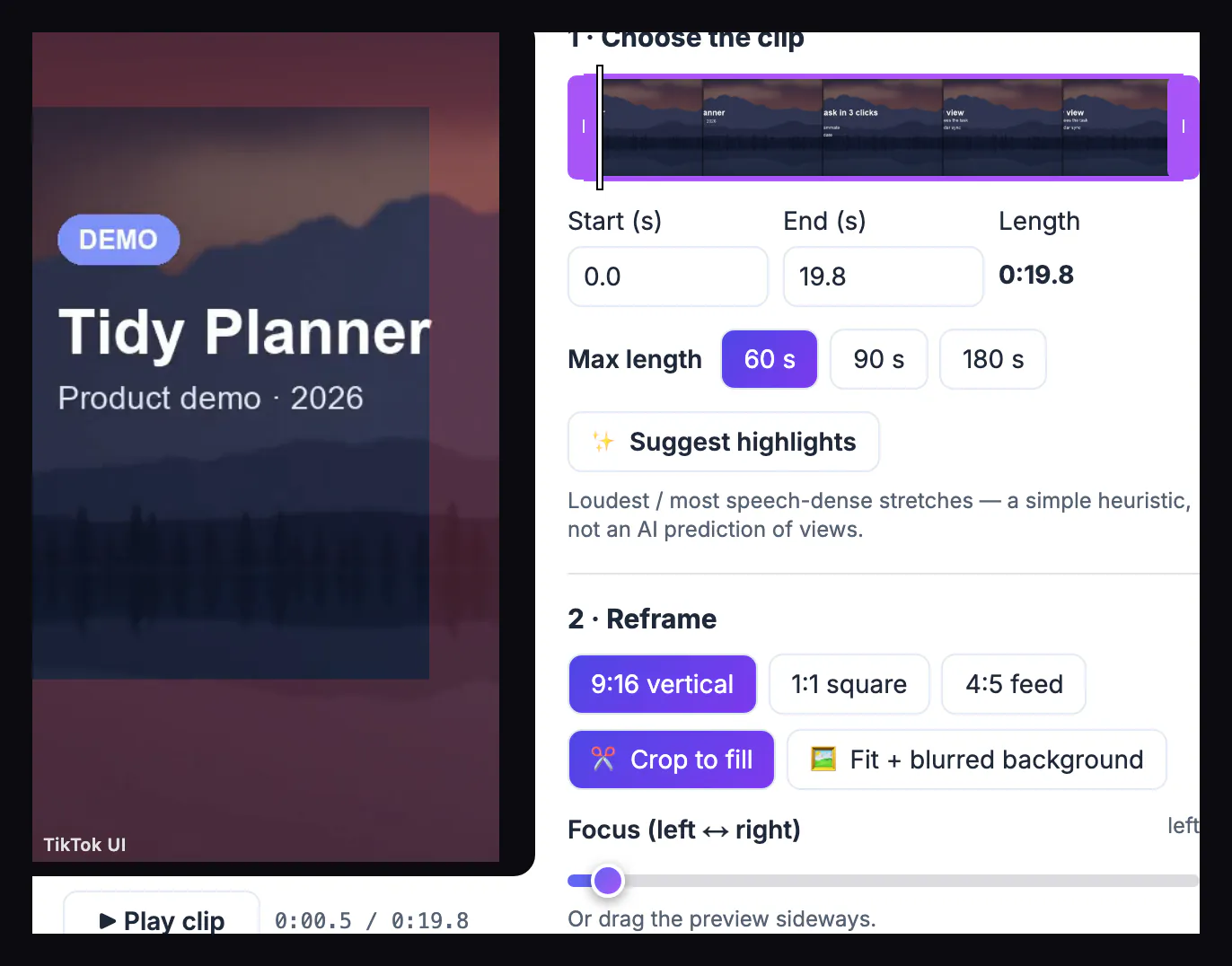
- Drop the video and pick the clip on the timeline; keep it under 90 seconds if Facebook Reels is on your list.
- Reframe to 9:16. Use Crop to fill for talking heads and products, dragging the preview to keep the subject in frame; use Fit plus blurred background for screen recordings and slides.
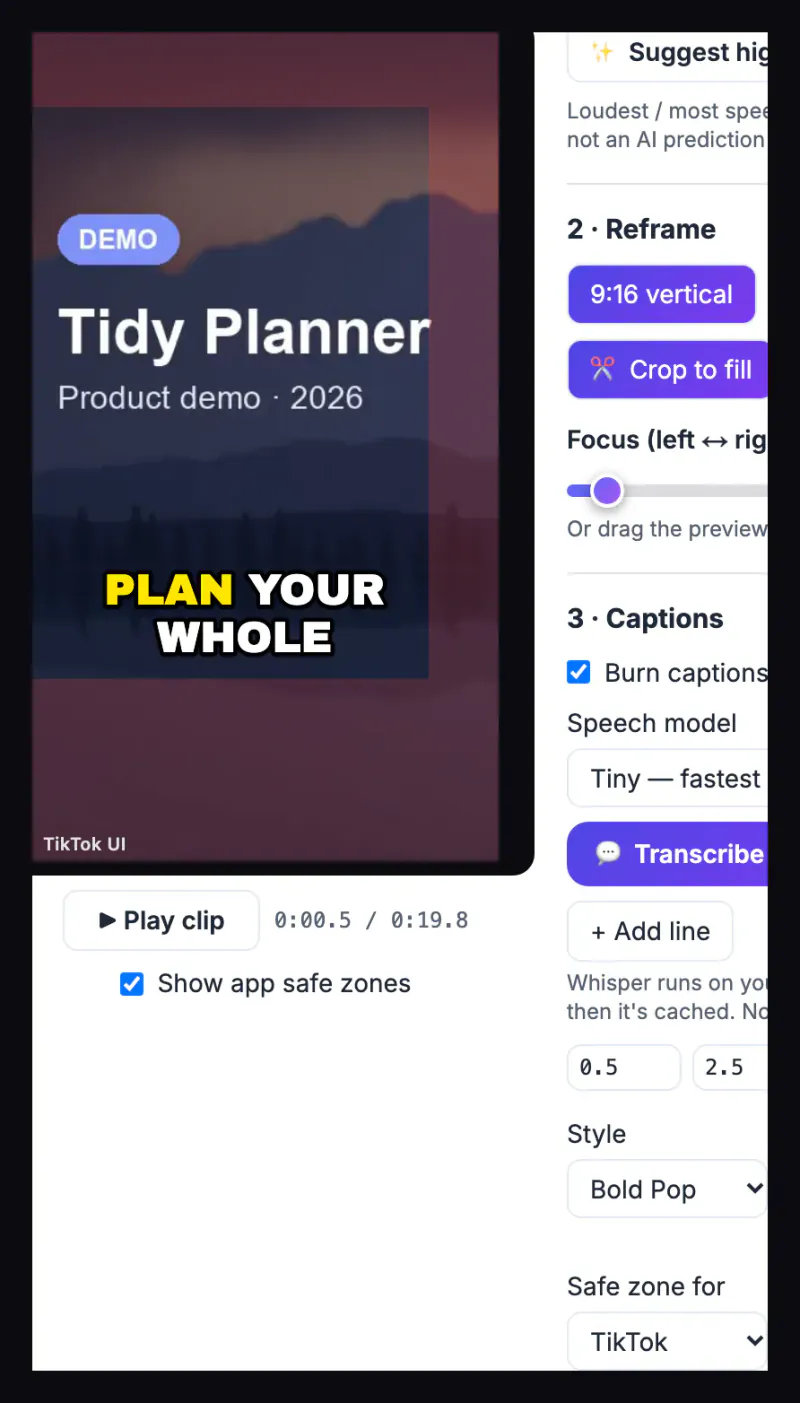
- Add captions by transcribing on your device or importing an .srt file, and choose Position: Lower (above app UI).
- Export Full HD at 30 frames per second. The file carries no watermark, because nothing is added unless you add it.
The planner demo was a horizontal 1280 by 720 recording with its title on the left, so Crop to fill with the focus moved to the left edge kept Tidy Planner in the vertical frame. For more reframing options see cropping to 9:16 and the 1080 by 1920 safe-zone guide.
Check safe zones for TikTok, Reels and Shorts
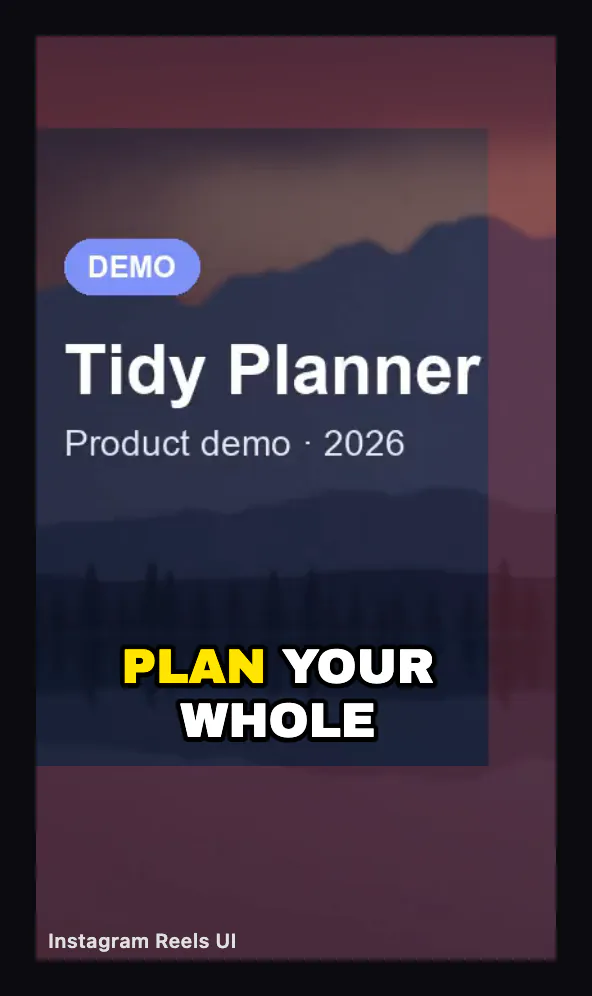
Each app covers part of the frame with its own buttons, caption text and progress bar. The Shorts Maker's Safe zone for menu places captions inside the chosen app's approximate clear area, and Show app safe zones draws it on the preview.
- Switch the menu between TikTok, Instagram Reels and YouTube Shorts and watch where the caption lands on each.
- Keep hook text and captions in the middle band; the right edge and the bottom fifth are the riskiest areas on all three.
- If one position cannot suit all three, favor the app where the video matters most and check the others on a phone.
- Apps change their layouts, so check once in each app after the first upload.
For the planner demo, the caption in the lower position stayed clear of the buttons in both the TikTok and the Reels overlays, so one master served every app.
Write a caption and title for each app, then plan them
Same clip, three audiences. In the Social Media Scheduler tick TikTok, Instagram and YouTube, choose Reel and Short as the post types, and open Per-platform captions.
- TikTok: a short caption with the hook, plus three to five relevant hashtags.
- Instagram Reels: a first line that works as a hook, then a sentence or two of detail, and at most 5 hashtags.
- YouTube Shorts: a title is required; write what the viewer learns, and keep the description short.
- Stagger the three posts by a few hours or a day if you want to compare how each app picks it up.
TikTok and YouTube are plan only until their app reviews finish, so the calendar reminds you to upload there; Instagram and Facebook can publish once connected. The video and audio guides cover trimming, compression and captions in more depth.
Step-by-step
Common mistakes to avoid
Pro tips
Frequently asked questions
Is it OK to post the same video on TikTok, Reels and Shorts?
Yes. Posting your own video on several apps is common. Upload a clean file without another app's watermark and tailor the caption for each audience.
Why should I avoid reposting a downloaded TikTok?
It carries TikTok's watermark, which Instagram has said it recommends less, and each download lowers the quality. Export your own master instead.
What length works on all three apps?
Anything up to 3 minutes fits TikTok, Reels and Shorts; stay under 90 seconds if you also post Facebook Reels.
Where should captions go so buttons do not cover them?
In the lower middle area above the app's own caption text, away from the right edge. The Shorts Maker places them in each app's approximate safe zone.
Does the Shorts Maker add a watermark?
No. The export contains only what you add, such as captions, a hook title or a progress bar.
One video can serve TikTok, Reels and Shorts if you treat each upload as native. Export a clean 9:16 master from the original recording, keep captions in the area all three apps leave clear, write a caption and title for each audience, and plan the posts together so nothing is forgotten.
Related guides
Browse more: all video and audio guides · the Shorts Maker