1080x1920 Story Size: Safe Zones for Reels and TikTok
To resize a photo to 1080x1920 for a Story, Reel or TikTok, pick a 9:16 vertical preset, choose whether to crop the picture to fill the tall frame or fit it on a blurred background, and keep any text away from the top and bottom where the app draws its own buttons. The same 1080 by 1920 file works on Instagram and Facebook Stories, Reels, TikTok, YouTube Shorts and Snapchat, but each app covers slightly different areas. This guide gives the safe zones in pixels, shows how much of a landscape shot survives the switch to vertical, and explains which fit mode suits which photo.
📐 Try Resize Image now — freeOpen →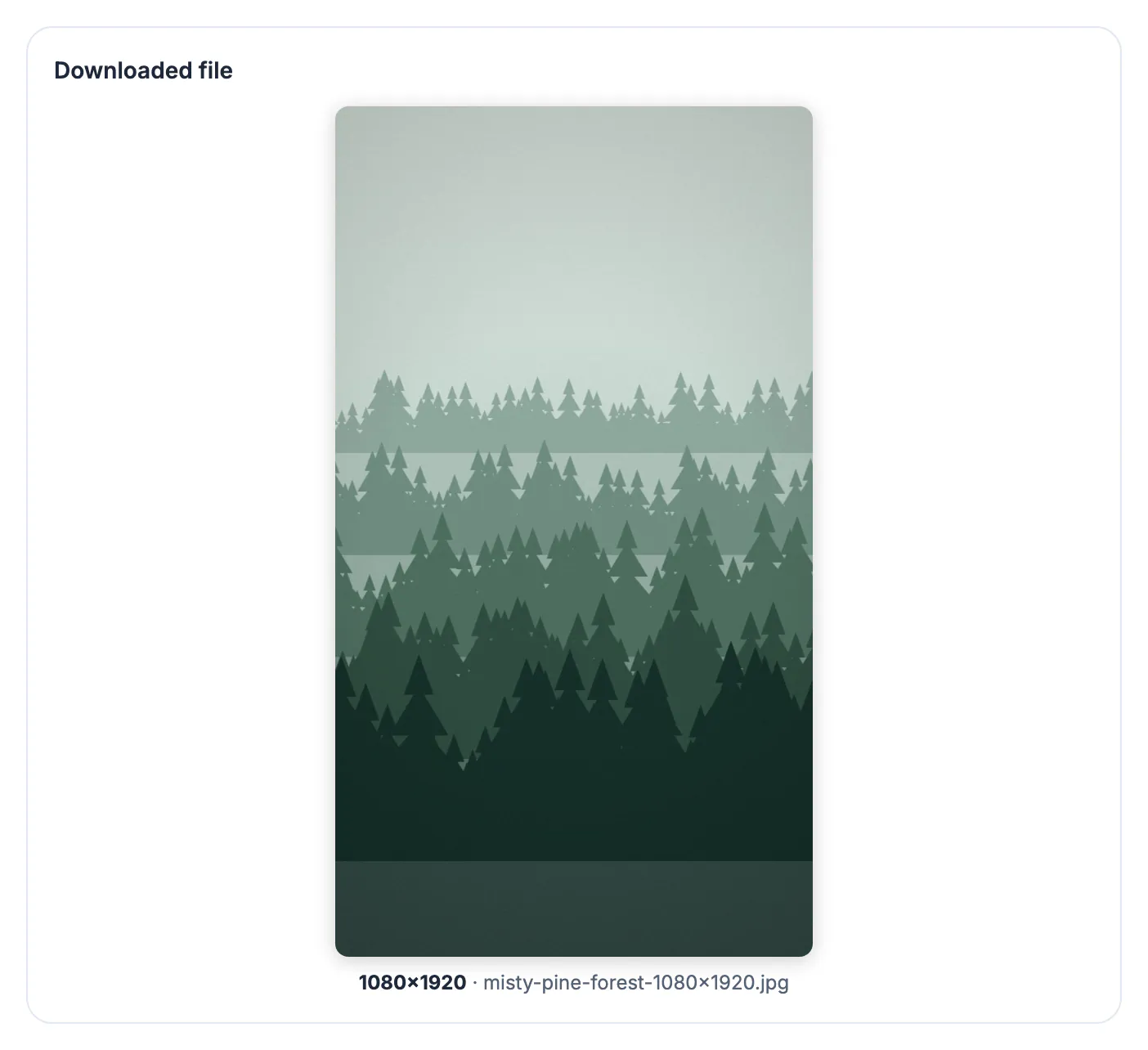
Nearly every camera photo is wider than a phone screen held upright. Converting it to 9:16 either throws most of the width away or leaves empty space to fill, and the interface then covers the top and bottom of whatever remains. A layout that looks balanced on a laptop can end up with the headline behind the profile name and the call to action behind the reply bar. Planning the crop and the safe zone together, before exporting, is what separates a Story people read from one they swipe past because the key line was hidden.
How much of a photo survives 1080x1920
The math is worth knowing before you choose a mode, because it decides whether cropping is even an option.
- A 16:9 landscape photo cropped to 9:16 keeps only about 32 percent of its width. Great for a single face in the center, hopeless for a group.
- A 4:3 landscape phone photo keeps about 42 percent of its width.
- A 3:4 portrait phone photo, such as 3024 by 4032, keeps 75 percent of its width and all of its height, so cropping usually works well.
- A square post keeps about 56 percent of its width, or sits comfortably in the middle of a blurred fill.
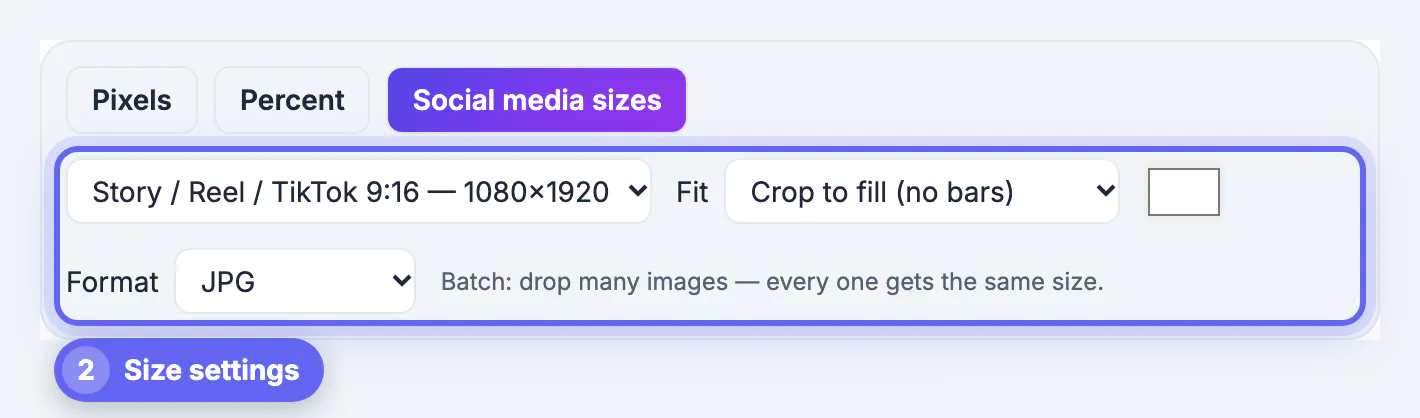
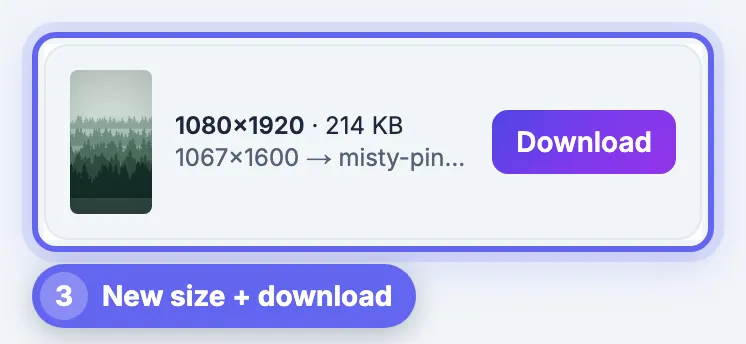
The GrabCast preset is labeled Story / Reel / TikTok 9:16 and produces exactly 1080 by 1920 pixels whatever you drop in.
Safe zones on Stories, Reels, TikTok and Shorts
No platform publishes one permanent, universal safe zone, and the numbers shift as apps are redesigned. These are working margins that have held up across recent versions; treat them as a guide and preview on a real phone.
- Instagram and Facebook Stories: leave roughly the top and bottom 250 pixels (about 14 percent each) free of text and logos for the profile row and the reply bar.
- Reels: the bottom is busier, with caption, audio and buttons. Meta's ad guidance has asked for around 35 percent clear at the bottom, about 670 pixels, plus a margin on the right for the like and share column.
- TikTok: the action buttons run down the right side and the caption sits across the bottom, so keep text left of roughly 900 pixels and above roughly 1500 pixels.
- YouTube Shorts: similar to TikTok, with the title and channel along the bottom and buttons on the right.
- The safest area for one headline across every app is a central band about 900 by 1000 pixels, starting near 300 pixels from the top.
Picking the right fit mode for a 1080x1920 frame
Resize Image offers three fits when a preset changes the shape. Each suits a different kind of photo.
- Crop to fill: fills the screen edge to edge, keeping the center. Best for portrait photos and single subjects standing in the middle.
- Fit + blurred background: the whole photo sits in the middle over a blurred, slightly darkened version of itself. Best for landscapes, groups and screenshots of a tweet or review.
- Fit + solid background: the photo sits on a flat color, leaving clean space above and below for text you add in the Story editor.
- If your subject stands to one side, crop first to 9:16 with a movable box, then run the preset; the preset itself always crops from the center.
Fit modes also avoid the awkward auto-zoom some apps apply when a landscape picture is dropped straight into a Story. A practical rule: if cropping would keep less than about half the width of the original, use a fit mode; if it keeps more, crop and move on.
Export settings that survive the upload
Stories and Reels are recompressed heavily, so start with a clean file at the exact size.
- Export JPG at the tool's 90 percent quality; a busy 1080 by 1920 photo usually comes in under 1 MB.
- Use PNG only for flat graphics with sharp text, and check the app accepts it; JPG is the safe default.
- Do not enlarge a small crop past its natural size; if a 600 pixel wide crop has to fill 1080 pixels, upscale it with AI first.
- For a series of Story frames, drop them all in and download a ZIP; every frame comes out 1080 by 1920 with the size in its file name.
- Preview the final file on your phone with the app's interface on top before you post.
If a Story file still comes out heavy, shrink it with the Compress Image tool. Adding a headline over a busy photo? These tips for readable text keep it legible.
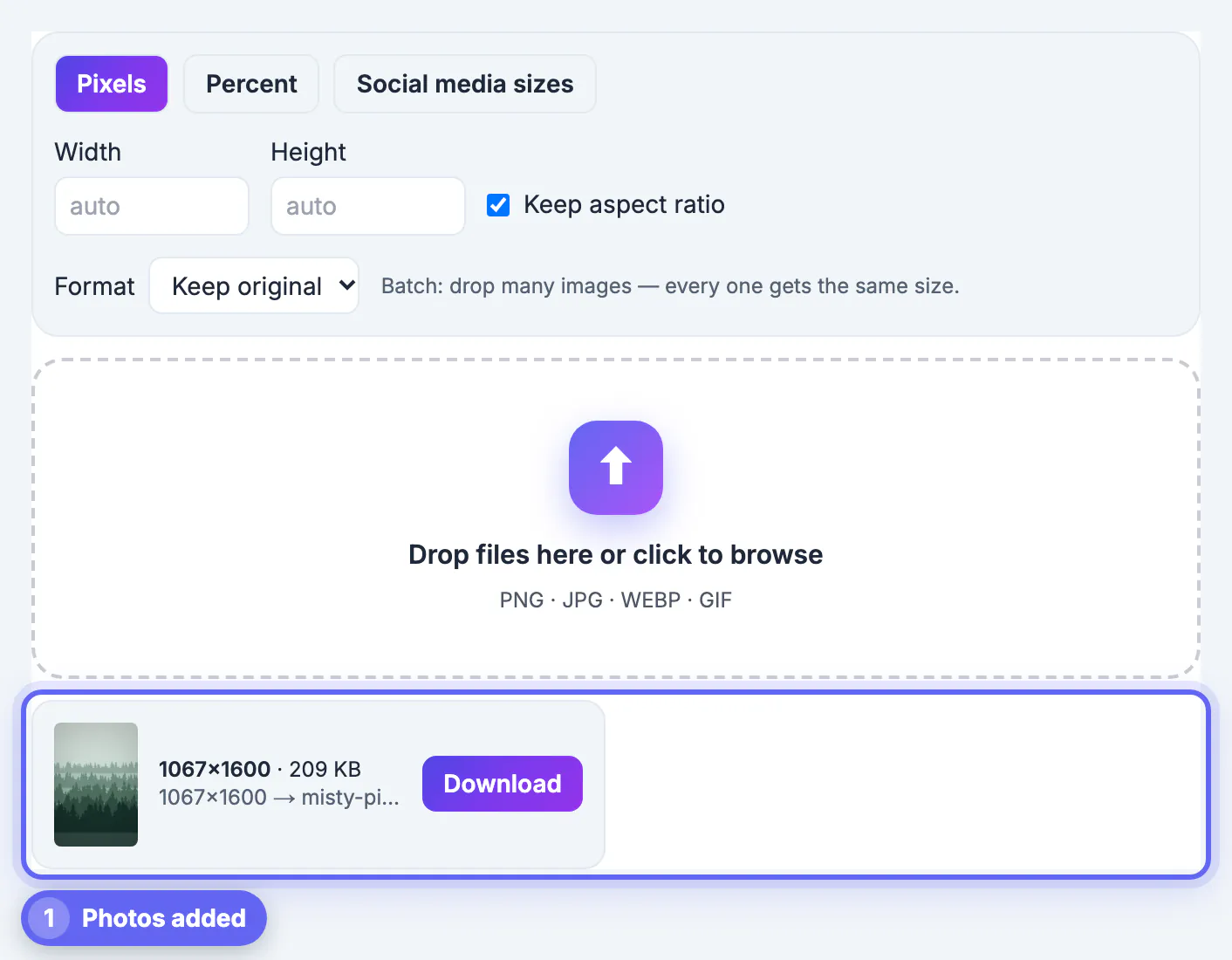
Step-by-step
Common mistakes to avoid
Pro tips
Frequently asked questions
What size is an Instagram Story or TikTok in pixels?
Both use a 9:16 vertical frame, and 1080 by 1920 pixels is the standard full-screen size. The same file works for Facebook Stories, Reels, YouTube Shorts and Snapchat.
What is the Story safe zone?
It is the part of the screen not covered by the app. As a working rule, keep text and logos out of the top and bottom 250 pixels on Stories, and further from the bottom and right edge on Reels and TikTok.
Can I use a landscape photo for a Story?
Yes. Cropping keeps only about a third of a 16:9 photo, so use Fit with blurred background to show the whole picture over a soft fill that covers the screen.
Why does my Story look blurry?
Usually the source was small, or the app recompressed an oversized upload. Start from the original photo, export exactly 1080 by 1920, and upload over a good connection.
Does GrabCast upload my photos?
No. Resize Image runs in your browser; the pictures are processed on your device and nothing is stored on a server. You can drop a whole set of Story frames at once and download them together as a ZIP.
A 1080x1920 Story is a tall frame with app buttons on top of it. Decide whether to crop or blur-fit based on how much of the original would survive, keep text inside a central band clear of the top 250 pixels and the busy bottom, and export at exactly 1080 by 1920. GrabCast does the resize free in your browser.
Related guides
Browse more: all image guides · Resize Image