Social Media Image Sizes: Cheat Sheet for Every Network
The social media image sizes you need most are 1080×1080 or 1080×1350 for Instagram posts, 1080×1920 for Stories, Reels and TikTok, 1280×720 for YouTube thumbnails, and wide banners such as 1500×500 for X and 1584×396 for LinkedIn. This cheat sheet lists every common size in one place, explains which aspect ratio each network really uses, and shows how to turn one photo into all of them at once without ugly stretching or missing heads.
📐 Try the Resize Image tool now — freeOpen →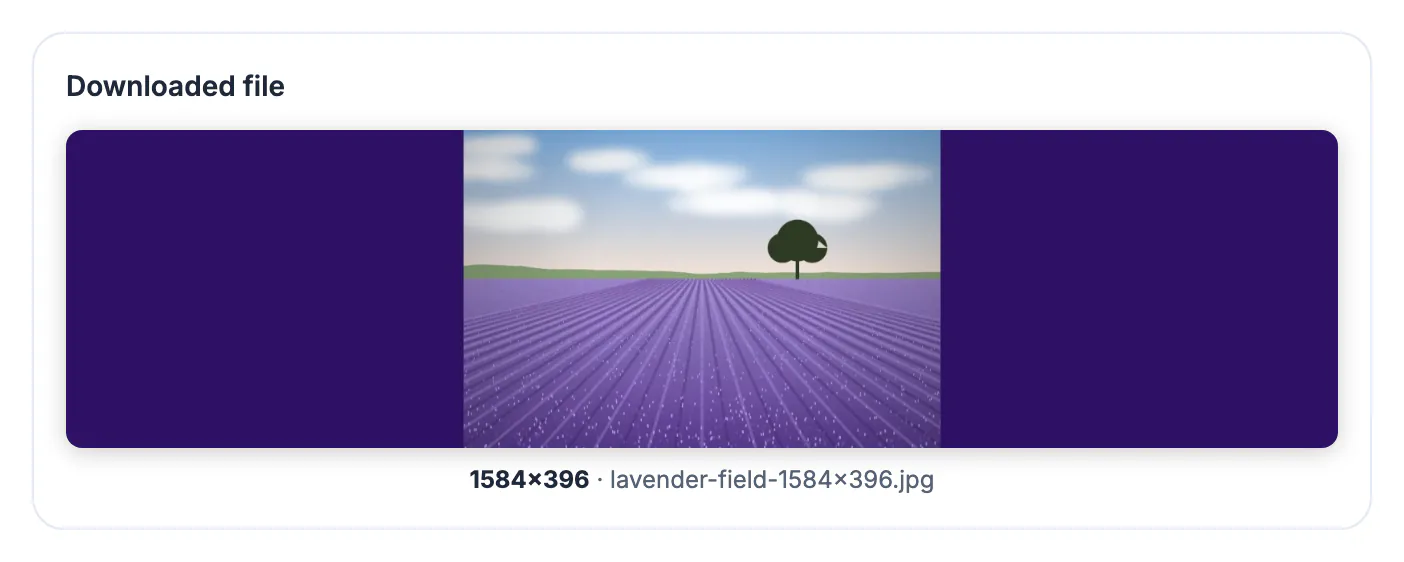
Every network crops or rescales images that do not match its expected shape. Upload a wide photo to a Story and the app zooms in; upload a small graphic to a banner and it turns soft; upload a portrait to a link preview and faces get cut at the chin. Starting at the exact pixel size means the platform does as little as possible to your image, so text stays sharp and the subject stays where you put it. It also keeps files lighter, which helps them load quickly on phones.
The social media image sizes cheat sheet
These are the sizes built into the Resize Image presets, grouped by network. Width comes first, then height, in pixels.
- Instagram: square post 1080×1080 (1:1), portrait post 1080×1350 (4:5), Story and Reel 1080×1920 (9:16)
- TikTok: 1080×1920 (9:16) for photo posts and video covers
- YouTube: thumbnail 1280×720 (16:9), channel banner 2560×1440
- Facebook: cover 1640×624, shared post and link image 1200×630
- X (Twitter): in-feed post 1600×900 (16:9), profile header 1500×500 (3:1)
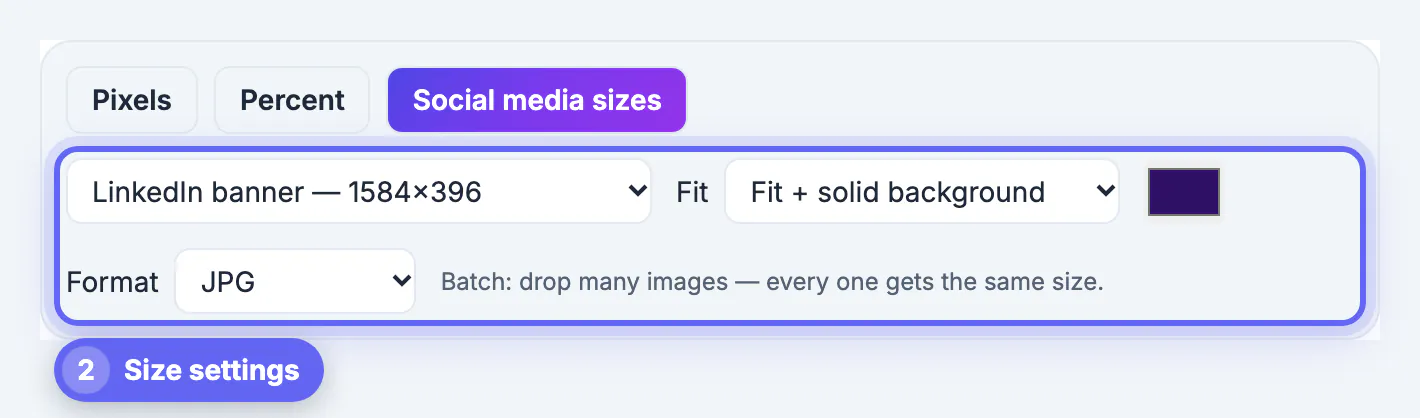
- LinkedIn: feed post 1200×627, profile or page banner 1584×396 (4:1)
- Pinterest: standard pin 1000×1500 (2:3)
- Websites and link previews: Open Graph image 1200×630
Platforms adjust their layouts every year or two, so treat these as safe upload sizes rather than laws. They are all large enough to look sharp on high-density phone screens.
Aspect ratio first, pixels second
Pixels decide sharpness, but the aspect ratio decides what gets cut. Two images at 1080 pixels wide look completely different at 1:1 and 9:16.
- Vertical wins on phones: 4:5 feed posts and 9:16 Stories take up more of the screen than squares
- Banners are extreme shapes: 3:1 and 4:1 leave little height, so crop to a horizontal strip of the photo
- The Facebook cover preset is 1640×624, roughly twice the classic 851×315 display size, so it stays crisp on large and high-density screens
- The YouTube banner displays differently on TV, desktop and phone; keep logos and text inside the central area of about 1546×423
Crop to fill or blurred fit: pick per network
When the photo's shape does not match the target, the tool offers three fit modes. Choosing the right one is the difference between a polished post and an awkward one.
- Crop to fill: scales the image until it covers the whole frame and trims the edges; best when the subject is centered with space around it
- Fit with blurred background: shows the entire photo and fills the empty bars with a soft, darkened blur of the same image; ideal for turning a horizontal photo into a 9:16 Story
- Fit with solid background: shows the full image on a color you pick, which suits logos, screenshots and product shots on white
- Format: keep the original, or export JPG for photos, PNG for graphics with sharp text, or WebP for smaller files
A good habit is crop to fill for square and portrait feed posts, blurred fit for Stories and Reels made from landscape shots, and solid fit for banners that carry a logo.
Need exact ratios? See cropping for 4:5 Instagram portraits and 9:16 Stories and Reels.
Safe zones and text placement
Even at the perfect size, parts of your image will be hidden by app buttons, profile photos or cropping on smaller screens.
- Stories and Reels: keep text out of roughly the top 250 and bottom 250 pixels, where names, replies and captions sit
- X and LinkedIn headers: the profile photo overlaps the lower left, so keep faces and logos centered or to the right
- Instagram profile grid previews now appear taller than square, so keep the subject centered in portrait posts
- Thumbnails are judged at tiny sizes: three to five large words at most, with strong contrast
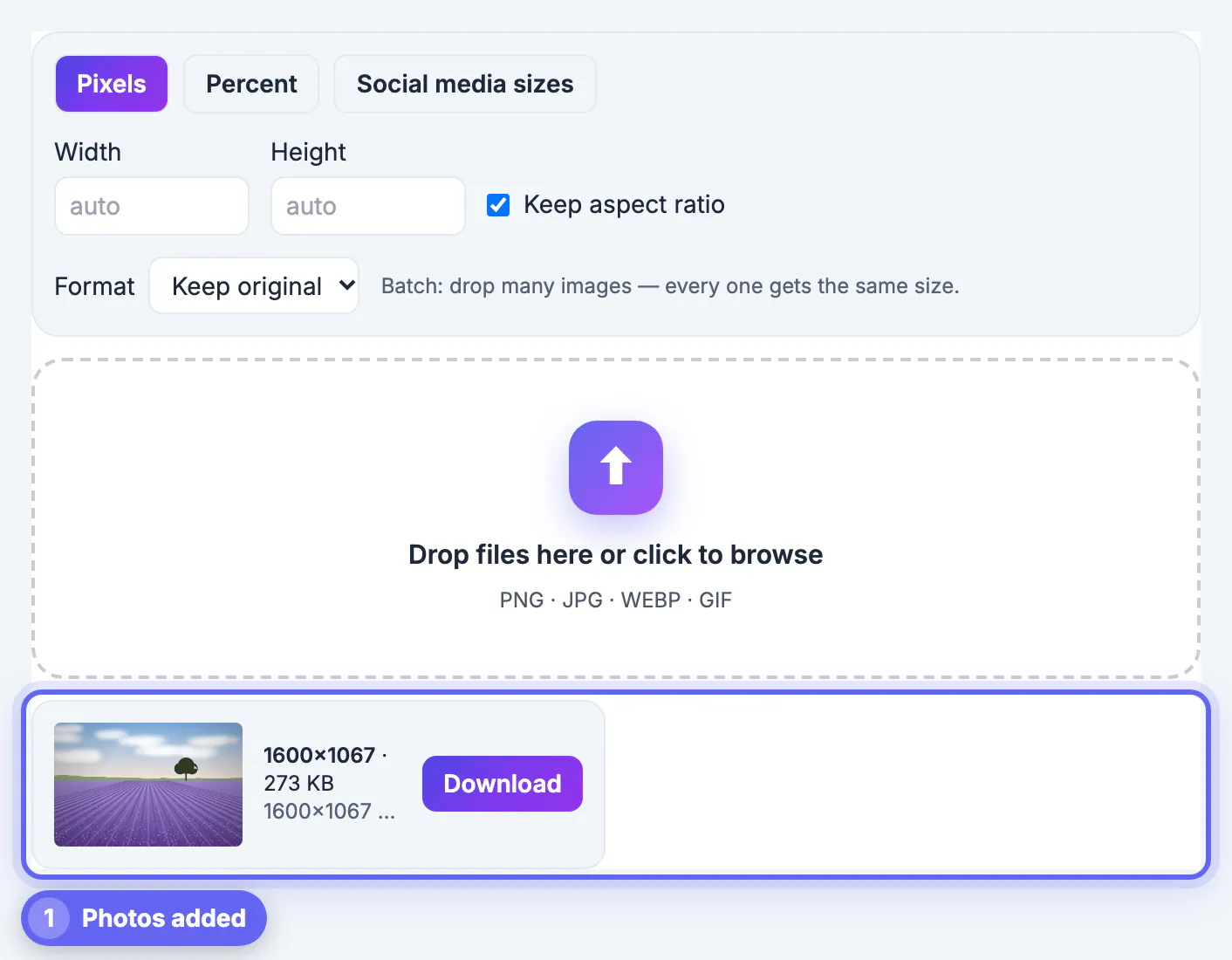
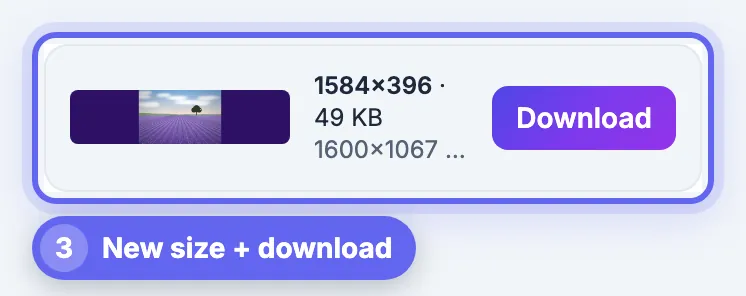
Step-by-step
Common mistakes to avoid
Pro tips
Frequently asked questions
What is the best image size for Instagram
Use 1080×1350 (4:5) for feed posts to take up the most screen space, 1080×1080 for squares, and 1080×1920 for Stories and Reels.
Are my photos uploaded when I resize them
No. Resize Image processes every file in your browser and saves the results to your device, so the photos never leave your computer or phone.
Which size works for both Facebook and LinkedIn link posts
A 1200×630 image works for Facebook link posts and Open Graph previews, and LinkedIn's 1200×627 is close enough that the same image displays well on both.
Why does my banner look blurry
Usually the original was too small or it was stretched. Start from a large photo, use the exact banner preset, and save as PNG if it contains text. Some networks also recompress uploads, so a slightly larger, cleaner source file survives that step better.
Can I resize many images to the same size at once
Yes. Drop several images after choosing a preset and every one is resized the same way, with a single ZIP download for the whole batch.
Match each network's aspect ratio first, then its pixel size: 4:5 or 1:1 for feeds, 9:16 for Stories, Reels and TikTok, 16:9 for thumbnails and wide 3:1 or 4:1 for banners; resize from a large original, pick crop or blurred fit, and keep text inside the safe zones.
Related guides
Browse more: all image guides · the Resize Image tool