851x315 Facebook Cover: Sizing for Desktop and Phones
To make a Facebook cover at 851x315 pixels, resize your photo to 851 pixels wide with the aspect ratio locked, crop it to exactly 851 by 315, and keep text and logos inside the central 560 pixels so the phone view does not cut them off. 851 by 315 is the upload size Facebook's help pages have long recommended for fast loading, while a double-size 1640 by 624 file looks sharper on large and high-density screens. This guide covers both routes, the exact crop math for phones, and the file settings that keep text crisp.
📐 Try Resize Image now — freeOpen →
Facebook shows the same upload in two frames. On a computer, Page banners have been displayed at about 820 by 312 pixels, a wide 2.63:1 strip; on a smartphone, at about 640 by 360, which is 16:9 and much less wide. The phone frame therefore shows the full height but only the middle of the width. A layout that uses the whole banner on desktop loses its outer edges on phones, where most visitors see it. Sizing the file correctly is easy; placing the content for both frames is the real work.
851x315 or 1640x624: which size to upload
Both are valid, and they serve different goals.
- 851 by 315 is the classic recommendation: small, quick to load, and close to the desktop display size. The help center has advised an sRGB JPG under about 100 KB for the fastest loading.
- 1640 by 624 is exactly twice the 820 by 312 desktop display size, so it stays crisp on Retina laptops and big monitors. GrabCast's Social media sizes list includes it as the Facebook cover preset.
- The two shapes differ slightly, 2.70:1 versus 2.63:1, so the site trims a few pixels to fit either one; nothing important should sit at the very edge anyway.
- The minimum is 400 by 150 pixels, and Meta has redesigned its layouts several times, so recheck the view on your own Page after uploading.
Get exactly 851 by 315 in two steps
Typing 851 and 315 into a resizer with the aspect ratio locked fits the photo inside that box instead of filling it, and unlocking it stretches the photo. The reliable route is resize, then crop.
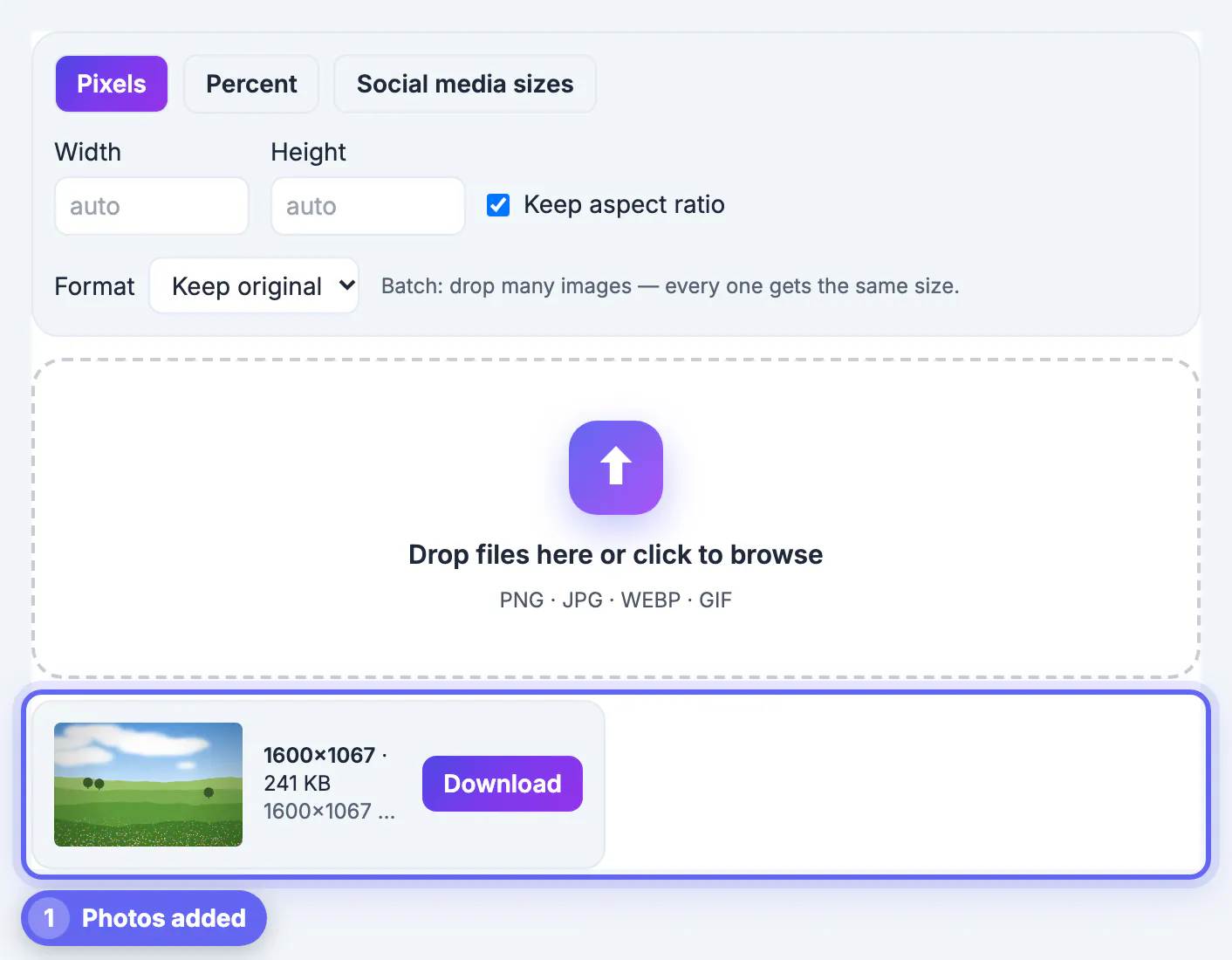
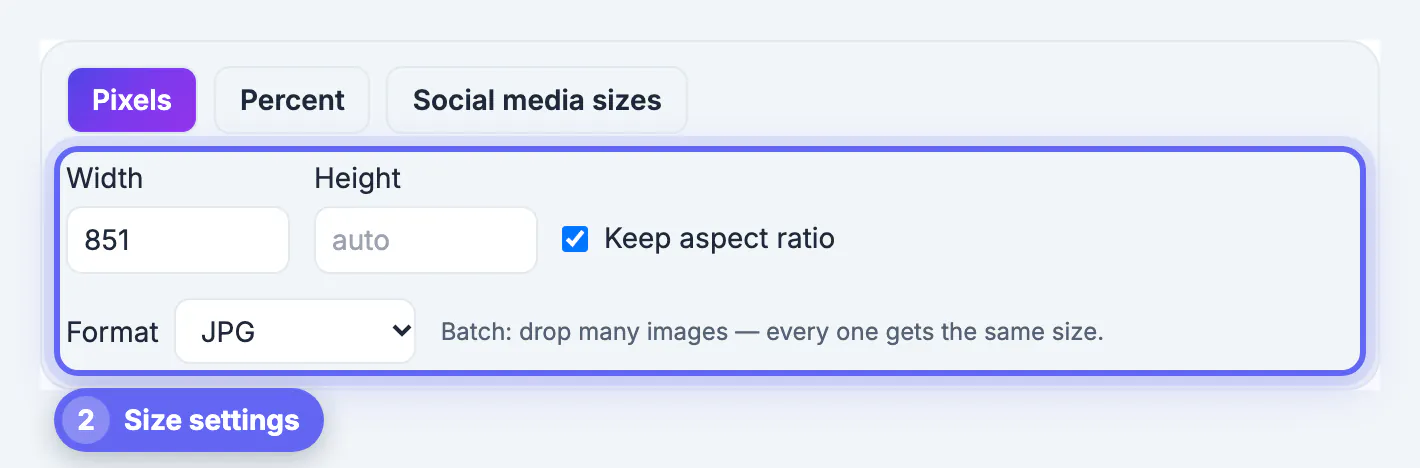
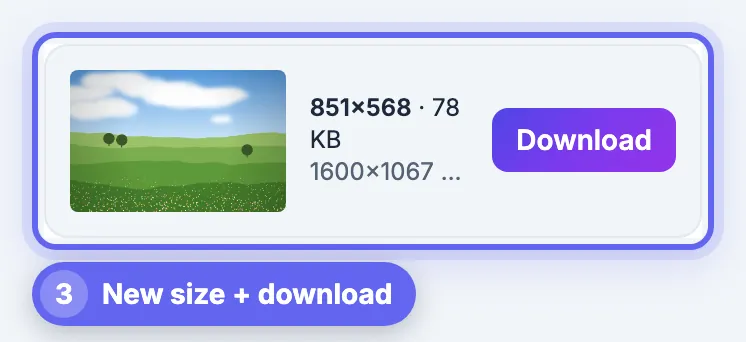
- In GrabCast Resize Image, choose Pixels, type 851 in Width only and leave Keep aspect ratio ticked. A 4032 by 3024 photo becomes 851 by 638.
- Open Crop Image, choose Free, and type 851 for W and 315 for H.
- Drag the box up or down to choose which band of the photo becomes the banner, then click Crop and download. The format stays the same unless you change it.
- For the sharper version, skip both steps and use the Facebook cover preset at 1640 by 624 with Crop to fill, or Fit with a solid color for a logo on a plain background.
The phone crop, in pixels
Because the phone frame is 16:9, it shows the full 315 pixel height and about 560 pixels of the 851 width. That leaves roughly 145 pixels cut from each side. On a 1640 by 624 upload the same crop removes about 265 pixels per side.
- Keep the Page name, slogan and logo inside the central 560 by 315 area of an 851 file, or 1110 by 624 of the double-size version.
- Use the outer bands for background only: sky, texture, a crowd, a color gradient.
- On desktop the profile picture sits near the lower left, so leave that corner free of text as well.
- Check the result on both a laptop and a phone before announcing a campaign.
Meta can also change these frames without notice, so a quick phone check after every new upload beats trusting any fixed number.
Keep text and logos crisp
A banner with text suffers most from recompression. Meta's own guidance suggests a PNG file for banners that include a logo or text, since JPG smears the edges of letters.
- Export PNG for text-heavy banners and JPG for pure photos. GrabCast's resizer and Crop Image both let you pick the format.
- Make lettering large, at least 30 to 40 pixels tall on an 851 wide file, because the phone view shrinks it further.
- Avoid thin fonts and pure red text on dark backgrounds; both break up under compression.
- Keep the file small. If a PNG is over a megabyte, try a high-quality JPG and compare the lettering side by side.
A useful habit is to zoom the finished file to 50 percent on your screen before uploading. That roughly matches how large the banner appears on a phone, and any line of text that is hard to read at that zoom will be harder to read in the app.
Need a tagline on the banner? Add it with the Add Text to Image tool and keep it inside the central safe area.
Step-by-step
Common mistakes to avoid
Pro tips
Frequently asked questions
What size is a Facebook cover photo?
851 by 315 pixels is the long-standing recommended upload for fast loading. Desktop has displayed Page banners at about 820 by 312 and phones at about 640 by 360, so a double-size 1640 by 624 file is a common choice for sharpness.
Why is my banner cut off on mobile?
The phone view is 16:9, so it shows the full height but only the middle of the width, roughly 560 of 851 pixels. Keep text inside that central zone.
Should I use PNG or JPG?
PNG for banners with a logo or text, which keeps lettering sharp, and JPG for photos, which keeps the file small. Facebook has recommended an sRGB JPG under about 100 KB for the fastest loading.
Can GrabCast produce exactly 851x315?
Yes, in two steps: resize to 851 wide with the aspect ratio locked, then crop to 851 by 315 in Crop Image. Its Facebook cover preset gives the larger 1640 by 624 in one step.
Are my files uploaded to resize them?
No. Resize Image and Crop Image both work inside your browser, and the files download directly to your device. That makes them safe for unreleased event artwork or client banners you are not ready to publish.
An 851x315 Facebook cover is a wide desktop banner that phones show only the middle of. Resize to 851 wide, crop to exactly 851 by 315, keep text within the central 560 pixels and away from the profile picture, and choose PNG for lettering. For extra sharpness, use GrabCast's 1640 by 624 preset instead.
Related guides
Browse more: all image guides · Resize Image