1500x500 Twitter Header: Layout Around the X Profile Photo
To make a 1500x500 Twitter header, now officially the X header, resize your picture with a 3:1 preset, keep your logo and text in the upper right two-thirds so the round profile photo does not cover them, and export a JPG or PNG under X's file limit. The size itself takes seconds; the layout is where most headers go wrong, because the profile photo overlaps the lower left and phones trim the edges. This guide gives approximate pixel zones for both, shows the right fit mode for photos versus logos, and explains how to reuse the same design for LinkedIn and YouTube, which use very different shapes.
📐 Try Resize Image now — freeOpen →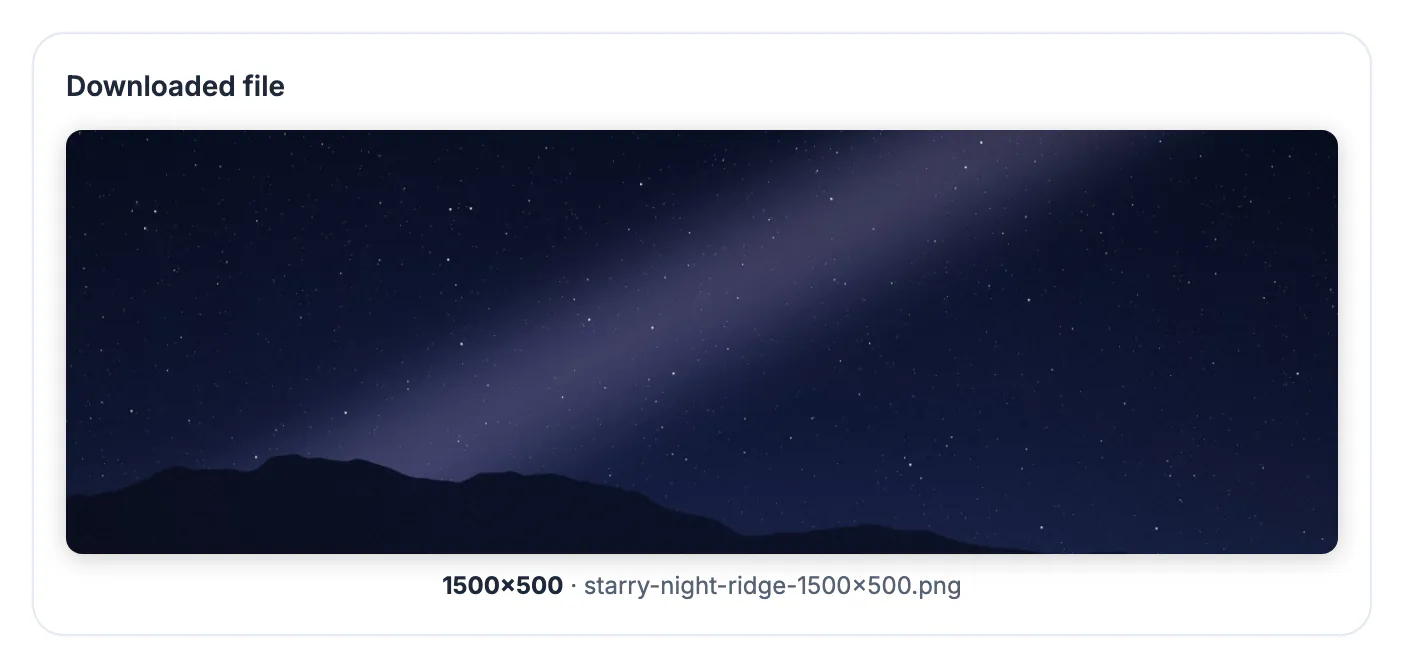
The header is the widest, most visible picture on your profile, and X places other elements on top of it. The avatar sits over the lower left, the follow and edit buttons appear below the right side, and on phones the header shows in a shorter frame under the status bar. A design built edge to edge in a desktop editor loses its most important part to one of these. Knowing roughly where the overlaps fall lets you place a name, tagline or product shot where every visitor actually sees it.
Size the Twitter header to 1500x500
X's help pages have long listed 1500 by 500 pixels as the recommended header size, with JPG, PNG and GIF accepted and a file limit of about 5 MB. GIFs do not animate there.
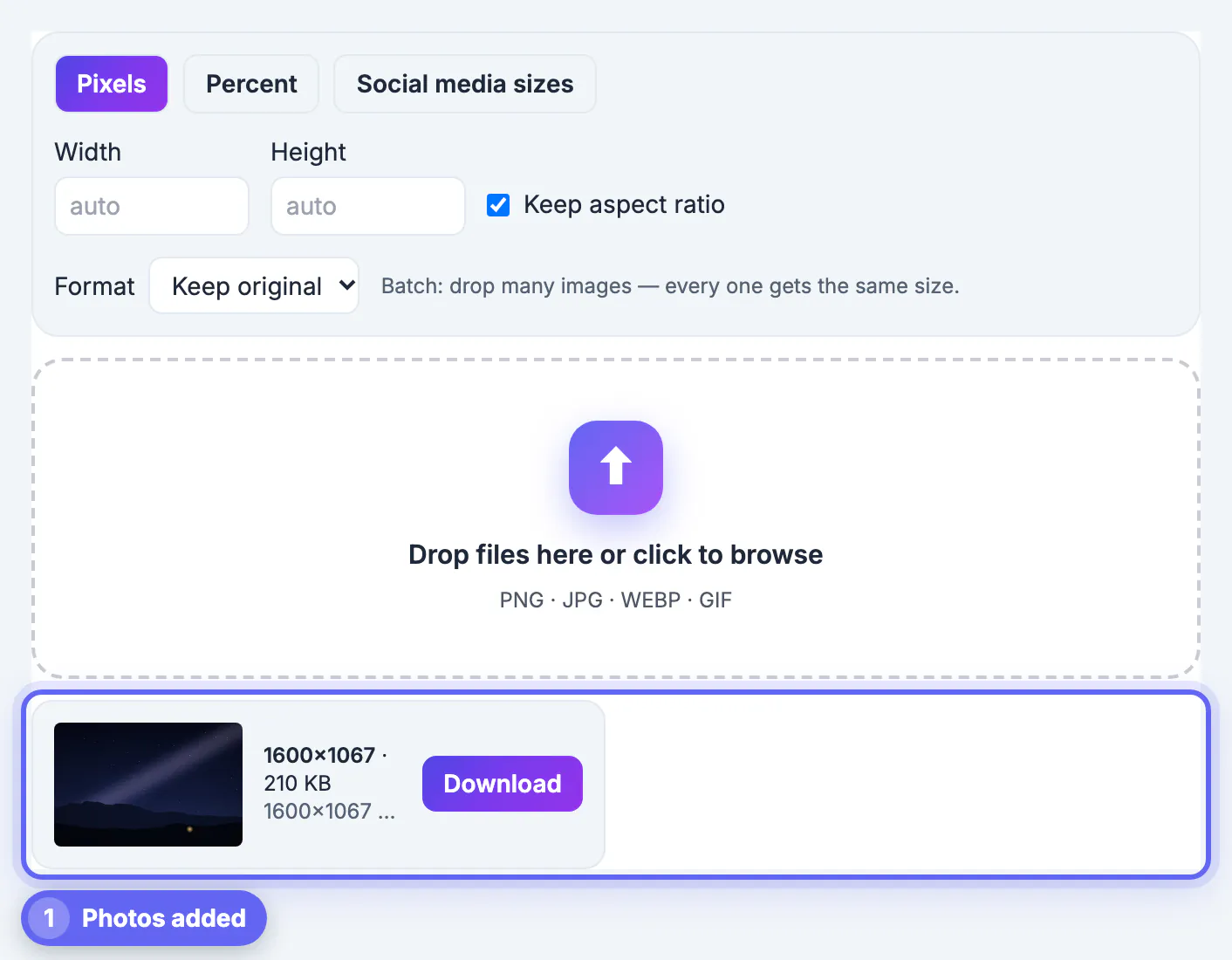
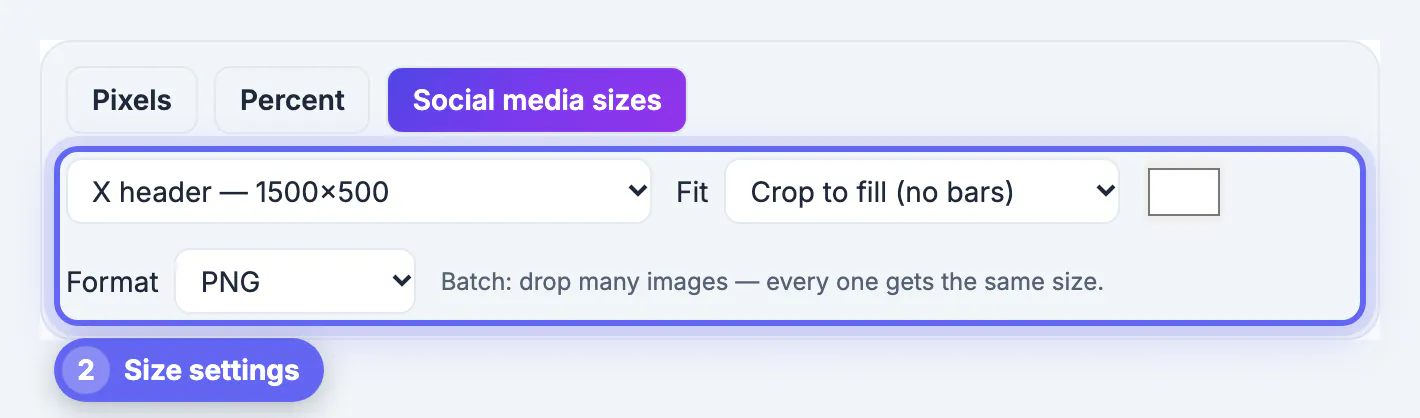
- In GrabCast Resize Image, choose Social media sizes, then X header at 1500 by 500.
- Crop to fill keeps the center of the photo. A 4032 by 3024 phone photo loses much of its height: only a band about 1344 pixels tall survives before scaling.
- Fit + solid background places a logo or wordmark on your brand color with no cropping.
- Fit + blurred background works for a tall photo you do not want to cut, such as a portrait of a product.
- If the best band of the photo is not the middle, crop to 3:1 first with a movable box, then resize.
Work around the profile photo and the phone crop
The exact positions vary between the website and the apps and change with redesigns, so these are working zones scaled to a 1500 by 500 file rather than official measurements.
- The round avatar covers roughly the lower-left 400 by 200 pixel area on desktop. Keep text and faces out of it.
- On phones the header appears shorter and the top edge sits under the status bar, back and menu buttons, so leave the top 60 to 80 pixels free of text.
- A central band from about 450 to 1450 pixels across and 80 to 380 pixels down is the most reliable place for a name or tagline.
- Right-aligned text works well, because the left side is already busy with the avatar and your display name below it.
- Preview on the website and in the app before you announce a rebrand.
Adding a tagline to the header? The Add Text to Image tool places it, and the Color Contrast Checker confirms it stays readable on the photo.
One design, three banners: X, LinkedIn and YouTube
Creators and small brands usually want matching headers everywhere, but the shapes differ a lot, and a batch resize applies one size to all files, not several sizes to one file.
- X header: 1500 by 500, a 3:1 strip.
- LinkedIn banner: 1584 by 396, a narrower 4:1 strip, and its profile photo also overlaps the left side. The preset is in the same list.
- YouTube banner: 2560 by 1440, but only a central area of about 1546 by 423 pixels shows on every device, so the text must live there.
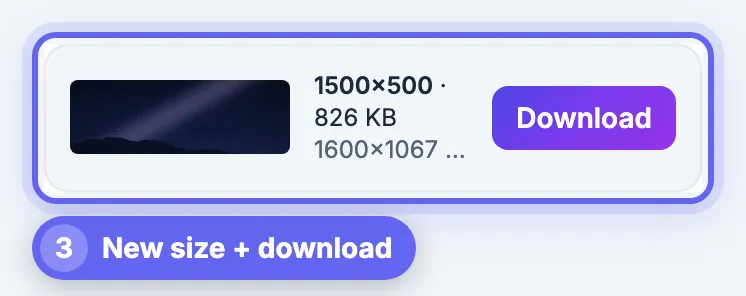
- Run the same source file through each preset in turn; switching presets re-renders instantly, and every download names its size in the file name.
- Design around a centered wordmark and a plain or textured background, and all three banners crop gracefully.
Keeping one master file at a generous size, for example 3000 pixels wide, means every future size is a downscale, which always looks better than stretching a small file up to a bigger banner.
Keep the header sharp
Headers stretch across wide monitors, so softness shows. Start from a large, sharp source and keep compression under control. A 1500 by 500 photo export at 90 percent quality typically weighs a few hundred KB, comfortably inside the limit, so there is no reason to squeeze it harder and add blocky artifacts to smooth skies or gradients.
- Use a source at least 1500 pixels wide. If you only have a small logo, use the solid background fit rather than enlarging it.
- Choose PNG for flat colors and text, JPG for photos; GrabCast saves JPG and WebP at 90 percent quality.
- Transparent areas turn white in a JPG, so pick PNG or add a background color if your logo has transparency.
- Avoid tiny text; the header is shown far smaller than 1500 pixels on most phones.
- Re-check after X updates its apps, since the crop and avatar position have shifted over the years.
Step-by-step
Common mistakes to avoid
Pro tips
Frequently asked questions
What size is a Twitter or X header?
1500 by 500 pixels, a 3:1 ratio, is the recommended size. X accepts JPG, PNG and GIF files up to about 5 MB, and it does not animate GIF headers.
Where does the profile photo cover the header?
The round avatar overlaps the lower-left corner, roughly the lower-left 400 by 200 pixels of a 1500 by 500 file on desktop. Keep text and logos out of that area.
Why does my header look cut off on my phone?
The apps show the header in a shorter frame, with the status bar and buttons over the top edge. Keep important content in a central band and preview in the app.
Can I use the same file for LinkedIn and YouTube?
Not directly, because the shapes differ. Run the same source through GrabCast's LinkedIn banner and YouTube banner presets, and keep text centered so each crop still works.
Is my header uploaded to GrabCast?
No. The resize happens in your browser and the file downloads straight to your device, ready to upload to X yourself. Nothing is stored on a server, so unreleased campaign artwork or client branding stays private until you publish it.
A 1500x500 Twitter header takes seconds to size and a little planning to lay out. Use the X header preset, keep text and logos in a central band away from the lower-left avatar and the top edge, choose PNG for text and JPG for photos, and reuse the source for LinkedIn and YouTube with their own presets. GrabCast does it free in your browser.
Related guides
Browse more: all image guides · Resize Image