Crop Profile Picture for a Circle: Avatar Guide
To crop profile picture files that look right inside a circle, start with a square and keep your face within the middle 70 percent, because every platform masks the four corners away. LinkedIn, X, Zoom, Google, Discord, GitHub and Microsoft Teams all display round avatars, and a circle inscribed in a square hides about 21 percent of the image. A head that looked well framed at first can end up with a clipped ear or a missing chin. Here is how to frame once and reuse the file everywhere.
✂️ Try Crop Image now — freeOpen →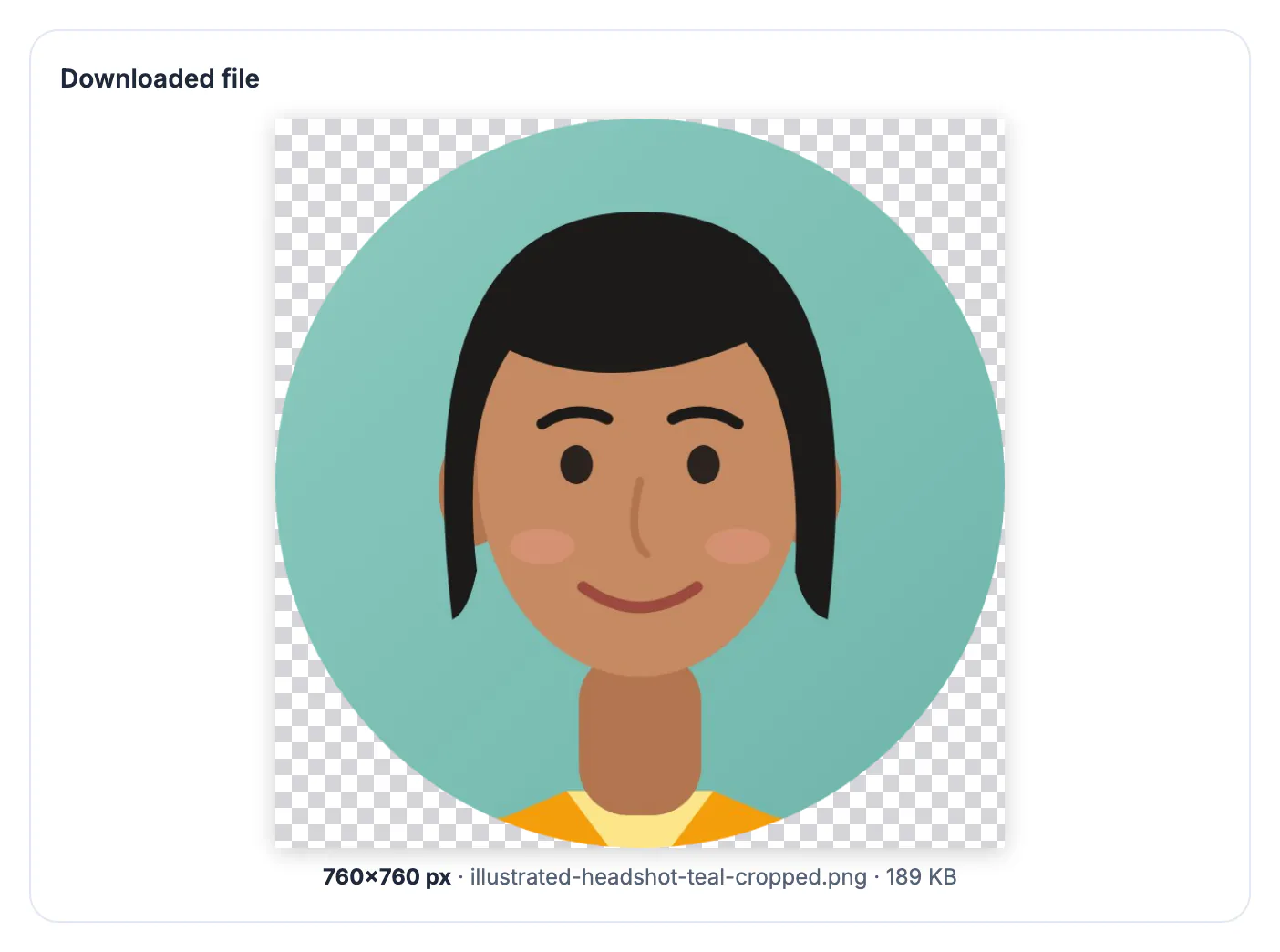
Almost every service stores your avatar as a square and draws a circle over it at display time. The math is fixed: the area of a circle is pi over four of the square around it, so roughly 21.5 percent of your picture, all of it in the corners, never appears. Shoulders, hair and the edges of a wide smile tend to live near those corners in a tightly cropped headshot. The second problem is size. Your avatar shows up at 400 pixels on a profile page, but at 32 to 40 pixels in a Slack sidebar, a Gmail thread or a Zoom participant list. At that size a full-body shot becomes a colored dot, and only a close, high-contrast head and shoulders crop stays recognizable to colleagues and followers. Consistency matters as much as framing. When the same avatar appears on LinkedIn, Slack, Zoom and GitHub, colleagues connect your name to a face faster, recruiters recognize you across sites, and a small business looks coordinated. Making one careful master crop and reusing it is faster than fixing each upload separately.
Where the circle cuts and how to frame for it
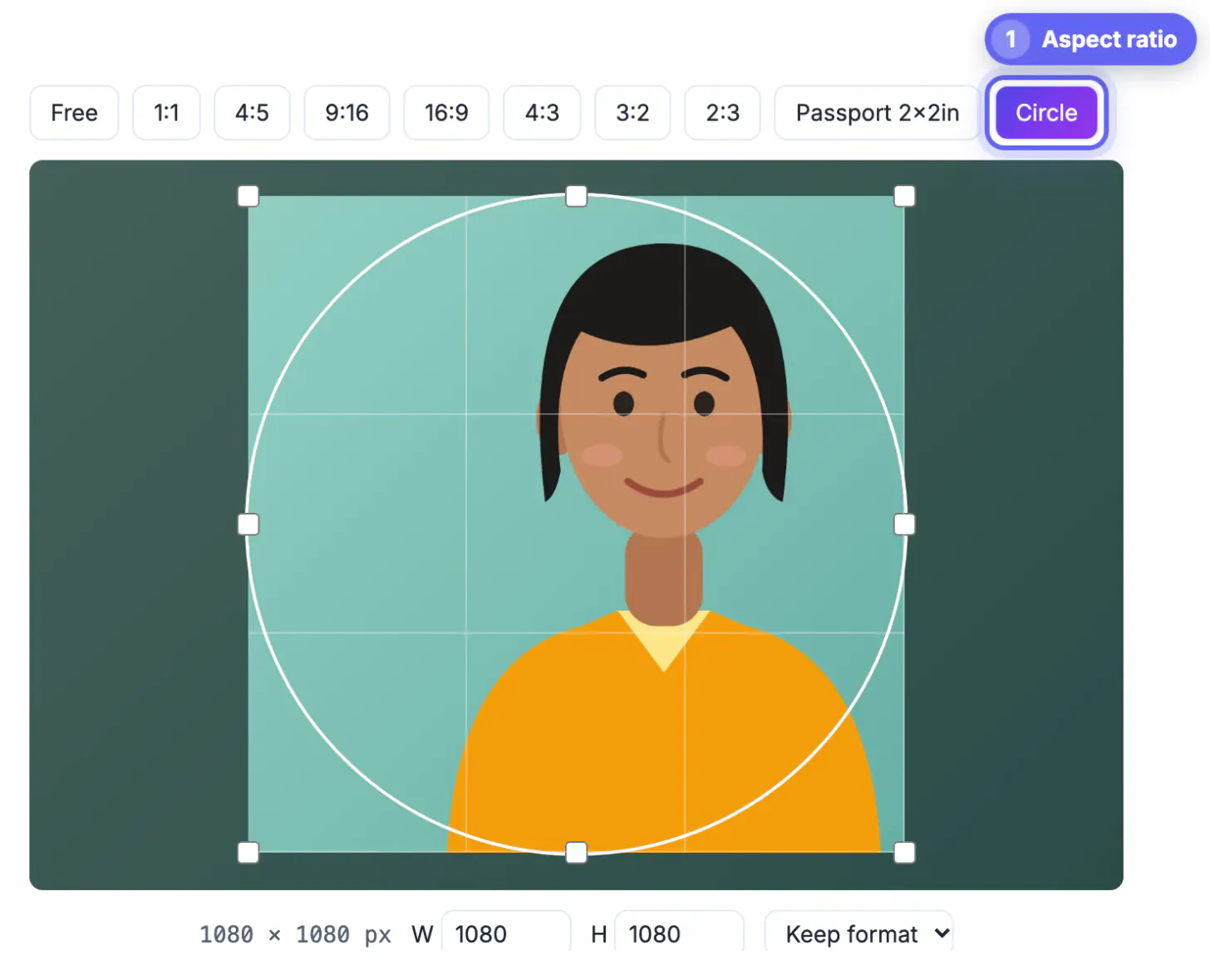
Imagine the round mask touching the middle of each side of the frame. Everything important must fit inside it, with some air.
- Keep the face inside the central 70 percent of the width
- Place the eyes about 40 percent down from the top, slightly above center
- Leave a small gap above the hair; the mask clips the top curve faster than you expect
- Let shoulders run out of the bottom of the frame rather than ending at a hard line
- Head plus a bit of shoulder should fill about 60 percent of the diameter
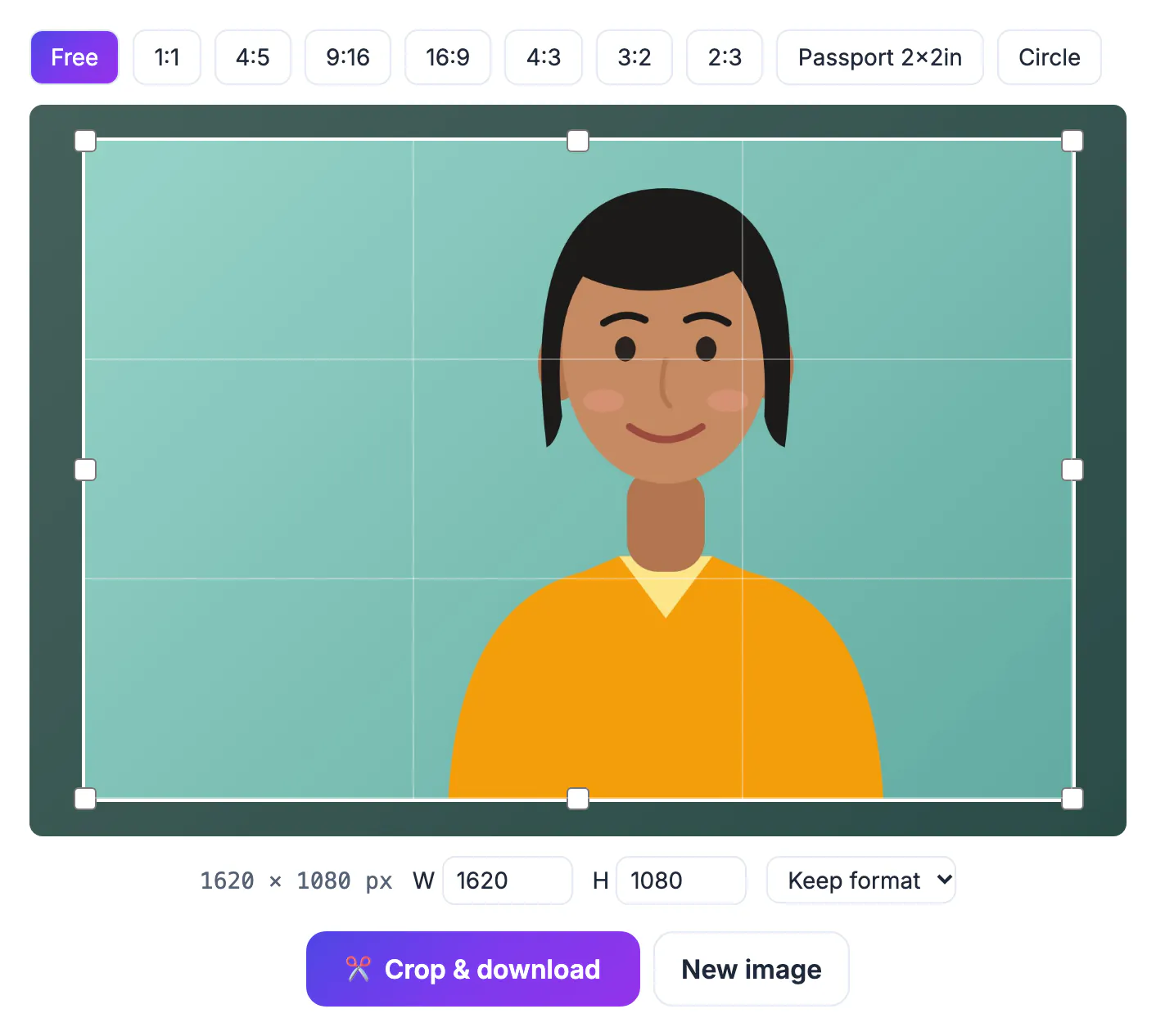
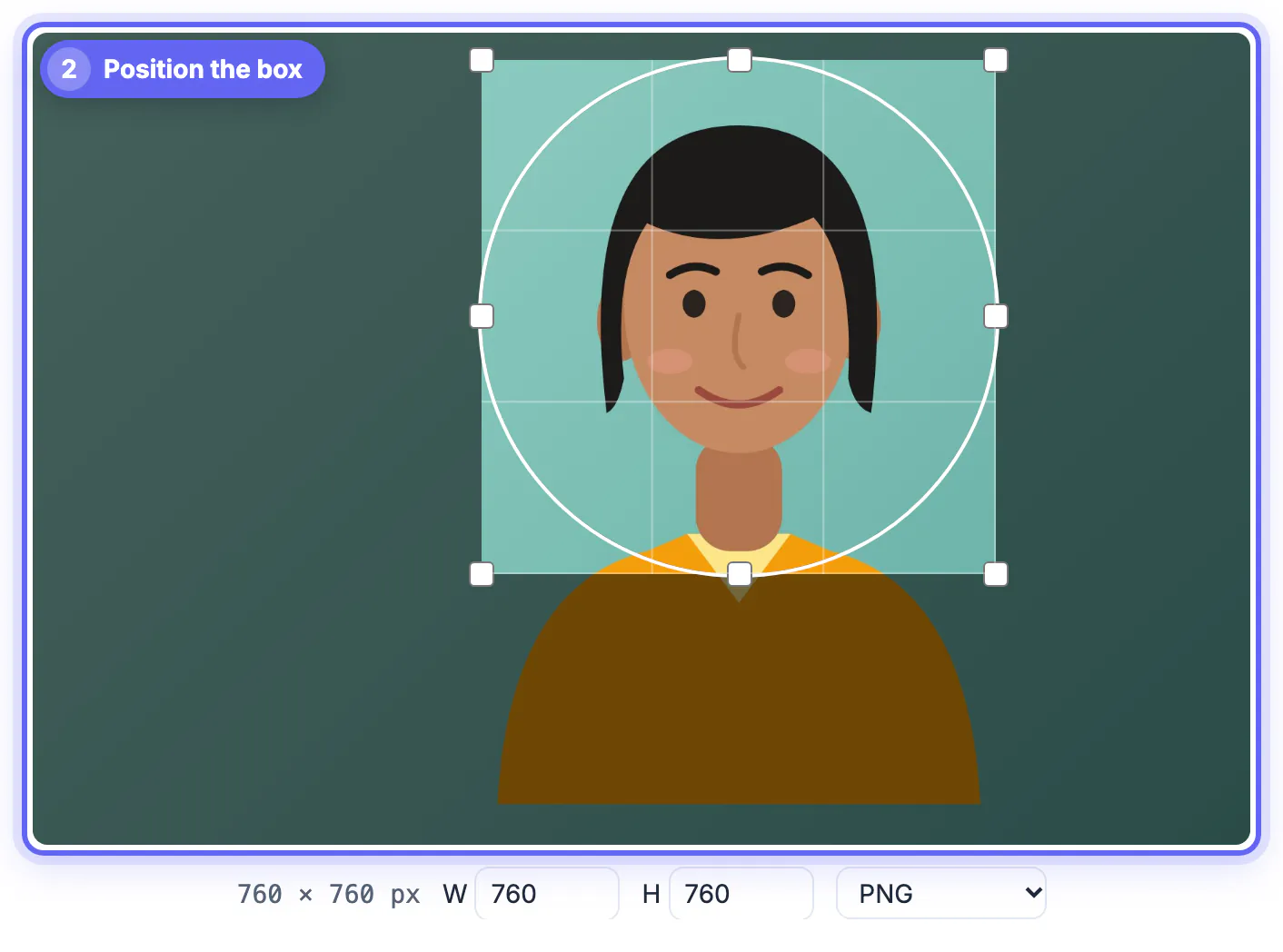
Choose the Circle preset in Crop Image to preview the exact round mask while you drag the box.
Avatar sizes by platform
Upload larger than the display size so the image stays sharp on high-density screens. These are the commonly recommended upload sizes.
- LinkedIn: 400 x 400 recommended, round display
- X (Twitter): 400 x 400, round display
- Instagram: displayed at about 110 pixels, round; 320 x 320 or larger works
- Slack: at least 512 x 512, shown with rounded corners rather than fully round
- Discord and GitHub: round display; 512 x 512 or larger keeps edges crisp
- Zoom, Google Account and Microsoft Teams: round display from any 1:1 upload
One 800 x 800 master file covers all of them. Platforms that want smaller simply scale it down.
Square upload or transparent circle PNG?
The Circle preset exports a PNG with transparent corners. That is ideal in some places and unnecessary in others.
- For LinkedIn, X, Zoom and similar sites, upload the plain 1:1 file; the platform applies its own mask
- A transparent round PNG is useful in email signatures, slide decks, team pages and websites
- Some apps fill transparent corners with black or white, so test once before relying on it
- Choosing JPG with that preset switches to PNG automatically, since JPG cannot store transparency
Keep both: a 1:1 file for social sites and a round PNG for documents you design yourself.
Making a small avatar recognizable
Most people see your picture at thumbnail size next to a message or comment, not on your profile page.
- Crop tighter than feels natural; at 40 pixels, a face should fill most of the frame
- Pick a background that contrasts with your hair and clothing
- Avoid busy patterns behind you, which turn into noise when shrunk
- Use the same picture across work tools so teammates recognize you instantly
Zoom your browser out to around 25 percent after cropping for a quick check of how the avatar reads small.
Want rounded corners or a circle preview? The Round Corners & Circle Crop tool does it, and removing a white background suits logo avatars.
Step-by-step

Common mistakes to avoid
Pro tips
Frequently asked questions
What shape should I upload for a round profile picture?
A square. Nearly every platform stores a square and applies the circle itself, so a square with the face centered works everywhere. Keep your eyes slightly above center and leave space above the hair so the round mask does not clip it.
How much of my photo does a circle hide?
About 21.5 percent, all from the four corners. Anything in those corners disappears on round displays. Anything placed there, such as a badge or logo, should move toward the middle.
What size is best for a LinkedIn profile picture?
LinkedIn recommends 400 x 400 pixels. Uploading 800 x 800 gives extra sharpness on high-density screens. X, Instagram and most other networks accept the same file, so one master works everywhere.
Why does my circle PNG have black corners?
Some apps do not support transparency and fill the empty corners. Upload a plain square to those services instead. Email signatures and web pages are where transparent round files shine, since you control the background.
Does the avatar crop upload my photo?
No. The cropping and PNG export happen inside your browser, so the photo is not sent to a server. Nothing is stored after you close the tab.
Crop a square with your face in the middle 70 percent and eyes just above center, preview it with the Circle preset, and upload the square to social profiles. Save a transparent circle PNG for signatures and slides.
Related guides
Browse more: all image guides · Crop Image