Make a Professional Profile Picture Free From a Selfie
You can make a professional profile picture free with the phone in your pocket and about fifteen minutes. The recipe: shoot or pick a well-lit photo, remove or soften a busy background, frame your face for a circle crop, and export a crisp 800×800 PNG. Recruiters, clients and teammates judge a thumbnail in under a second, and most of what makes a headshot look expensive is light and framing, not the camera. This guide walks through each decision so the finished photo holds up on LinkedIn, Slack, Zoom, a company page and a resume.
🙂 Try the Profile Picture Maker now — freeOpen →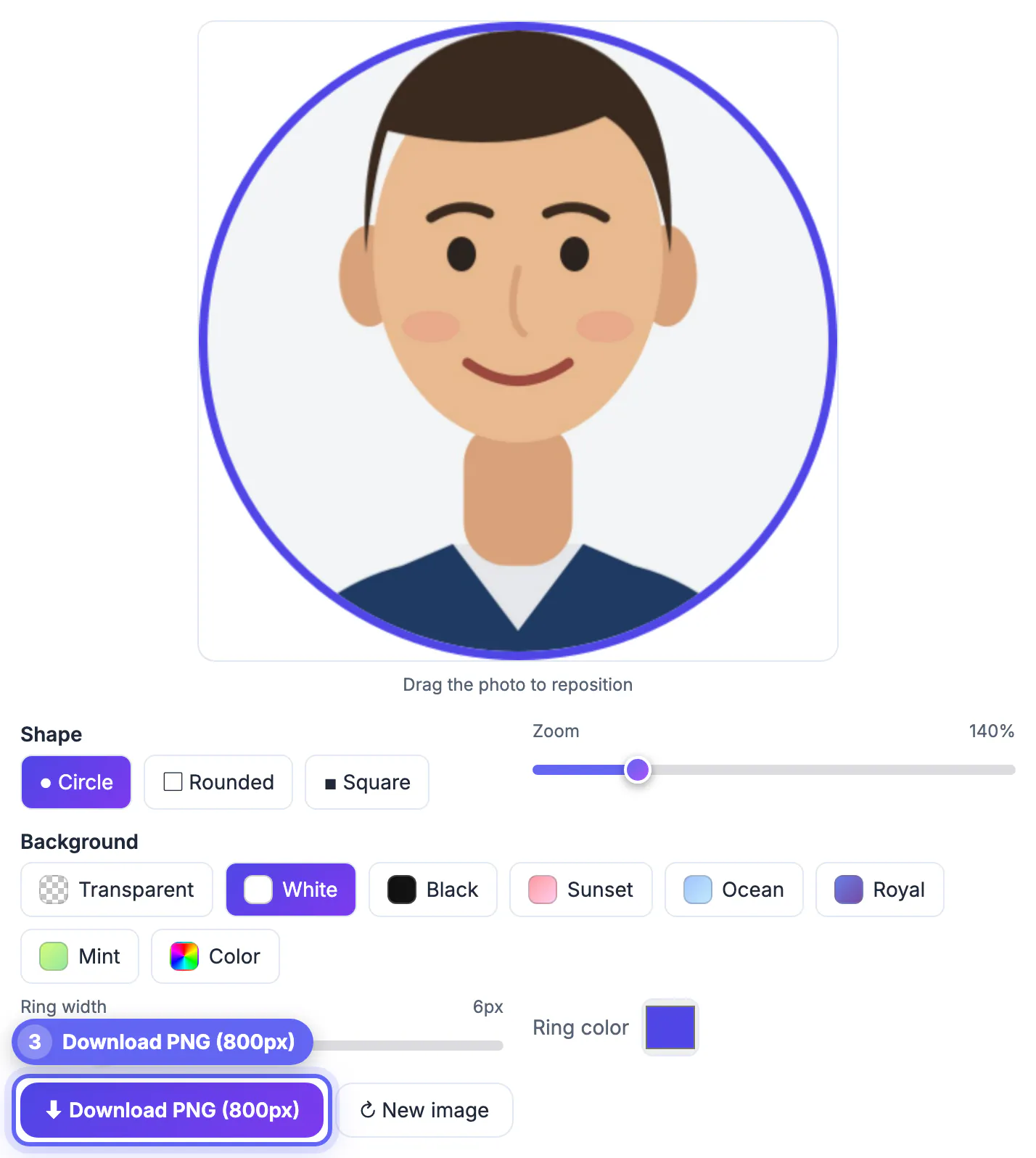
A studio session typically runs $150 to $400, and the result gets shrunk to a circle a few hundred pixels wide. At that size viewers register three things: whether your face is well lit, whether you look approachable, and whether the background is distracting. A modern phone handles the first, you handle the second, and free browser tools handle the third. Save the photographer for a book jacket, a press kit or a law-firm website where a matching house style matters. For everything else, a careful phone photo plus ten minutes of cleanup is indistinguishable in a thumbnail.
Shoot a better source photo in ten minutes
Editing cannot invent good light, so spend most of your effort here. You need a window, a plain wall, and a friend or a phone timer.
- Face a window on an overcast day or in open shade; overhead ceiling lights carve dark circles under the eyes
- Hold the phone at eye level or slightly above, four to five feet away, and use the 2× lens rather than the wide selfie camera, which stretches noses
- Stand a meter or more in front of the wall so the background has depth and is easier to clean up later
- Wear a solid, mid-tone top; busy patterns and pure white fight for attention in a small crop
- Take 20 or 30 frames and keep the one where your eyes are open and the smile reaches them
Shoot at full resolution. You will crop to little more than your head and shoulders, so a 12-megapixel original leaves plenty of detail for the final 800-pixel square.
Make a professional profile picture free of background clutter
Kitchen cabinets and door frames read as noise at thumbnail size. You have two clean fixes, and both run in your browser without uploading the photo.
- Soften it: Portrait Blur keeps you sharp and blurs the room behind you, a natural look that forgives stray hair
- Replace it: the AI Background Remover cuts you out, and you can pick a solid color, a gradient such as Studio, or download a transparent PNG
- Choose a backdrop that contrasts with your hair and top, such as slate blue behind dark hair or warm gray behind light hair
- Skip fake offices and bookshelves; a plain color ages better and never looks staged
A transparent cut-out gives you the most options later, because the Profile Picture Maker can then fill the empty area with white, black, a Sunset, Ocean, Royal or Mint gradient, or any custom color.
Frame the crop for circles and squares
LinkedIn, X, Discord, Slack and WhatsApp display avatars as circles, which trims the corners of a square. Frame for the circle first.
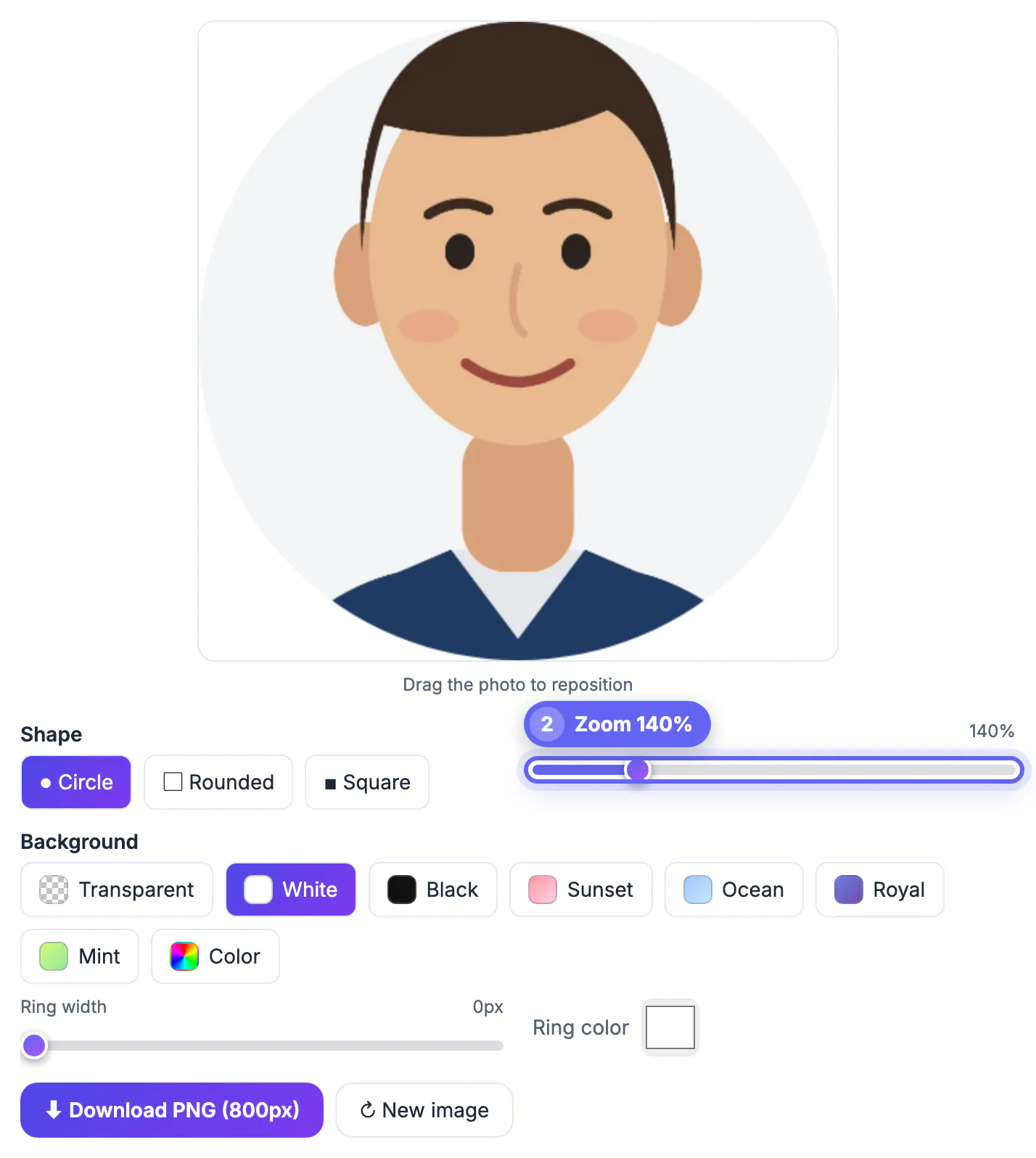
- In the Profile Picture Maker, keep Circle selected, drag the photo on the preview and use the Zoom slider, which runs from 100 to 300 percent
- Crop from mid-chest to just above the head, with your eyes roughly a third of the way down
- Center your face horizontally so the circle never clips an ear
- Leave a sliver of headroom; a crop that touches your hair feels cramped
- Use a colored ring sparingly: a thin one in a brand or accent color separates you from a white page, and Ring width 0 removes it
Rounded and Square shapes are there for platforms that show corners, such as some company directories and Microsoft Teams tiles, but a centered face works in every shape.
Export sizes and where each one goes
The Profile Picture Maker always downloads an 800×800 PNG, which is larger than LinkedIn, Discord, X and WhatsApp display it, so it stays sharp after each platform resizes it.
- LinkedIn recommends at least 400×400 pixels, so 800×800 gives you double for high-density screens
- Slack, Zoom, Google and Microsoft 365 accept square PNGs and apply their own circle mask
- Choose Transparent with the Circle shape if you want the avatar to float on slides or a website with no square corners
- For a resume header or email signature, a smaller copy of 200 to 300 pixels keeps the file light
Use the same image everywhere so people recognize you across tools, and refresh it every two or three years or after a big change in hair or glasses. Before uploading, preview the PNG on both a light and a dark app theme: a transparent circle that looked crisp on white can reveal a pale fringe around the hair on dark mode, and a solid backdrop avoids that entirely.
Step-by-step
Common mistakes to avoid
Pro tips
Frequently asked questions
Do I need a photographer for a professional profile photo?
Usually not. A well-lit phone photo, a clean background and a centered circle crop look professional at the sizes platforms display. A photographer is worth it for press kits and printed marketing.
Is my photo uploaded when I use the Profile Picture Maker?
No. Cropping, backgrounds and the ring are drawn in your browser. Your last photo and settings are kept on this device for a few days so you can pick up where you left off; New image clears them.
What size should a LinkedIn profile picture be?
LinkedIn asks for at least 400×400 pixels. The 800×800 PNG from the tool gives you double that, so it stays sharp on high-density screens.
Should the background be removed or blurred?
Either works. Blurring keeps a natural setting and hides imperfect hair edges; replacing it with a plain color or gradient looks cleaner and more consistent across a team page.
Can I use an AI-generated headshot instead?
You can, but it should still look like you on a video call. Polishing a real photo is usually the safer, more honest choice for recruiters and clients.
Good light, a calm background and a centered crop do ninety percent of the work. Shoot by a window, blur or remove the backdrop, frame for the circle, and export one 800×800 avatar you use everywhere, all free and without uploading your photo.
Related guides
Browse more: all image guides · the Profile Picture Maker